Similar to most brands, Samsung keeps certain features exclusive to its premium phones. Sometimes it's because of hardware limitations, as is the case with the new privacy display in the S26 Ultra; other times, it's because the company simply wants a feature to remain exclusive to certain phones.
That said, the Camera Assistant tool, which has long remained exclusive to S line devices, is now available on certain mid-range and budget Samsung smartphones as well. Here's what this app actually does and the list of devices on which you can use it now.
What is the Camera Assistant tool?
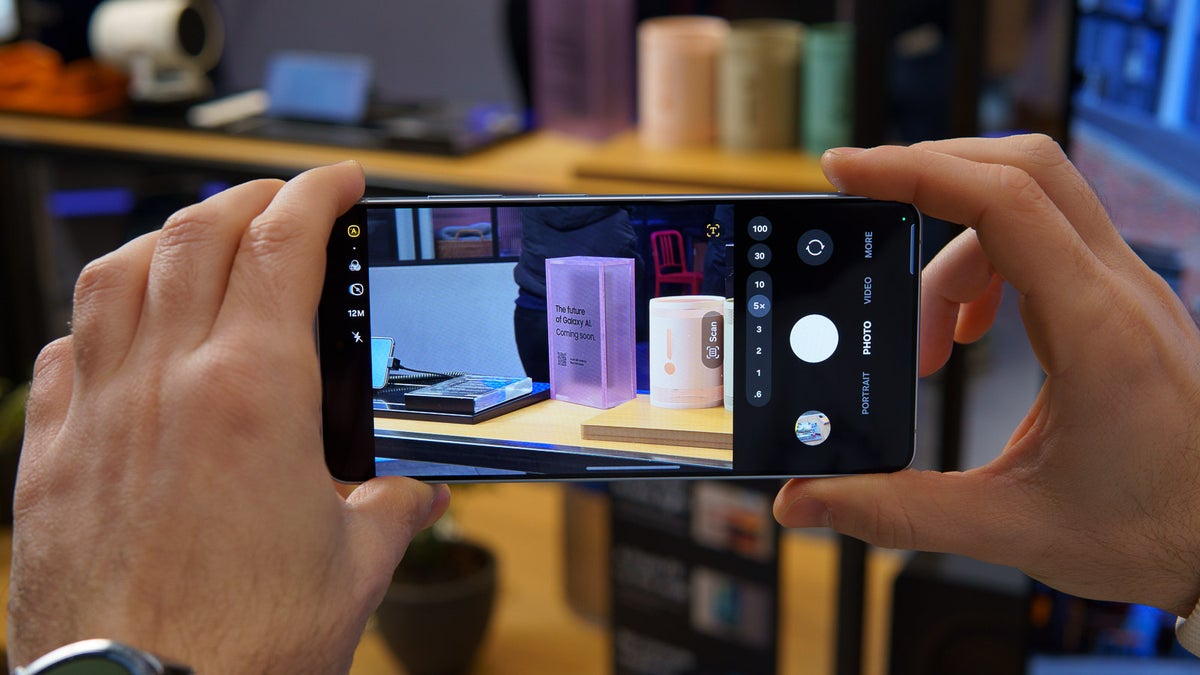
Most of you must be following a simple approach whenever you want to capture an image. You take out your Galaxy device from the pocket, open the camera app, adjust the object in the frame, and hit the capture button. However, if you wish to have better controls, or more importantly, if you would like to control how image processing actually happens when you hit the capture button, then you can use the Camera Assistant app.
So basically, it provides some extra options to fine-tune the behavior of the stock camera app. Initially, the tool was available only on the S line phones, but it was recently rolled out to the Galaxy A5x lineup as well.
Recommended For You
That means that you will find it on smartphones like the Galaxy A52, Galaxy A56, and the Galaxy A57. It's now trickling down to certain mid-range handsets as well with the One UI 8.5 update.
List of devices getting the Camera Assistant feature
Samsung has made the Camera Assistant tool available to 19 more devices, which include both tablets and smartphones. Here's the full list:
Galaxy A34
Galaxy M34
Galaxy A35
Galaxy M35
Galaxy A36
Galaxy M36
Galaxy Tab S8
Galaxy Tab S8+
Galaxy Tab S8 Ultra
Galaxy Tab S9
Galaxy Tab S9+
Galaxy Tab S9 Ultra
Galaxy Tab S9 FE
Galaxy Tab S9 FE+
Galaxy Tab S10
Galaxy Tab S10+
Galaxy Tab S10 Ultra
Galaxy Tab S10 FE
Galaxy Tab S10 FE+
To access the feature, you need to launch the camera app and open the camera settings menu. At the bottom of the page, you will find the Camera Assistant option. In case it is not available, you simply need to head to Good Lock or the Galaxy Store and download the Camera Assistant from there.
Do software features like Camera Assistant make you less interested in flagship phones?
19 Votes
Software capabilities is closing the gap faster than before.
15.79%
Midrange phones have become good enough for most users.
15.79%
Flagships still lead in real camera quality.
15.79%
Software tweaks help, but sensor quality is still king.
52.63%
A few of my favorite Camera Assistant capabilities
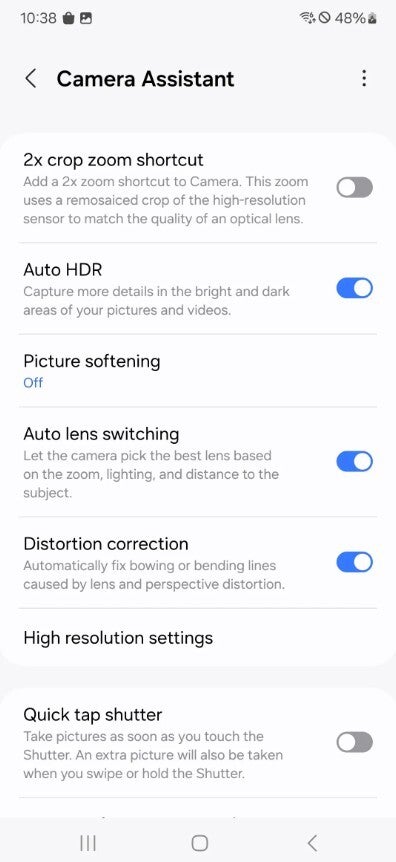
Camera Assistant settings page in a Samsung smartphone. | Image by Samsung
If you are into photography, then you can take advantage of the options that the Camera Assistant offers to capture some really great images and videos. Below are some of my favorite Camera Assistant abilities that I use regularly on my S26 Plus:
Auto lens switching: This is the first toggle I disable in the Camera Assistant settings. If it is enabled, it takes away the manual control from you to choose the lens for your photographs depending on your surroundings. Turning this off keeps me in control of what lens I want to use for my photos.
Prioritize focus over speed: Keeping this option enabled configures the camera to prioritize focusing on the object instead of the shutter speed. While you might experience a slight delay in the shutter release due to this setting, it may eventually help in getting more detailed shots.
Audio monitoring: This option basically shows the audio levels on the screen while you are recording a video. So, if you find that the audio source is too low or too high, you can make adjustments in real time instead of finding out later while watching the video.
Other brands need to come up with something similar
Although I have recently purchased the Galaxy S26 Plus, I use the Pixel 10 as my daily driver. I really wish that Google would introduce its own kind of camera tool for its
smartphones.
The post-processing of Pixel phones is really great, but I would really appreciate having more control over the images and videos. There's definitely Camera Coach, but I, personally, didn't find it very useful. All that said, it's worth noting that all the Camera Assistant settings that you find on flagship phones like the S25 Ultra might not be available in the budget devices like the Galaxy A35, and that's because of hardware limitations.
Free Galaxy A17 5G with Straight Talk
Get a free Galaxy A17 with Straight Talk. To claim this deal, you need to pair the phone with activation on a Silver Unlimited Plan or higher. This tier costs $45 per month. Offer valid through 01/10/27 while supplies last online.
Aman Kumar is a news writer at PhoneArena covering Google Pixel phones, Android features, AI-powered smartphone tools, and mobile tech news. Before joining PhoneArena, he spent over five years writing about consumer technology for publications like MakeUseOf, How-To Geek, and Guiding Tech. His current daily drivers are the Pixel 10 and Samsung Galaxy S26 Plus, while his red iPhone SE (2nd gen) remains a personal favorite. Aman also appreciates bold smartphone experiments and still considers the Nokia N-Gage one of the industry’s most iconic designs.
A discussion is a place, where people can voice their opinion, no matter if it
is positive, neutral or negative. However, when posting, one must stay true to the topic, and not just share some
random thoughts, which are not directly related to the matter.
Things that are NOT allowed:
Off-topic talk - you must stick to the subject of discussion
Offensive, hate speech - if you want to say something, say it politely
Spam/Advertisements - these posts are deleted
Multiple accounts - one person can have only one account
Impersonations and offensive nicknames - these accounts get banned
To help keep our community safe and free from spam, we apply temporary limits to newly created accounts:
New accounts created within the last 24 hours may experience restrictions on how frequently they can
post or comment.
These limits are in place as a precaution and will automatically lift.
Moderation is done by humans. We try to be as objective as possible and moderate with zero bias. If you think a
post should be moderated - please, report it.
Have a question about the rules or why you have been moderated/limited/banned? Please,
contact us.









Things that are NOT allowed:
To help keep our community safe and free from spam, we apply temporary limits to newly created accounts: