The Galaxy S26 Ultra taught me how to use AI Select, and I am not going back
Samsung's AI select is now more accessible, which got me to use it more often. Here's what I learned
We may earn a commission if you make a purchase from the links on this page.
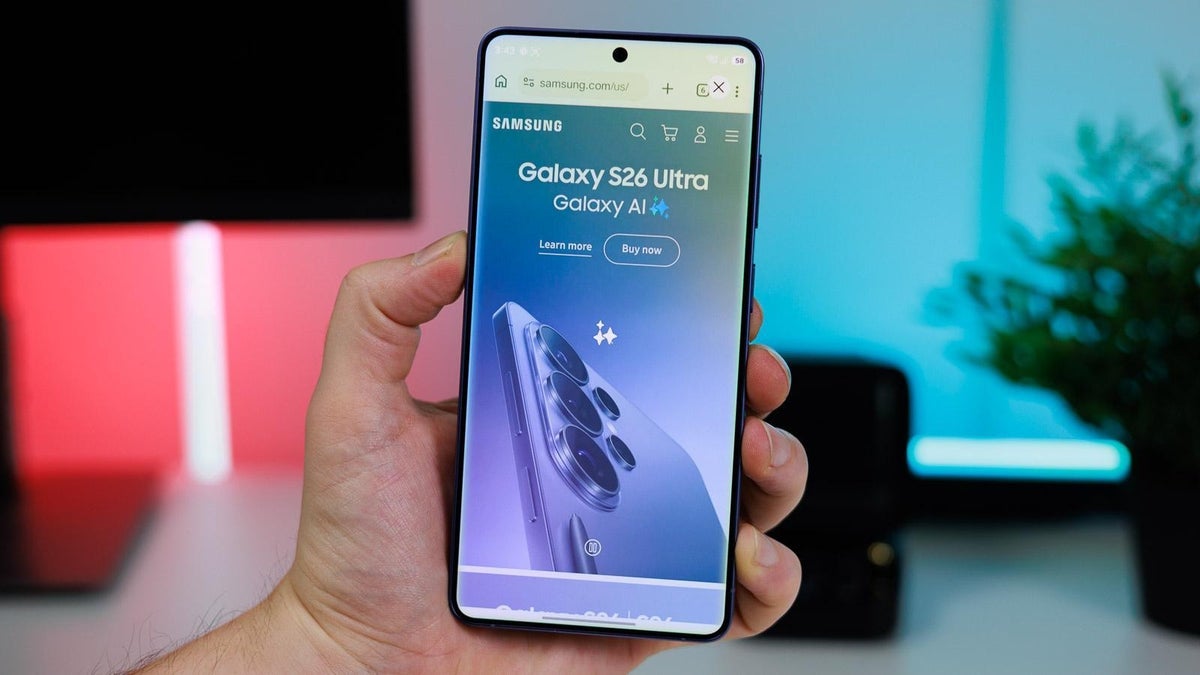
Galaxy AI Select - smarter, faster, more accessible | Image by PhoneArena
Sponsored content created with Samsung.
Disclaimer
Samsung’s Galaxy AI suite is probably the most fleshed-out and well-rounded selection of AI features you can find on a single phone today. From live translations to editing photos with just a request, erasing noise from actual videos, to summaries and transcripts of long documents or videos.
One of the ever-present tools that will make your Galaxy workflow faster and more effective is AI Select.
AI Select on the Galaxy S26 Ultra is now front and center, easier to access thanks to a new shortcut. It’s a unique tool that allows you to extract text from unselectable sources, send addresses straight to Maps, or pictures straight into Photo Assist.
One of the ever-present tools that will make your Galaxy workflow faster and more effective is AI Select.
AI Select on the Galaxy S26 Ultra is now front and center, easier to access thanks to a new shortcut. It’s a unique tool that allows you to extract text from unselectable sources, send addresses straight to Maps, or pictures straight into Photo Assist.
What exactly does Samsung AI Select do?
Since it’s a context-aware tool that unlocks different types of actions depending on what exactly is on your screen, AI Select can’t be described in one word.
First, the new way to quickly get into AI Select — just tap and hold the Edge Panel handle. You will see the screen flash with the Galaxy AI colors and you can now highlight objects, text, and other content that you are currently viewing.
Here’s what it can do:
- Text Extraction: Select text from images or web pages to translate, summarize, or copy
- Smart Suggestions: It identifies content like addresses for Maps, dates for Calendar, or phone numbers to call directly
- Creative Editing: Use it to send images straight into Photo Assist[2] for deep edits, or to create GIFs from video clips up to 30 seconds
- Pin: crop a part of an app and pin it in a persistent window that stays on your screen until you close it
- Search: On Galaxy Books, it allows you to drag and draw around objects to instantly search for them, or scan QR codes.
Easy text extraction
AI Select easily distinguishes the elements on your screen — images from text, UI elements from products. This allows you to easily highlight any text, even if it’s not naturally selectable.
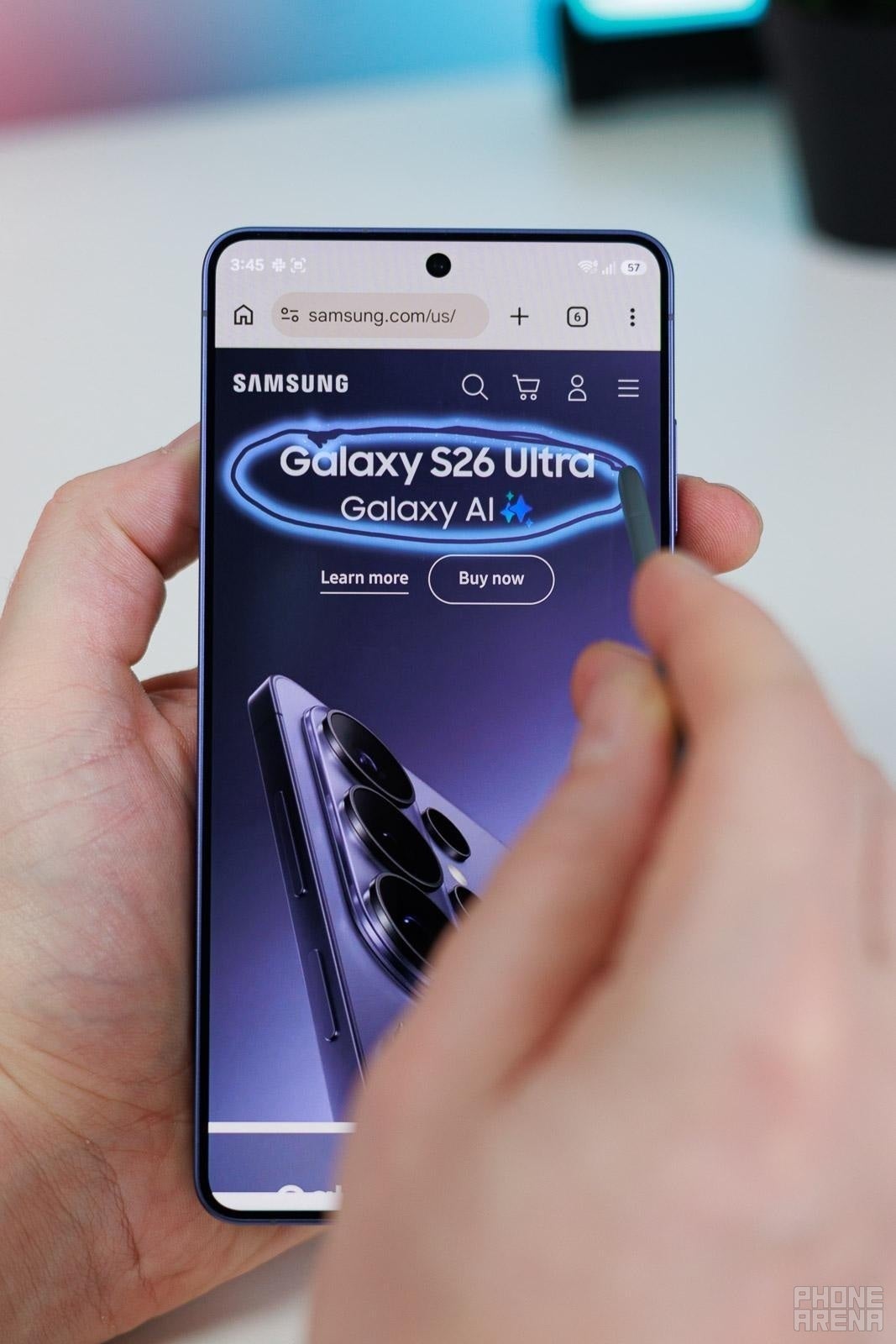
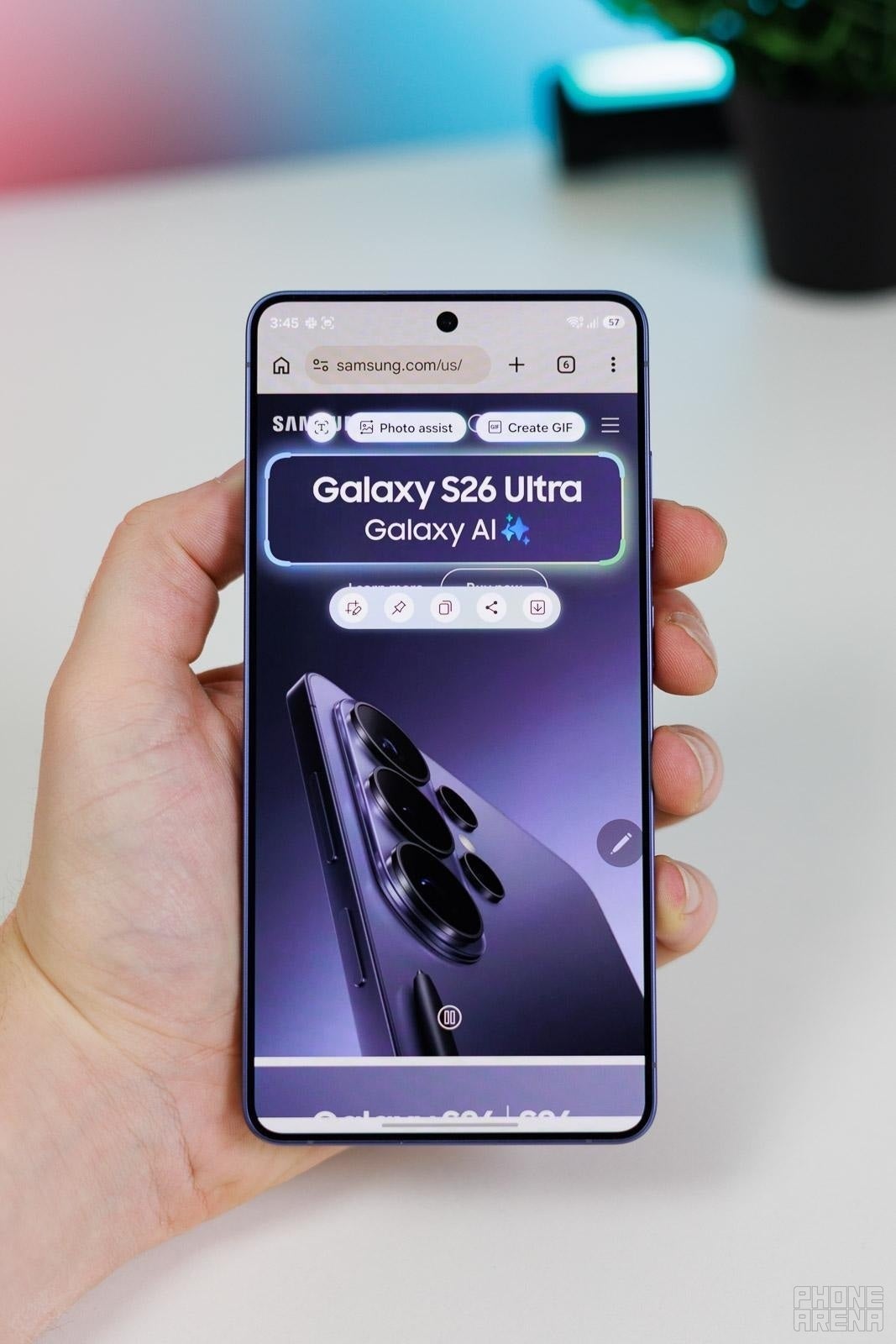
When it sees text, you can use it for simple copy-pasting. If it’s a phone number, you can add it to contacts. If it’s an address, you can go straight into Maps with it. Or, if you are looking at a website in a foreign language, AI Select will suggest translating the entire thing for you.
This feature has a surprising amount of applications — some websites don’t let you highlight text, sometimes the information you want to copy is baked into an image. That’s all not a problem for AI Select.
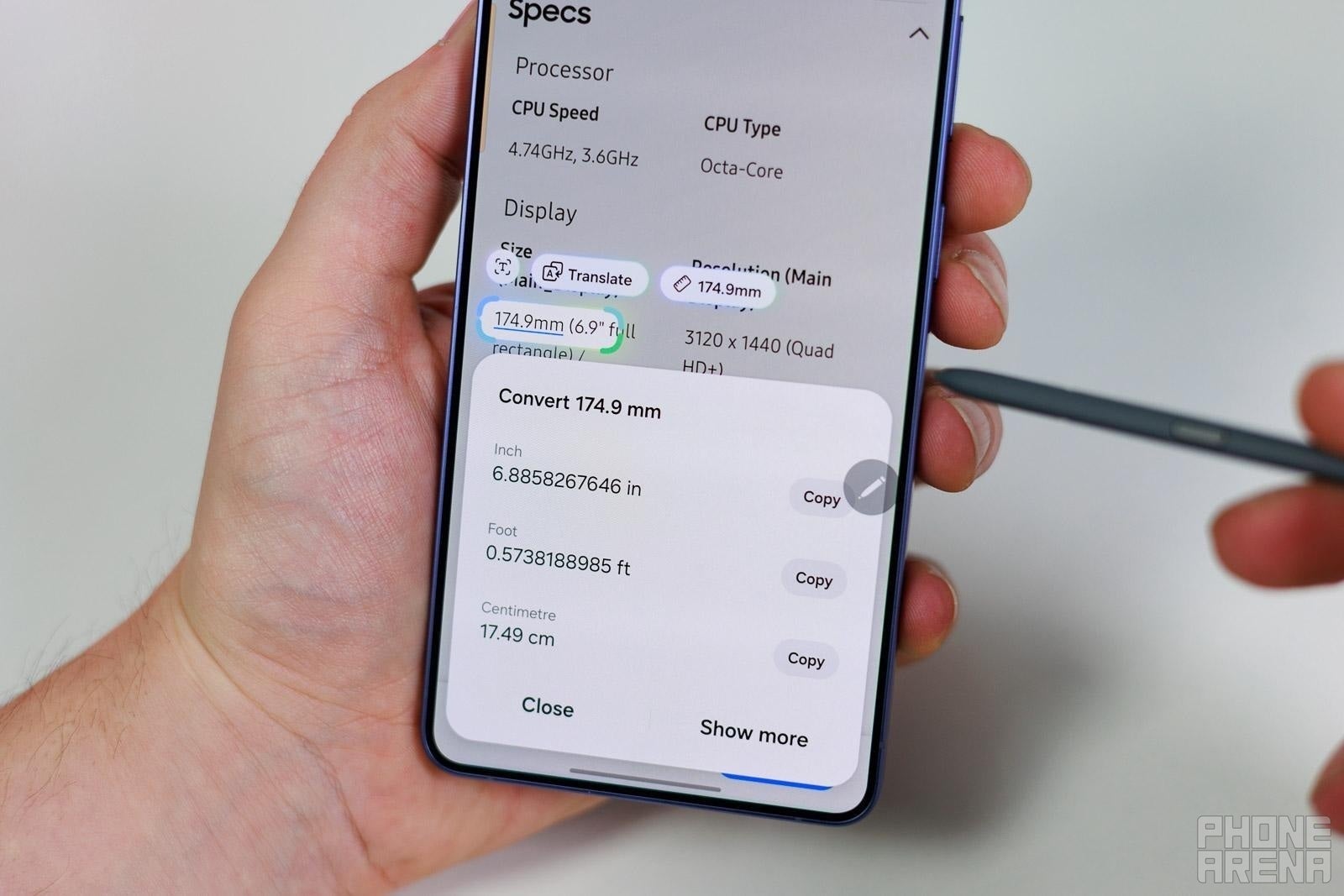
Quick and smart unit conversion | Image by PhoneArena
Multi-tasking
With AI Select, you can crop a part of an app and instantly “pin” it as a persistent window on your screen. You are free to move it around anywhere on screen, or even minimize it in a small bubble, ready to be expanded when you want to reference the screenshotted information again.
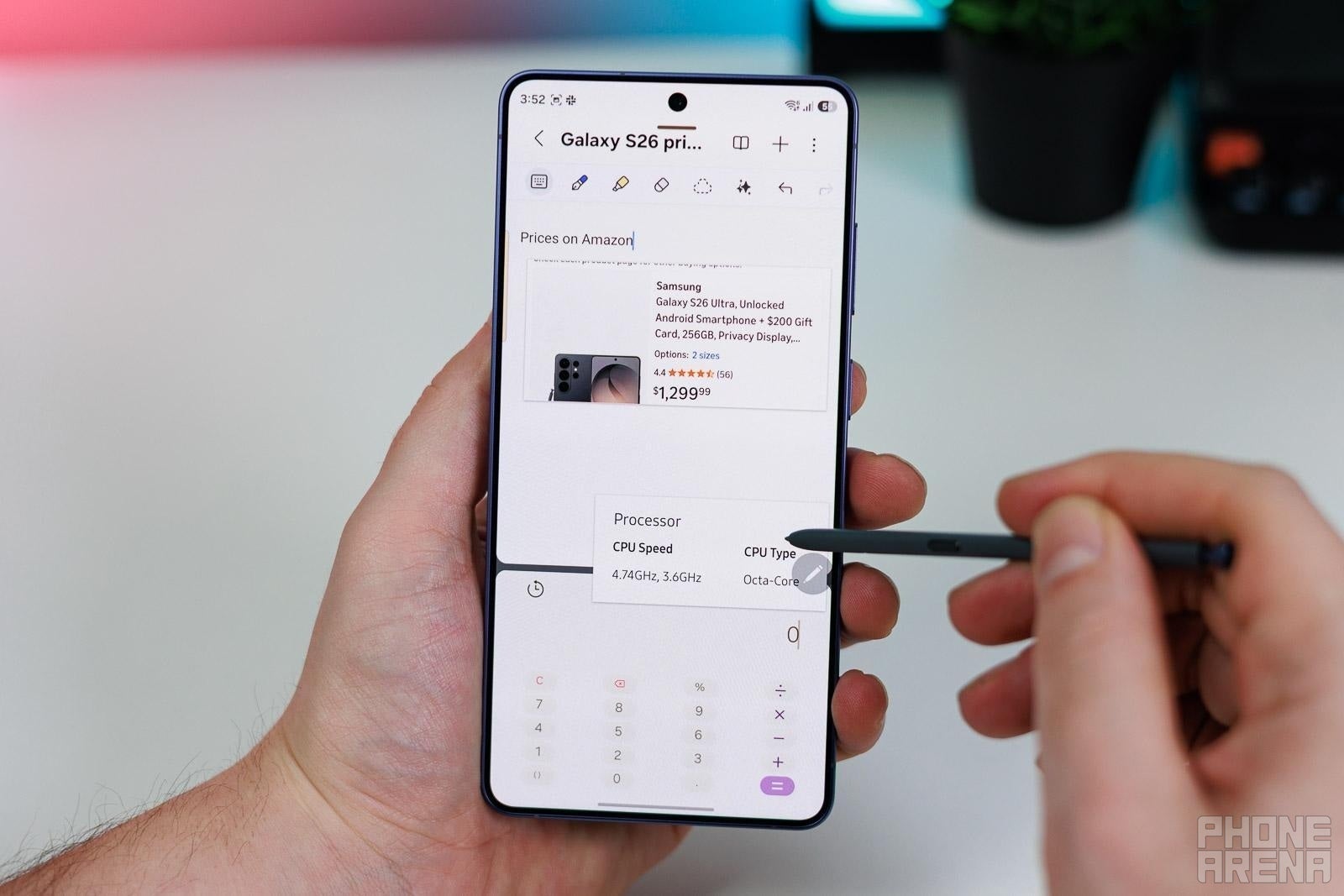
Pin a part of a window on your screen, like a sticky note | Image by PhoneArena
I use that when I am referencing product prices and deal-hunting, when coming up with weird words to put into song lyrics, or when stitching together article points from different sources. It’s faster and more effective than trying to juggle split screen or floating apps.
Creative fun
You can generate a GIF from any video you see on screen very quickly and easily. Just highlight it with AI Select and choose the Creative Studio[1] option.
Alternatively, AI Select can be a shortcut — you can quickly grab an image and send it straight into the Creative Studio[1] to re-imagine it as an illustration, cartoon, or sketch.
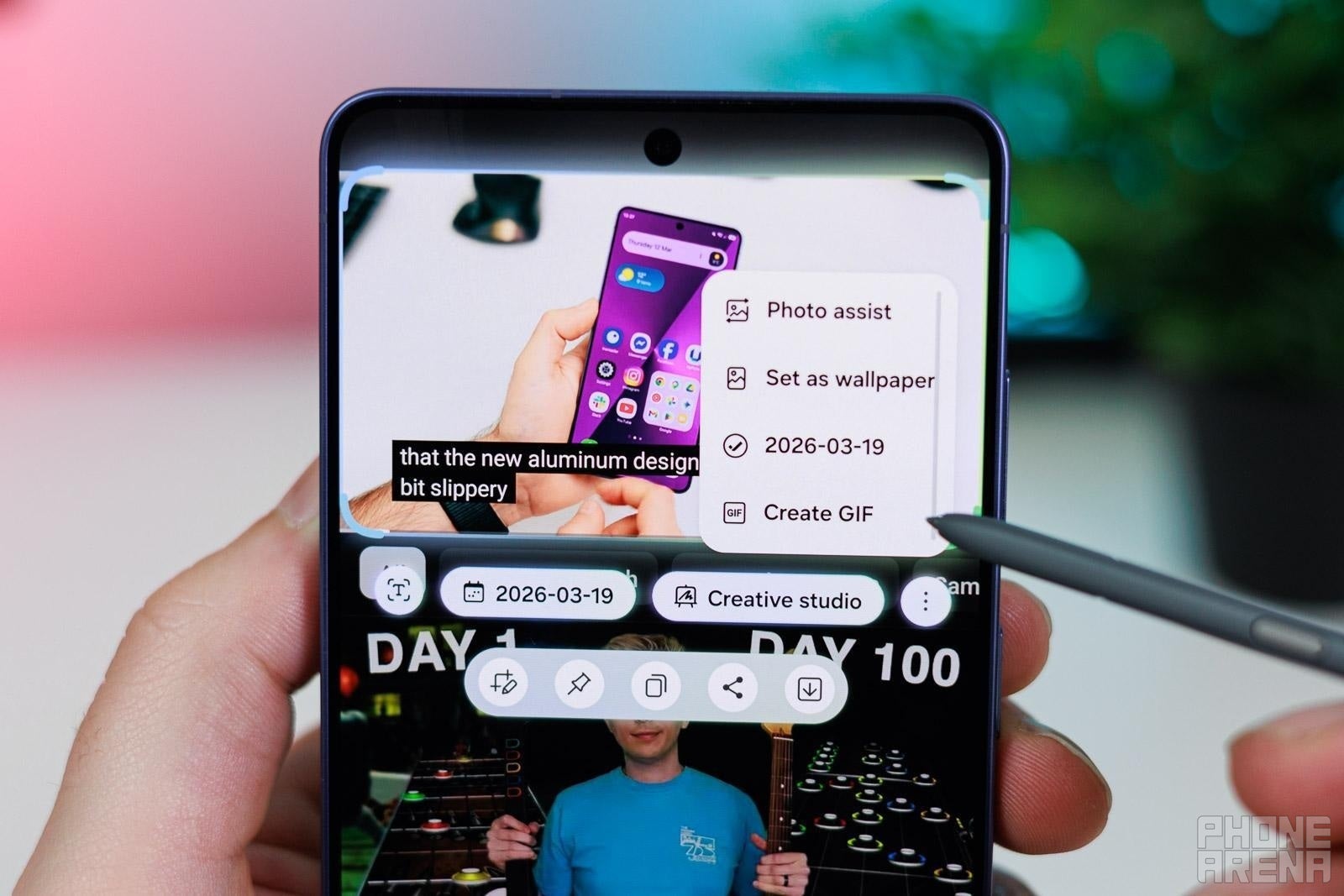
Record any part of your screen as GIF or video | Image by PhoneArena
How to access AI Select
As I said at the top, Samsung made it easier than ever to access AI Select.
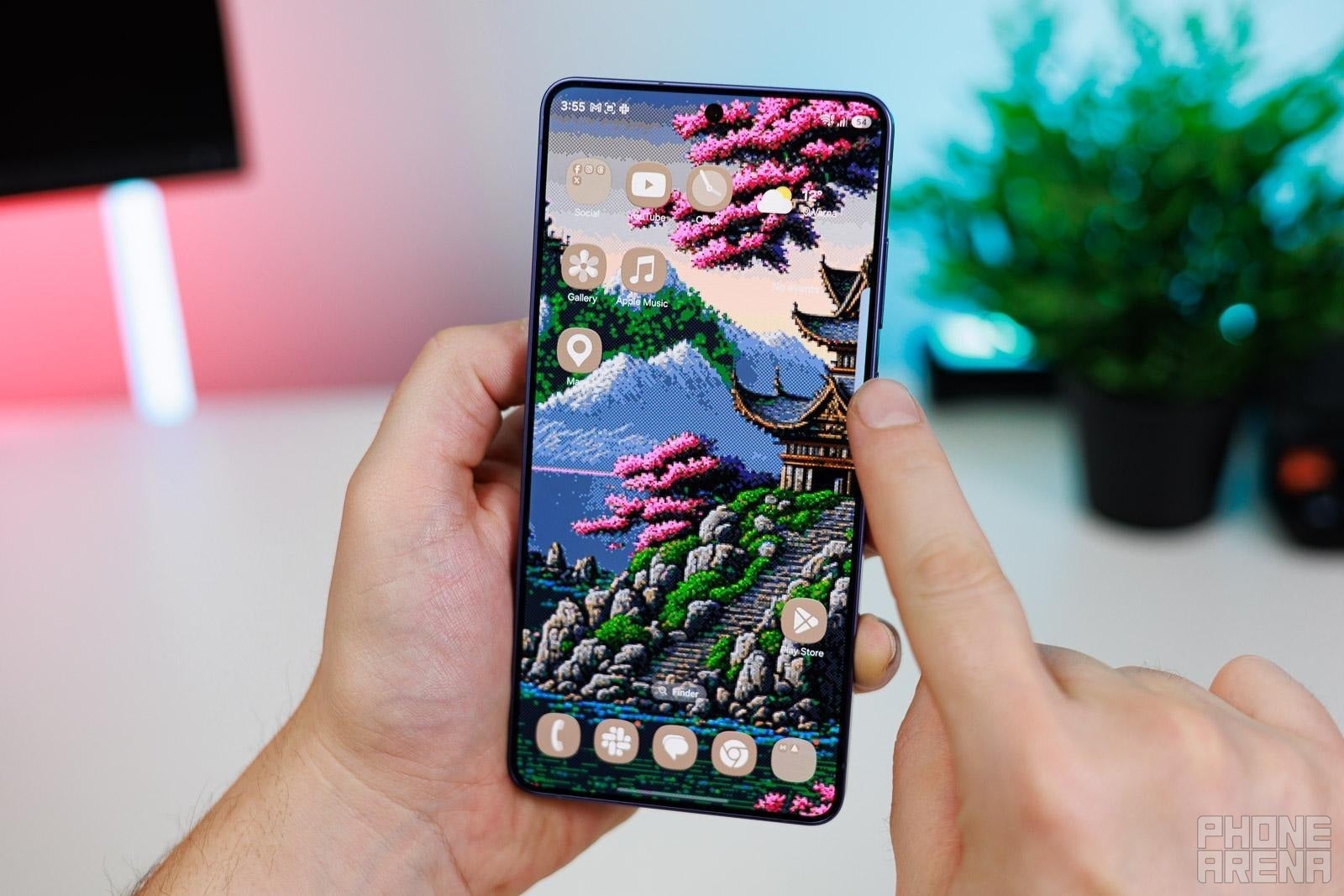
Hold the Edge handle | Image by PhoneArena
AI Select is also one of the first functions you will see if you pull out your Edge Panel. Personally, I removed the shortcut from there since I just use the handlebar-hold method to activate it.
The third way is to just take a screenshot. A toolbar will appear at the bottom of the screen, asking you what you want to do with said screenshot. At the right-most side of it, you will find the AI Select option.
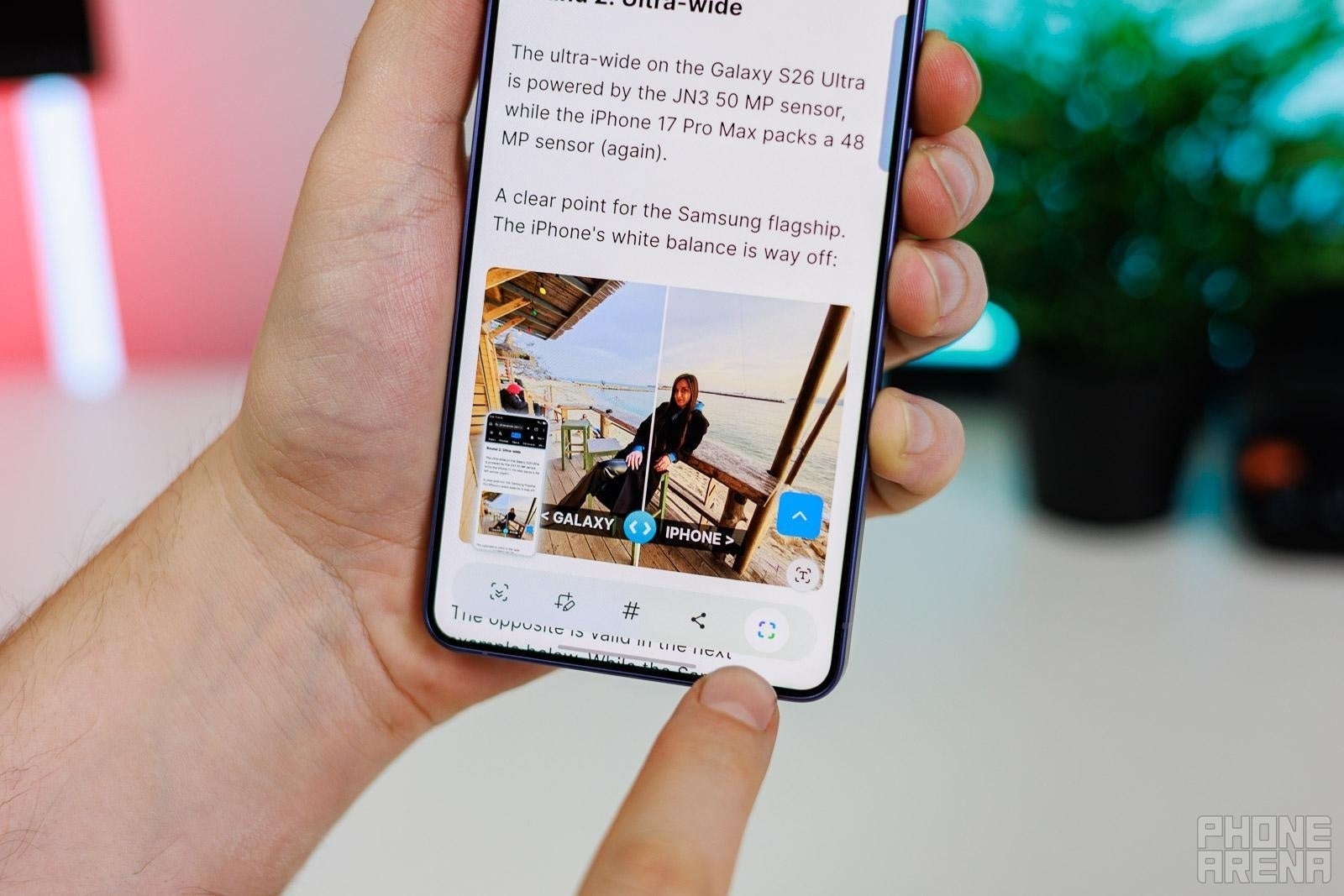
Find it in the screenshot toolbar | Image by PhoneArena
Lastly, when you take out your S Pen and pop out the Air Command menu, AI Select is in there by default.
Frequently Asked Questions
- Which devices support AI Select?
AI Select can be found on Samsung premium devices like the Galaxy S25 and Galaxy S26 series as well as the Galaxy Tab S models. It requires at least One UI 6.1 .
- Is AI Select free to use?
AI Select is a part of the core Galaxy AI suite and as such is currently free to use to all Samsung users.
- Can I remove AI Select from my Edge Panel?
Samsung has made it very easy to access AI Select through multiple shortcuts. So, if you want to declutter your sidebar and Air Command menu — you can.
For the Edge Panel, pull it in, then tap the little pencil icon at the bottom (Edit). Now, you are in the Edge Panel editing screen. Tap “More settings” (triple dot menu on the top-right) — this is where you can choose which Galaxy AI features are persistent in the Edge Panel.
The easiest way to edit the Air Command menu is to pull out your S Pen, then tap the floating icon that appears. When it expands, tap the “+ Add” button. This is where you can edit your Air Command shortcuts. Alternatively, go to Settings -> Advanced features -> S Pen -> Air Command to get to the same menu.
[1] Creative Studio - Requires network connection and Samsung account login. Accuracy of output not guaranteed.
[2] Photo Assist - Requires network connection and Samsung account login. A visible watermark is overlaid on the saved image to indicate it was generated by Galaxy AI. Accuracy of output not guaranteed.


Popular stories



Latest News



Things that are NOT allowed:
To help keep our community safe and free from spam, we apply temporary limits to newly created accounts: