How to master the Pro mode of the Galaxy S26 camera
Using the Galaxy S26 Ultra as merely a point-and-shoot camera does not do its impressive setup justice.
We may earn a commission if you make a purchase from the links on this page.

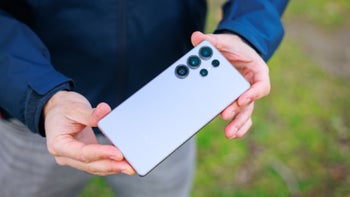
Pro Mode on the Galaxy S26 Ultra is extremely powerful. | Image by PhoneArena
Sponsored content created with Samsung.
Disclaimer
By default, the Galaxy S26 Ultra camera does an excellent job at delivering perfectly exposed, very detailed photos and videos with excellent colors. But what if you have a specific idea for a creative photoshoot?
Well, this is where you might want to take manual control over the essential camera settings.
Pro Photo mode
What it is: Pro mode is the Galaxy S26 Ultra's manual shooting interface. It replaces automatic camera decisions with direct control.
So what exactly can you control? Practically, all of the essentials: shutter speed, ISO sensitivity, exposure compensation, autofocus, and white balance. You get a control slider for each of these, allowing fine manual adjustments.
So what exactly can you control? Practically, all of the essentials: shutter speed, ISO sensitivity, exposure compensation, autofocus, and white balance. You get a control slider for each of these, allowing fine manual adjustments.

A mostly familiar camera interface that gives you access to more advanced controls. | Image by PhoneArena
RAW photos
One of the main benefits of Pro mode is the ability to capture a RAW DNG image file along with regular JPEG files. RAW is a lossless format that gives you much greater flexibility for post-processing by retaining more information and data in comparison with a lossy, compressed JPEG file.
Galaxy phones also don’t color-tone RAW images, leaving that essential post-processing feature to you. There’s also no noise reduction pre-applied. This way, you can freeze action by setting a high-enough shutter speed, or capture an artsy backlit silhouette, or even capture star trails –– which can be downright impossible to do in the standard camera photo mode.


The difference between 1/10s and 1/500s –– the faster shutter speed lets you freeze motion, while a low shutter speed creates a colorful blur.
When to use it: RAW photos bring the most value when you're shooting in tricky lighting, or when you know you'll be editing the photo and want maximum flexibility in post.
In Pro mode, zoom also behaves a little differently than in the standard camera mode. Here, each camera’s zoom range is constrained, so even if you zoom in or out, it won’t auto-switch to another one. Each camera has its own zoom range here:
Zoom behavior
In Pro mode, zoom also behaves a little differently than in the standard camera mode. Here, each camera’s zoom range is constrained, so even if you zoom in or out, it won’t auto-switch to another one. Each camera has its own zoom range here:
- up to 3X with the ultrawide
- between 1X and 10X with the main camera
- between 3X and 15X with the telephoto camera
- between 5X and 25X with the super telephoto (5X) camera
When to use it: This matters most when you want to consistently use one specific lens, without the camera auto-switching mid-sequence.
Monitoring tools
In Pro Photo mode, you also have two tools that give you a real-time reading of your exposure.
Zebra monitor – it highlights overexposed areas with a striped pattern (like a zebra), so you can easily spot blown highlights.
False color monitor – this color-codes the entire frame by exposure levels. Green means correctly exposed, while red and yellow indicate overexposure, and blue and magenta indicate underexposure.
Metering modes
Pro mode gives you three different options.
When to use them: By default, center-weighted metering is used, which is great for well-lit subjects that are close to the camera. You can also opt for spot metering, which exposes the image based on a single spot the user selects and is great for backlit subjects and creative photos. Finally, you can also opt for matrix metering, which is excellent for landscapes, as it measures light across the full frame of your Galaxy.


Spot metering allows you to properly expose a subject that’s standing against a strong backlight.
Expert RAW
Interestingly, Samsung has not one but two different Pro camera modes on most of its recent Galaxy flagships, the Galaxy S26 series included. Aside from the standard Pro mode in the camera, there’s also the Expert RAW one, which is actually an optional add-on you have to download separately.

Expert RAW looks mostly similar to Pro photo mode, but with some notable differences. | Image by PhoneArena
However, RAW image files captured in Expert RAW mode feature some sort of post-processing and noise reduction in comparison with RAW images you get from the standard Pro mode. This makes the regular Pro mode more suitable for those who want the ultimate control over their image files.


Expert RAW DNG vs Pro RAW DNG


Expert RAW DNG 100% crop vs Pro RAW DNG 100% crop
While the layout and controls between Pro mode and Expert RAW are similar, the latter features some very intriguing features that are unavailable in other camera modes.
Multiple exposures –– This mode lets you superimpose two or more exposures into a single photo. Here’s how it works: you take one picture, then move or pan the camera towards another scene and take another one. The result is an artsy photograph that might often look like a mistake but is often deliberately sought by photographers.
Neutral Density filter –– Real-life neutral density filters are used to diminish the intensity of all light wavelengths that hit the camera sensor. These allow for cool techniques, like shooting long-exposure photos in bright daylight (which would normally get burned out). It’s all done on the software side here, with the Expert RAW app providing you with a nifty slider to control the strength of the ND filter.
Virtual aperture –– This software feature allows you to control the depth of field on your photos. The lower the F number here, the more out of focus the background is in comparison with your subject, and vice versa, bump the virtual aperture to F16, and everything will be in sharp focus. This feature might come in handy when taking portraits of people.
Multiple exposures –– This mode lets you superimpose two or more exposures into a single photo. Here’s how it works: you take one picture, then move or pan the camera towards another scene and take another one. The result is an artsy photograph that might often look like a mistake but is often deliberately sought by photographers.
Virtual aperture –– This software feature allows you to control the depth of field on your photos. The lower the F number here, the more out of focus the background is in comparison with your subject, and vice versa, bump the virtual aperture to F16, and everything will be in sharp focus. This feature might come in handy when taking portraits of people.


Here’s the difference between F1.4 and F16 in Expert RAW.
Night Sky –– This feature defaults to a 20-second shutter speed, high ISO, and warmer white balance, making it perfect for capturing the night sky.
Night Long Exposure –– With this mode, you can capture long exposure photos of cityscapes. This mode is preset with a shutter speed of eight seconds and a very low ISO for noise-free semi-long exposures that could bring out beautiful light trails.
Astrophoto –– A preset mode that essentially lets you capture long exposures of the night sky and hopefully capture stars, galaxies, and other celestial objects. As capture times usually gravitate towards 30 seconds for the optimal results, you’d ideally use a tripod or at least prop up your phone somewhere and use the timer feature. Even the slightest movement from tapping the shutter button might lead to a blurry shot. The cool thing here is that you can also enable a constellation overlay, which should help you navigate the night sky and know what you’re about to capture.
Astroportrait –– This is a mixture of two different modes, portrait and astrophoto. It allows you to capture a portrait of a person, who then steps away of the frame so that you can take a long exposure of the starry sky behind them. The phone then combines the two photos, and you get an astroportrait.
Virtual reflector –– Building upon the strong portrait features of the Expert RAW mode, the new Virtual Reflector feature simulates a real-life silver or gold reflector that a photographer would use to offset any uneven lighting on their subjects’s face. Here, it’s all done on the software side, and you can control the color, reflectance, direction, and intensity of the feature.


Night Long Exposure –– With this mode, you can capture long exposure photos of cityscapes. This mode is preset with a shutter speed of eight seconds and a very low ISO for noise-free semi-long exposures that could bring out beautiful light trails.
Astrophoto –– A preset mode that essentially lets you capture long exposures of the night sky and hopefully capture stars, galaxies, and other celestial objects. As capture times usually gravitate towards 30 seconds for the optimal results, you’d ideally use a tripod or at least prop up your phone somewhere and use the timer feature. Even the slightest movement from tapping the shutter button might lead to a blurry shot. The cool thing here is that you can also enable a constellation overlay, which should help you navigate the night sky and know what you’re about to capture.
Virtual reflector –– Building upon the strong portrait features of the Expert RAW mode, the new Virtual Reflector feature simulates a real-life silver or gold reflector that a photographer would use to offset any uneven lighting on their subjects’s face. Here, it’s all done on the software side, and you can control the color, reflectance, direction, and intensity of the feature.


The difference Virtual Reflector makes is evident.
Ocean mode –– In this mode, you can take photos underwater, with the interface buttons becoming larger and easier to see. There’s also a dedicated Aqua Tone slider that lets you offset the harsh green-blue tint that you get underwater for a more natural-looking image. It’s recommended to use a dedicated underwater case or housing for your phone if you’re going to capture photos underwater, especially in seawater.
Keep in mind that you can only use one of these at a time, so you can’t mix-and-match settings and features from different experimental modes in Expert RAW.
Keep in mind that you can only use one of these at a time, so you can’t mix-and-match settings and features from different experimental modes in Expert RAW.
Conclusion
Mastering the Pro camera controls takes a little practice, but the results are absolutely worth it.
Once you understand settings like ISO and shutter speed, you can go beyond just taking a photo and start “crafting” it. And this is how you can get next-level creative shots that the standard Auto mode isn't built for.


Popular stories


Latest News


Things that are NOT allowed:
To help keep our community safe and free from spam, we apply temporary limits to newly created accounts: