Why some Pixel and Android users are experiencing alarm/timer confusion
A known issue with Gemini is causing alarm/timer confusion for some Pixel and Android users.
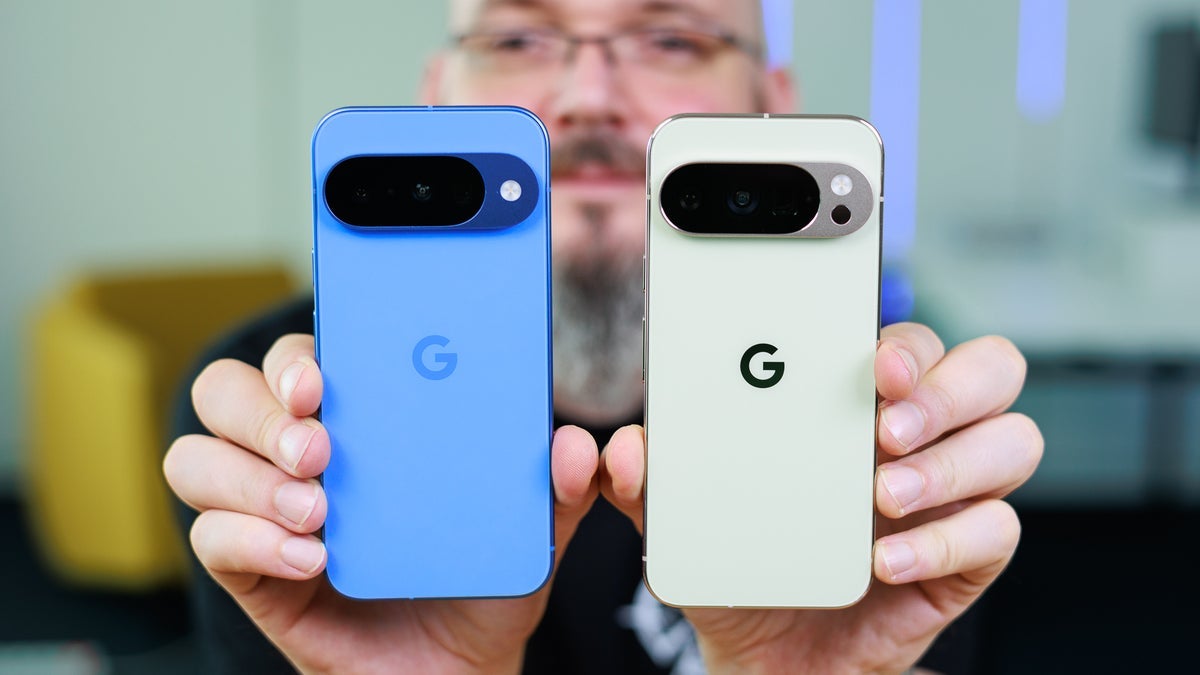
Some Pixel users are suffering from alarm/timer confusion. | Image by PhoneArena
I've written many times how I love using a chatbot like Gemini as the digital assistant on my Pixel 6 Pro. I get much more in-depth answers to my queries, and outside of the rare hallucination or two (to be sure, Gemini is the one doing the hallucinating, not me), the breadth of the chatbot's knowledge is amazing.
Google has been phasing out Google Assistant
Google has been phasing out Google Assistant and by the middle of this year, all new Android phones should have only Gemini available as the digital assistant. Interestingly, even if you have Gemini set as your assistant, the "Hey Google" wake word will open the AI chatbot, revealing the prompt.
If you have replaced Google Assistant with Gemini on your Android phone or Pixel, you might have noticed a confusing issue that takes place when you use Gemini to set an alarm or timer. Many times you will think that the alarm or timer you requested was not set correctly.
A confusing message shows that Gemini failed to set your alarm or timer even though it did
A message on the screen will show a red circle with a white "X", and next to it is highlighted text that says, "Action failed." The top of the screen says, "I wasn't able to complete the action. You can try completing the action(s) in the Clock app."
But here's the thing. Despite the warning that appears on the screen, when you check the Clock app, it shows that the alarm or timer that you requested was set correctly leaving Pixel and Android users confused.
What you can do to try to end the confusion
This is a known issue that occurs because the Gemini interface times out while it waits for a confirmation signal from the Clock app. But the request usually does reach the Clock app successfully, which is why the alarm or timer is set when you open the Clock app.
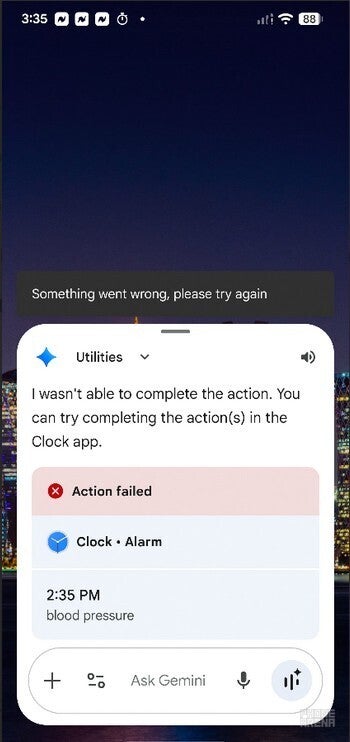
Screenshot shows a warning that states the alarm or timer wasn't set right, although it was. | Image by PhoneArena
You can try to resolve this issue by following these directions:
- Open the Gemini app.
- Tap your Profile Picture in the upper right corner.
- Tap on Settings.
- Go to Gemini Apps Activity and make sure it is toggled on.
If the above toggle is already on, toggling it off and back on to force a "re-sync" that can end the fake "Request Failed" error.


Popular stories





Latest News





Things that are NOT allowed:
To help keep our community safe and free from spam, we apply temporary limits to newly created accounts: