Google Photos is probably one of Google's best apps, offering plenty of exciting features. However, there's always room for improvement, and the tech giant knows it, as it continually tests and adds new features to the app. The latest capability that has been introduced is the brand-new playback speed option.
It has been a top-requested feature
Google has its own community forum where you can report bugs and issues you're encountering with a Google service or even request a feature you'd like to see in one of Google's apps. A user posted on the community forum a while ago, asking whether there's an option to adjust video playback speed in Google Photos. They were essentially inquiring about the ability to increase or decrease the video's playback speed while watching it in the app.
Replying to the comment, an official said that no such option is currently available in the app. They further recommended using a proprietary media player to access this feature. The post received almost 200 upvotes, suggesting that there's a huge demand for it.
It's finally here
At the start of this year, it was reported that Google was finally testing this capability in its photo and video viewing app. However, no particular timeline was given for when it could become available in the stable build.
Recommended For You
Months after being present in the beta build, the playback speed feature has finally landed in the stable version of the Google Photos app. Announcing the feature, the tech giant wrote in its blog post that "it has been a top request from our community for a long time."
How to adjust your video speed in Google Photos?
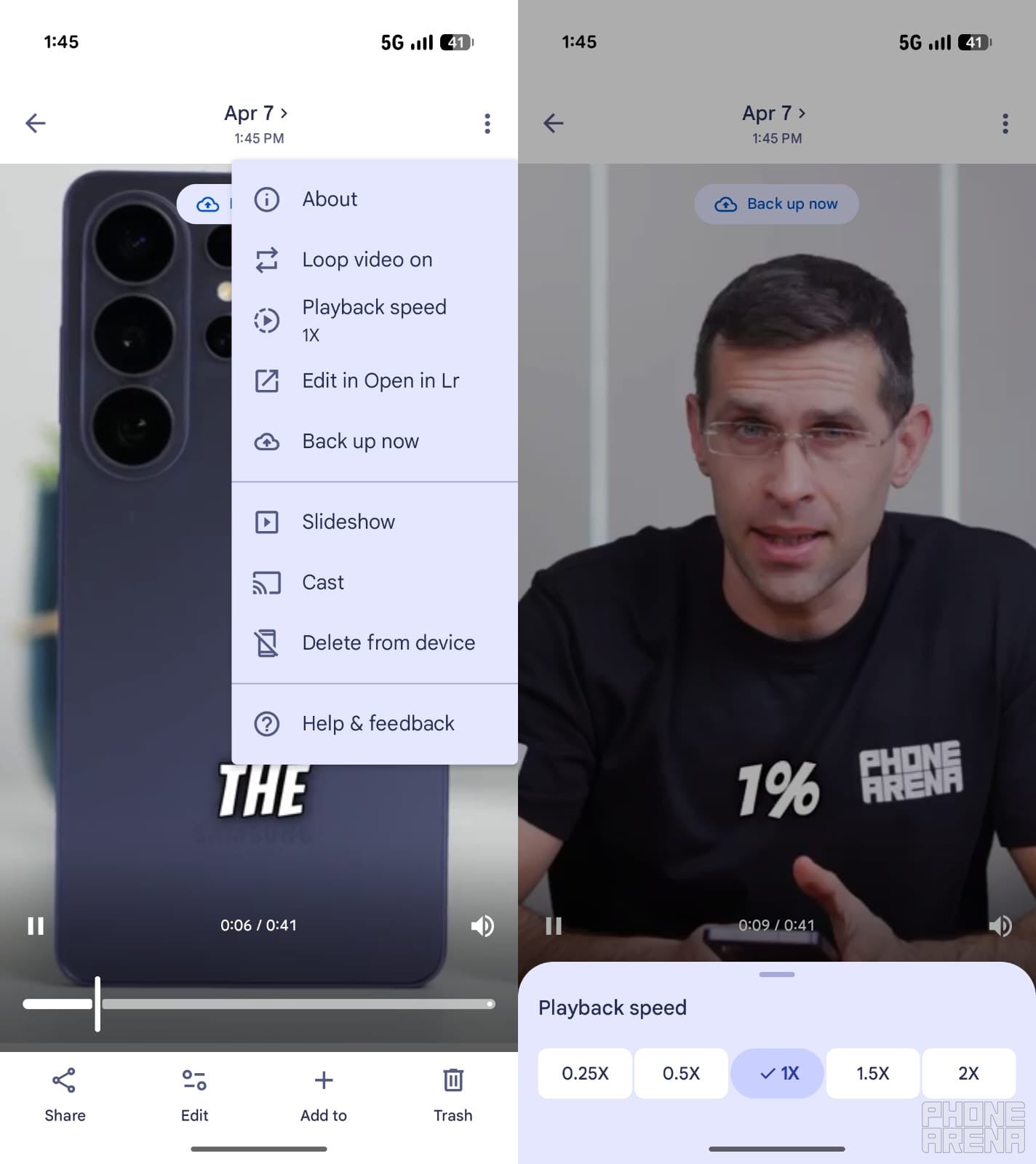
Steps to use the Playback speed option in Google Photos. | Image by PhoneArena
To begin with, open the Play Store, and make sure to download any update available for Google Photos. After that, follow these steps:
Open the app, and play the video whose speed you want to adjust
Tap the three dots icon in the top-right corner and choose Playback speed from the menu that appears
Select the speed (0.25x, 0.5x, 1x, 1.5x, and 2x) at which you want to watch the video
That's about it. The video will play at the chosen speed. However, it's worth noting that the next time you watch the video, it will play at its default speed, i.e., 1x.
Google is very late to the party
Google Photos is definitely great, but I, personally, prefer an open-source, community-led app called Fossify Gallery. It has had the ability to change video playback speed for some time. Some dedicated video-viewing applications, like VLC Media Player, also come equipped with this feature.
Even though YouTube is not one of the direct alternatives, it is often considered the universal benchmark for video features, and it has offered this particular capability for many years. Better late than never, it is finally available in Google Photos as well.
Which app do you really use to watch your videos on your Android smartphone?
16 Votes
VLC Media Player.
31.25%
My smartphone's default gallery app.
18.75%
Google Photos.
37.5%
Any other third-party app.
12.5%
A new photo enhancer option
In addition to introducing the playback speed option, the Mountain View giant has also added a new AI Enhance button. The company announced the feature in a post on X. The post reads, "Elevate your images with a tap, balancing light and color instantly."
You'll see a new "AI Enhance" button at the bottom-center of the image you're viewing in the Photos app. Tap it, and the AI will take a few seconds to balance the image's light and color. The example posted on X suggests that it'll basically sharpen your dull photos.
Google has explicitly stated that the output of this feature will vary by device. That said, the X post mentions that this new option is available to all Android users worldwide. However, at the time of writing, I can't find it in the Google Photos app installed on my Pixel 10.
Mint Mobile's 6-month plans now cost $10/mo
$10
/mo
$35
$25 off (71%)
Mint Mobile is celebrating its 10-year anniversary with a special offer on its six-month subscription plans. For a limited time, you can get your preferred tier (6GB, 17GB, 23GB or unlimited) for just $10/mo. That saves you between 50% and 71% on the carrier's mobile plans, making it way easier to recommend.
Aman Kumar is a news writer at PhoneArena covering Google Pixel phones, Android features, AI-powered smartphone tools, and mobile tech news. Before joining PhoneArena, he spent over five years writing about consumer technology for publications like MakeUseOf, How-To Geek, and Guiding Tech. His current daily drivers are the Pixel 10 and Samsung Galaxy S26 Plus, while his red iPhone SE (2nd gen) remains a personal favorite. Aman also appreciates bold smartphone experiments and still considers the Nokia N-Gage one of the industry’s most iconic designs.
A discussion is a place, where people can voice their opinion, no matter if it
is positive, neutral or negative. However, when posting, one must stay true to the topic, and not just share some
random thoughts, which are not directly related to the matter.
Things that are NOT allowed:
Off-topic talk - you must stick to the subject of discussion
Offensive, hate speech - if you want to say something, say it politely
Spam/Advertisements - these posts are deleted
Multiple accounts - one person can have only one account
Impersonations and offensive nicknames - these accounts get banned
To help keep our community safe and free from spam, we apply temporary limits to newly created accounts:
New accounts created within the last 24 hours may experience restrictions on how frequently they can
post or comment.
These limits are in place as a precaution and will automatically lift.
Moderation is done by humans. We try to be as objective as possible and moderate with zero bias. If you think a
post should be moderated - please, report it.
Have a question about the rules or why you have been moderated/limited/banned? Please,
contact us.






Things that are NOT allowed:
To help keep our community safe and free from spam, we apply temporary limits to newly created accounts: