Galaxy S26 Ultra battery guide: Six proven tips for better real-life endurance
Follow these best practices for great Galaxy S26 Ultra battery life.
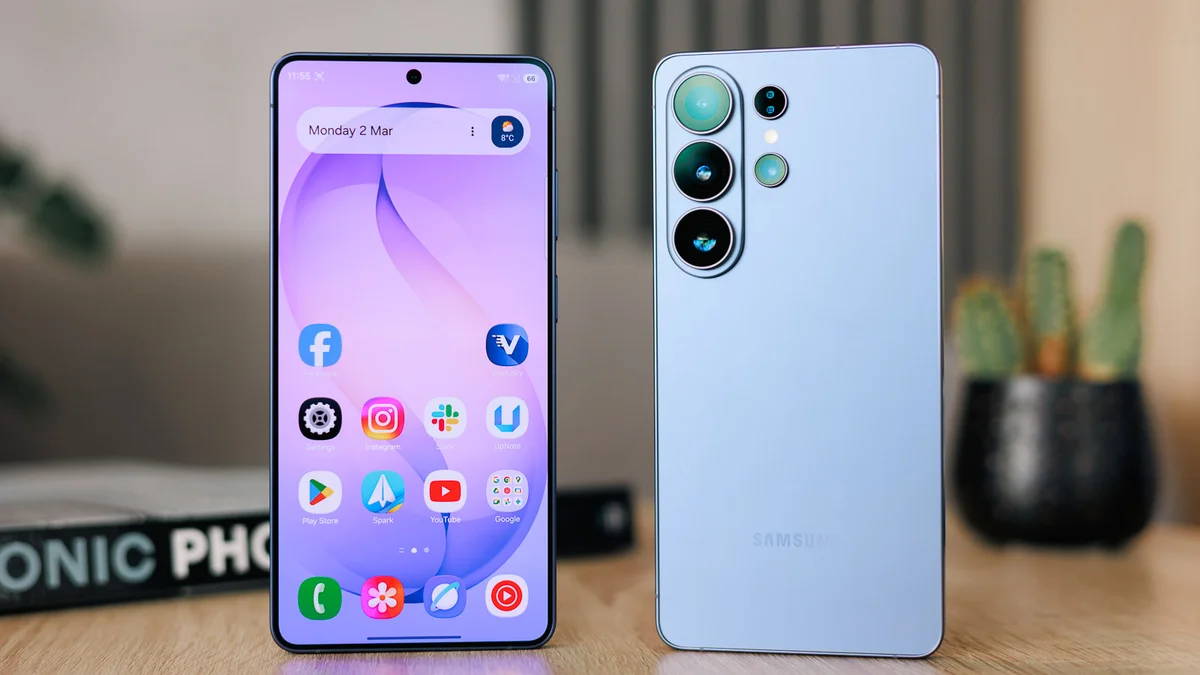
There are many ways to save battery on the Galaxy S26 Ultra. | Image by PhoneArena
One of the main weaknesses of the Galaxy S26 Ultra is, undoubtedly, its battery life. Stemming from the 5,000 mAh battery that has been reused on every Galaxy S Ultra flagship for the past seven years, Samsung's latest top flagship simply can't trick its way past physics, no matter how fast or efficient the chipset on board is.
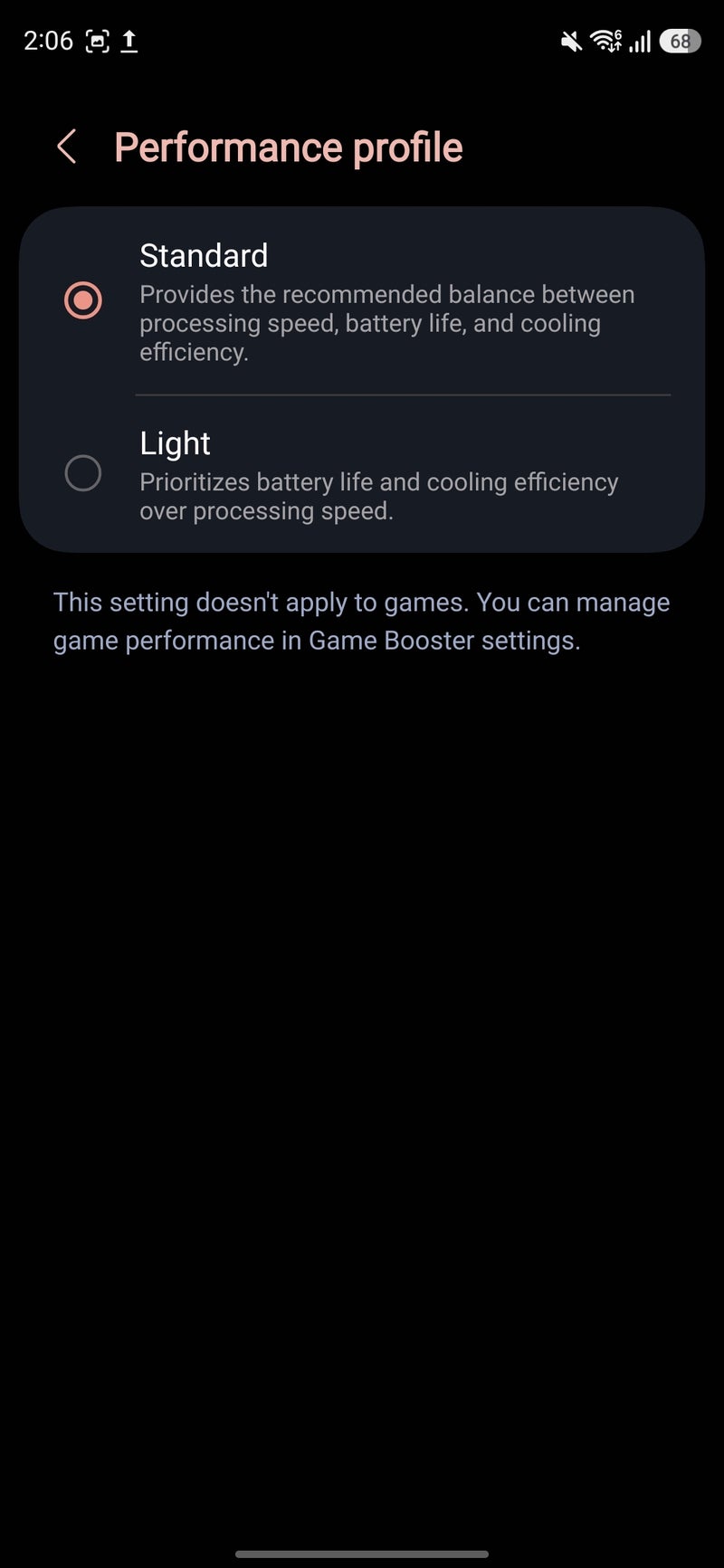
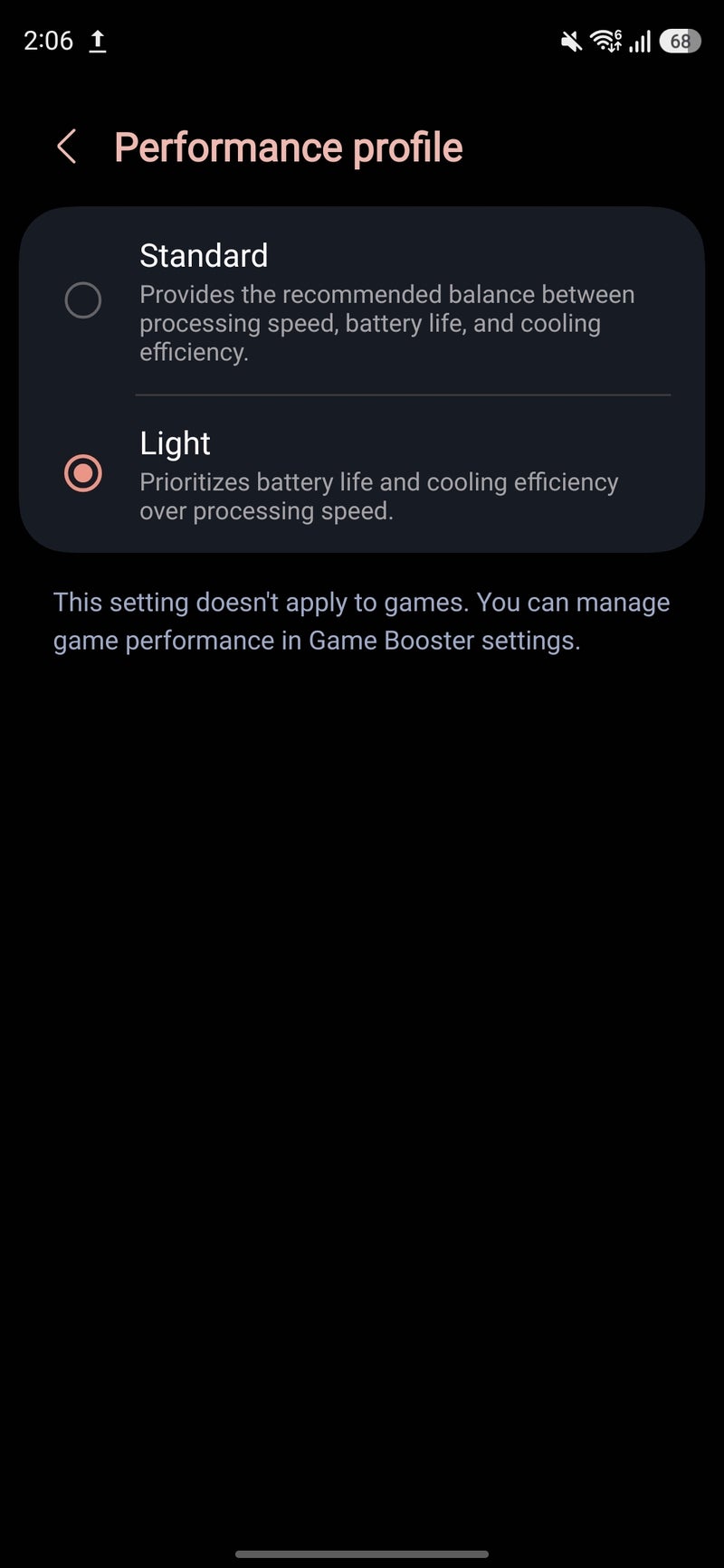
Light performance profile not saving that much battery? It's by design, and if you find it lacking, the standard battery saver comes in a clutch. Samsung lets you choose between two different battery saver profiles.
Read more:
In the battery tests of our Galaxy S26 Ultra review, my colleague Victor experienced average battery life results out of the phone, which is not something one likes to see. A battery life estimate of seven and a half hours isn't good, especially seeing those flashy flagships hailing from China pack much larger silicon-carbon batteries in similarly sized and even thinner bodies.
And that makes perfect sense, really––there's no replacement for displacement, as the saying goes.
But what can you do to get the best battery life out of the Galaxy S26 Ultra? Well, there are a few tricks and tips, but let's make one thing clear from the get-go: there's literally nothing you can do that will massively improve the Galaxy S26 Ultra battery life unless you never use the device.
Tip #1: Light performance mode
The number one tip for massively improving the Galaxy S26 Ultra's battery life with a flick of a button is to enable the light performance profile.
How does this one differentiate from the default standard performance profile in real life? This mode is a bit more conservative in comparison with the standard one and favors battery life and cooling efficiency. This means the phone might be a bit more aggressive when it comes to throttling during intensive tasks. Honestly, in most standard-usage scenarios, you'd never know you are running the light performance mode.
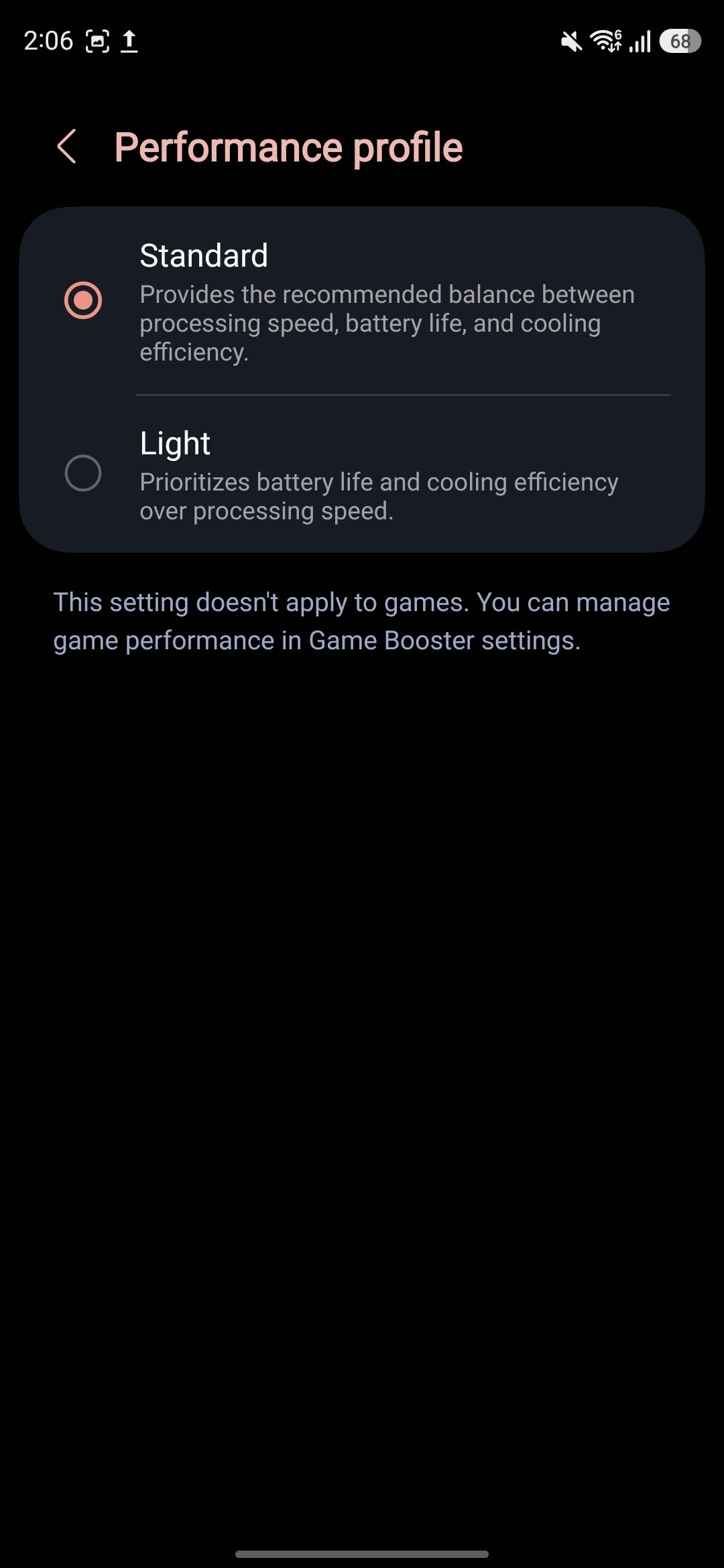
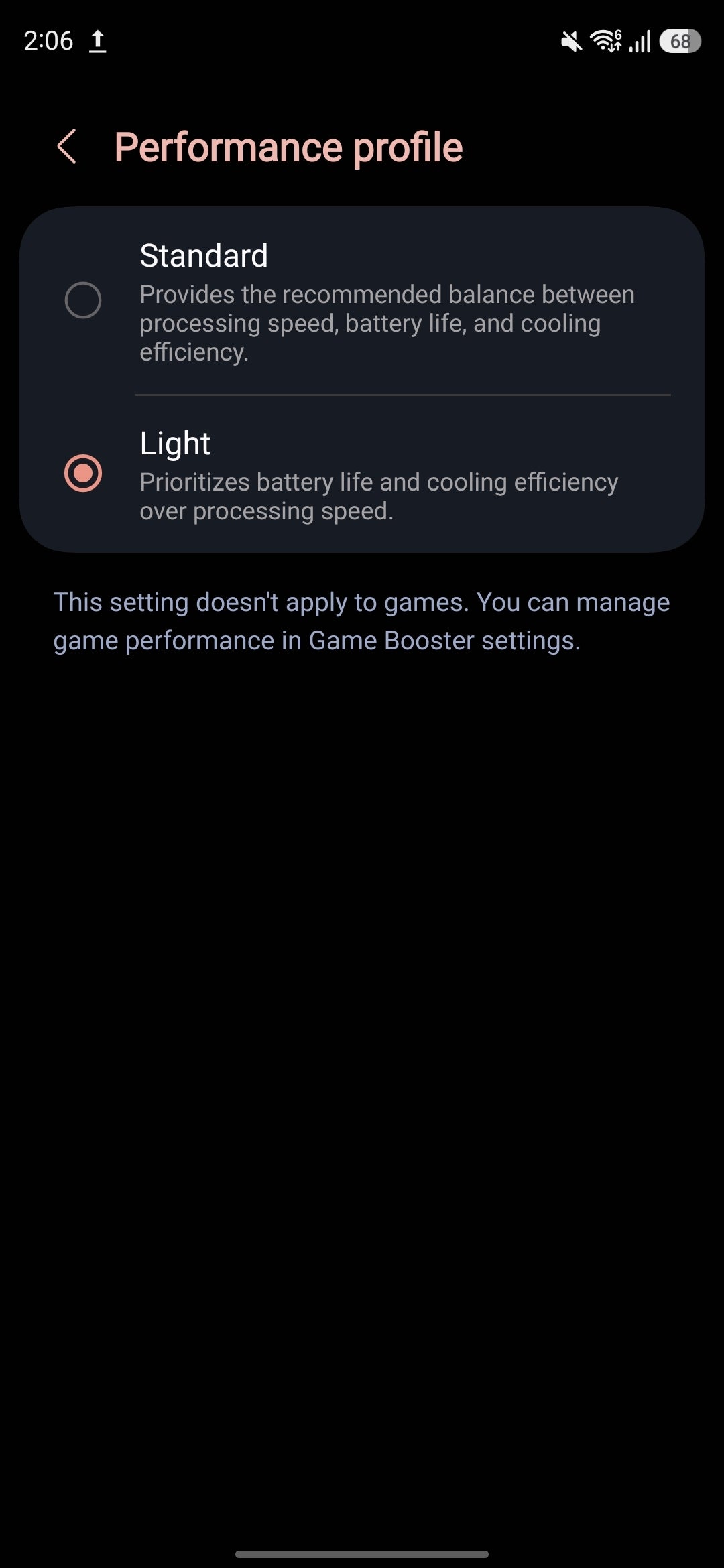
The consensus of the Samsung community is that light performance mode can get you between 10% and 15% better battery life in comparison with the standard performance profile on previous Samsung phones. There's no reason to think the Galaxy S26 Ultra wouldn't benefit from the same gains. That's a very decent improvement already.
To enable the light performance profile, go to Settings, then Device Care, then swipe down to Performance profile, and select Light performance profile.
It's important to know that enabling Light performance profile wouldn't lead to lower performance in games––in these, the standard performance profile sets the law of the land.
Tip #2: Battery Saver
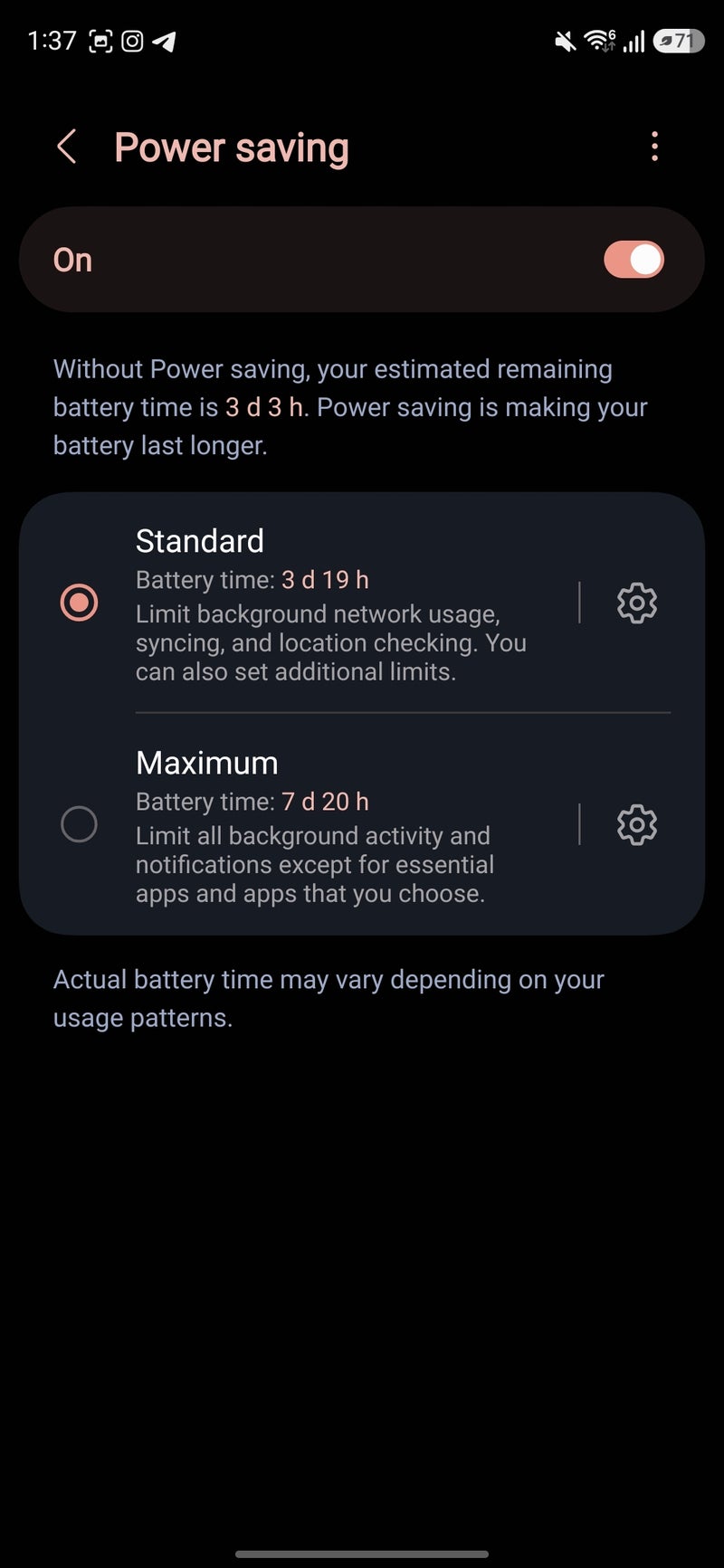
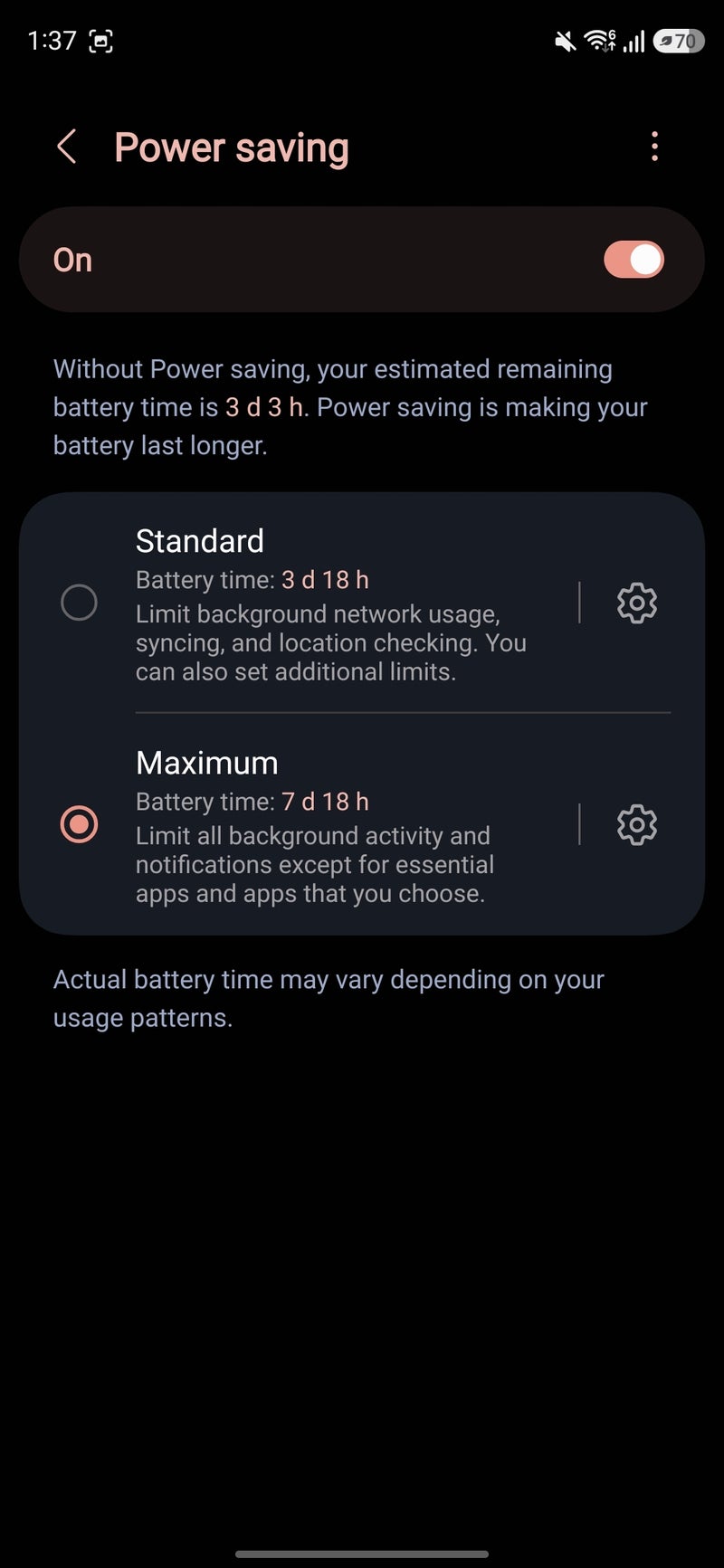
Light performance profile not saving that much battery? It's by design, and if you find it lacking, the standard battery saver comes in a clutch. Samsung lets you choose between two different battery saver profiles.
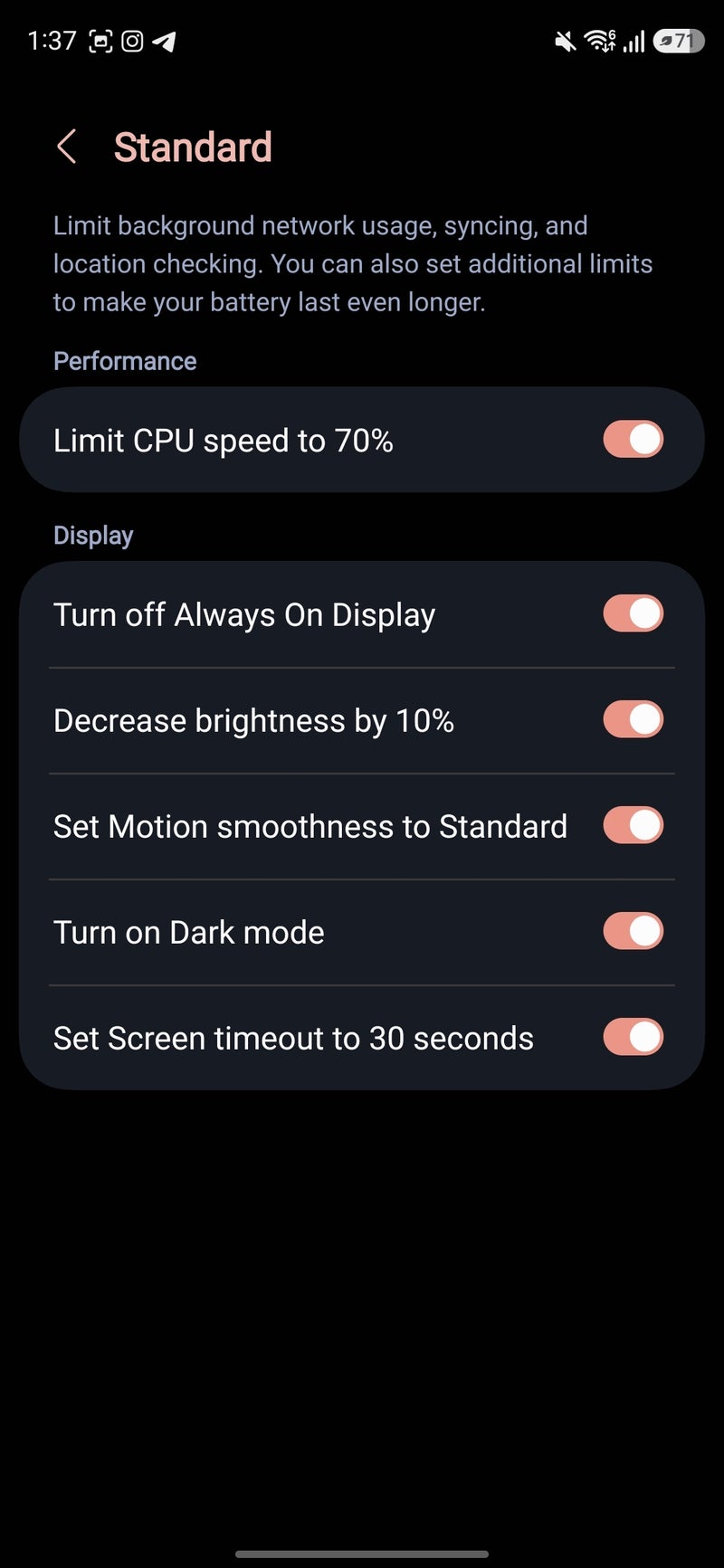
There is a standard profile that limits background network usage, syncing, and location services. You can also optionally opt to disable Always On Display, decrease peak brightness by 10%, disable 120 Hz display refresh rate, enable dark mode, and set screen timeout to a brisk 30 seconds.
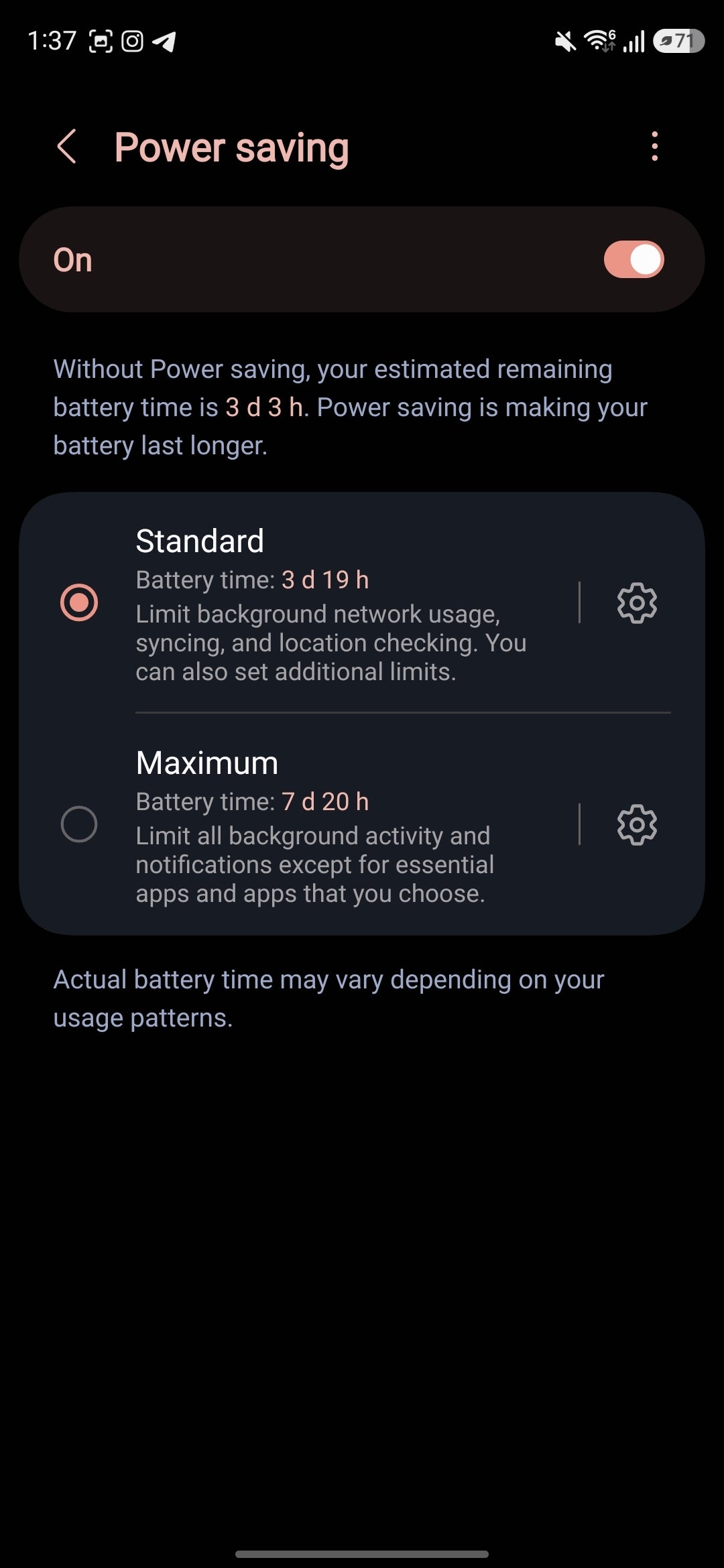
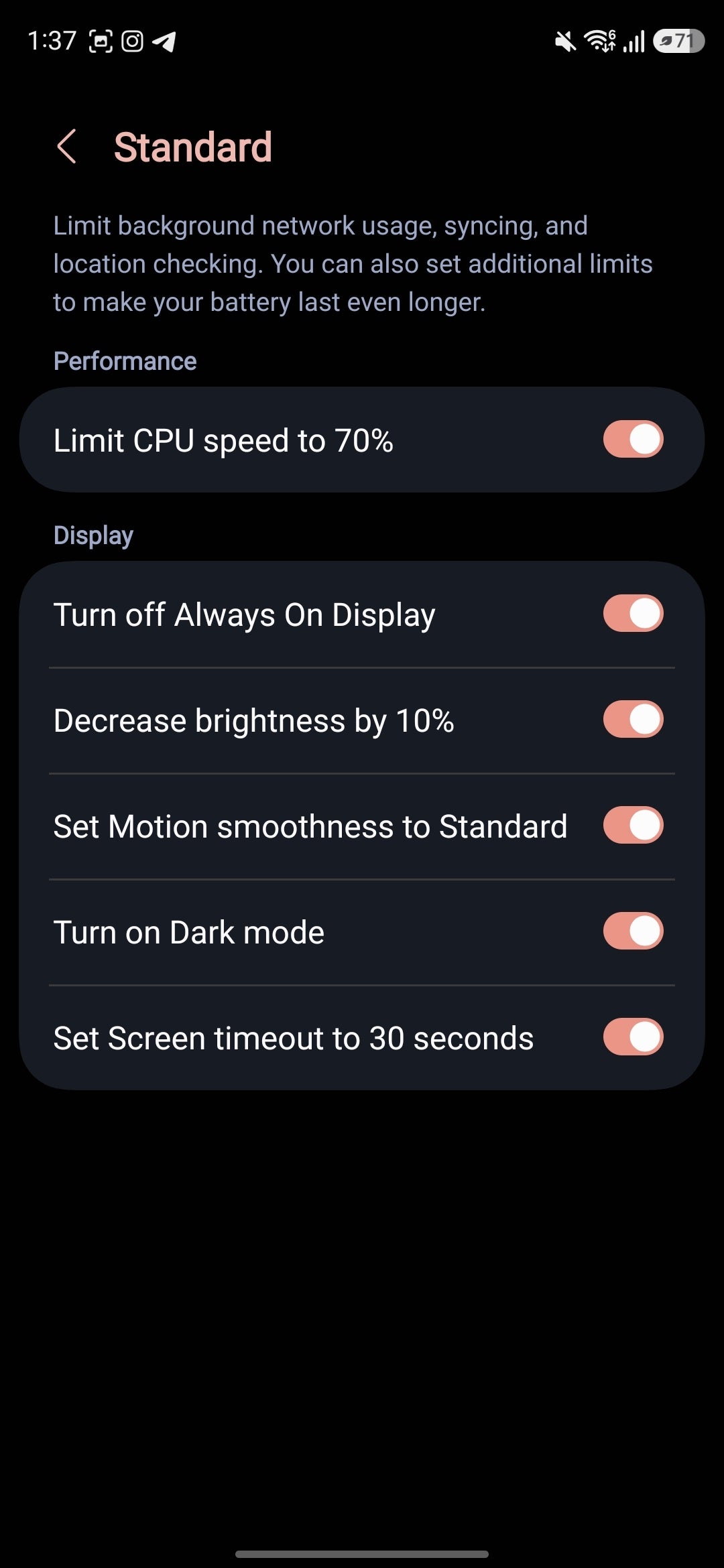
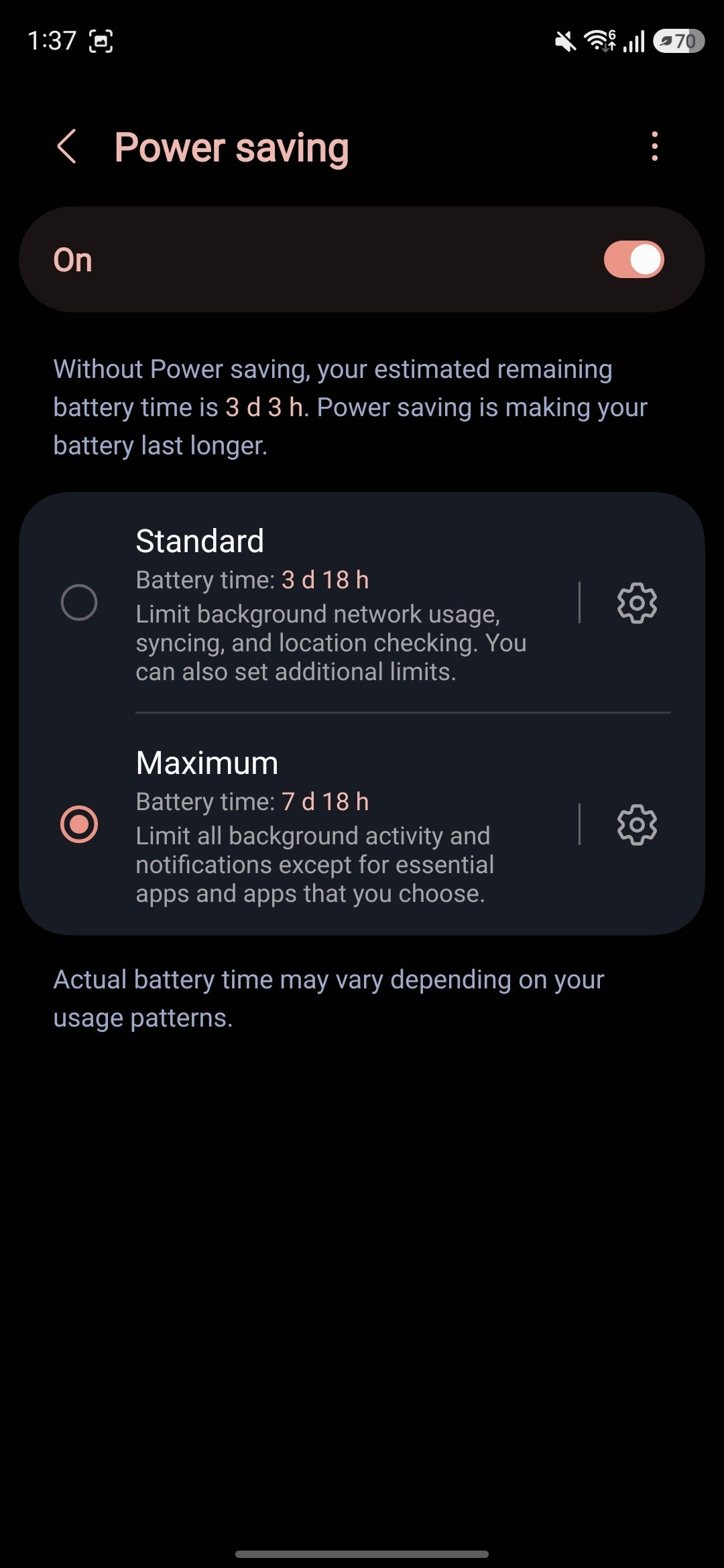
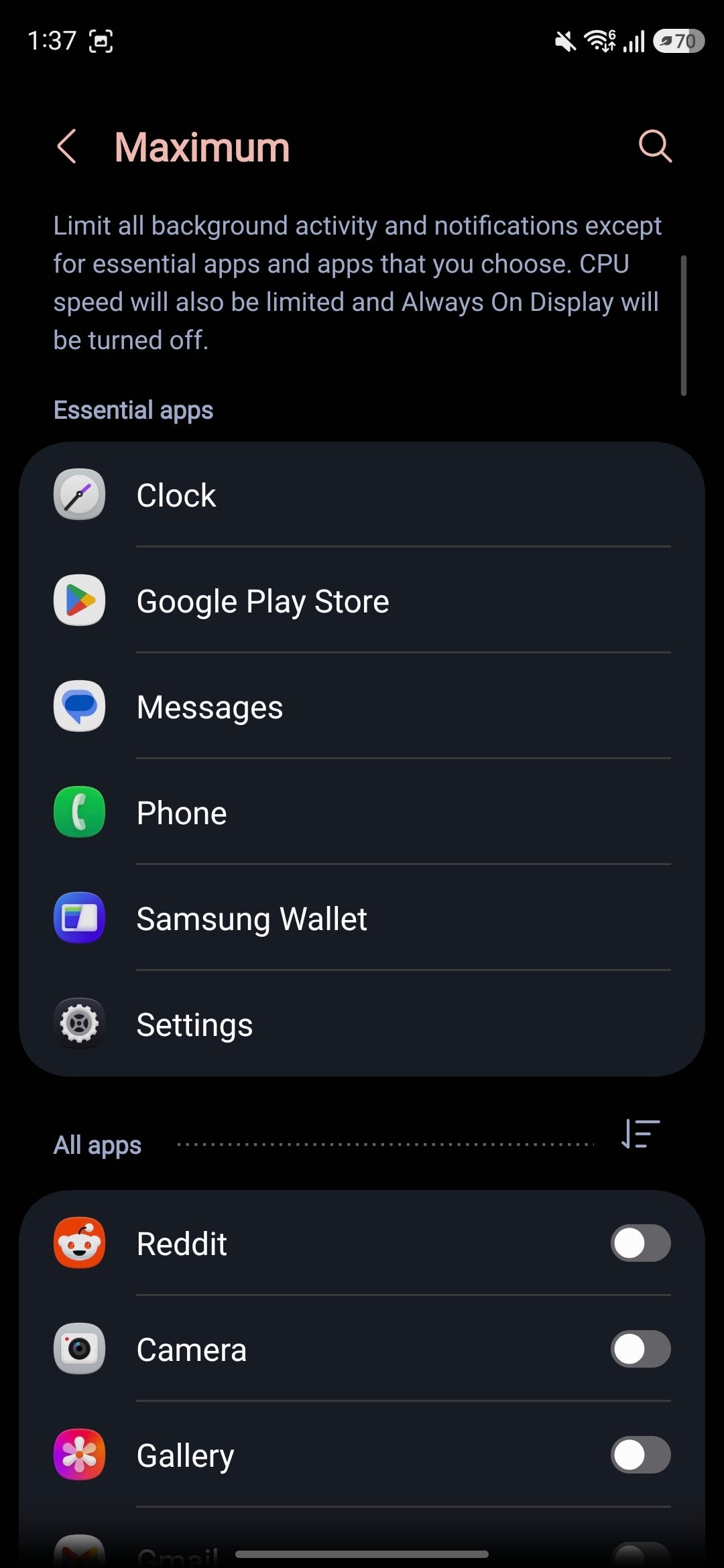
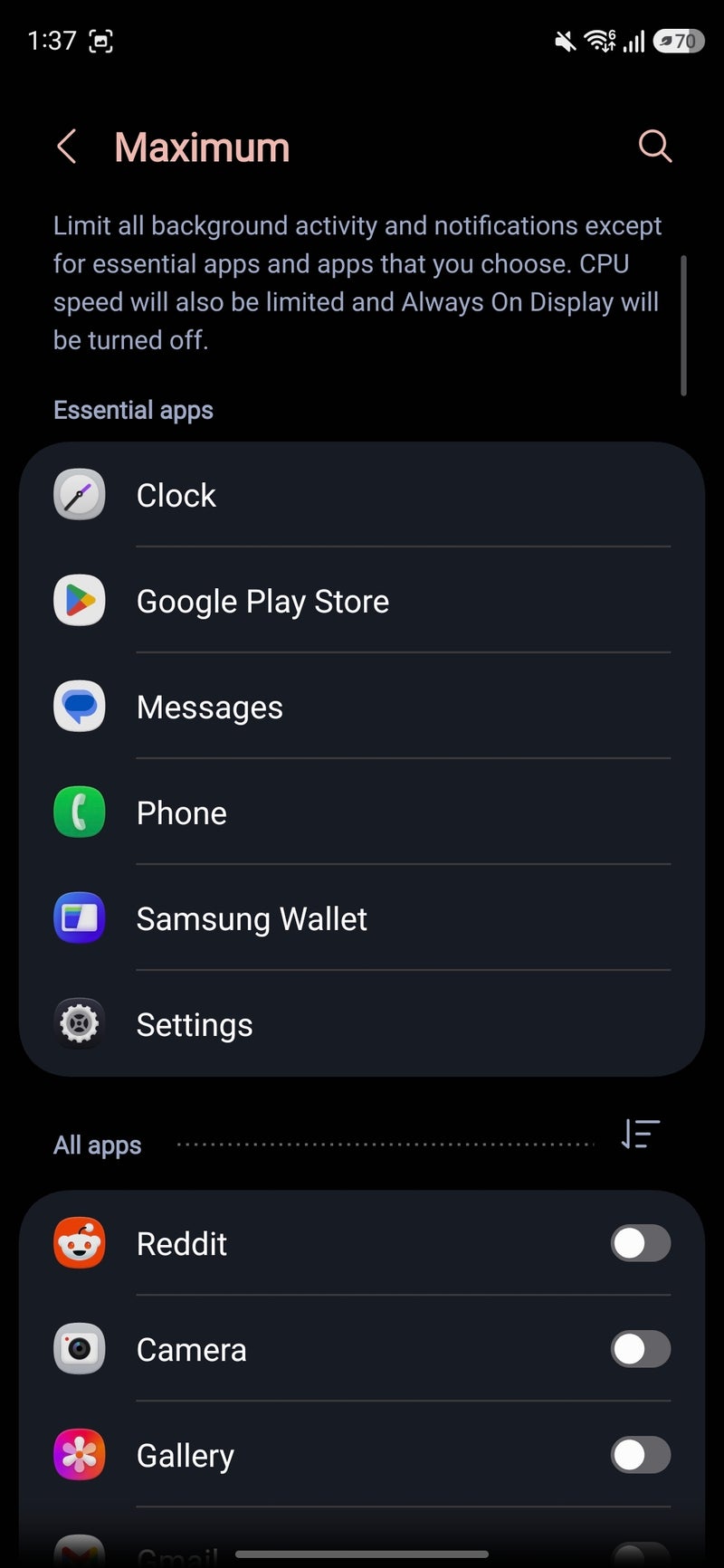
But there's also an even stricter maximum battery saver mode, which disables all background app activity and notifications except for the essential apps and the ones you whitelist. This battery saver mode also limits maximum CPU speed and turns off Always On Display.
To enable battery-saving mode, go to Settings, then Battery, then swipe down to Power Saving, and select your preferred battery-saving mode.
Tip #3: Enable Adaptive Power Saving
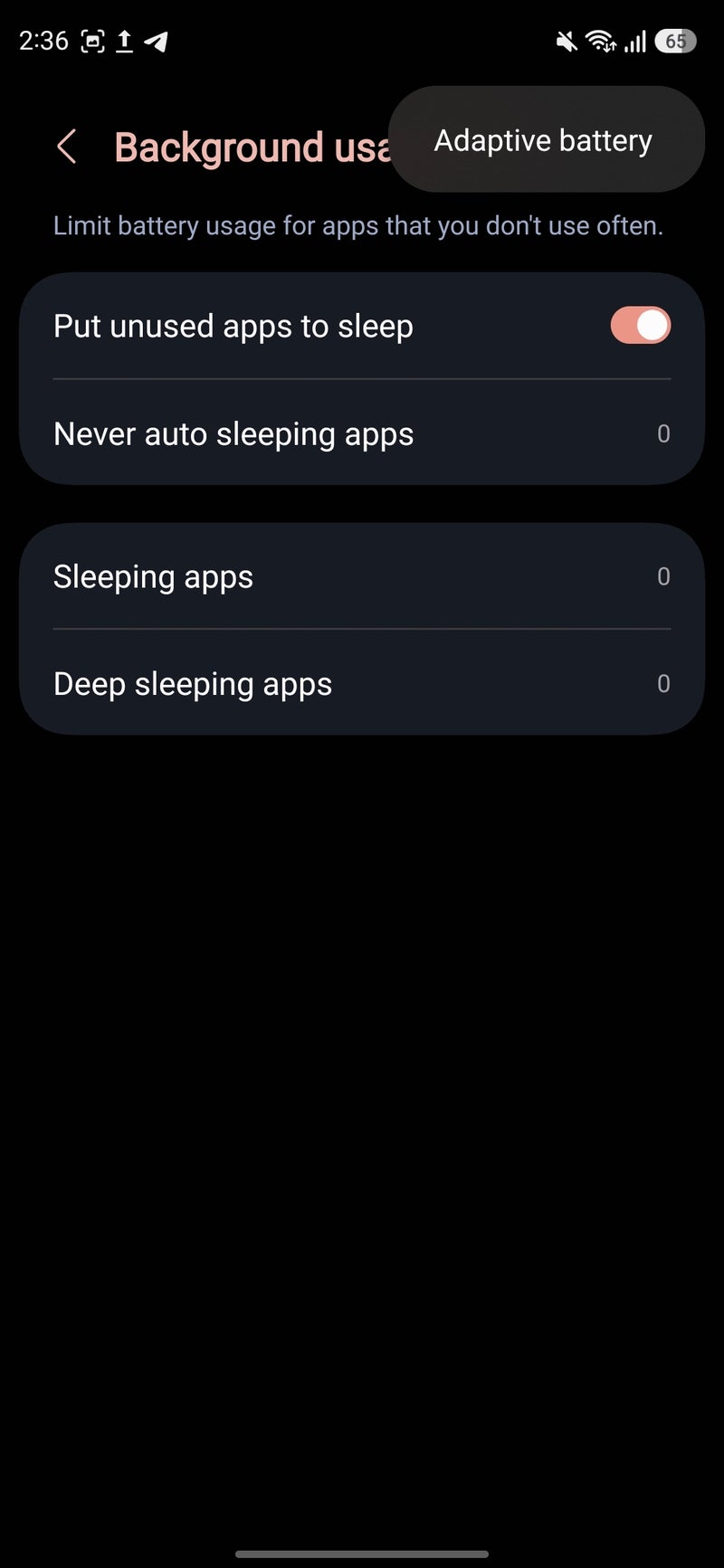
Tucked inside the battery-saving menu is Adaptive Power Saving mode. To access it, hit the three-dot button inside the Power Saving menu, and enable it from there. What this one does is automatically adapt to your usage patterns and enable power-saving when needed.
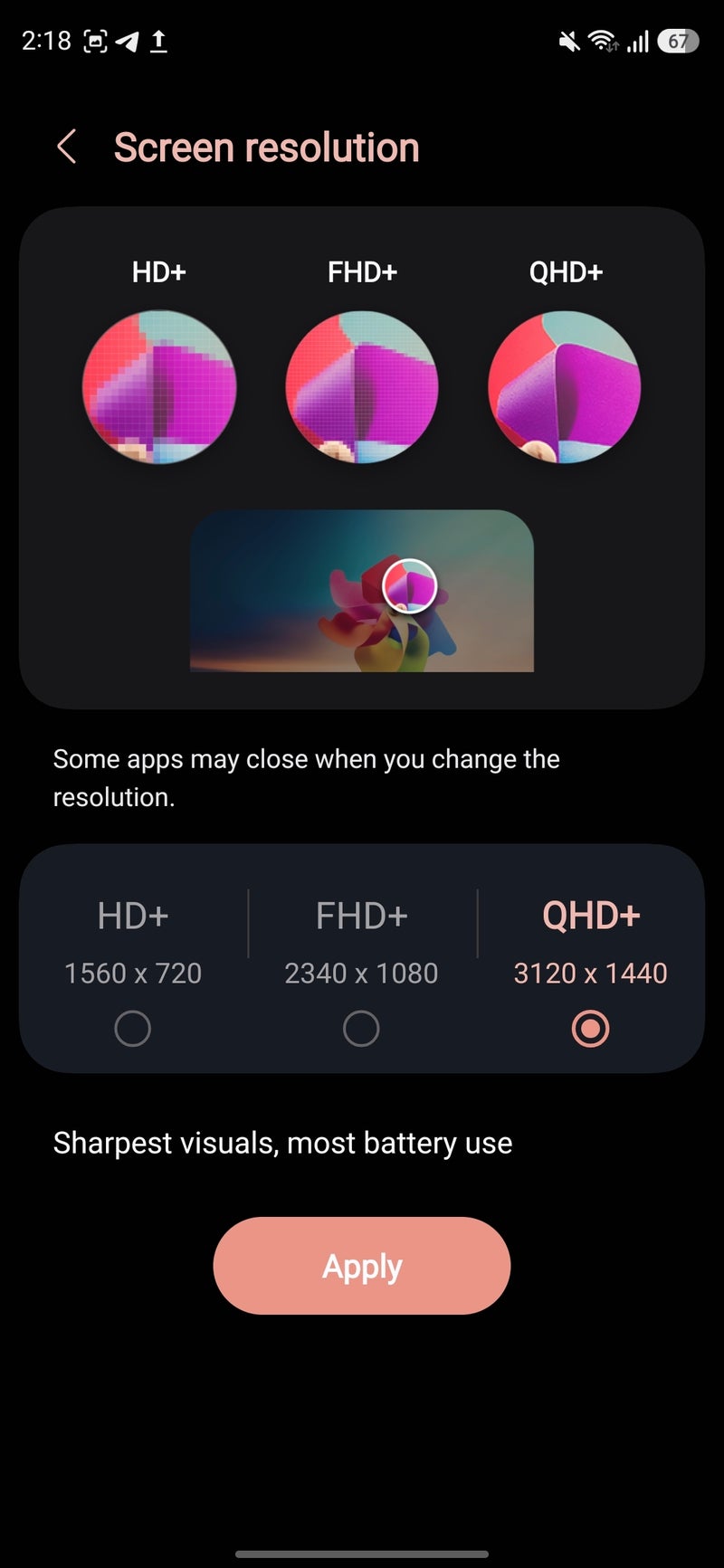
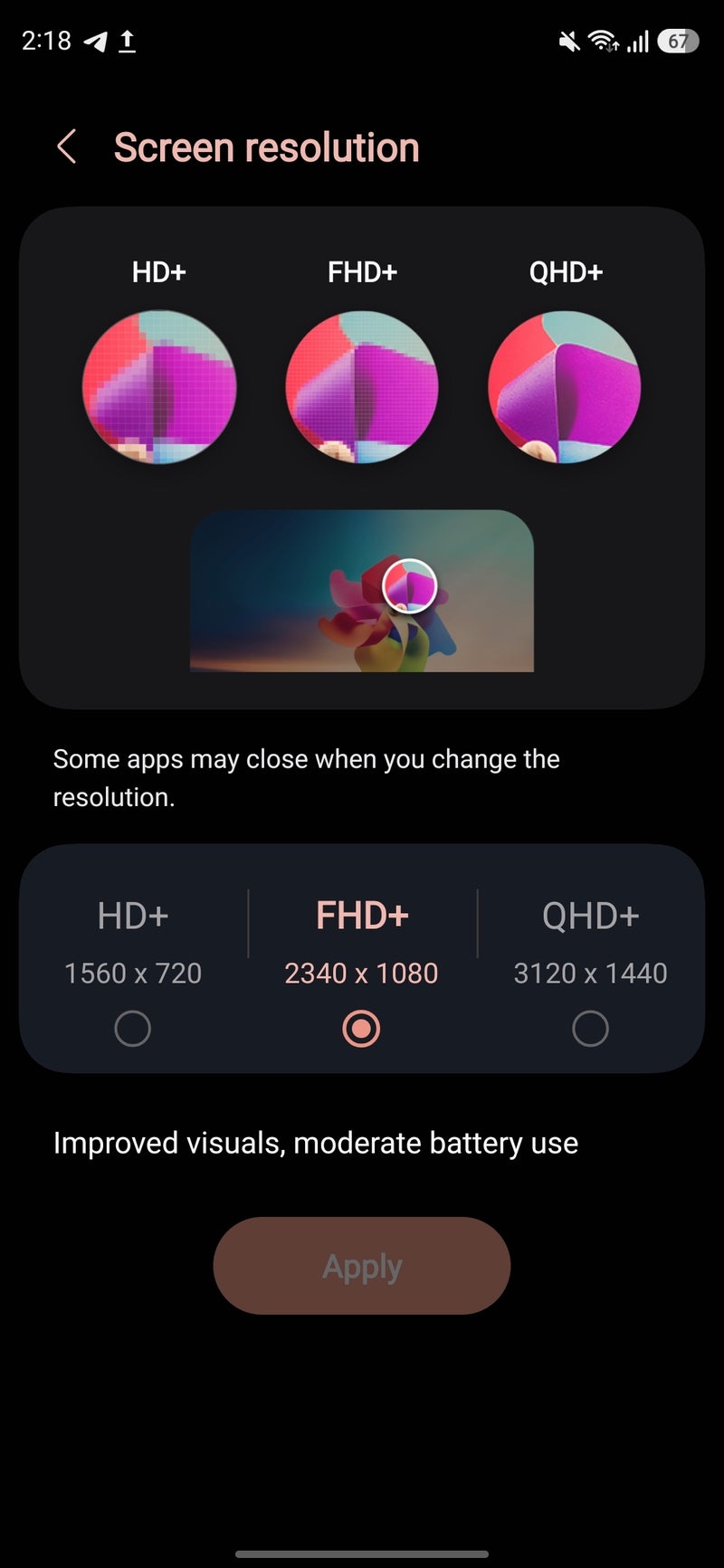
Tip #4: Lower screen resolution
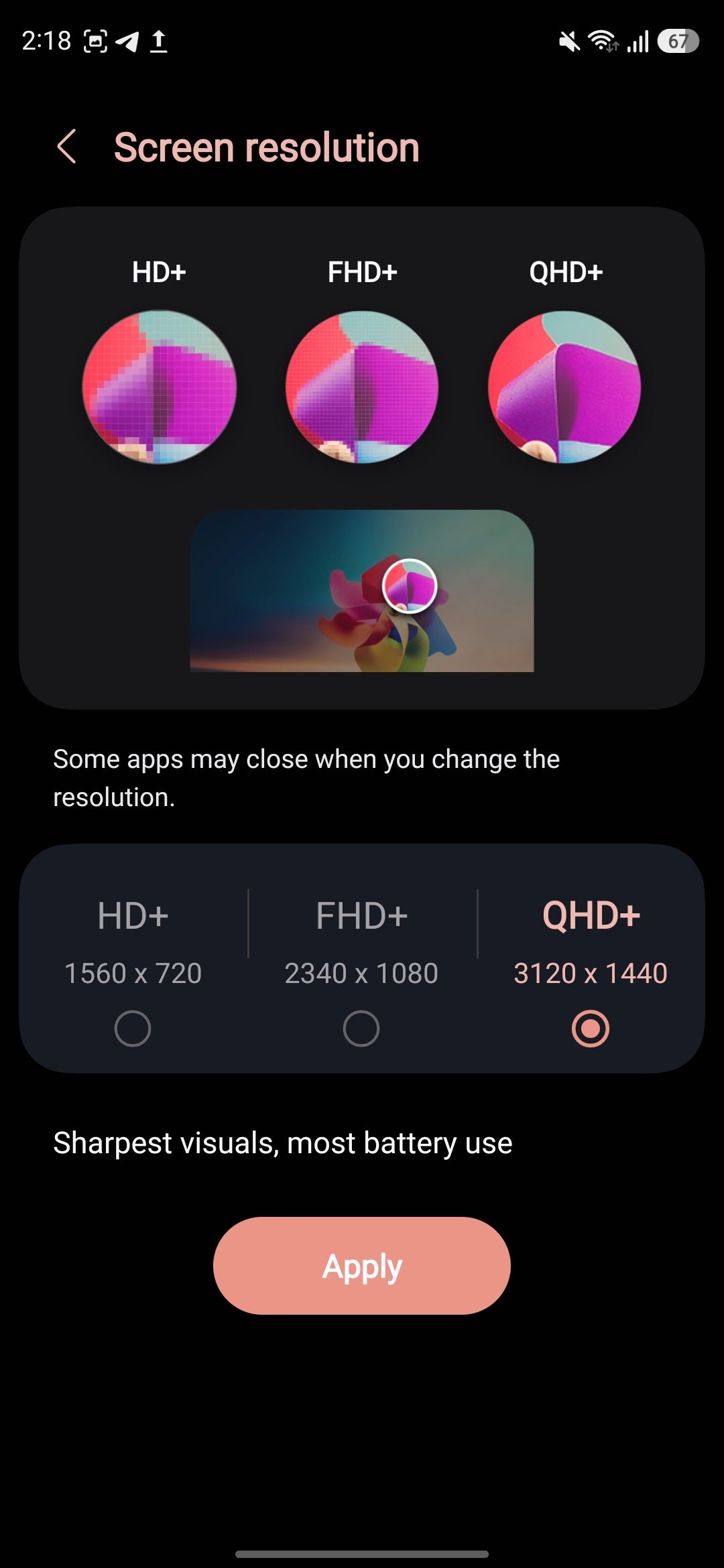
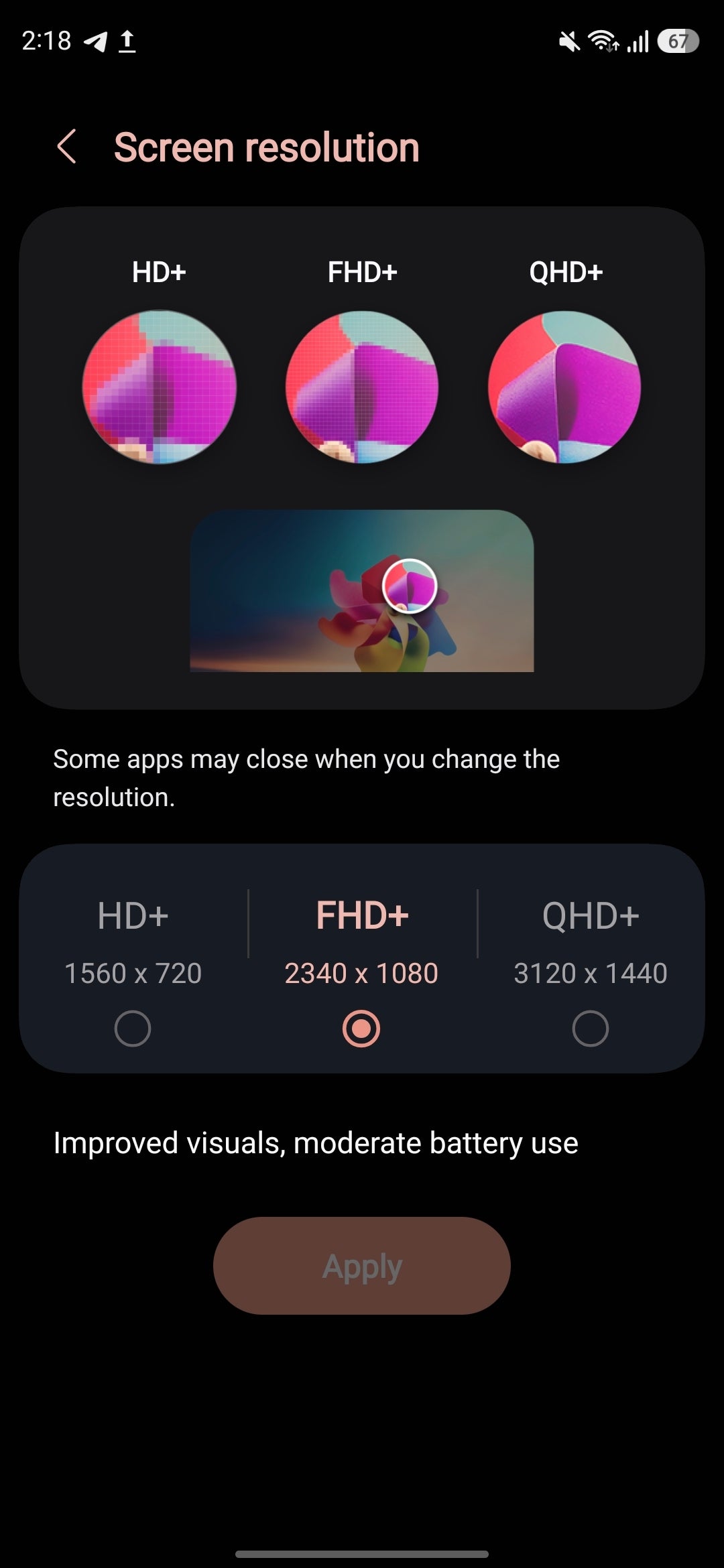
Chances are you don't really need QHD+ resolution to be enabled at all times in your everyday life. Sure, it's the native resolution of both the Galaxy S26 Ultra and the Galaxy S26 Plus and definitely gives the sharpest visuals, but it also takes a heavier toll on your battery. Using FHD+ should be more than enough for most use cases.
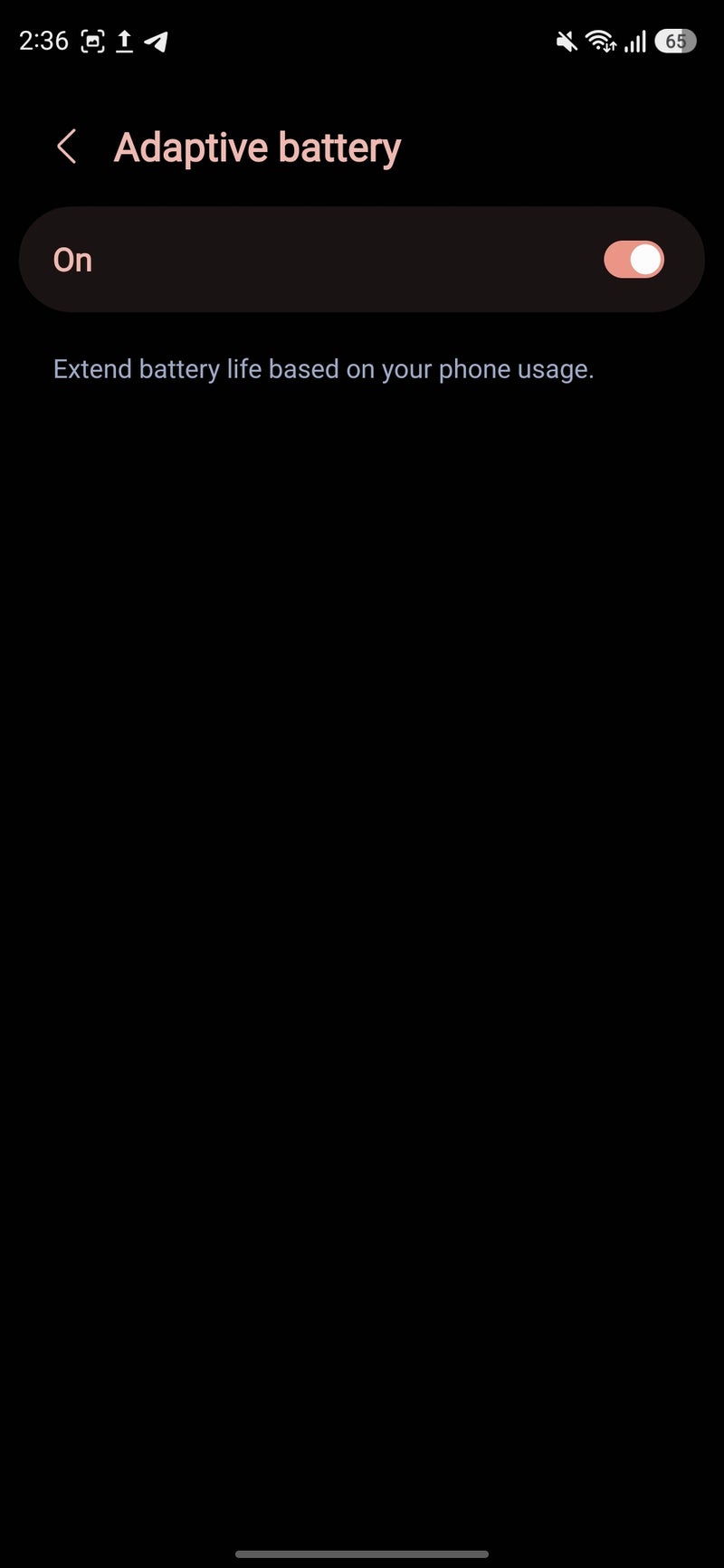
Tip #5: Adaptive battery should be enabled
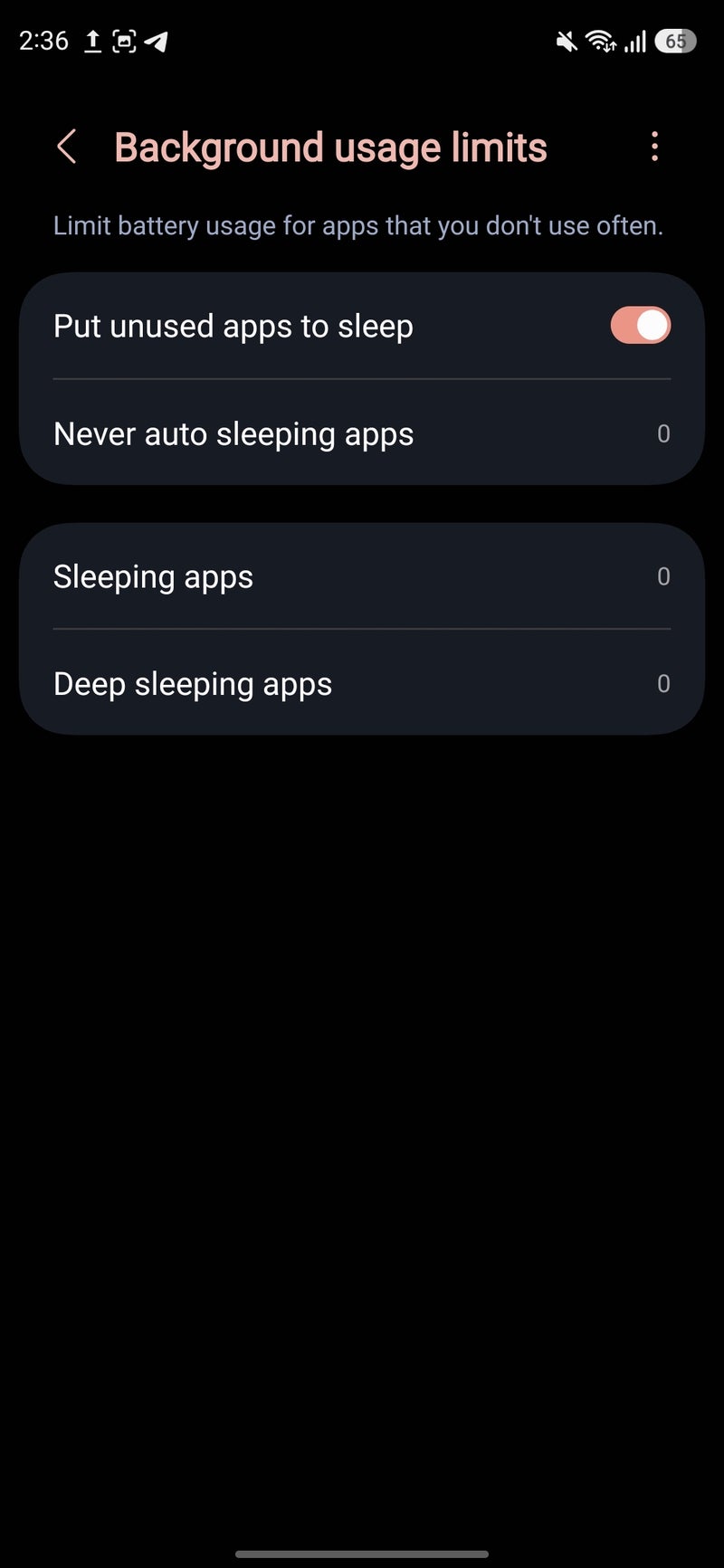
One of the features that might quietly improve your battery life in the long run is Adaptive Battery, which uses on-device algorithms to intelligently put unused apps to sleep. The community is seemingly torn on whether enabling or disabling Adaptive Battery saves more battery, but to me it's clear––leave this one enabled or turn it on if it is disabled on your phone.
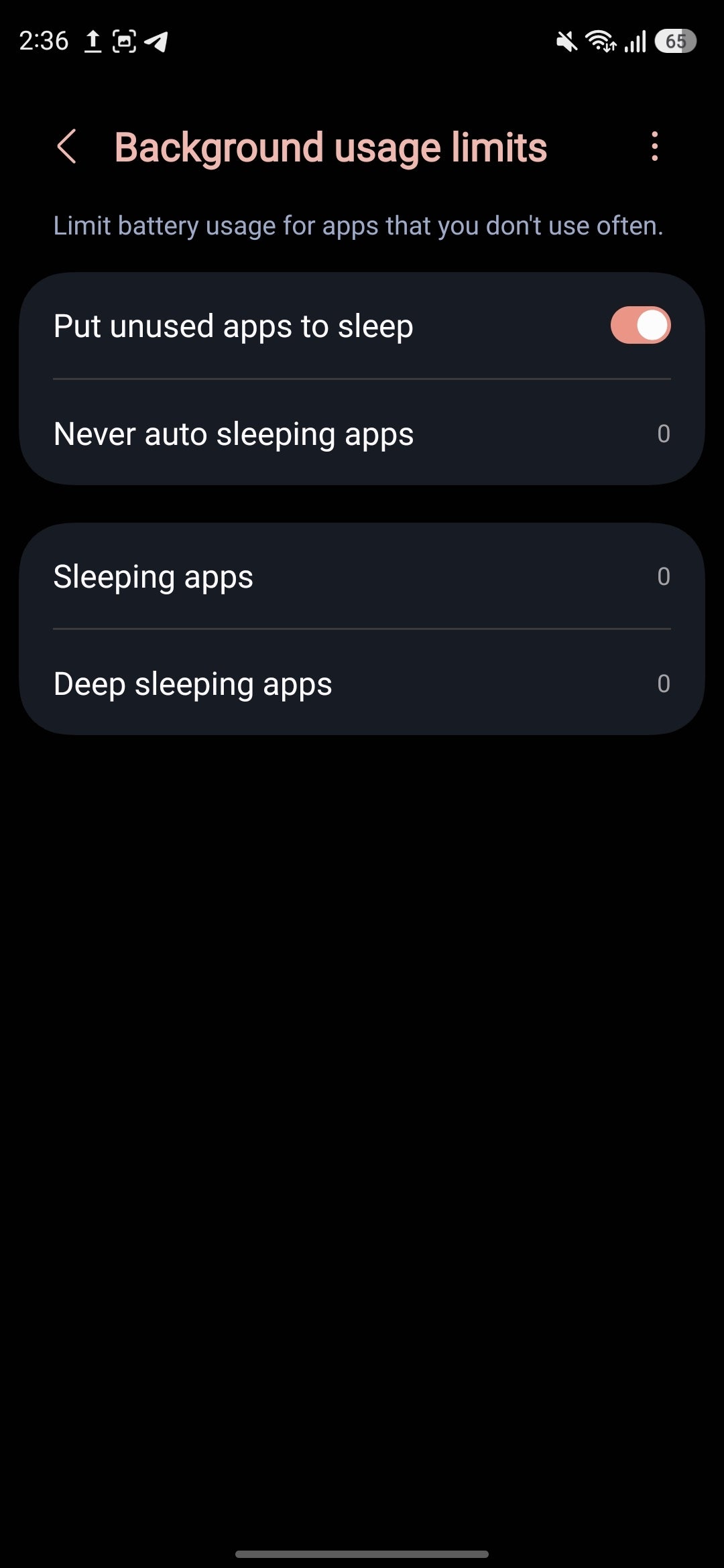
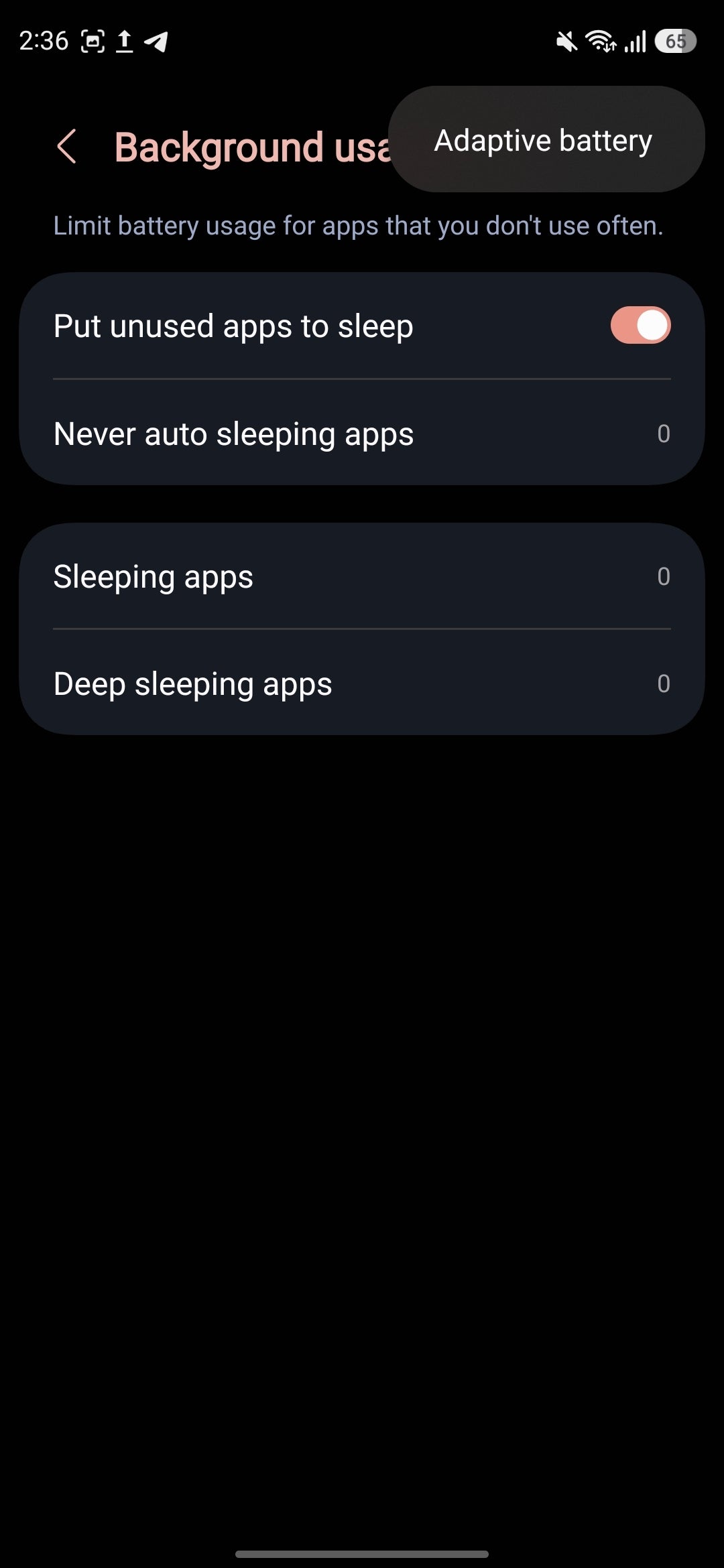
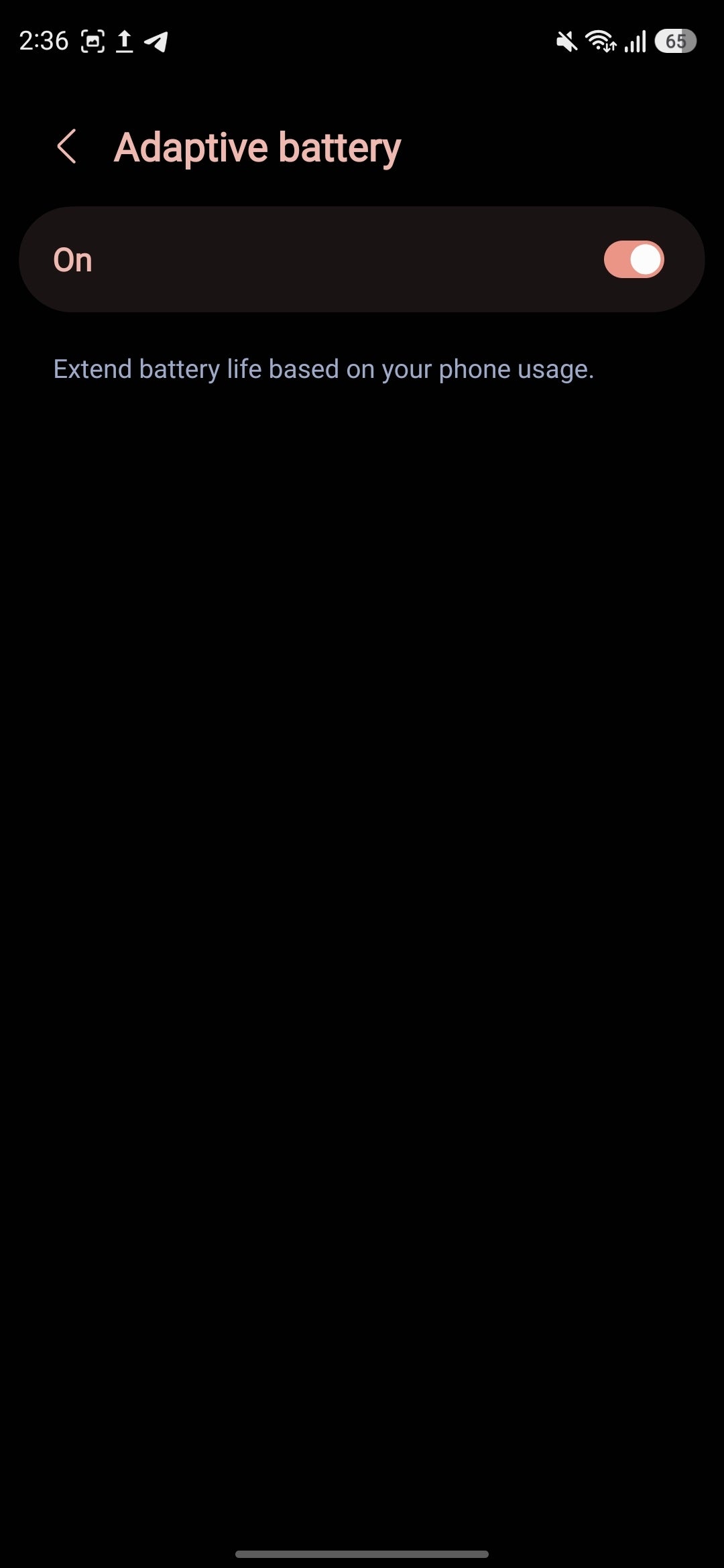
Tip #6: Radios affect your battery more seriously than you'd think
Usually in an area with spotty 5G coverage? Turn 5G off and fall back to LTE. Radios consume more battery than you'd think, so browsing the web in an area with less than perfect 5G signal will take a much bigger toll on your battery.
Conclusion
There are lots of ways to save battery on your Galaxy phone, though how much you'd save largely depends on your unique usage habits and device setup. Ultimately, there are only a handful of things you can do to save your battery, and your phone should already be doing these in the background.
Then again, battery saving shouldn't be your ultimate goal. After all, you can disable any and all battery-eating features, but that defeats the purpose of a "smartphone". This fully applies to the Galaxy S26 Ultra, too.
- Galaxy S26 Ultra camera guide: make the most of the new Ultra camera!


Popular stories



Latest News






Things that are NOT allowed:
To help keep our community safe and free from spam, we apply temporary limits to newly created accounts: