Google Maps extends very useful feature to more vehicles using Android Auto
EV owners can plan their long driving journeys better with Google Maps' AI-powered charging features.
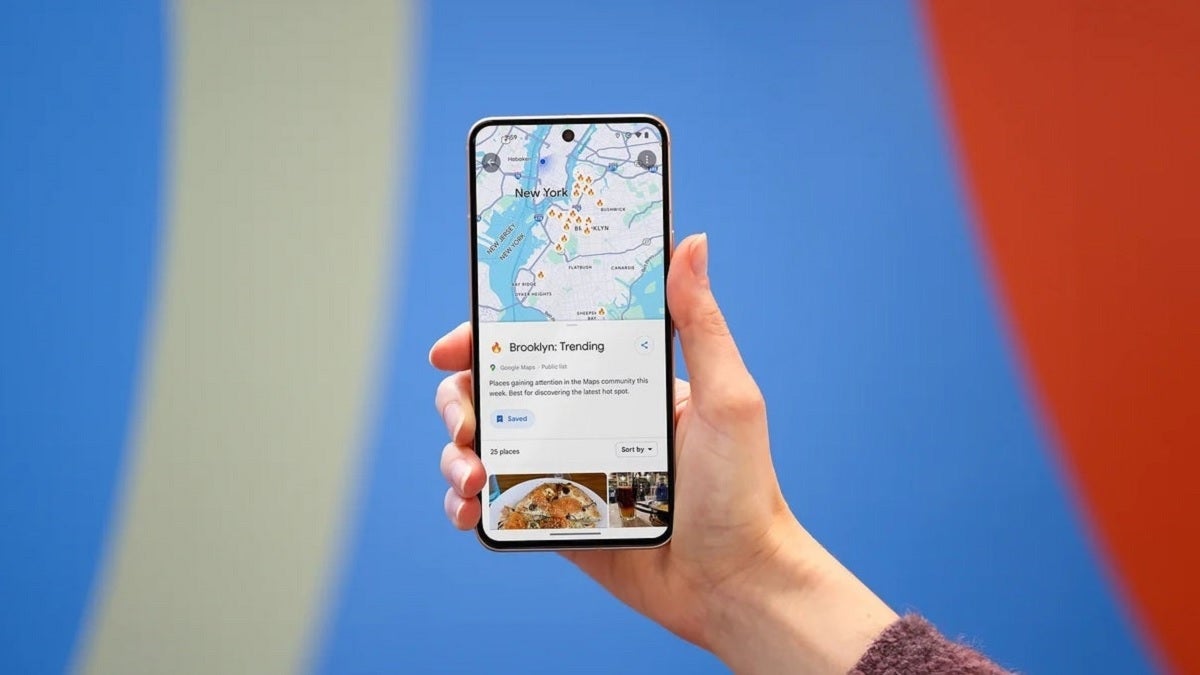
More EVs support Google Maps' AI-powered charging features. | Image by PhoneArena
Google announced today some news that some of those with an Electric Vehicle (EV) will be happy to hear. Google Maps is adding over 350 car models to the list of EVs that support the navigation and mapping app's AI-powered charging features on Android Auto. This is great for those who use a battery-powered vehicle because it will consider the exact EV that they are driving, and based on the destination typed into the app, show recommended charging stops.
Google Maps will show a driver what his battery level should be when he gets to his destination
Besides showing where and when the driver will need to pull off the road for a charge, the feature also will estimate what the battery level of the EV will be when the driver pulls into his destination. An updated Estimated Time of Arrival (ETA) based on the charging stops will also be shown. This will help EV drivers from constantly worrying about whether they have enough "juice" to get them where they have to go. It also allows the driver to get all this important information from one app, Google Maps, instead of having to watch two different apps.
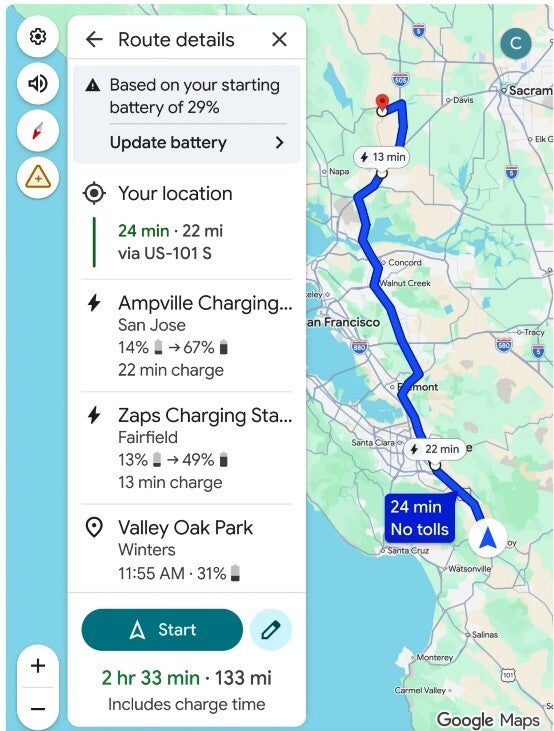
Google Maps' AI-powered EV battery charging feature. | Image by Google
When you add your EV information into the app along with the destination for your journey, Google Maps uses AI to calculate your expected battery use. To enter your EV, open Google Maps and tap the profile icon in the right corner of the screen. Go to Settings > Your vehicles. Under Engine type, select Electric. Under Vehicle, tap on Add vehicle and tap the correct Make, Model, Year, and Trim. Make sure the "Your plugs" info is correct. Tap on edit if you need to make a change. Lastly, tap on Save.
These vehicle brands support Google's AI-powered charging features
To make accurate predictions about your vehicle's battery, Google says that it combines AI with advanced energy models that know your vehicle's weight and battery size. When the destination is typed in, Google Maps analyzes real-time traffic data, the weather, and road elevation. It then uses this information to figure out when and where you will need to charge your car's battery, and how much battery life your vehicle will have when you arrive at your destination.
The vehicle brands that support Google Maps AI-powered battery predictions include:
- Audi
- BMW
- Chevrolet
- FIAT
- Genesis
- Hyundai
- Jaguar
- Kia
- Lexus
- Lucid
- Mercedes-Benz
- Nissan
- Porsche
- Subaru
- Toyota
- Volkswagen
The exciting thing is how much easier it will be for EV owners to plan trips knowing exactly when they will need to charge the battery. Have you ever had the fuel indicator on your gas-powered vehicle hit the red line or drop slightly below the "E" while you were driving on an unfamiliar road with no gas stations in sight? It is the same thing as watching the battery indicator on your EV drop to 1% or lower. Actually, it might be worse since it is harder to find a charging station than a gas station.
How to install Google Maps on your iPhone
Most Android devices, at least those with Google Mobile Services, have Google Maps pre-installed. Devices using the Android Open Source Project open source version of the operating system and phones powered by iOS do not come with Google Maps pre-installed. To install Google Maps on your iPhone, tap on this link to download the app from the App Store.
EVs are still a novelty in the U.S., mostly because of concerns about their range. Eventually, this will change and the number of charging stations will rapidly grow across the country. Right now, if you do drive an EV, it is a good idea to enter your vehicle's information into the Google Maps app to help you plan your next journey.
If you drive a hybrid vehicle (part EV, part gas-driven) or a completely gas-powered car, Google Maps can take you to the closest gas station near you. Just type Gas into the search bar at the top of the Google Maps app, and you will see a list of stations by distance with the closest one at the top. Tap on the directions button to find out how to drive to any of the stations that appear.


Popular stories






Latest News



Things that are NOT allowed:
To help keep our community safe and free from spam, we apply temporary limits to newly created accounts: