Google Photos is now giving you a brand new way to create a movie from your photos
The Photo to video feature now offers more control than just feeling lucky.
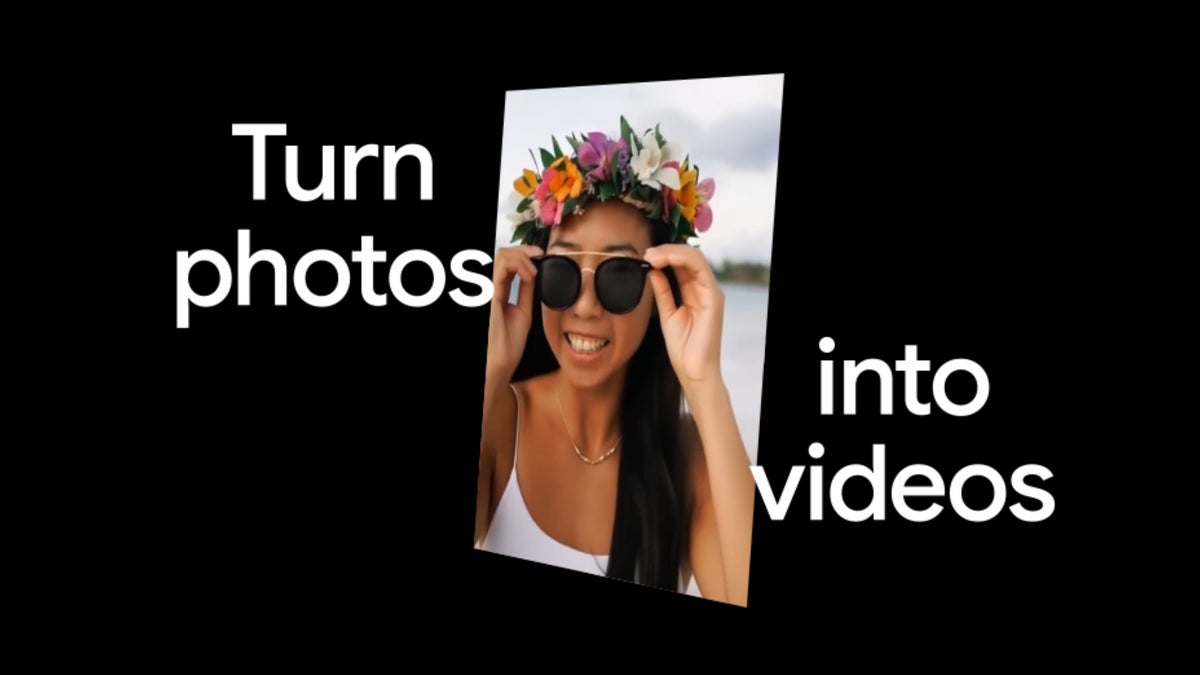
Google is rolling out a clever update to Google Photos that gives you even more control over how your pictures come to life. Building on the "Photo to video" feature that first launched last year, this new update adds the ability to use custom text prompts to guide the AI, giving you a third way to create short, dynamic clips from your favorite stills.
Google is giving its popular "Photo to video" tool a boost by letting you talk to it. In a new community post, the company revealed that you can now type specific descriptions to tell the AI exactly how you want your photo to move. This is a big step up from the tool's initial debut last year, where you were limited to the app's own presets. Instead of just hoping for the best, you can now ask the app to make you what you want.
The system uses Google’s advanced video models to understand the objects in your photo, ensuring that when you ask for "blowing wind," it knows to move the trees and not the house.
When "Photo to video" first arrived in July 2025, it was a bit of a party trick (impressive, but limited). You could make a portrait "come alive" with a blink or a nod, but you couldn't really direct the action. By adding text prompts, Google is moving toward a more professional style of editing that anyone can use.
I’ve been a fan of the "Subtle movement" option since it launched because it adds a touch of magic to old family photos. However, having the ability to actually tell the app what to do changes everything. I can see myself using this to make clouds move in a landscape shot or to make my dog's tail wag in a still photo where he was actually sitting perfectly still.
Your photos can now follow instructions
Google is giving its popular "Photo to video" tool a boost by letting you talk to it. In a new community post, the company revealed that you can now type specific descriptions to tell the AI exactly how you want your photo to move. This is a big step up from the tool's initial debut last year, where you were limited to the app's own presets. Instead of just hoping for the best, you can now ask the app to make you what you want.
How to use the new text prompts in Photo to video
- Open your Google Photos app and head to the "Create" tab.
- Select the "Photo to video" option and pick the picture you want to animate.
- You will now see three options instead of two:
- Text Prompt (New): Type in exactly what you want the subjects in your photo to do.
- Subtle movement: The classic option for adding gentle, photorealistic motion like a smile or a slight tilt.
- I'm feeling lucky: The "surprise me" button that adds more energetic movement or fun effects like confetti.
- Tap "Generate" and wait a few seconds for the AI's output.
The system uses Google’s advanced video models to understand the objects in your photo, ensuring that when you ask for "blowing wind," it knows to move the trees and not the house.
Why this makes your photo library more fun
Video credit — Google
When "Photo to video" first arrived in July 2025, it was a bit of a party trick (impressive, but limited). You could make a portrait "come alive" with a blink or a nod, but you couldn't really direct the action. By adding text prompts, Google is moving toward a more professional style of editing that anyone can use.
This puts Google Photos in a unique spot compared to other gallery apps. While competitors often offer "looping" effects or simple 3D tilts, this feature actually creates brand-new video frames based on your words.
Which way would you rather create a video?
6 Votes
I want to type exactly what happens with a text prompt
33.33%
I prefer the "Subtle movement" for a natural look
33.33%
I like the surprise of "I'm feeling lucky"
0%
I'd rather just stick to my original, unedited photos
33.33%
Taking the director's chair
I’ve been a fan of the "Subtle movement" option since it launched because it adds a touch of magic to old family photos. However, having the ability to actually tell the app what to do changes everything. I can see myself using this to make clouds move in a landscape shot or to make my dog's tail wag in a still photo where he was actually sitting perfectly still.


Popular stories



Latest News


Things that are NOT allowed:
To help keep our community safe and free from spam, we apply temporary limits to newly created accounts: