Back in the waning days of October we told you that Google was looking to replace the Hamburger icon menu with a new, dynamic context menu. Designed to make it easier for Google Messages users with large-screen phones to access any menu option from any individual chat. Once your Google Messages app gets the dynamic context menu, you won't have to engage in the ridiculous finger calisthenics necessary to tap the hamburger menu in the upper right corner.
This new-look Google Messages menu is rolling out now
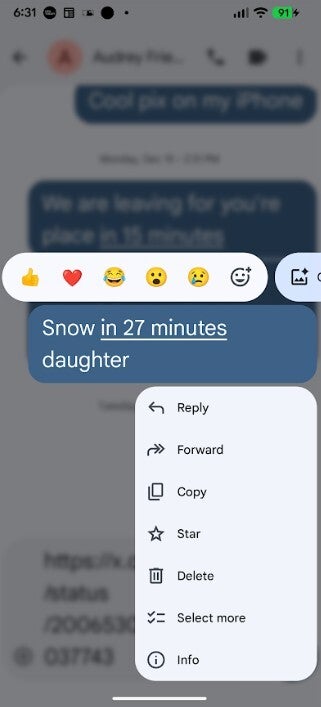
It now appears that the new menu is rolling out to beta versions of the Google Messages app. With the update, when you long press on a chat/message, the Reactions menu appears above the message allowing you to add a quick reaction to it. But underneath the message is a vertical box that contains options, some of which might have previously required you to stretch out and tap the hamburger icon all the way at the top right corner of the display.
The new menu underneath the message includes options like:
Reply
Forward
Copy
Star
Delete
Select more
Info
If that's all that this Google Messages update does, that would be good enough since you wouldn't have to stretch your fingers like you were Stretch Armstrong. But in order to keep that vertical box as small as possible, the app understands the context of the message you long press and offers up different options to select depending on that context.
The new dynamic context menu on the Google Messages app. | Image credit-PhoneArena
On Reddit, one user thought that the new look to Google Messages eliminated the option allowing you to delete multiple messages at one time. Actually, it didn't. What you need to do is this. Go to the app and get to the first message you want to remove. Long press on that message and tap Select more from the vertical box. Scroll down to find the next message you want to delete. When you are on that message, tap on it.
The new Google Messages menu feature is already working on my Pixel 6 Pro
In the upper left of the screen, you'll see it say "X 2." That means you have two messages that will be deleted once you press that trash can icon in the top right corner. If there is another message you want deleted, you'll repeat the process and if the top left corner shows X 3, it means you've done it right. When you are all finished, tap the trash can icon to remove the messages you want gone.
Recommended For You
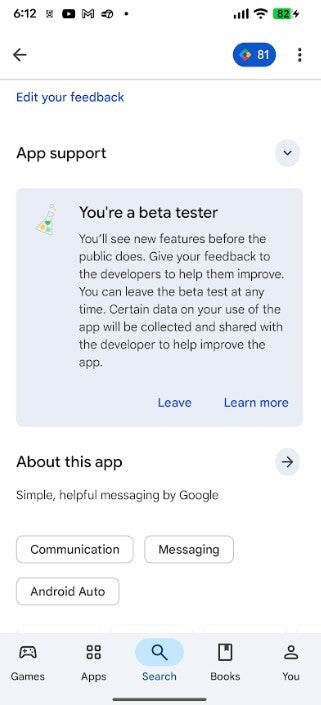
If you're a member of the Google Messages beta program, you will see this on the app's Play Store listing. | Image credit-PhoneArena
I have received this feature on my Pixel 6 Pro running the latest Android 16 QPR3 Beta. But the more important thing is that you must be a member of the Google Messages Beta program. To see if you are a Google Messages beta member, open the Google Play Store app and search for the Google Messages listing. When you open the listing, the word (Beta), just like this in parenthesis, is seen. Scroll down on the listing page and you should see a box that says, "You're a beta tester."
How to become a Google Messages beta tester
The box says, "You'll see new features before the public does. Give your feedback to the developers to help them improve. You can leave the beta test at any time. Certain data on your use of the app will be collected and shared with the developer to help improve the app." If you want to join the Googler Messages beta, go back to the Play Store listing for the app. Scroll down until you see "Join the beta." Tap "Join." It will take a few minutes to as long as 24 hours to process the request.
Are you looking forward to this new menu for Google Messages?
23 Votes
Yes I am. I can't wait to see it in action.
60.87%
No. I really wouldn't use it at all.
21.74%
I use a different Android messaging app.
13.04%
I'm not an Android user.
4.35%
Beta openings are limited, so if you don't see the "Join the beta" prompt, there might not be any openings at the moment. Try again later.
Six-month unlimited plan is now 57% off
$90
$210
$120 off (57%)
Mint Mobile is now allowing you to get whichever plan you like for either three, six, or 12 months for just $15/mo. If you go for the six-month unlimited service, for instance, you'll now have to pay just $90 upfront instead of $210.
Alan, an ardent smartphone enthusiast and a veteran writer at PhoneArena since 2009, has witnessed and chronicled the transformative years of mobile technology. Owning iconic phones from the original iPhone to the iPhone 15 Pro Max, he has seen smartphones evolve into a global phenomenon. Beyond smartphones, Alan has covered the emergence of tablets, smartwatches, and smart speakers.
A discussion is a place, where people can voice their opinion, no matter if it
is positive, neutral or negative. However, when posting, one must stay true to the topic, and not just share some
random thoughts, which are not directly related to the matter.
Things that are NOT allowed:
Off-topic talk - you must stick to the subject of discussion
Offensive, hate speech - if you want to say something, say it politely
Spam/Advertisements - these posts are deleted
Multiple accounts - one person can have only one account
Impersonations and offensive nicknames - these accounts get banned
To help keep our community safe and free from spam, we apply temporary limits to newly created accounts:
New accounts created within the last 24 hours may experience restrictions on how frequently they can
post or comment.
These limits are in place as a precaution and will automatically lift.
Moderation is done by humans. We try to be as objective as possible and moderate with zero bias. If you think a
post should be moderated - please, report it.
Have a question about the rules or why you have been moderated/limited/banned? Please,
contact us.











Things that are NOT allowed:
To help keep our community safe and free from spam, we apply temporary limits to newly created accounts: