After Chrome and YouTube, Google Translate is probably the app I use the most on my smartphone. If you also use the Google Translate app a lot on your device, you will be excited to know that it's getting a new pronunciation practice feature. Here's everything you need to know about it.
What's the new pronunciation practice feature in Google Translate?
Google Translate comes with plenty of useful features, and the new pronunciation practice upgrade is just the cherry on top. I've been using the app a lot lately, as I have been reading a Spanish novel, "Don Quixote," for the last few weeks. I basically use the scan feature to capture the page content and convert it into English.
During the translation, I also used to pronounce the Spanish words, but I was certain that I was pronouncing them really incorrectly, but not anymore. The new pronunciation practice feature tells me how to pronounce the Spanish word exactly.
Is this feature available to everyone?
As of now, no. The new pronunciation practice feature has very limited availability. The tech giant has started rolling it out only in the US and India, and that too, it only works with Spanish and Hindi.
Furthermore, it is currently only available on the Android app. But considering its usability, I am pretty certain that it will soon land on iOS as well.
Recommended For You
Which app do you consider the best for learning a new language?
22 Votes
Duolingo.
36.36%
Google Translate.
27.27%
YouTube.
18.18%
Pimsleur.
0%
Mango Languages.
0%
Something else.
18.18%
How to use the new feature?
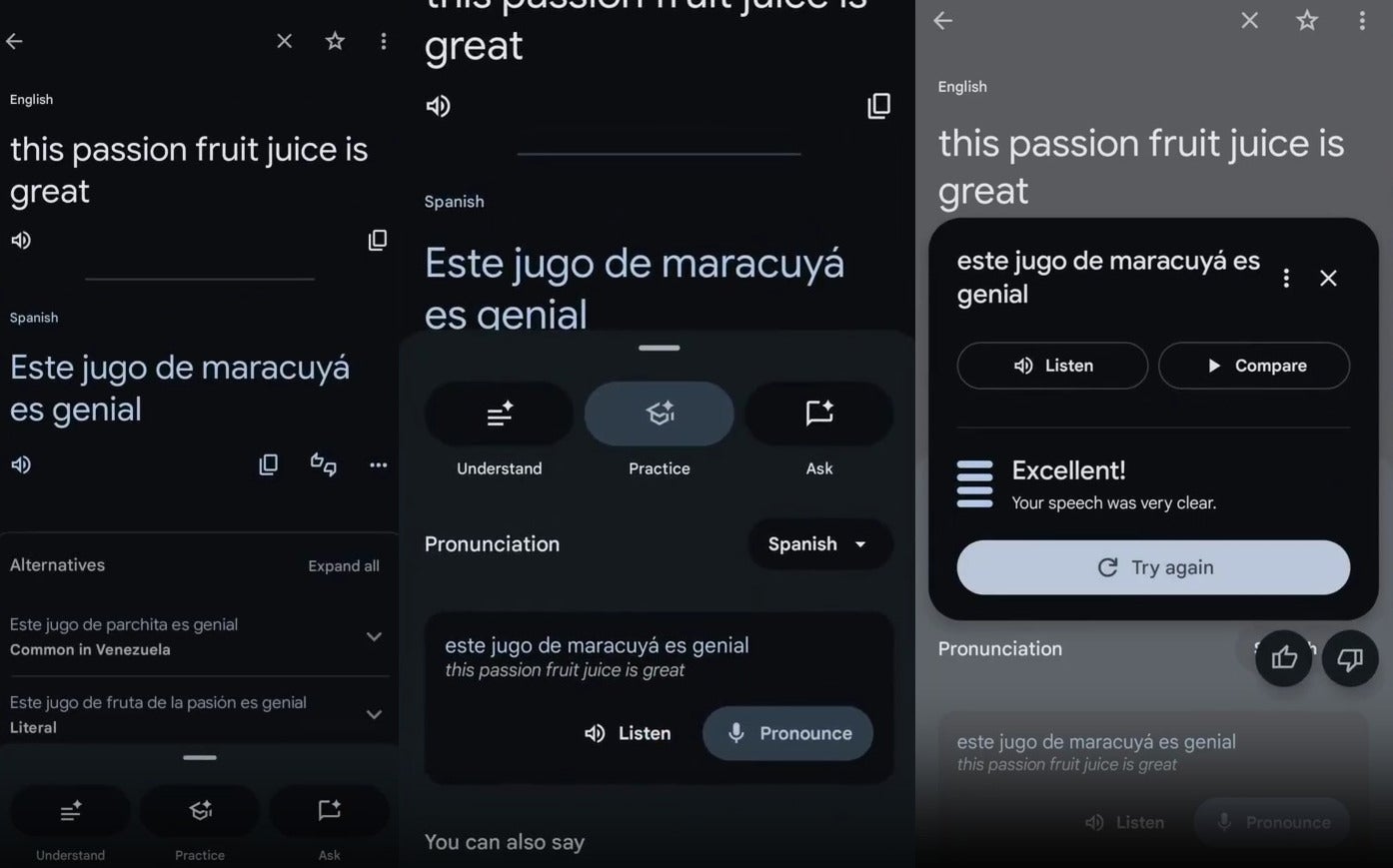
Google Translate pronunciation practice feature. | Image by Google
Using the pronunciation practice feature in Google Translate is pretty straightforward. First, you need to make sure that you have the latest update of the app installed on your Android smartphone.
After that, launch the app and type the sentence you want to convert to your preferred language. Now, tap the new "Practice" button that appears at the bottom of the window. As mentioned above, the new feature currently only works with Spanish and Hindi, so you might not see the "Practice" button if you have selected any other language.
A pop-up window will appear, giving you two options: Listen and Pronounce. I'd suggest you first tap the Listen option so that you can get an idea of how to actually pronounce the sentence you have written. After you have an idea of how it is pronounced, you should tap the "Pronounce" button and give it your best shot.
The tool will then use its AI power to analyze your speech and give feedback on areas where you can improve. For instance, you might get a suggestion to speak more clearly. You can choose to select the "Listen" button again to find out exactly how the sentence is pronounced.
Once you come up with a perfect speech, you will receive a congratulatory message, something like, "Excellent, your speech was very clear." The experience is very similar to how other language applications like Duolingo provide feedback on your pronunciation.
That said, apps like Duolingo are great for completely learning a new language from scratch. But I think for someone like me whose only motive is to learn how to pronounce certain sentences in different languages and convert a sentence into a different language, Google Translate is enough. I used to rely on Duolingo for this purpose before, but now that this capability is available in Google's app, I've uninstalled Duolingo from my phone.
Happy birthday, Google Translate
The new pronunciation practice tool has been announced on the occasion of Google Translate's 20th birthday. Yes, you read that right; the app was released 20 years ago. I couldn't even believe it when I read about it for the first time.
Along with Google Messages, I believe Google Translate is another app that's getting a lot of useful upgrades lately. For instance, it recently received the ability to understand local slang and idioms. Google, in fact, published a blog post recently where it talks about plenty of Google Translate features you can use to speak and learn a new language better than before.
Get iPhone 18 Pro with Visible, get $480 off!
$719
/mo
$1199
$480 off (40%)
On the Visible+ Pro plan, you get access to 5G Ultra Wideband data on Verizon's fastest network. Along with unlimited roaming across Mexico and Canada, 2 days of Global Pass per month, 3x hotspot speeds, 4K streaming, and Smartwatch service.
Aman Kumar is a news writer at PhoneArena covering Google Pixel phones, Android features, AI-powered smartphone tools, and mobile tech news. Before joining PhoneArena, he spent over five years writing about consumer technology for publications like MakeUseOf, How-To Geek, and Guiding Tech. His current daily drivers are the Pixel 10 and Samsung Galaxy S26 Plus, while his red iPhone SE (2nd gen) remains a personal favorite. Aman also appreciates bold smartphone experiments and still considers the Nokia N-Gage one of the industry’s most iconic designs.
A discussion is a place, where people can voice their opinion, no matter if it
is positive, neutral or negative. However, when posting, one must stay true to the topic, and not just share some
random thoughts, which are not directly related to the matter.
Things that are NOT allowed:
Off-topic talk - you must stick to the subject of discussion
Offensive, hate speech - if you want to say something, say it politely
Spam/Advertisements - these posts are deleted
Multiple accounts - one person can have only one account
Impersonations and offensive nicknames - these accounts get banned
To help keep our community safe and free from spam, we apply temporary limits to newly created accounts:
New accounts created within the last 24 hours may experience restrictions on how frequently they can
post or comment.
These limits are in place as a precaution and will automatically lift.
Moderation is done by humans. We try to be as objective as possible and moderate with zero bias. If you think a
post should be moderated - please, report it.
Have a question about the rules or why you have been moderated/limited/banned? Please,
contact us.









![Another batch of Galaxy S26 series users in the US are getting a nice surprise today [UPDATED]](https://m-cdn.phonearena.com/images/article/183643-wide-two_350/Another-batch-of-Galaxy-S26-series-users-in-the-US-are-getting-a-nice-surprise-today-UPDATED.webp)
Things that are NOT allowed:
To help keep our community safe and free from spam, we apply temporary limits to newly created accounts: