Galaxy S26 Ultra S Pen: features guide
The Galaxy S26 Ultra comes with a companion piece that can really come in handy, but you need to know how to make the most of it to find out why.
We may earn a commission if you make a purchase from the links on this page.
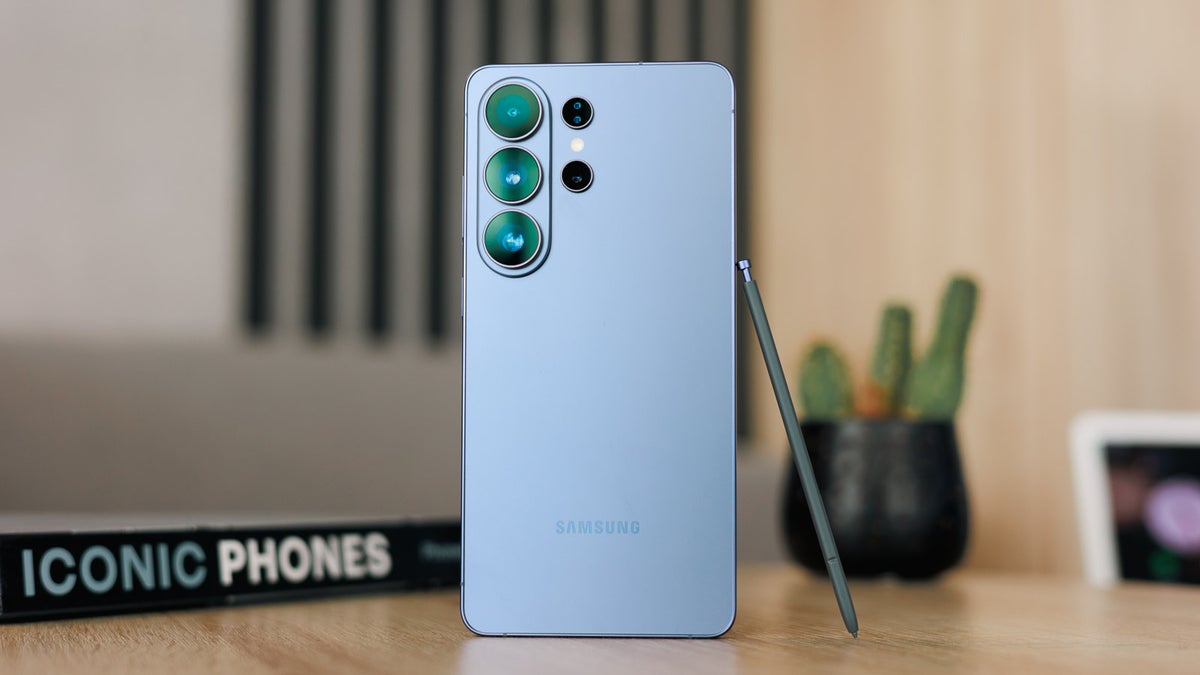
The S26 Ultra is stunning, but here the S Pen is the star of the show! | Image by PhoneArena
Sponsored content created with Samsung.
Disclaimer
The Galaxy S26 Ultra stands in a league of its own thanks to the S Pen, which reshapes how you interact with your phone. The stylus does two things: act as a high-speed shortcut to core functions and unlock a suite of exclusive AI tools that a fingertip simply can't replicate.
While the S Pen features on the S26 Ultra are simple to use, first-time users may still need some help setting them up or finding out how they work. Here’s your full guide to the S Pen features and how to use them to improve your Galaxy S26 Ultra experience.
While the S Pen features on the S26 Ultra are simple to use, first-time users may still need some help setting them up or finding out how they work. Here’s your full guide to the S Pen features and how to use them to improve your Galaxy S26 Ultra experience.
S Pen and Circle to Search with Google
With the S Pen, using Circle to Search with Google[1] becomes less of a burden, especially for users with bigger fingers. Offering better precision than using your finger, it lets you mark even the smallest objects, such as the brand logo of a watch. You can also scribble additional queries right in the search bar with the S Pen.
Is having an S Pen a game-changer for Circle to Search with Google? No, of course not. But it’s really convenient as an option for those times when you’re already holding the stylus in hand. It shines when you’re trying to be very specific about what you’re trying to look up, though that’s a rare scenario, and you likely won’t have to do it every single day.
How to use Circle to Search with Google:
- Tap and hold the Home button to wake up Circle to Search with Google. For users with gesture controls, a long press of the navigation handle will trigger the feature
- Once the Circle to Search with Google bar appears, circle an item with the S Pen
- Results appear at the bottom
- Swipe up to get more relevant results or add a follow-up question in the “Ask Anything” bar
Screen Off Memo
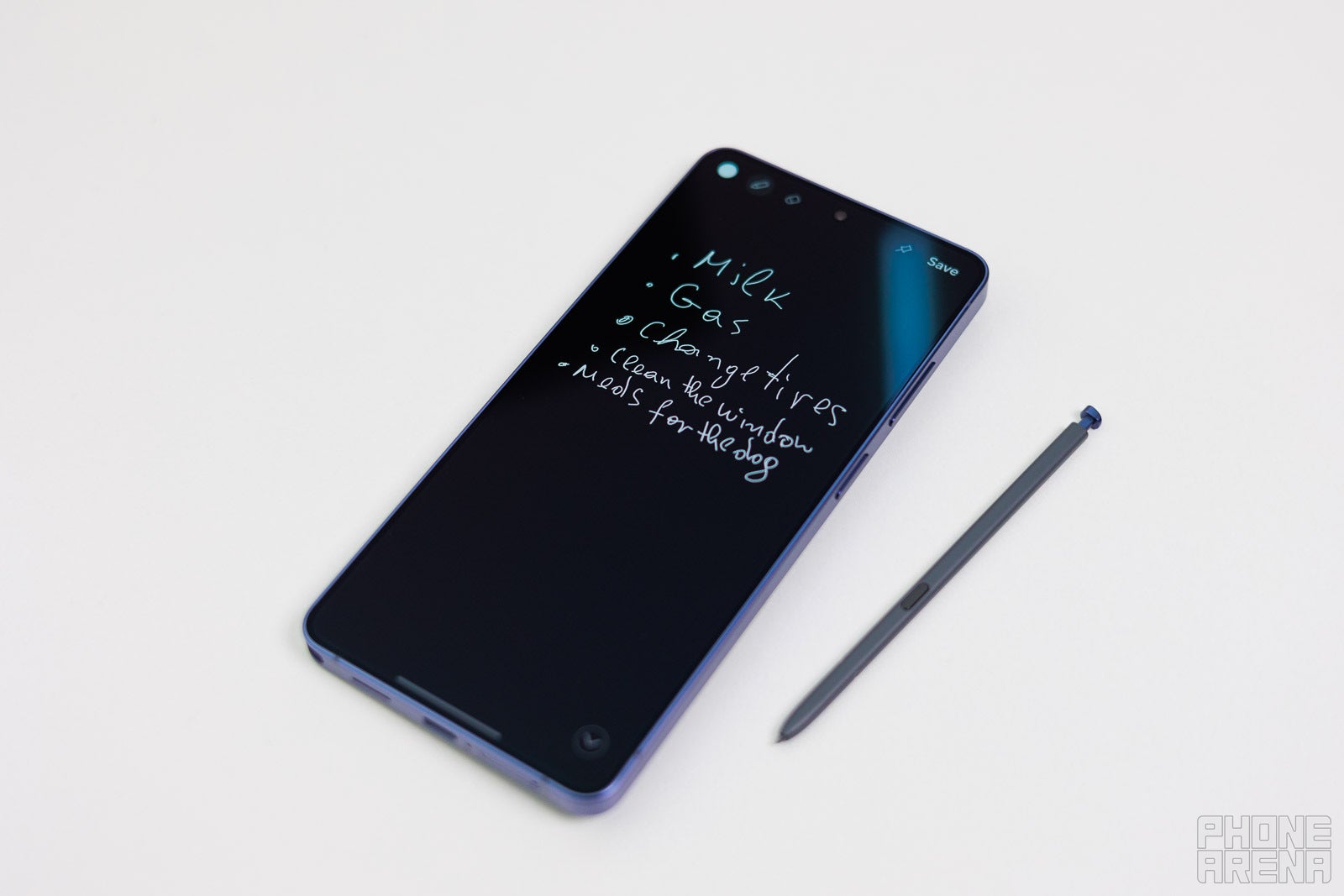
One of the staple features of the S Pen. | Image by PhoneArena
Screen Off Memo is as simple as it gets — just take out the S Pen, and you can instantly sketch, jot down notes, or make a quick to-do list on the go. You don’t have to unlock your device and search for your preferred notes app to capture your ideas. You can pin notes to the Always On Display for quick reference, too.
While some S Pen features need to be enabled, Screen Off Memo is ready to use by default. It’s simple, intuitive, and effortless to use. The best part is that it proves some of the most useful features you can use every day can be instant and frictionless.
In case you turn off Screen Off Memo, here’s how to enable it again:
- Open Settings
- Find Advanced Features and tap on it
- Select S Pen
- Locate Screen Off Memo and toggle it on
How to pin a Screen Off Memo on the Galaxy S26 Ultra Always On Display:
- Go to Settings
- Find Lock screen and AOD and tap on it
- Turn on the Always On Display feature
- When you’ve created a Screen Off Memo, use the pin icon to have the note appear on your Always On Display
Air Command
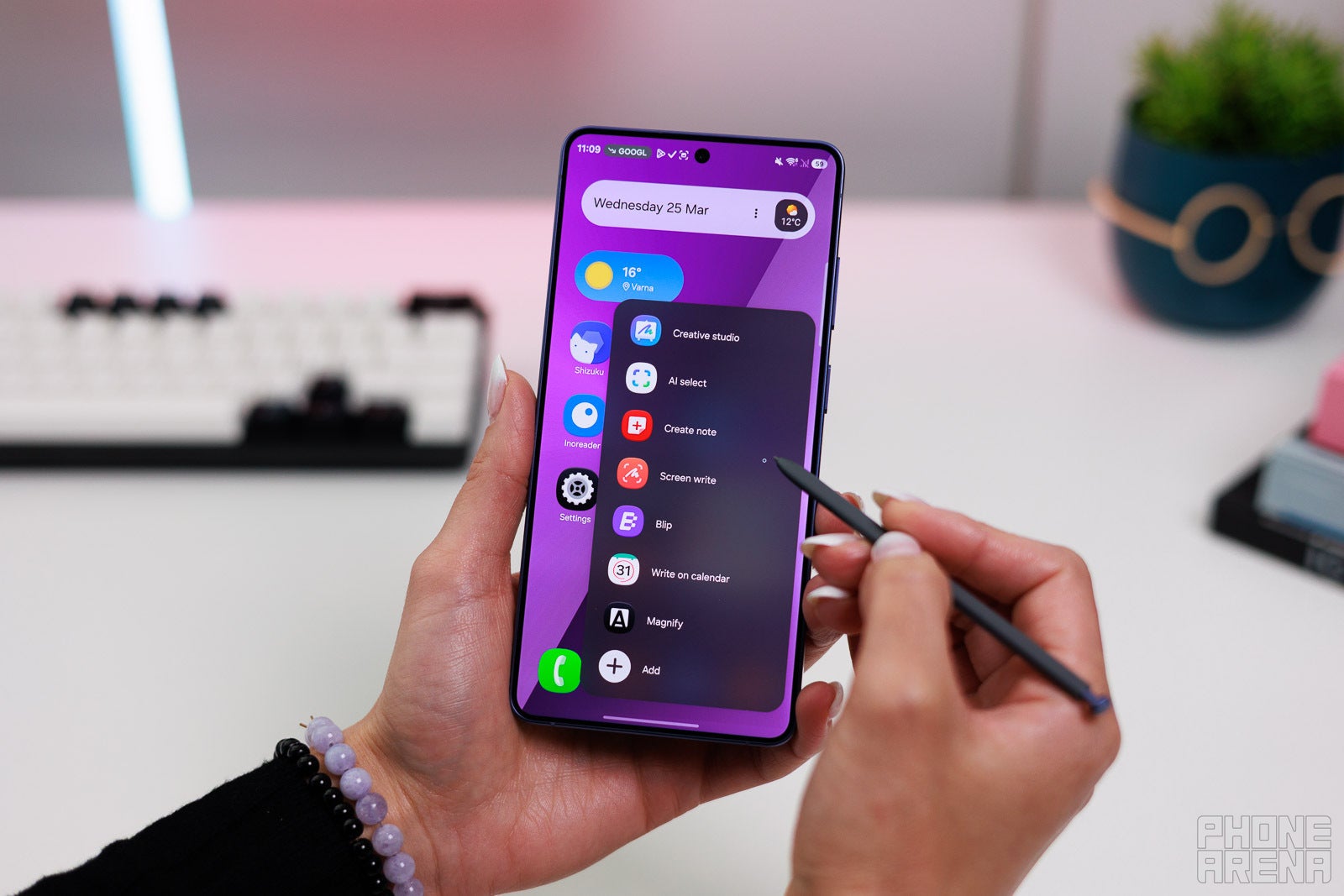
If you curate your app list carefully, Air Command can be your go-to menu. | Image by PhoneArena
Air Command is a collapsible menu that users can call on any time and have it display any apps that they’ve chosen.
- AI Select — this lets you select an item and draw on it, pin it to your screen, create GIFs, generate images, or translate a section.
- Creative Studio[2] — this allows you to create new images, edit existing photos, and create custom stickers of pets that you can share on social media.
- Magnify — this feature allows you to magnify your screen up to 400% and read very small text.
- Screen Write — selecting this feature captures a screenshot of the content on your phone and lets you write directly on it.
- Create Note — create a note, pin it on the screen as a small note icon, and remove it when you’re done editing.
- View all notes — this opens the Samsung Notes app.
- Translate — this useful tool allows you to translate text by hovering over a word or a paragraph with your S Pen.
- Write on Calendar — using this helps you remember important events, as it allows you to write with the S Pen directly on your calendar.
- PENUP — Air Command gives you quick access to PENUP, where users can color, interact with others, or make their own artwork.
It's really convenient to get super-quick access to the apps you use the most. You can set this menu to be opened by pressing the S Pen button so you can create a curated list of apps that you prefer to use a stylus: notes, PDF readers, or even games you prefer playing with the S Pen.
What’s new in Air Command on the Galaxy S26 Ultra:
- Creative Studio — this feature replaces the Drawing Assist on the S25 Ultra’s Air Command panel. This is a shortcut to the AI-enhanced feature, which helps users create custom stickers, generate new images from prompts or sketches, and add a special touch to existing images.
Air Command is enabled on the Galaxy S26 Ultra by default. Even if you disable it, it’s very easy to re-enable this useful feature.
How to enable the Air Command menu on your Galaxy S26 Ultra:
- Go to Settings
- Select Advanced Features
- Tap S Pen
- Go to the Air Command menu
- By default, the Air Command icon is enabled on your Galaxy S26 Ultra. This shows the Air Command icon on your screen at all times
- Optional: disable this option and enable Open Air Command with the S Pen button. This triggers the menu when you click the S Pen button, removing the icon from your screen
S Pen to Text
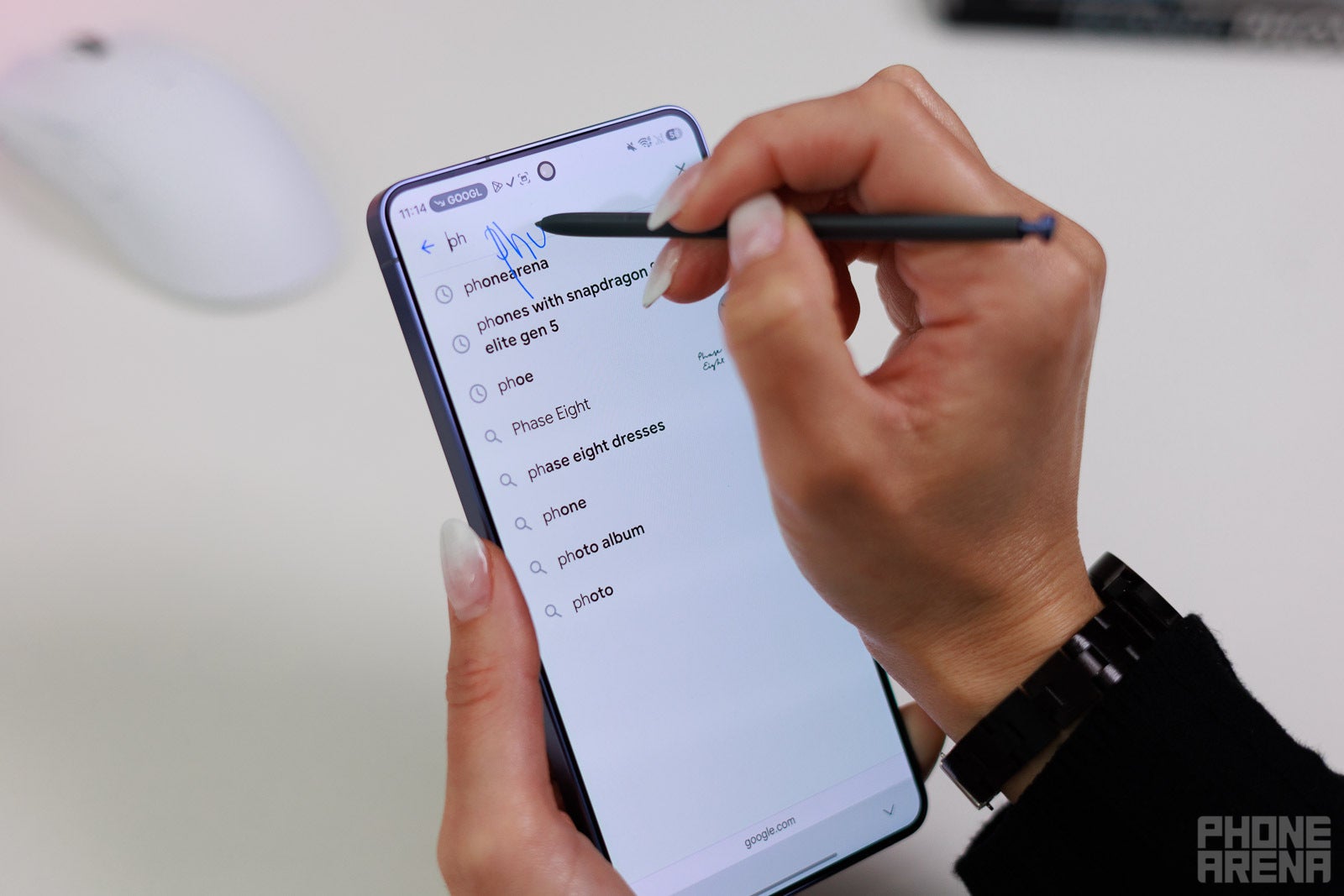
Not a game changer, but certainly a convenient tool. | Image by PhoneArena
S Pen to Text is a pretty self-explanatory feature. In essence, it allows you to write with your S Pen in any text field (address bars, search fields, etc). All you need to do is tap the field you want to write in, and Galaxy AI[3] recognizes handwriting and converts it into text.
How to use S Pen to Text on the Galaxy S26 Ultra:
- Open Settings
- Tap Advanced features
- Select S Pen
- Make sure the toggle “S Pen to text” is on
Frequently asked questions about S Pen to Text:
1. When can I use S Pen to Text?
When enabled, S Pen to Text works in any text field, just like the digital keyboard.
2. Should I tap a field before writing on the screen?
Yes.
3. If a page has multiple text fields, will the feature intuitively understand where I want to use S Pen to Text?
You need to tap on a wanted text field to write.
Air View
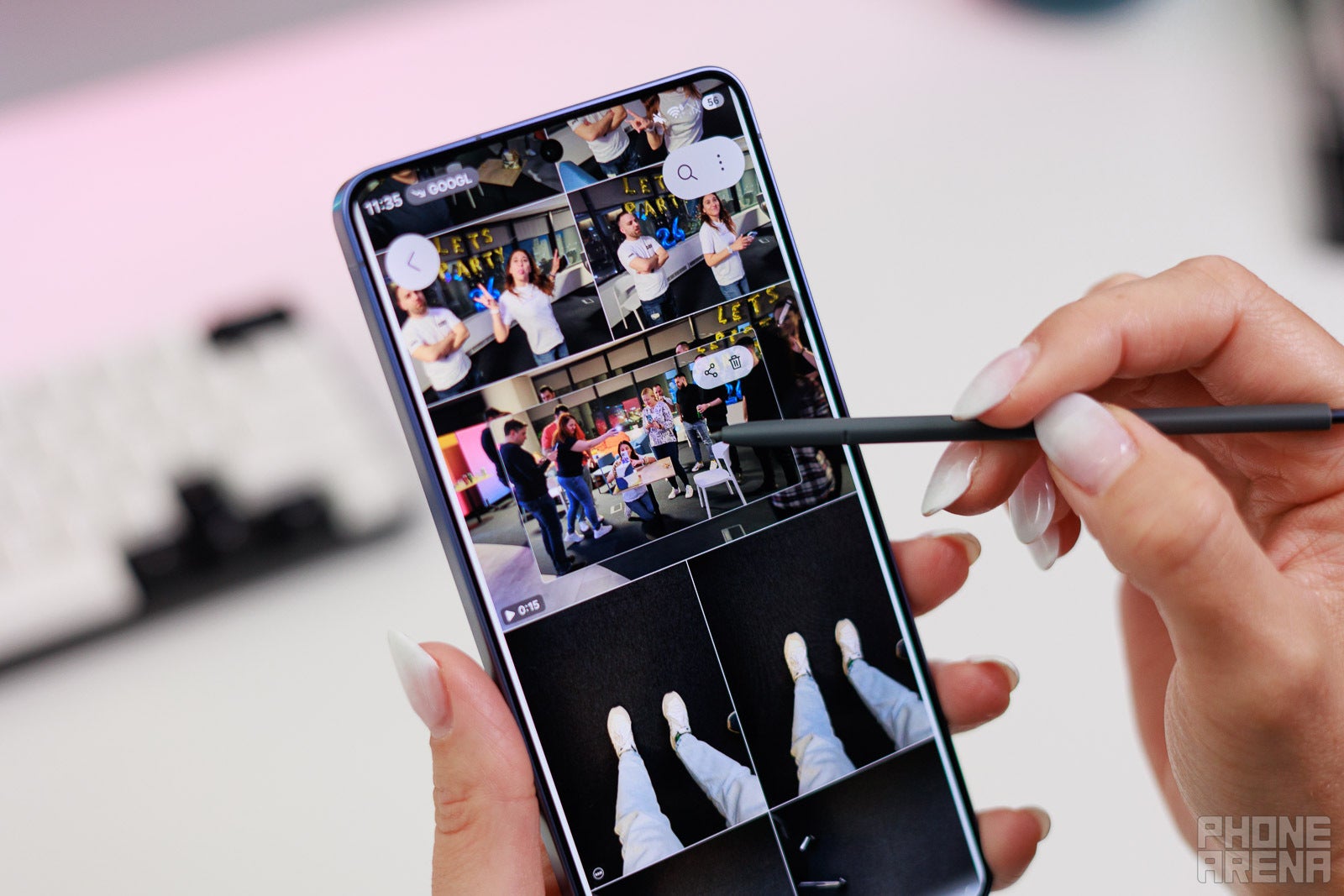
Need a quick preview? No problem!. | Image by PhoneArena
Air View works in a couple of ways: as a pointer that shows exactly where the S Pen is pointing, and as a tool that enables link, event, and photo previews just by hovering your S Pen.
How to enable Air View on the Galaxy S26 Ultra:
- Open Settings
- Go to Advanced features
- Select S Pen
- Tap Air View
- Toggle the feature on and select “Previews and pointer,” “Pointer only,” or “Previews only,” depending on your needs
Quick Notes
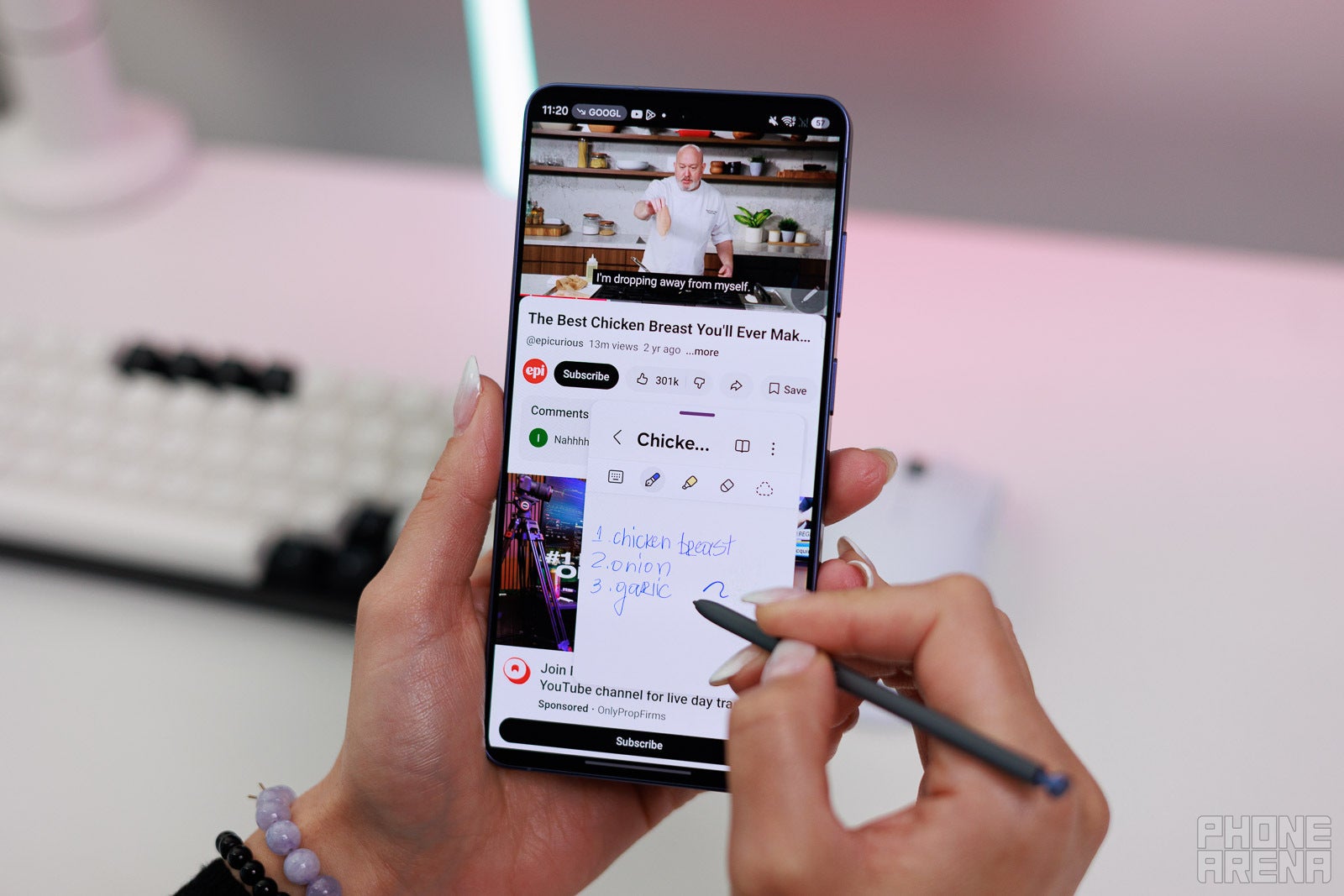
One of the best uses of floating windows on Android. | Image by PhoneArena
Ever felt that taking notes on your phone while doing research takes too much time? With Quick Notes, saving memos while researching (or doing anything else) on your Galaxy S26 Ultra becomes more natural. You can trigger this feature either from the Air Command menu (when you tap Create a note) or by double-tapping the screen while holding the S Pen button.
Quick Notes is especially useful while multitasking. Whether you’re watching a tutorial, reading about a complex topic, or planning dinner, you can jot down important notes and pin them to the screen as a note icon. Then, you can keep adding key points without breaking your flow.
How to enable the Quick Notes on your Galaxy S26 Ultra:
- Select Settings
- Tap Advanced Settings
- Go to S Pen
- Toggle Quick Notes on
Samsung Notes
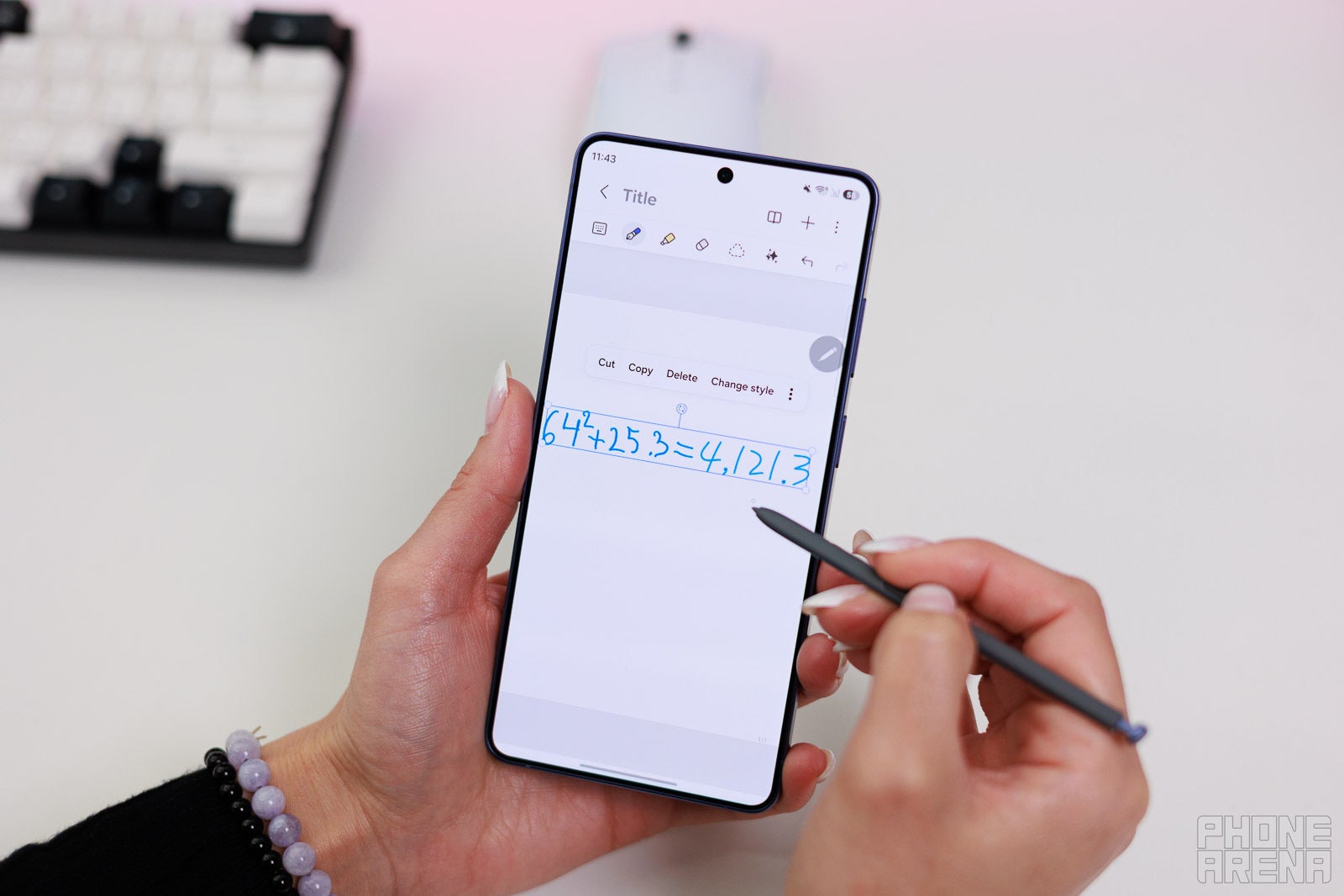
Using the S Pen to solve math problems is just way more fun. | Image by PhoneArena
- Fix geometrical shapes — many people struggle to draw the perfect geometrical shapes, even while using the S Pen. The Samsung Notes app fixes your drawings. You can enable this feature from the Auto-fix shapes option in the toolbar. Alternatively, hold the S Pen for a few seconds at the end of a shape, and it’ll get fixed automatically.
- Handwriting to text — with this feature, you can have your handwriting turned into text within the Samsung Notes app. Just hover over the handwritten note, tap and hold down with the S Pen, and select “Convert to text.”
- Solve math equations — This one is more of a pro-tip, and in order for it to work, you need to enable Math Solver via the three-dot menu in Notes. To be clear: you can solve math equations without the S Pen too. But with it, it’s so much more intuitive for solving a quick equation while on the go.
To me, the Samsung Notes and the S Pen simply go hand in hand. The possibilities are many, and once you start using it daily, it can become one of your primary tools for productivity.
Annotate over PDF files
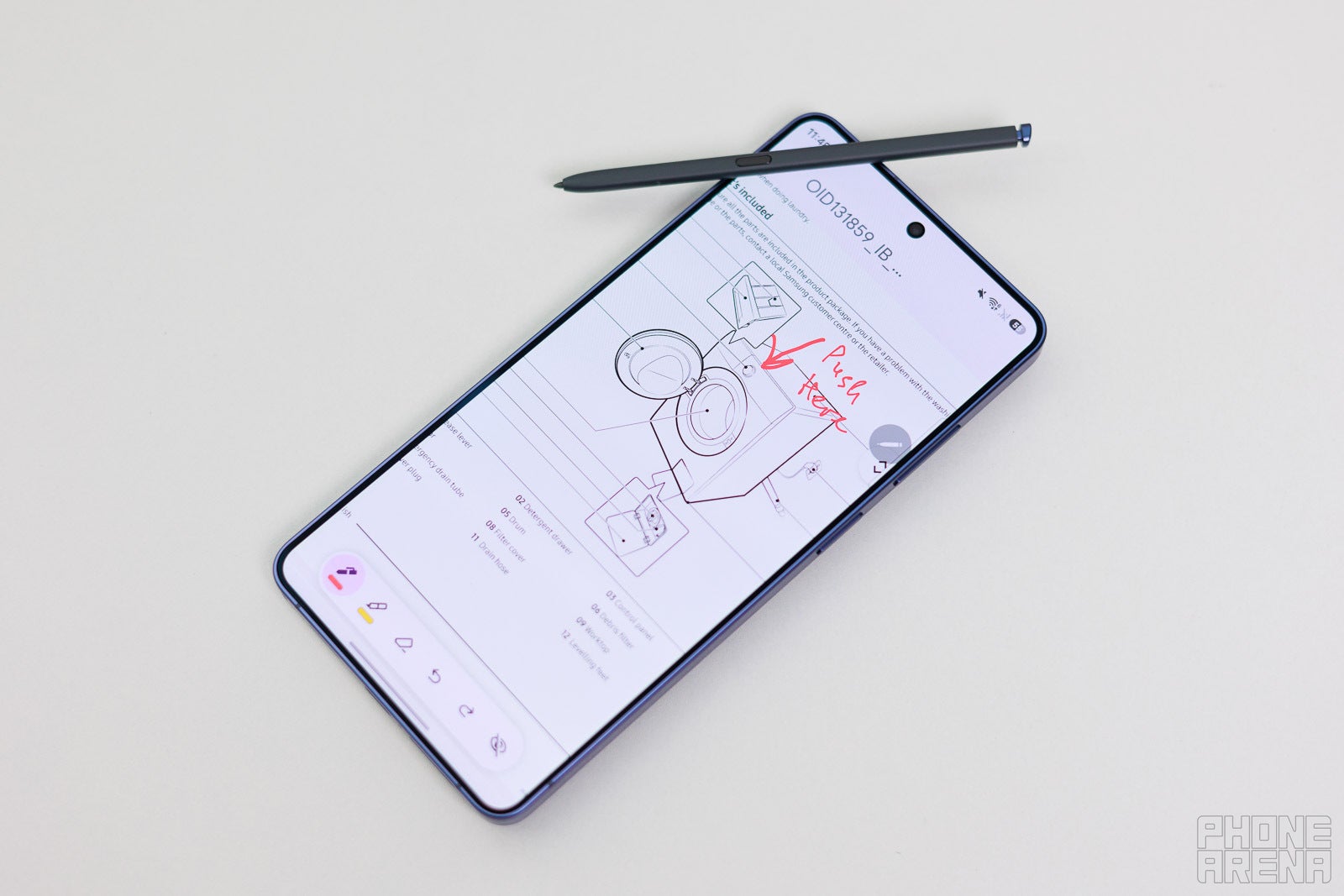
PDF annotations can be a lifesaver in rare, but impactful situations. | Image by PhoneArena
This one is another feature that just makes sense for smartphones that come equipped with styluses. Sure, it’s not a full-blown PDF-editing suite. But it does empower you to get some extra stuff done: leave notes on top of documents you’re browsing or outright sign stuff if you’re really in a pinch.
How to open PDF files on your S26 Ultra:
- Find the PDF you wish to open up in Files
- Long press on the chosen file
- Select more from the bottom menu that appears
- Tap Open with
- Choose your preferred app for PDFs
Frequently asked questions
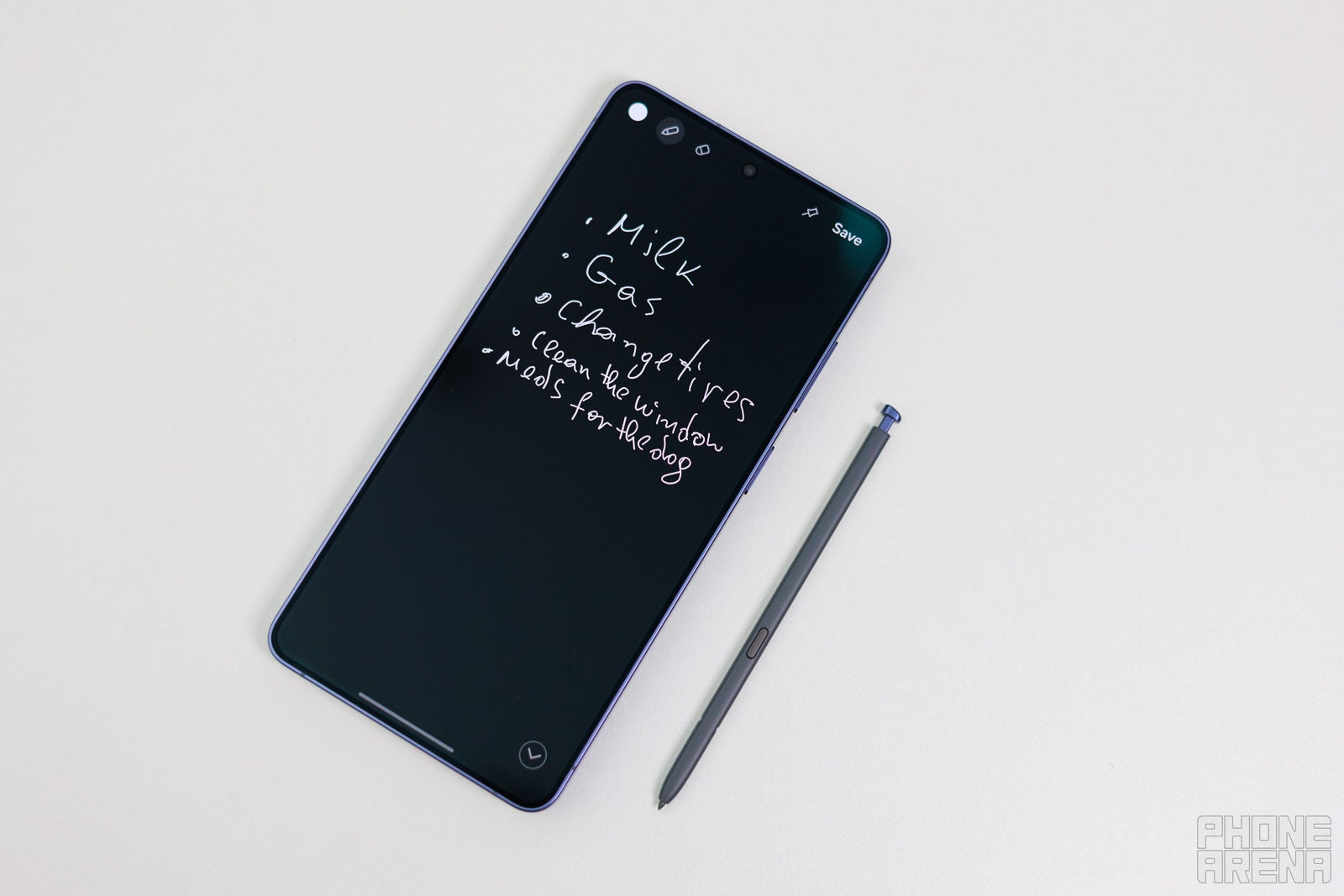
The S Pen is what truly sets the Galaxy S26 Ultra apart. | Image by PhoneArena
1. How to use the S Pen to take pictures?
You can’t use the S Pen to take photos on the Galaxy S26 Ultra.
2. What does the button on the S Pen do?
2. What does the button on the S Pen do?
The S Pen button can do a lot, as it’s customizable. You can set it up to trigger Air Command, or access Quick Notes by holding down the button and double-tapping the screen. In some apps like Samsung Notes, holding the button while the tip is on the screen turns it into an eraser.
3. How to replace the S Pen tip?
- Purchase an S Pen tip replacement kit online
- Firmly hold the tip of your S Pen using the tweezers in the replacement kit and pull it gently
- Take a new tip
- Insert it gently into the S Pen, holding the round end with your fingers
4. Does the S Pen need charging?
The S Pen on the Galaxy S26 Ultra doesn’t need charging.
5. Does the S Pen on the Galaxy S26 Ultra support Air Actions?
5. Does the S Pen on the Galaxy S26 Ultra support Air Actions?
No, the S Pen doesn’t support Air Actions.
[1] Circle to Search with Google - Compatible with select languages only. Google Account login and network connection required. If Gemini UI or Google apps are in view: Google and Gemini / YouTube / Maps etc are trademarks of Google LLC. Works on compatible apps and surfaces. Results may vary depending on visual matches. Check responses for accuracy.
[2] Creative Studio - Requires network connection and Samsung account login. Accuracy of output not guaranteed.
[3] Galaxy AI - Samsung account login is required for certain AI features. Galaxy AI features are provided for free. Future releases may include additional advanced features that are offered as part of a paid subscription plan. Different terms may apply for AI features provided by third parties.
[1] Circle to Search with Google - Compatible with select languages only. Google Account login and network connection required. If Gemini UI or Google apps are in view: Google and Gemini / YouTube / Maps etc are trademarks of Google LLC. Works on compatible apps and surfaces. Results may vary depending on visual matches. Check responses for accuracy.
[2] Creative Studio - Requires network connection and Samsung account login. Accuracy of output not guaranteed.
[3] Galaxy AI - Samsung account login is required for certain AI features. Galaxy AI features are provided for free. Future releases may include additional advanced features that are offered as part of a paid subscription plan. Different terms may apply for AI features provided by third parties.


Popular stories


Latest News


Things that are NOT allowed:
To help keep our community safe and free from spam, we apply temporary limits to newly created accounts: