Before Google developed a comprehensive weather app designed for Pixel users only called the Weather app (which is available from the Google Play Store), Pixel users and other Android users who wanted weather from Google had to use an extension of the Google app. Still available for Pixel users as well as other Android phone owners, the Google Weather "app" stars a cartoon frog who has developed quite a fan base over the years. You might have heard about "Froggy," who is not seen in the Pixel-only Weather app.
How to install a shortcut for the Google Weather app
To get the Google Weather app starring "Froggy," open the Google app onyour Android phone. Under the AI Mode bar is a carousel and one of the rectangles in the carousel shows your local weather; tap on it and you'll see a box with the heading Weather that shows the local weather conditions in your city for the next few hours along with some other data. Tap the three-dot icon on the right side of the Weather box. A small vertical popup appears on the lower right. Tap on "Add to homescreen." That will bring up a popup screen with a widget for the Google Weather app that allows you to place it on any open space on your homescreen.
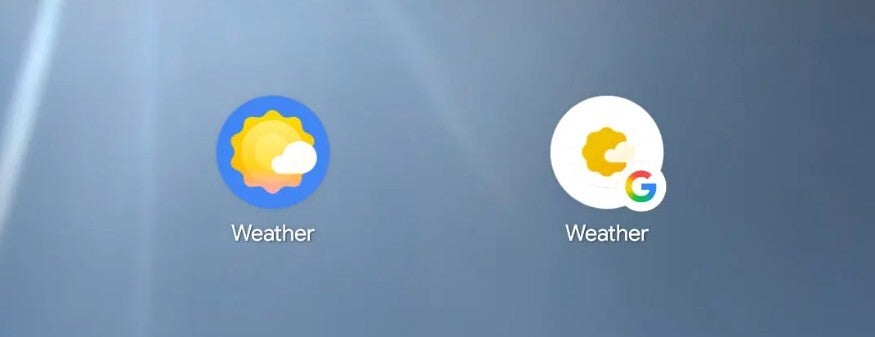
The Weather app for Pixel icon on the left, the Google Weather app icon on the right. | Image credit-9to5Google
How to tell the icons for the two weather apps apart
Since you can have both the Weather app and the Google Weather app (with Froggy) on a Pixel, let's discuss the different app icons. The Weather app, available for Pixel phones only, has an icon that shows a yellow illustration of the Sun with a small white cloud against a blue background. The Google Weather app, available on all Android phones, has the same Sun illustration with the cloud, albeit smaller. The famous Google "G" icon, inside a circle, is attached to the icon, which has a white background.
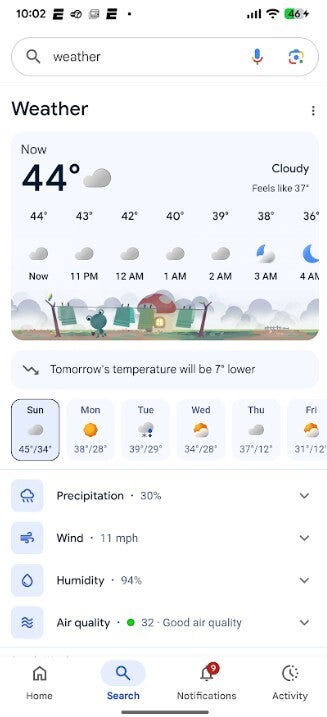
The revised Google Weather app for Android users. | Image credit-PhoneArena
Recommended For You
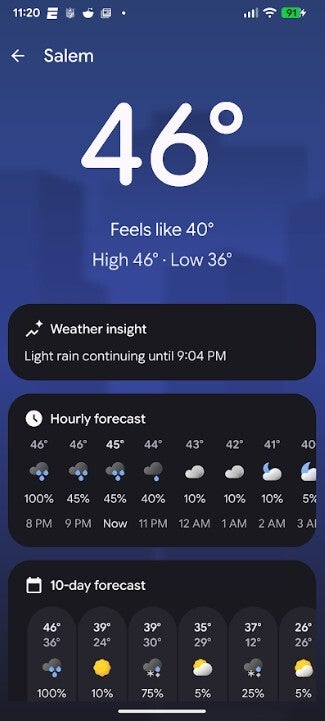
The Google Weather app presents data differently than the Weather app for Pixel handsets. In the former, Froggy can be seen in a small strip underneath the hourly temperature forecasts. Underneath Froggy you'll see forecasted temperatures for the next 10 days with other weather data below that. Tap the downward arrow icon for precipitation, wind, and humidity, and you'll see hourly forecasts foreach category. Tap the downward arrow for Air quality and you'll see a bar with colors related to the current reading.
The Weather app for Pixel. | Image credit-PhoneArena
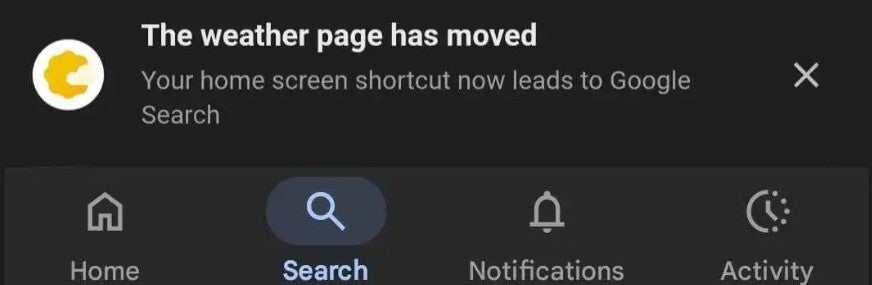
For the last few weeks, some Android users have tapped the Google Weather app icon from their homescreen only to see a box that says, "The weather page has moved. Your homescreen shortcut now leads to Google Search." This seems to be a pretty good clue that the "app" is shutting. Keep in mind that the Pixel only Weather app is not affected. This dovetails with Google's decision to no longer allow new installations of the Google Weather app for Wear OS. Those who already downloaded the app can keep using it. Google is trying to get those buying a new wearable to use the weather app that comes by default on the device.
Some Android users are getting this notification when they open the Google Weather app. | Image credit-9to5Google
Here is a list of some other weather apps you can install
The Google Weather app is not a full-page experience anymore and appears amid other search results. It might feel a little claustrophobic. If you have a Pixel, your best bet is to simply install the Weather app. We left a link in the first paragraph for you to use.
There are also other weather apps that Android users can install from the Google Play Store. The most popular ones are:
Depending on where you live, some of the local television stations might have separate weather-related apps. For example, up here in Salem, Massachusetts, several of the Boston television stations have their own weather apps which makes sense because occasionally the winter weather can be severe. In South Florida, hurricane fears also have resulted in the availability of local apps from the Play Store and the App Store.
Alan, an ardent smartphone enthusiast and a veteran writer at PhoneArena since 2009, has witnessed and chronicled the transformative years of mobile technology. Owning iconic phones from the original iPhone to the iPhone 15 Pro Max, he has seen smartphones evolve into a global phenomenon. Beyond smartphones, Alan has covered the emergence of tablets, smartwatches, and smart speakers.
A discussion is a place, where people can voice their opinion, no matter if it
is positive, neutral or negative. However, when posting, one must stay true to the topic, and not just share some
random thoughts, which are not directly related to the matter.
Things that are NOT allowed:
Off-topic talk - you must stick to the subject of discussion
Offensive, hate speech - if you want to say something, say it politely
Spam/Advertisements - these posts are deleted
Multiple accounts - one person can have only one account
Impersonations and offensive nicknames - these accounts get banned
To help keep our community safe and free from spam, we apply temporary limits to newly created accounts:
New accounts created within the last 24 hours may experience restrictions on how frequently they can
post or comment.
These limits are in place as a precaution and will automatically lift.
Moderation is done by humans. We try to be as objective as possible and moderate with zero bias. If you think a
post should be moderated - please, report it.
Have a question about the rules or why you have been moderated/limited/banned? Please,
contact us.



![Another batch of Galaxy S26 series users in the US are getting a nice surprise today [UPDATED]](https://m-cdn.phonearena.com/images/article/183643-wide-two_350/Another-batch-of-Galaxy-S26-series-users-in-the-US-are-getting-a-nice-surprise-today-UPDATED.webp)
Things that are NOT allowed:
To help keep our community safe and free from spam, we apply temporary limits to newly created accounts: