Huawei MateBook Review

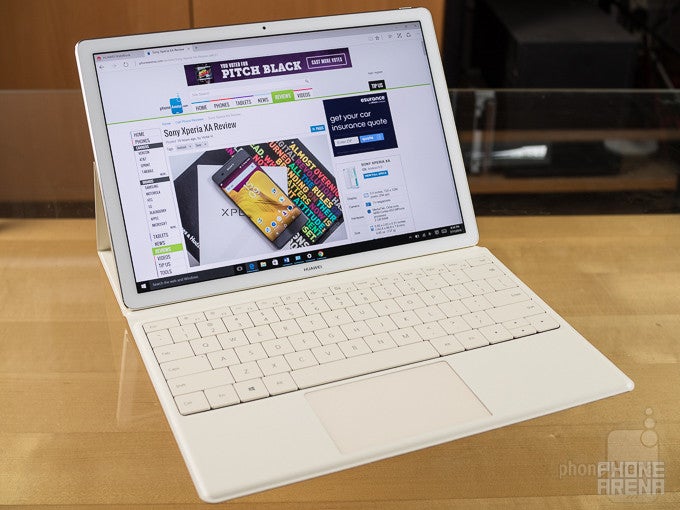
Introduction
As the way we use computers evolves, spurred on by the rise of cloud-based services, wireless accessories, and a mobile-first focus, traditional general-purpose laptops have been losing favor. While some users are transitioning to phones as their primary computing devices, plenty still aren't quite ready to give up all the flexibility they're familiar with, and are looking instead to a middle ground: 2-in-1 convertible tablets that go from touch-driven tablet mode to keyboard-equipped laptop duty in seconds.
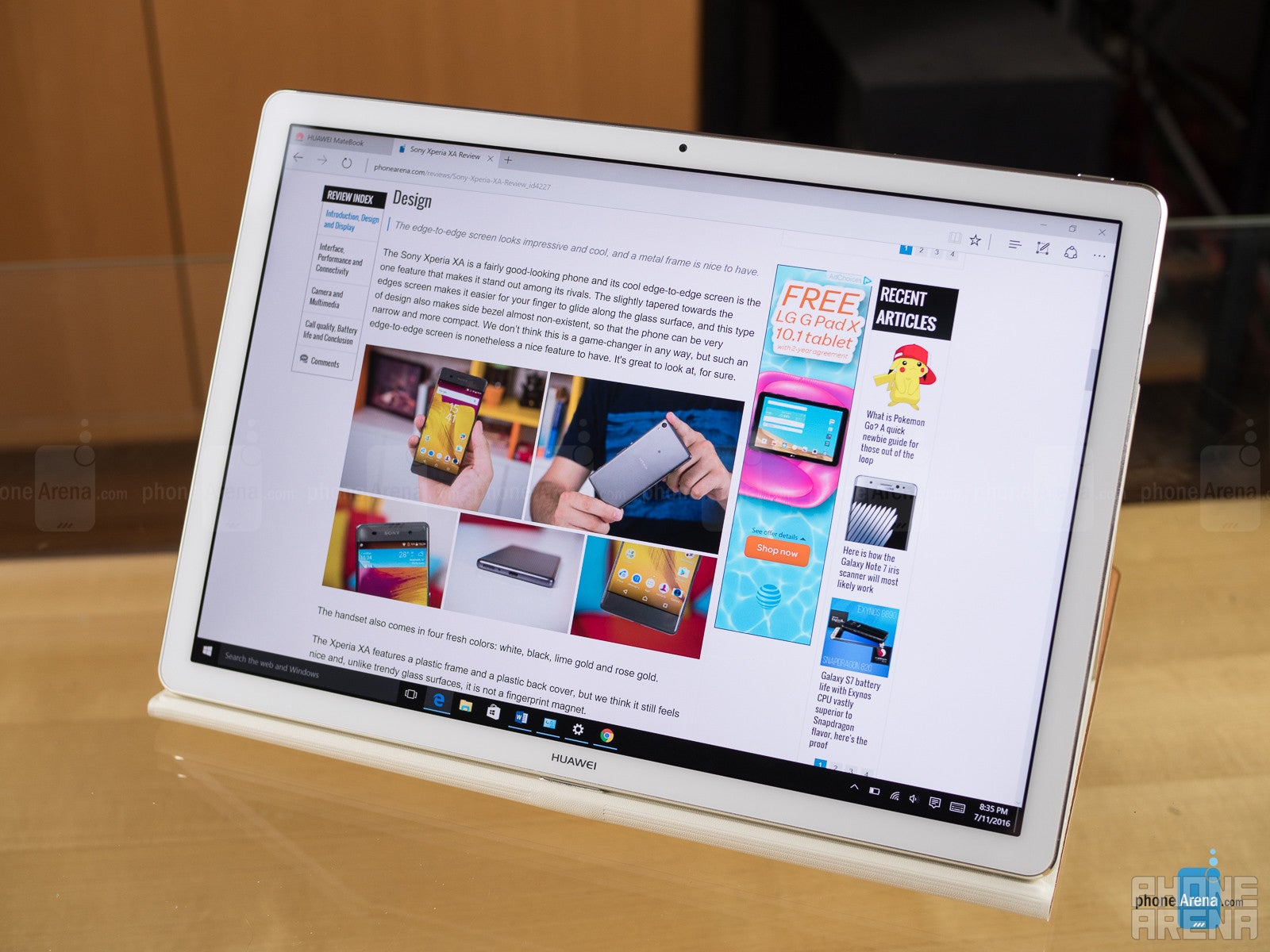
Back at Mobile World Congress in February, Huawei announced its intent to try its own hand at this market, launching the 12-inch MateBook running Windows 10. Huawei's already been making a name for itself with some well-received phones; is it time for the manufacturer to make similar waves in the 2-in-1 tablet space? We've spent the last few weeks with the MateBook in the hopes of finding out.
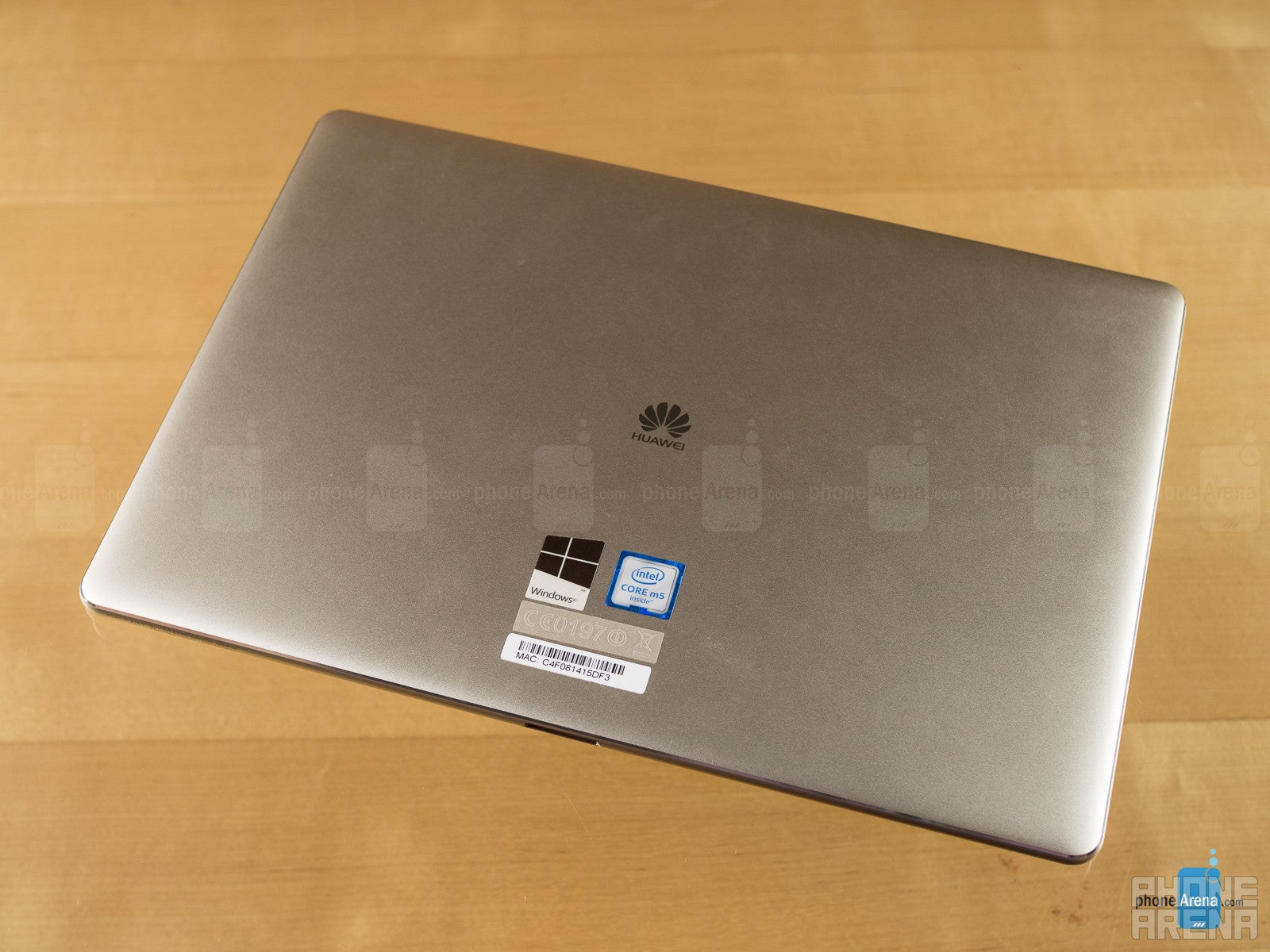
- Huawei MateBook
- USB Type-C to micro USB cable
- USB Standard-A to micro USB adapter
- USB Type-C to USB Type-C charging cable
- Power adapter
- Warranty/safety docs
Design
Slick, solid, and minimalistic
Crafting a tablet that's intended to do double-duty as a laptop is a tricky balancing act; you want a slate that's light and thin enough to be picked up and carried around, while also well-equipped to the point where it has a battery sufficient to get real work done as a tablet, and hopefully not skimp too much on connectivity options.
Huawei seems to have approached the MateBook from a tablet-first standpoint, with a slim 6.9mm build that comes in thinner than many smartphones. And while that gives us a device that looks quite nice, it also means that Huawei's offloaded all ports but a single headphone jack to the tablet's USB Type-C connector and its optional MateDock.
The whole tablet feels solidly built, with a metal unibody construction. Tipping the scales at 640 grams, the MateBook has a solid, reliable-feeling heft to it without being so dense as to make you think twice about carrying it around.
Huawei sells the MateBook in both golden and gray color options, but so far we've only seen those colors tied to particular hardware configurations; that is, you can choose how much RAM and storage you want, but then you'll have no say in which color option you get.
If there's one tiny design element we're going to be picky about, the metal strip along the tablet's top edge, housing its stereo speakers, microphone, and power button, doesn't quite match the finish of the rest of the MateBook's metal frame. It's a minor quibble, perhaps, and one that doesn't affect the user experience in the least, but it simply doesn't look quite as thoughtfully assembled as the rest of the tablet's hardware.
Display
Attractive visuals and slim bezels, but a lower resolution than its peers
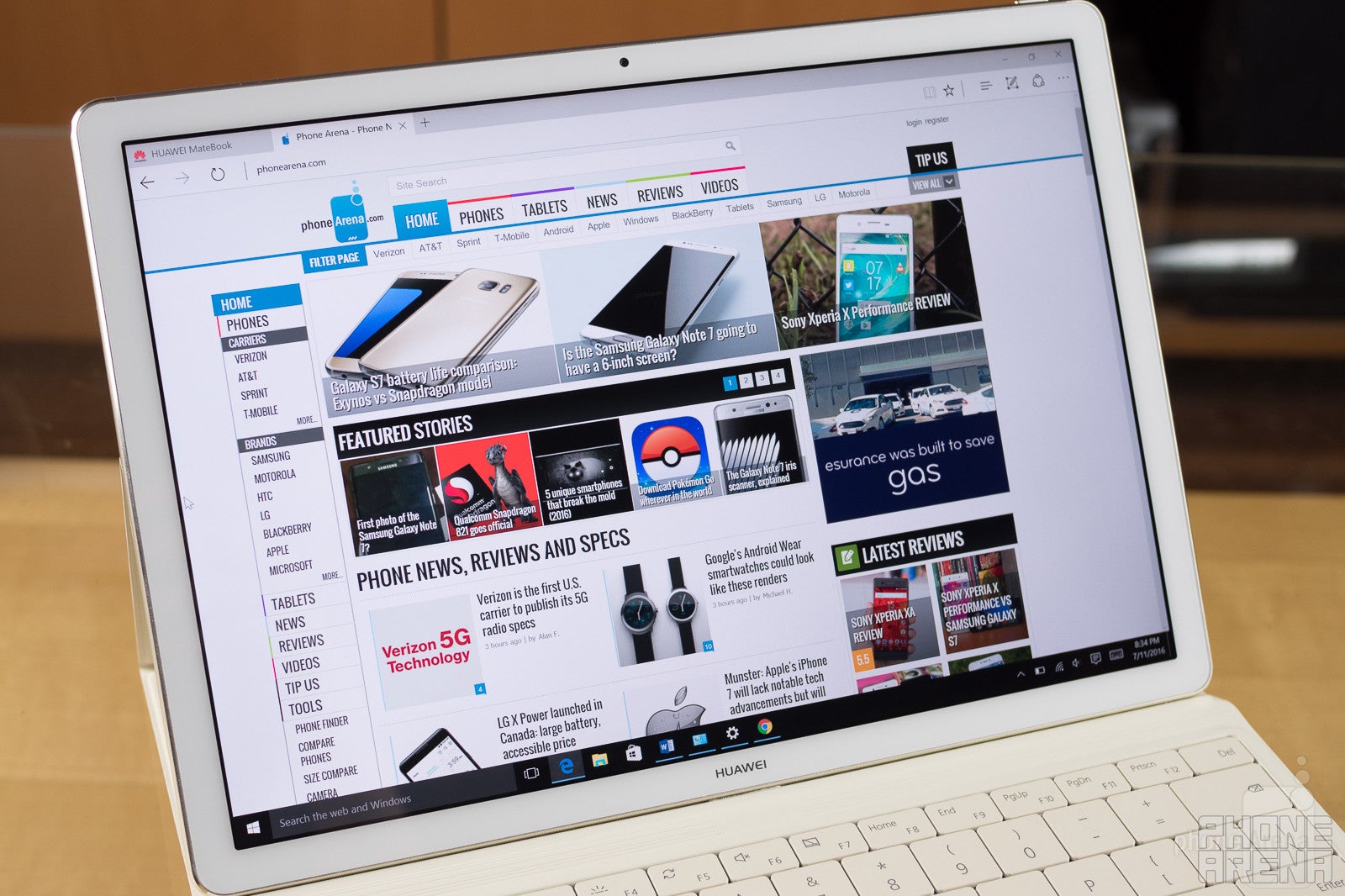
Huawei's equipped the MateBook with a 12-inch LCD panel that's adequately large for most of our needs, in both tablet and laptop mode. That screen's surrounded by a bezel that's thin enough to impress, while also giving you a solid place to grip the tablet without smudging up the screen too much – and that's important, because the glossy screen is just itching to pick up as many fingerprints as it can.
While that's honestly probably sufficient for many of the tasks you'll throw at it – and you're definitely going to want to stick with the default setting that blows the UI up 50% to keep things readable – it's low enough that's there's a perceptible “screen door” effect in certain situations where the low resolution really starts becoming noticeable.
That said, viewing angles are quite nice, and color accuracy is acceptable.
Interface and Functionality
Speedy fingerprint authentication makes logging on to Windows 10 a breeze
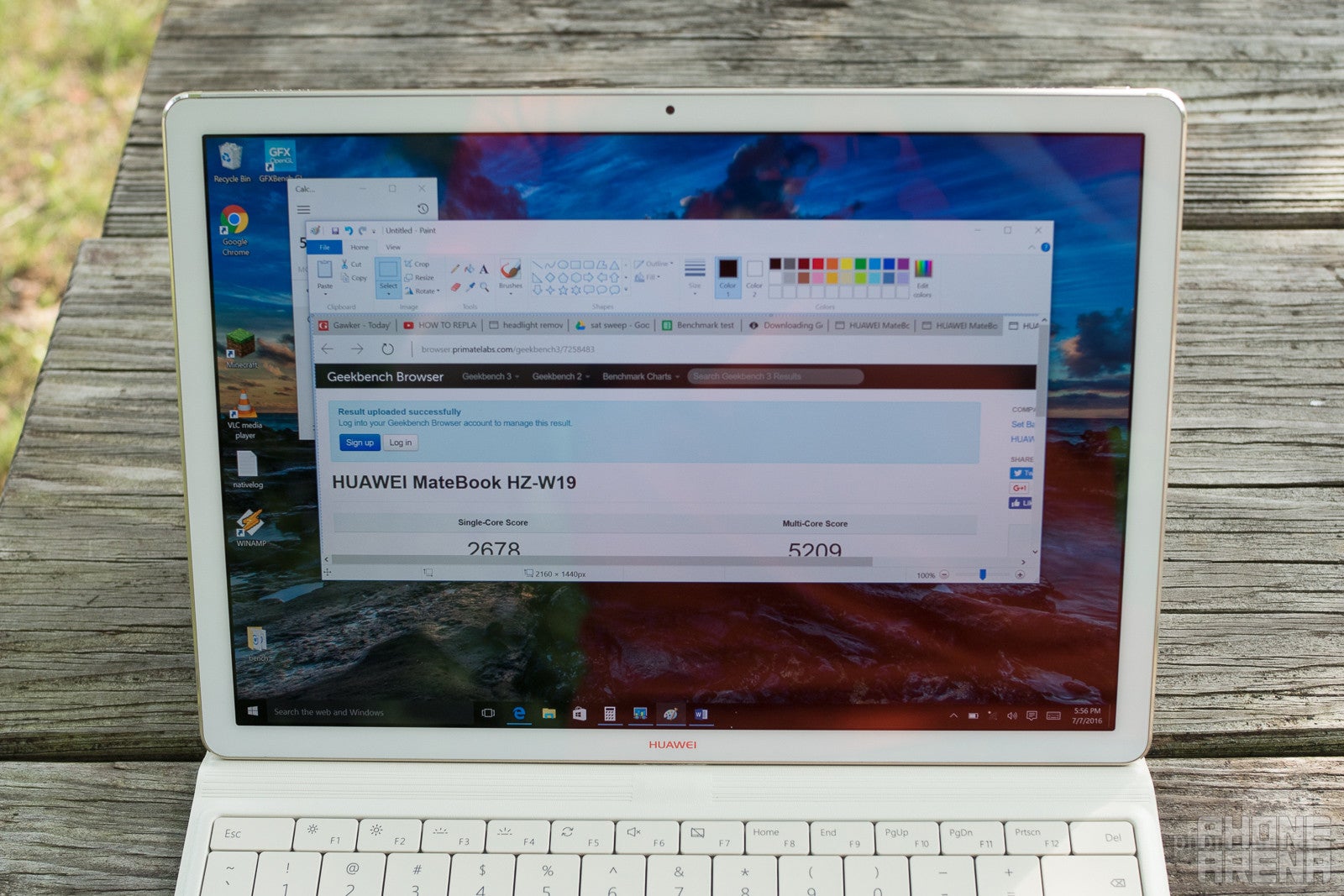
Windows 10 has been out for a year at this point, so we're not going to rehash all elements of Microsoft's new all-for-one, one-for-all operating system, but it's definitely worth mentioning that the MateBook's implementation of Windows 10 won't have you spending your first several hours with the tablet attempting to remove unwanted software and getting the OS back to a nice, clean starting point.
Microsoft's selling the MateBook through its online store as one of its Signature Edition devices, meaning that it ships free of unnecessary bloat, unwanted trial editions of software, and all that other OEM tinkering that can make buying an average PC such an unpleasant experience. It's still a little unfortunate that we find ourselves in a place where we have to go out of our way to ask computer manufacturers not to ruin the devices they're selling us, but that's hardly Huawei's fault – and the MateBook doesn't let us down here.
Windows 10 on the Huawei MateBook
One key component to how you use the MateBook that sets it apart from other 2-in-1 tablets is its edge-mounted fingerprint scanner, nestled between the tablet's volume buttons. The sensor is fast and accurate, and its placement is so convenient that you soon may stop thinking about the fact that you're securely logging into the tablet as your finger naturally finds its way to the scanner each time you lay hands on the hardware.
Processor and Memory
Quite a few options, but needs more on the higher end
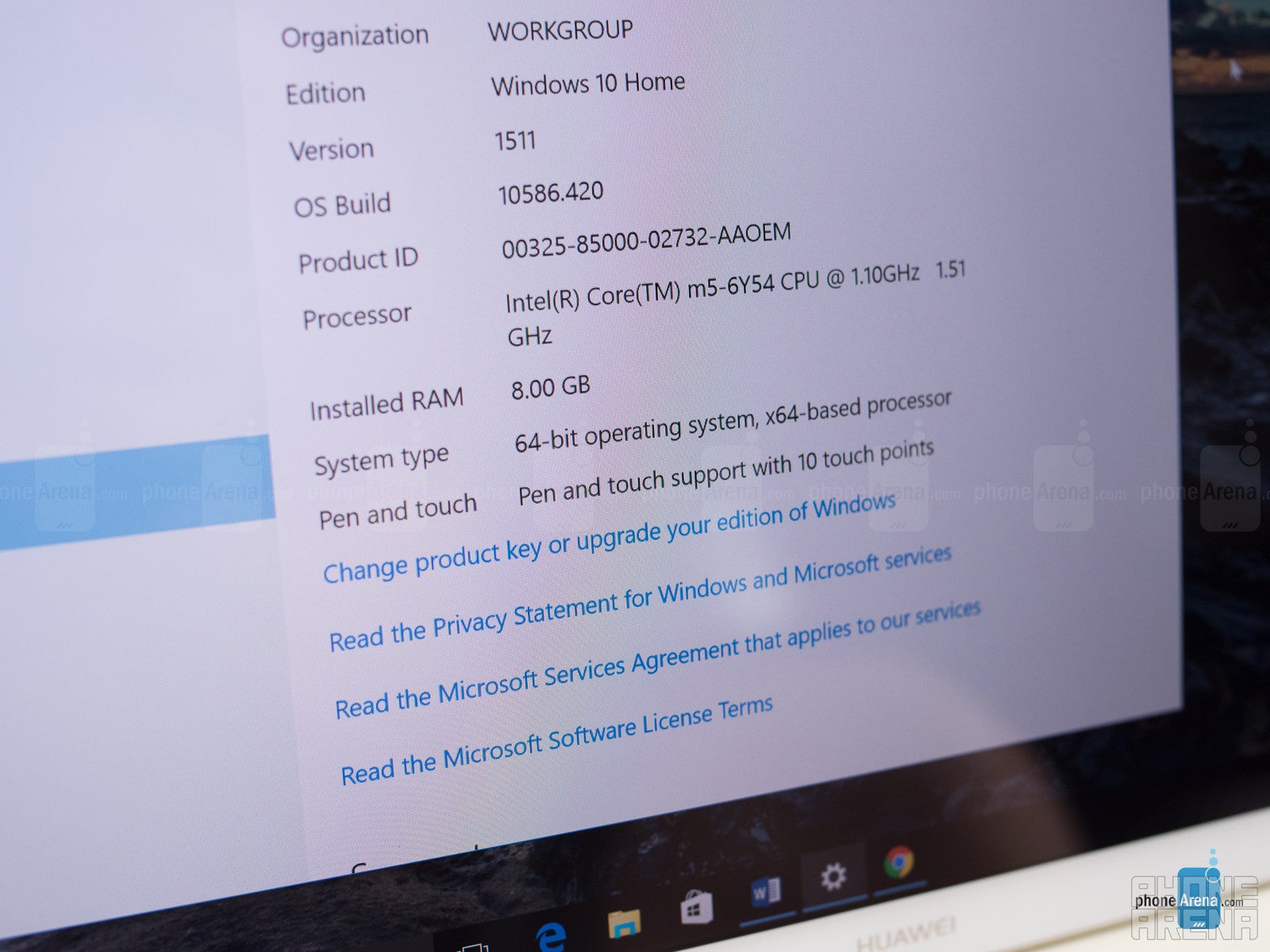
With the intent of replacing a stand-alone laptop, a 2-in-1 needs the processing power, storage, and versatility to stop you from thinking “if only I had a /real/ computer on me” when a difficult tasks pops up. Huawei gives you plenty of options for seeing that your tablet is properly equipped, starting with the $700 base model offering a sixth gen Intel Core m3 processor, 4GB of RAM, and a 128GB solid-state disk.
Unfortunately, this super-slim tablet saves no room for any kind of storage expansion, depriving us of a micro (or hell, even full-sized) SD slot. And although you could always pop on a flash drive, the single USB Type-C port means that you'll need a similarly-equipped flash drive (which are still far from common), or remember to bring along a Type-C adapter, and in using it you'd tie up your only means by which to charge the tablet. Of course, you can solve all those problems with the MateDock, but that's just one more thing to buy (and carry around), negating some of the super-portable allure of a 2-in-1.
Connectivity
Over-simplification rears its ugly head; hope you've got a handy USB hub
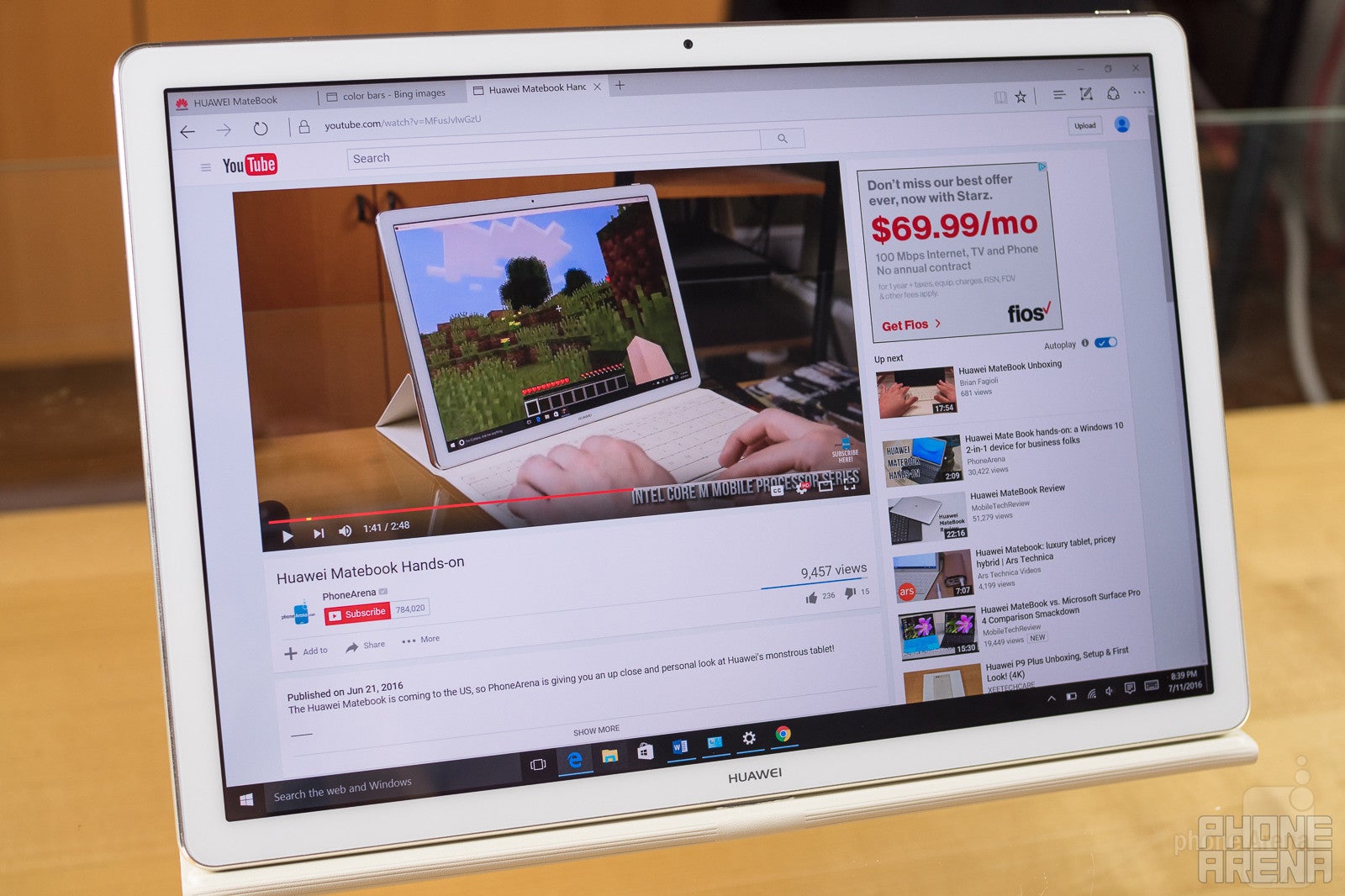
Support for Wi-Fi 802.11 a/b/g/n/ac MIMO means that you shouldn't face much of a problem getting online with the MateBook in wired-up areas, but the lack of a cellular option could spell trouble for users craving a little more mobility.
We've already touched on the limitations of a tablet that intends to do pretty much everything through a single USB port, but it's worth expounding upon and putting a little more focus on the MateDock accessory.
Perhaps “accessory” is the wrong word, because if you're remotely serious about doing any kind of work with the MateBook, you're going to need some kind of way to interface it without other devices.
Huawei gives us a couple options here. If you're trying to keep costs low, the tablet itself comes with a USB Type-C to micro USB cable, letting you interface it with phones or other tablets. And an included micro USB to standard-A adapter lets you connect traditional USB accessories – and you'll probably want to start with a hub in order to let you work with more than one device at once.
The MateDock is designed to offer a streamlined alternative, giving you a pair of standard-A USB 3.0 ports, an Ethernet jack, and both HDMI and VGA options for video-out. Maybe most importantly, it has its own Type-C port so that you can continue to power the tablet while still taking advantage of USB accessories.
Sadly, the MateDock's design isn't ideal, and the way its USB cable plugs back into the dock for storage is a tad awkward. Then there's its price, and for the privilege of hooking the tablet up with this collection of ports, you'll have to shell out an extra $90. While that would be a pricy add-on by itself, we're far from done with expensive add-ons (that feel all too required).
Accessories
Is a 2-in-1 sold without a bundled keyboard technically a 2-in-1 in the first place?
In addition to the MateDock, the MateBook is being positioned alongside two input accessories, the MatePen stylus and MateBook Portfolio Keyboard.
The MatePen boasts 2,048 levels of pressure sensitivity, alternate stylus tips, and a pair of input buttons. On the non-stylus end there's an integrated red laser pointer for presentation use, and the stylus pops open to recharge over micro USB – claiming up to 100 hours of use on a charge.
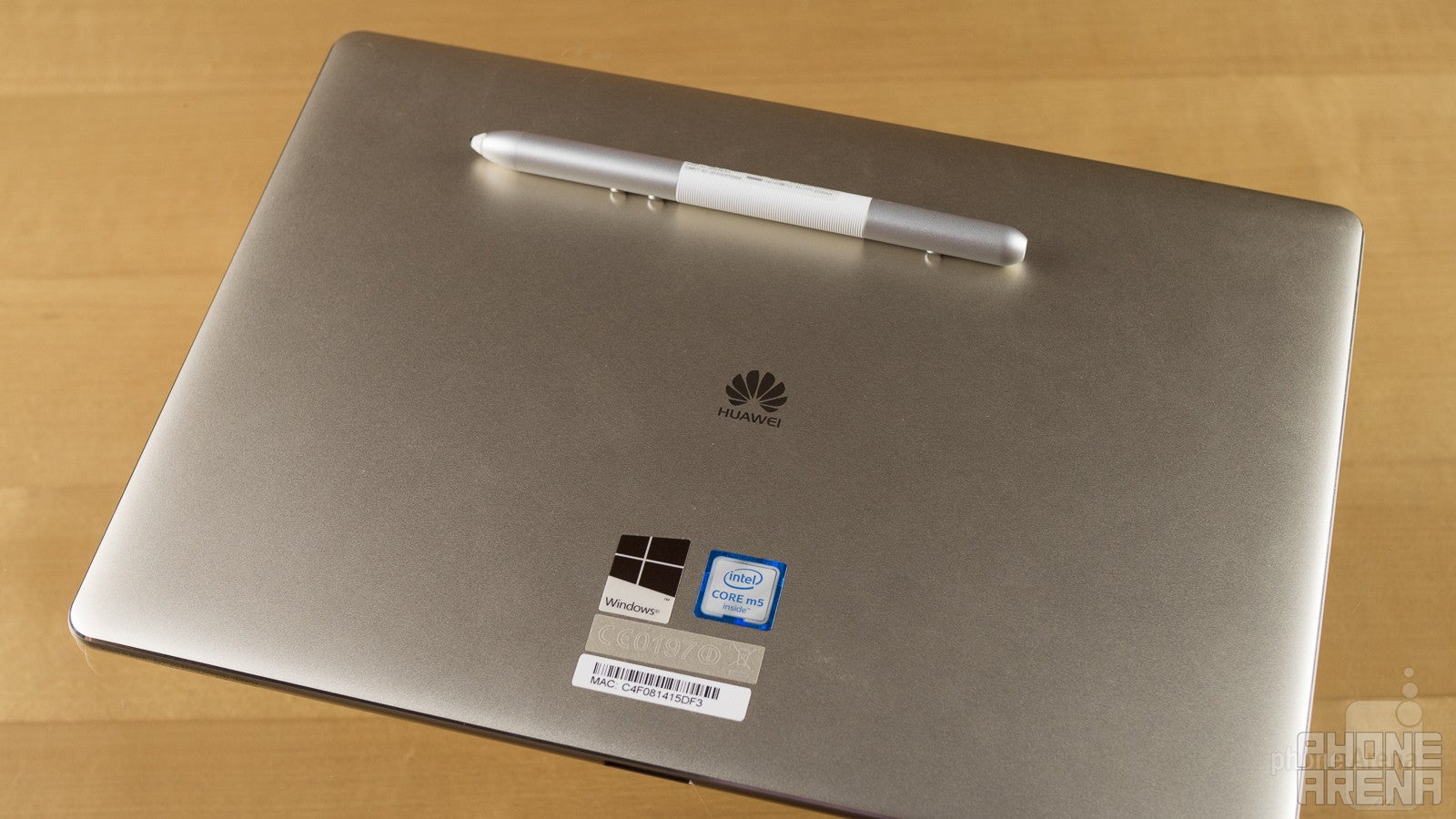
Huawei MatePen
MatePen size and balance is good, making the stylus comfortable to hold and use, and while its digitizer is pretty swift, generating minimal lag, we found ourselves struggling with accurately tapping some particularly small on-screen elements; scroll bars, in particular, presented some occasional challenges.
Though the USB charging is nice, it's a shame that the MatePen's female micro USB port requires it to be paired with a cable in order to power it up – a design decision that had us craving something along the lines of the Apple Pencil's fully-integrated Lightning charging solution. And while the laser pointer is a bit of fun, we have to admit that it feels like an unnecessary addition.
Then there's the price: Huawei wants $60 for the MatePen. That's pretty reasonable as active stylus options go, but considering what we're already paying for the tablet, we'd have loved for it to be included right in the box.
The other big MateBook accessory is its Portfolio Keyboard, and maybe more than the MatePen or the MateDock, this is one that shoppers will absolutely want to pick up. It interfaces through the proprietary magnetic dock connector on the tablet's bottom edge, protecting the slate while adding new input options and acting as a stand.
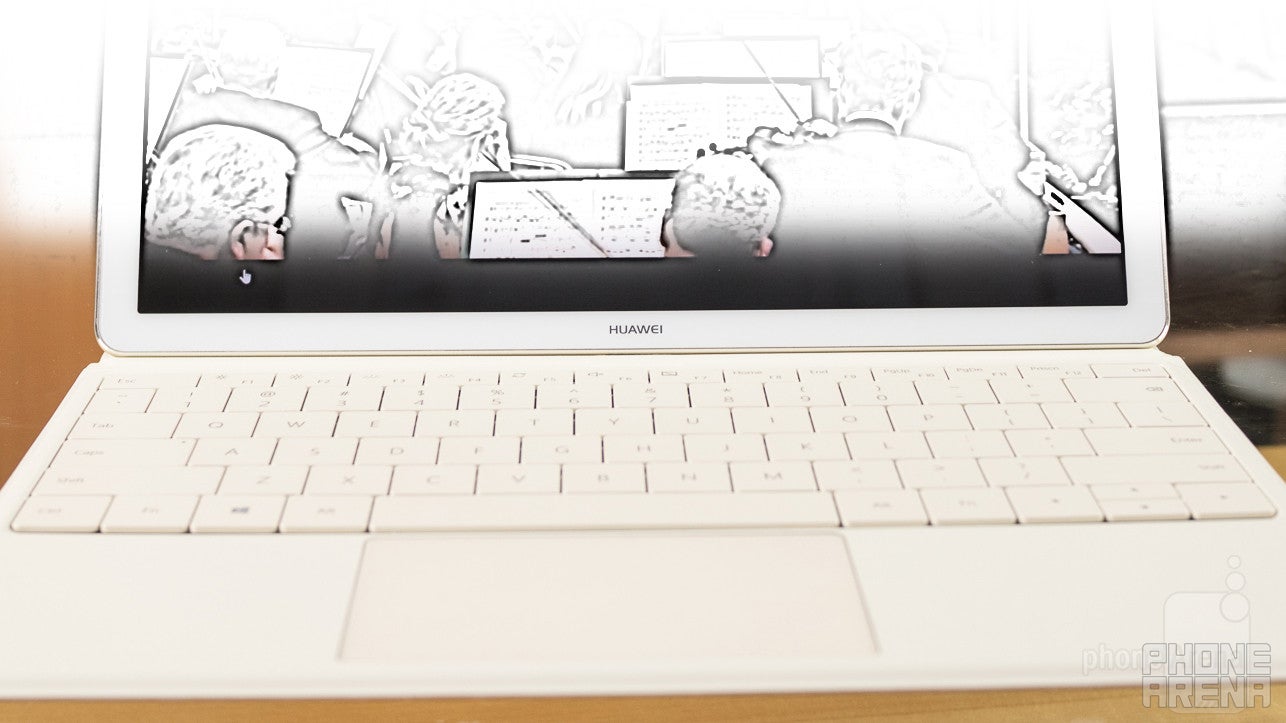
MateBook Portfolio Keyboard
Key travel is pleasant for a keyboard this slim, and the touchpad offers far more reliable control than either the MatePen or touch input. Our biggest complaints about the accessory are more about its reliability and use as a stand than its role as a keyboard.
For instance, the magnetic connector between the keyboard and the tablet isn't quite as strong as we'd like, and had a way of popping loose all the time when opening and closing the case – triggering the tablet to prompt us over and over about switching in and out of laptop mode. And while the stand's most upright screen configuration feels solid, there's a halfway-up option (again held in place by magnets) that just doesn't feel particularly sturdy – and more than once it disengaged on us during use.
The MateBook Portfolio Keyboard costs about $130 and is available in black and brown color options.
Camera
No rear camera nonsense, just a front-facer that won't let you down
The MateBook doesn't pretend that it's going to replace your phone's camera, and isn't even attempting to offer a high-res rear camera.
Instead, we get a utilitarian 5MP front-facer. Output can be a bit noisy, especially in low-light indoor environments, but colors still came through looking nice, and the camera's output proves more than adequate for standard video-call needs.
Huawei MateBook sample images
Multimedia
It may not replace your TV, but Huawei's got a heck of a compelling mobile alternative
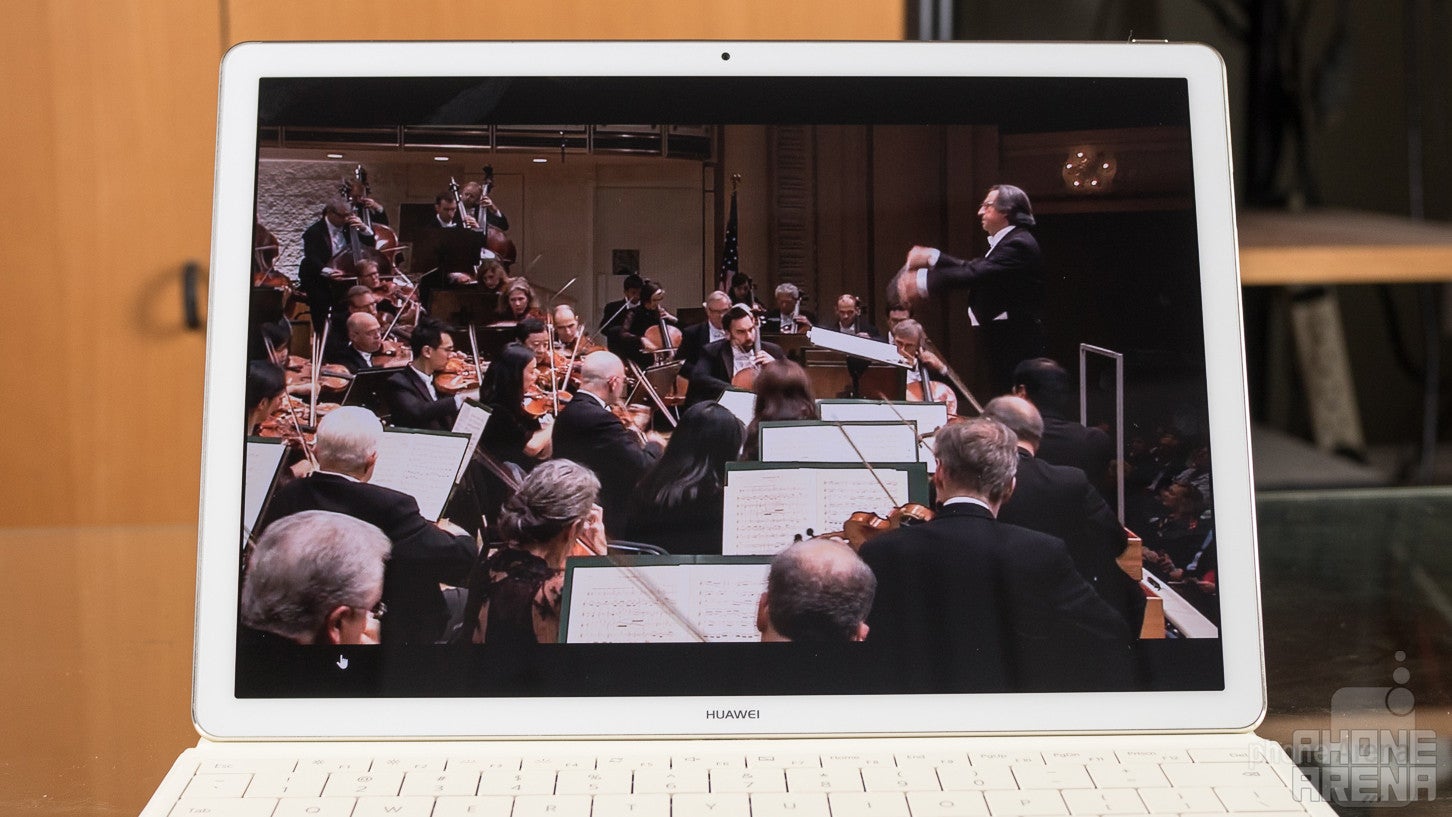
Few users are going to pick up the MateBook with the express intent of using it as a media-playback device – if that's what you want, there are far more affordable options out there – but the tablet's very much up for letting you take a break from work for a little entertainment. Video playback, from locally stored files to Netflix streaming looked fantastic, and while the top-edge-mounted stereo speakers may not look like much, their output proved sufficient to keep the music playing even as we wandered from room to room.
Battery Life
Big promises, but all-day use remains elusive
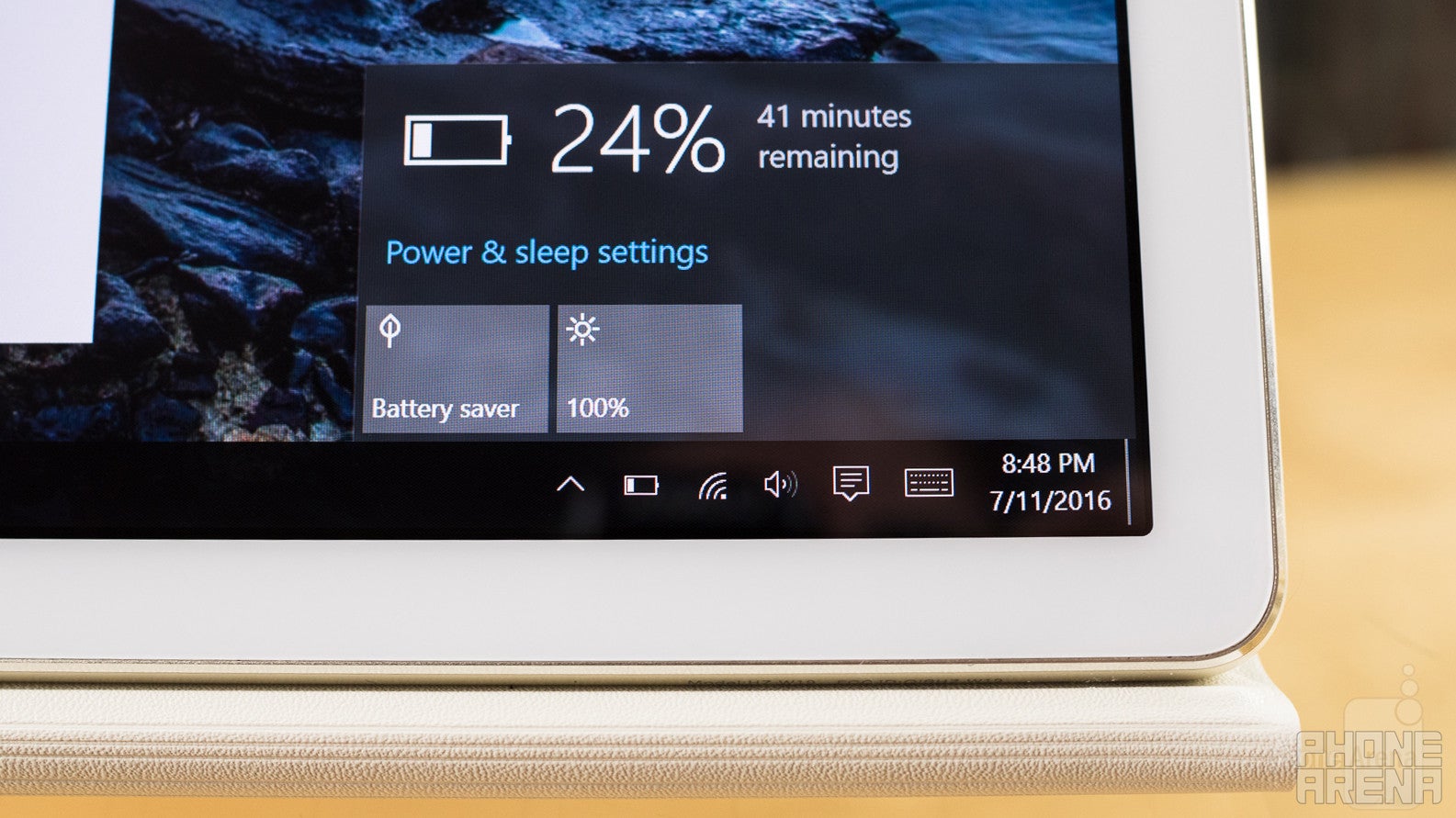
Huawei's equipped the MateBook with a 33.7Wh battery, which it says can deliver up to nine hours of battery life. More precisely, it should allow for up to 9 hours of MS Office work, 9 hours of video playback, or 29 hours of music playback. Depending on a ton of factors, that might just be possible. In our custom tests, though, the tablet ran out of juice after three hours of continual screen-on time – and that last hour was full of pop-ups warning us of impending battery doom and begging us to dial-down display brightness and take other conservation measures to avoid the inevitable shutdown.
A USB Type-C charger can bring the tablet back from exhaustion in just over two hours, and we have to give Huawei credit for fully embracing the connector standard here: there isn't just Type-C on the tablet end, and even the charger itself features the new connector. This affords users the additional benefit of making their charger cable fully reversible; that's not a huge achievement, but it's nice to see taken advantage of nonetheless.
Conclusion
The MateBook looks and feels pretty nice, and while we did have a few misgivings about a few design decisions, the whole package comes together quite well – and that's all the more impressive for this being Huawei's inaugural 2-in-1 tablet effort.
But for all it does right, the MateBook does come up short in a few respects. Its trio of accessories are welcome additions to the tablet, but each manages to leave us wanting just a little more. And that the three of them combined add nearly an extra $300 to your purchase price is a serious factor to consider when deciding just how much the mobile convenience of a 2-in-1 is worth to you.
Compared to something like the Surface Pro 4, the MateBook may start at a lower price point, but you're giving up a number of useful built-in expansion options, have to pay extra for a stylus, and miss out on some of the higher-end hardware available.
That makes deciding to buy the MateBook a little tricky: do you pay more for a better-equipped tablet? Or maybe less for one that's not as slick looking, and probably less powerful, but offers a more affordable alternative? In the end, the MateBook is stuck in an uncomfortable middle ground: it's good, but not stellar, and it exists in the shadow of some real 2-in-1 giants.
Huawei could get on the road to resolving this with some additional hardware options (like 16GB of RAM) or even better, by bundling in some of these accessories. But right now, it's difficult to recommend the MateBook over existing 2-in-1 tablets.
Software version of the review unit:Windows 10 Home 1511 build 10586.420

Popular stories

![T-Mobile is down for many users across the nation right now [UPDATED]](https://m-cdn.phonearena.com/images/article/181747-wide-two_350/T-Mobile-is-down-for-many-users-across-the-nation-right-now-UPDATED.webp)


Latest News


Things that are NOT allowed:
To help keep our community safe and free from spam, we apply temporary limits to newly created accounts: