Android users can save a step when Google adds these widgets
Android users who like to install widgets on their home screens are going to be happy.
Individual widgets for Collections | Image by PhoneArena
A couple of years ago, Google added a feature for the Play Store called Collections. With this feature, similar apps are grouped together and placed in one of eight categories: Food, Game, Listen, Read, Shop, Social, Travel, and Watch.
Currently, Google offers two Play Store Collections widgets
Up to now, Google has made two home screen widgets available for Collections. They allow you to access any one of seven Google Play Collections categories. The first widget is 4 x 1 in size, and it shows icons representing four of the Collections categories, which are Watch, Game, Read, and Listen. Tap the waffle icon, and it opens the App library displaying all of your apps by content category, and a list of your installed apps arranged by topic. It also shows you your most-used apps and the apps you recently added.
How often do I use the widgets on my home screen?
79 Votes
I use it all of the time instead of the app's actual icon
31.65%
I use it only some of the time
31.65%
I use it rarely.
12.66%
I never use it
24.05%
If you install that widget, and you have the room, you can expand the widget to 4 x 2 by long-pressing on the widget and stretching it, adding a second row with icons for Food, Shop, and Social. You can also stretch it to the full size of the screen. In that setup, the widget shows the seven icons vertically, along the left side of the widget.
How to install widgets on your Android phones
To add the widgets to your Android phone, long-press on an unused area on your home screen and when the menu box pops up, tap on Widgets. On the bottom of the display, click on Browse. Scroll down to Google Play Store, press on it, and choose the widget you want from the two currently listed. Press on "+Add" to have it installed on your home screen.
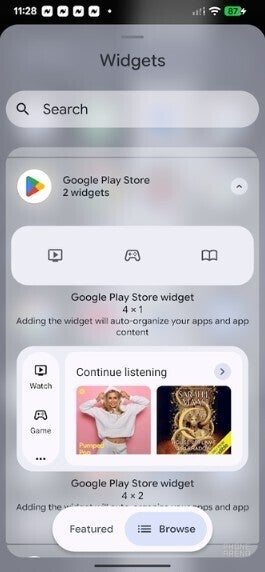
Current two widgets available for Play Store Collections. | Image by PhoneArena
Google will soon release eight individual Collections widgets, one for each category
But this is not the big news. The big news is that Google is going to soon release eight different widgets, splitting up Collections into individual widgets of their own. Right now, you can only have widgets for the entire group of Collections. Once you tap on one of the widgets, you can then choose among the Food, Game, Listen, Read, Shop, Social, Travel, and Watch icons.
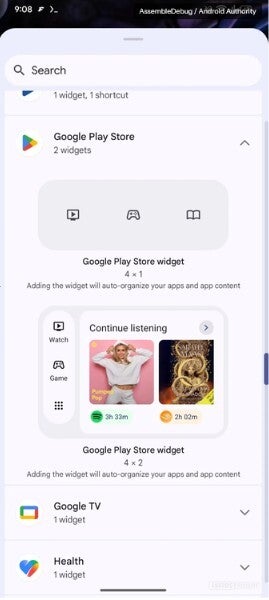
Google will soon offer eight individual widgets for Play Store Collections. | Image by Android Authority
Android Authority discovered the plan to include an individual widget for each Play Store Collection category in version 52.1.26-31 of the Play Store Android app. Google isn't ready to release the individual Play Store Collection widgets, but you can expect to see them appear in the not-too-distant future.
When the eight new widgets are launched, one for each category in the Collections feature, and you install them all on your home screen, you will save one step.
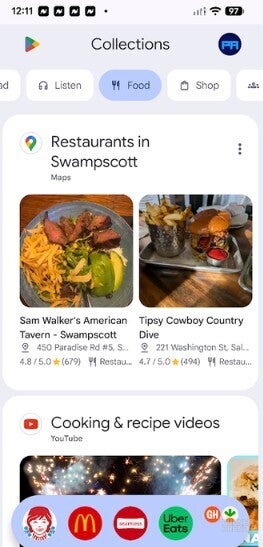
The Collections feature on an Android phone showing the food category. | Image by PhoneArena
For example, right now if you put one of the two available Collections widgets on your Android phone, and you want to see an app in the Shopping category, you have to tap the widget on your home screen, and then tap the Shop icon. Once Google offers the individual widgets, if you install each one on your phone's home screen, you would just have to tap the Shop Collections widget saving you that step we promised.
Once Google does roll out the eight individual Play Store Collections widgets, we will let you know. As of now, we have no idea when this is going to happen.
If you want to open the Play Store Collections feature without using a widget, all you need to do is long-press the Play Store icon on your Android screen and tap Collections in the app shortcut menu. That takes you directly to the Collections page where you can use the buttons at the top to choose from the following categories:
- Watch
- Game
- Read
- Listen
- Food
- Shop
- Social


Popular stories

Latest News

Things that are NOT allowed:
To help keep our community safe and free from spam, we apply temporary limits to newly created accounts: