Top 20 hidden features on the Galaxy S26 Ultra you actually want to use
Tips, tricks, and hidden features galore.
We may earn a commission if you make a purchase from the links on this page.
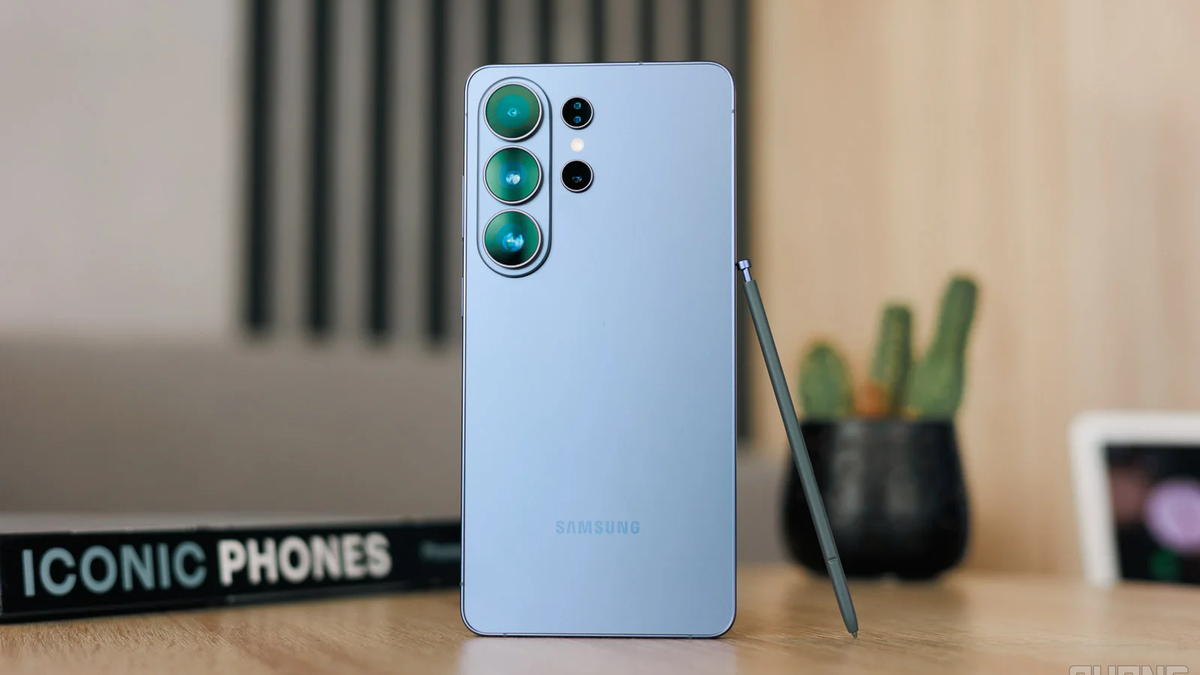
The Galaxy S26 Ultra features one of the best Android interfaces I’ve used. | Image by PhoneArena
Sponsored content created with Samsung.
Disclaimer
If there were Olympic games for custom Android interfaces, I’m fairly certain that Samsung’s One UI would be in contention for the gold. That’s because it’s a proper treasure trove of hidden features and functionalities discreetly sprinkled across the interface.
However, with such a well-made interface, it’s challenging to be aware of just about any useful feature included.
This is why an egg hunt for useful hidden features and functionalities is typically so fun on Samsung phones.
Camera tips and tricks
Set minimum shutter speed and ISO
One UI 8.5's most significant hidden camera addition fixes a long-standing Galaxy weakness. Samsung's camera has always favored slow shutter speeds to soak in more light. That can be useful, but it introduces motion blur on moving subjects.
Now, you can set a minimum shutter speed that the camera wouldn’t go below, which means frozen action, sharp subjects and far fewer ruined shots. The tradeoff? Slightly softer quality in low light compared to the standard mode.
To set a minimum shutter speed on your Galaxy S26 Ultra phone, do the following:
Now, you can set a minimum shutter speed that the camera wouldn’t go below, which means frozen action, sharp subjects and far fewer ruined shots. The tradeoff? Slightly softer quality in low light compared to the standard mode.
- Open the camera app
- Head into its dedicated Settings page
- Swipe down to Camera Assistant and install it if it’s not already downloaded
- Once inside, swipe down to “Advanced Photo Mode controls”
- Head into the “Set minimum shutter speed” and choose between 1/1000, 1/500, 1/120, and 1/30 shutter speed
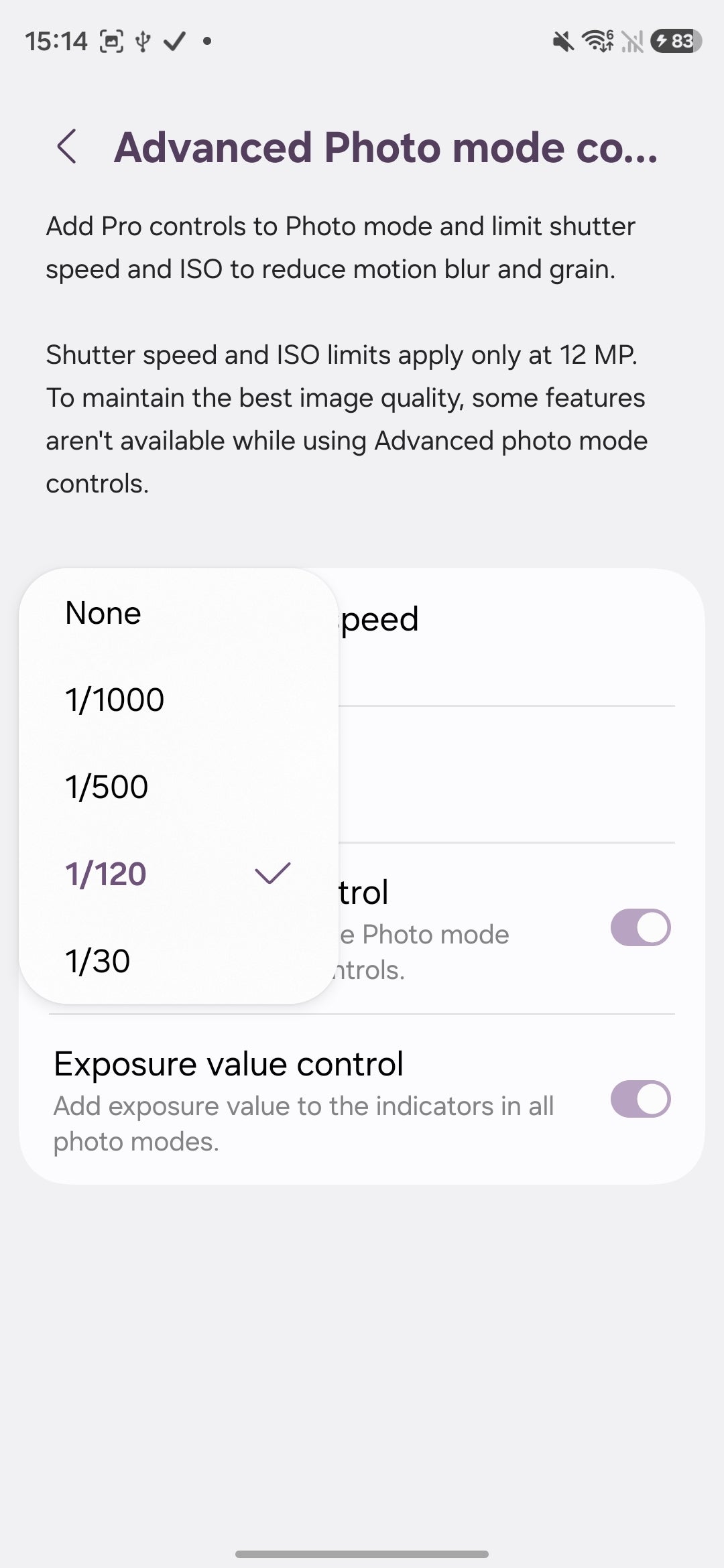
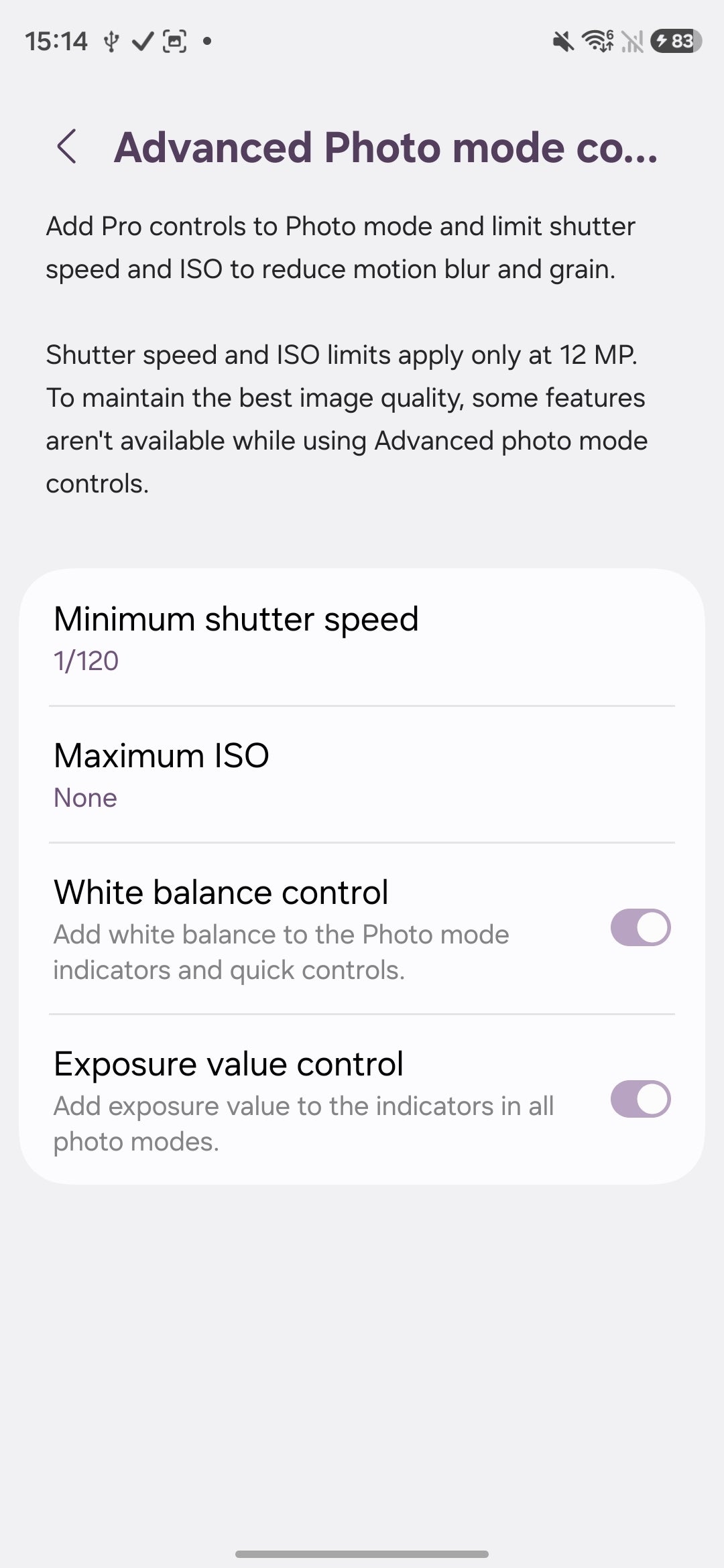
Camera Assistant now lets you set a minimum shutter speed and ISO.
In the same general menu, you can also set a maximum ISO (ranging between 50, 100, 200, and 400). Higher ISO settings deliver better light sensitivity but also introduce noise to your image, while a lower ISO is typically noise-free, but your image might turn out to be underexposed in less than ideal lighting conditions.
Note that these settings only apply in the default 12 MP camera mode.
Create camera settings presets
The Galaxy S26 series can create presets for quick and easy access to your favorite camera settings in Pro mode. That’s similar to most prosumer-grade digital cameras and even some other camera-centric Android devices. Presets save you the hassle of having to readjust the ISO, shutter speed, focusing mode, exposure value, or white balance every time you re-open the camera’s Pro mode.
There are two ways to create a camera preset. The first one is more straightforward.
- Head into your camera’s Pro mode and change the manual camera controls to your liking
- Then, immediately head into your camera’s settings and look for Camera Assistant, then swipe down until you see a “Presets in Pro mode” toggle
- Enable it and enter the underlying menu, where you tap “Create from current settings”
- You then get to name your preset and save it
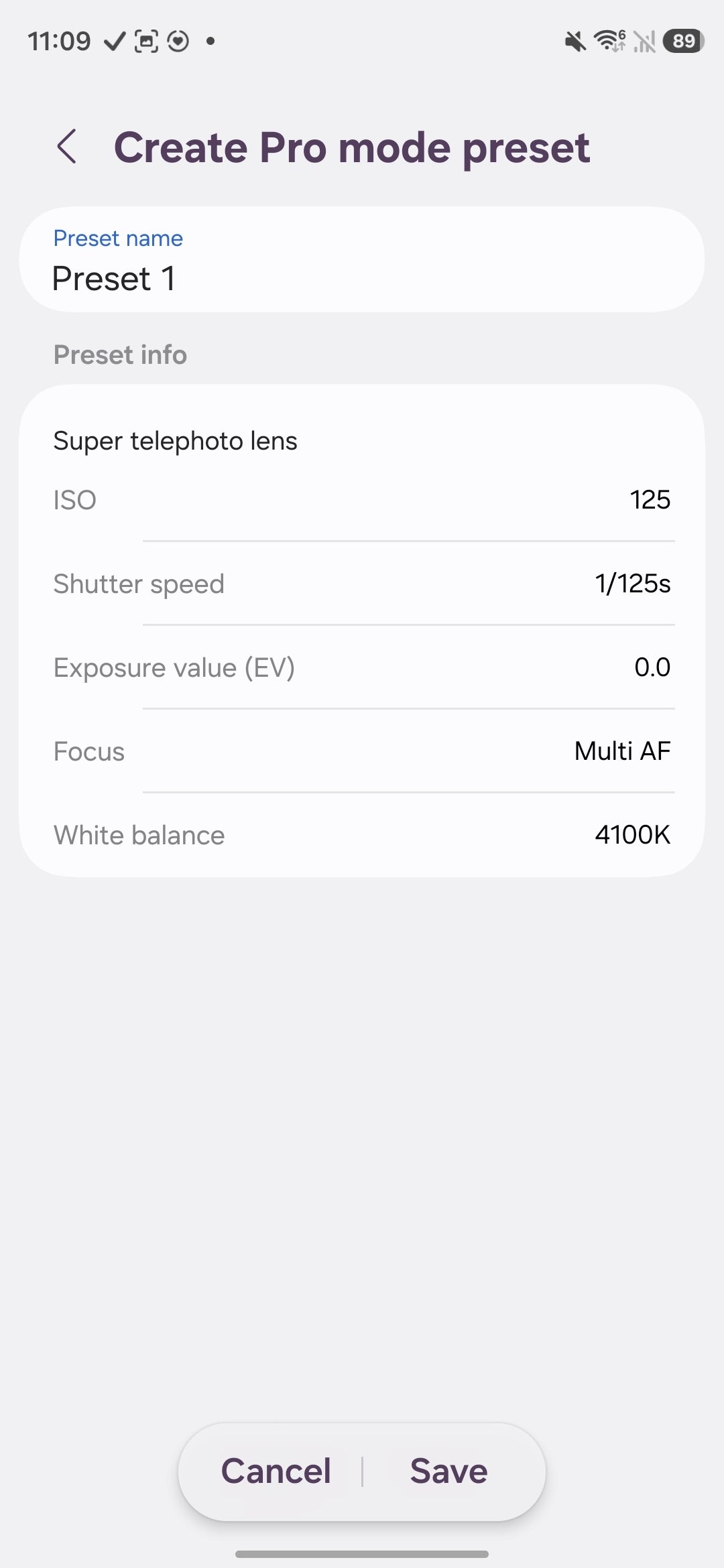
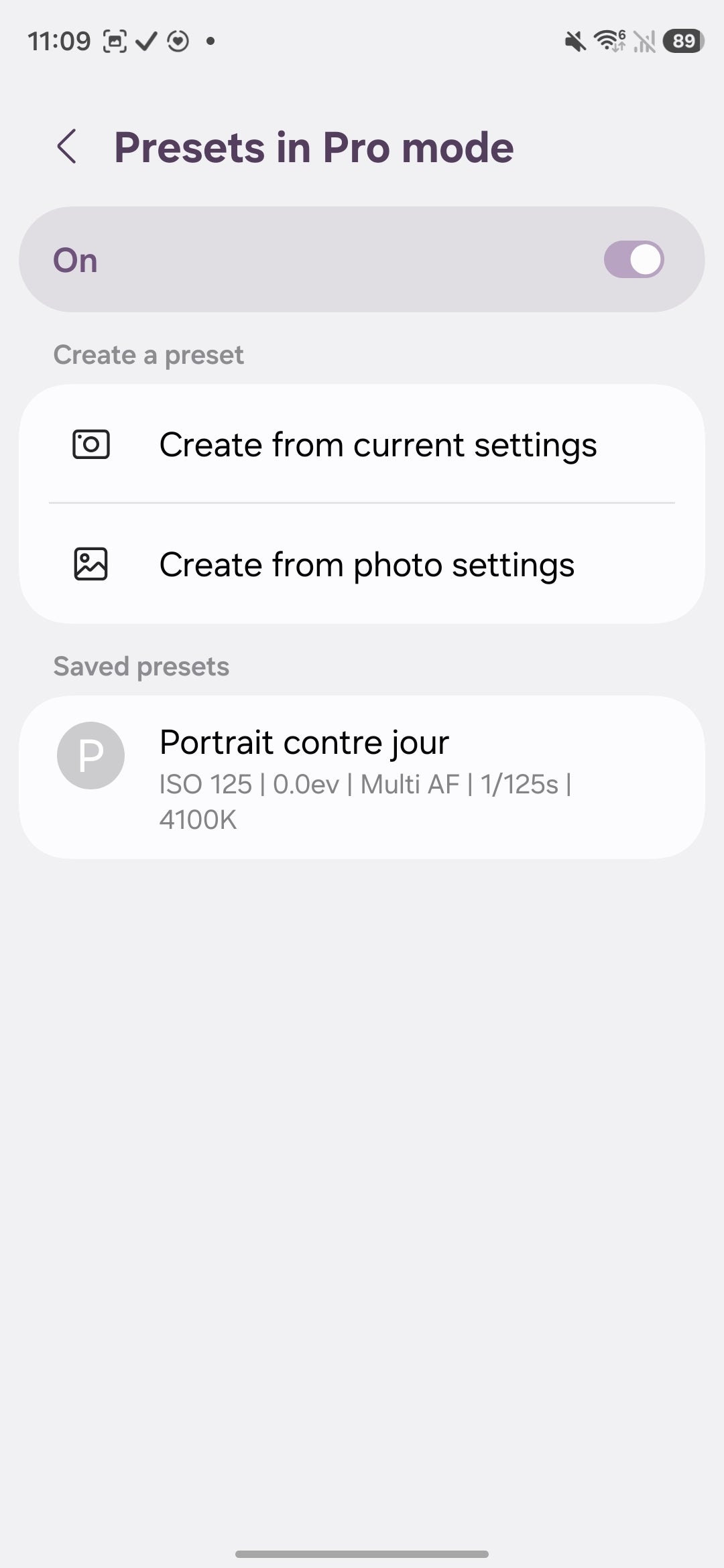
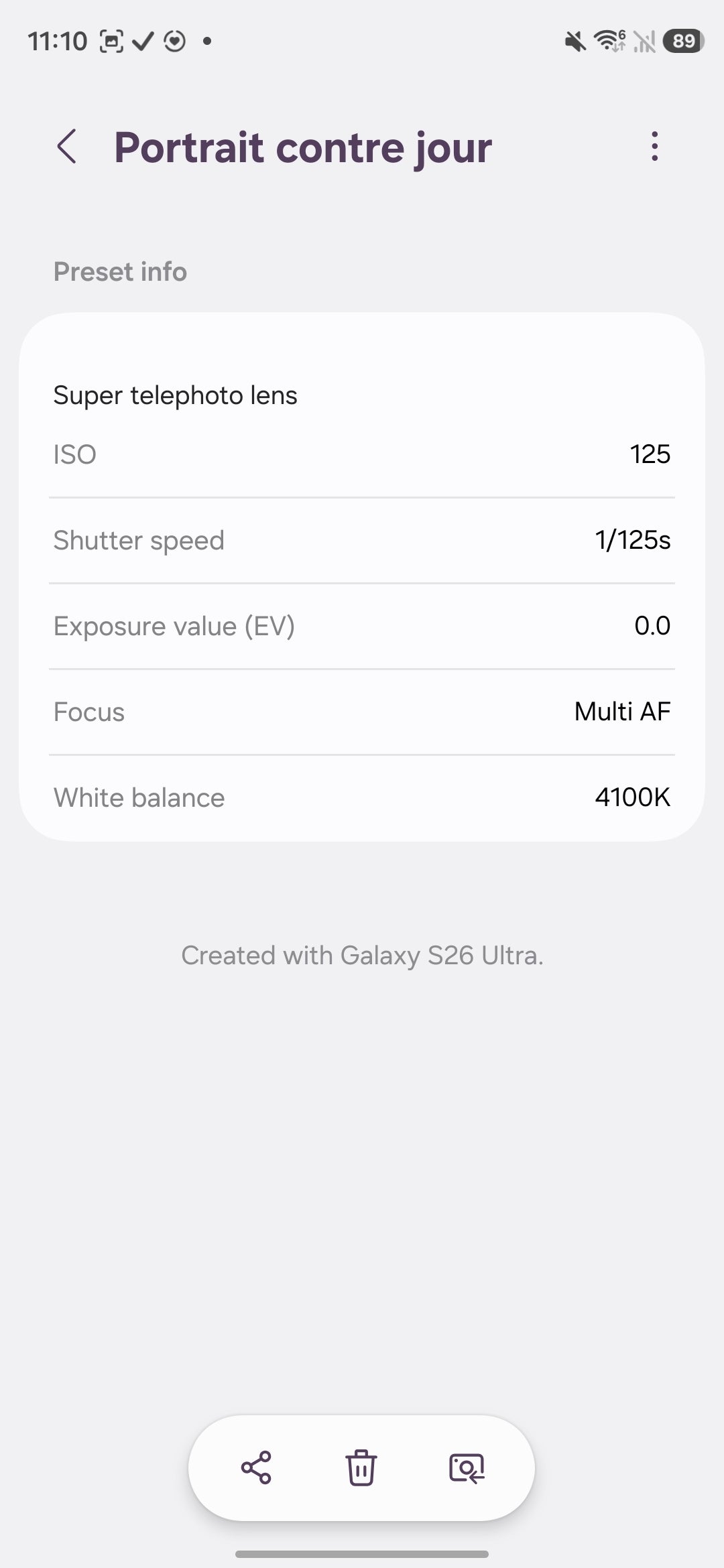
Creating a preset from your existing settings is straightforward, but you can’t edit already created ones.
The second method allows you to inherit the camera settings from a photo you’ve already taken. It’s a straightforward process: instead of tapping “Create from current settings,” you tap “Create from photo settings” in the Presets menu.
After that, whenever you’re in Pro mode, you will see a new interface button immediately to the right of your lens selector, where you can access your created camera presets.
After that, whenever you’re in Pro mode, you will see a new interface button immediately to the right of your lens selector, where you can access your created camera presets.
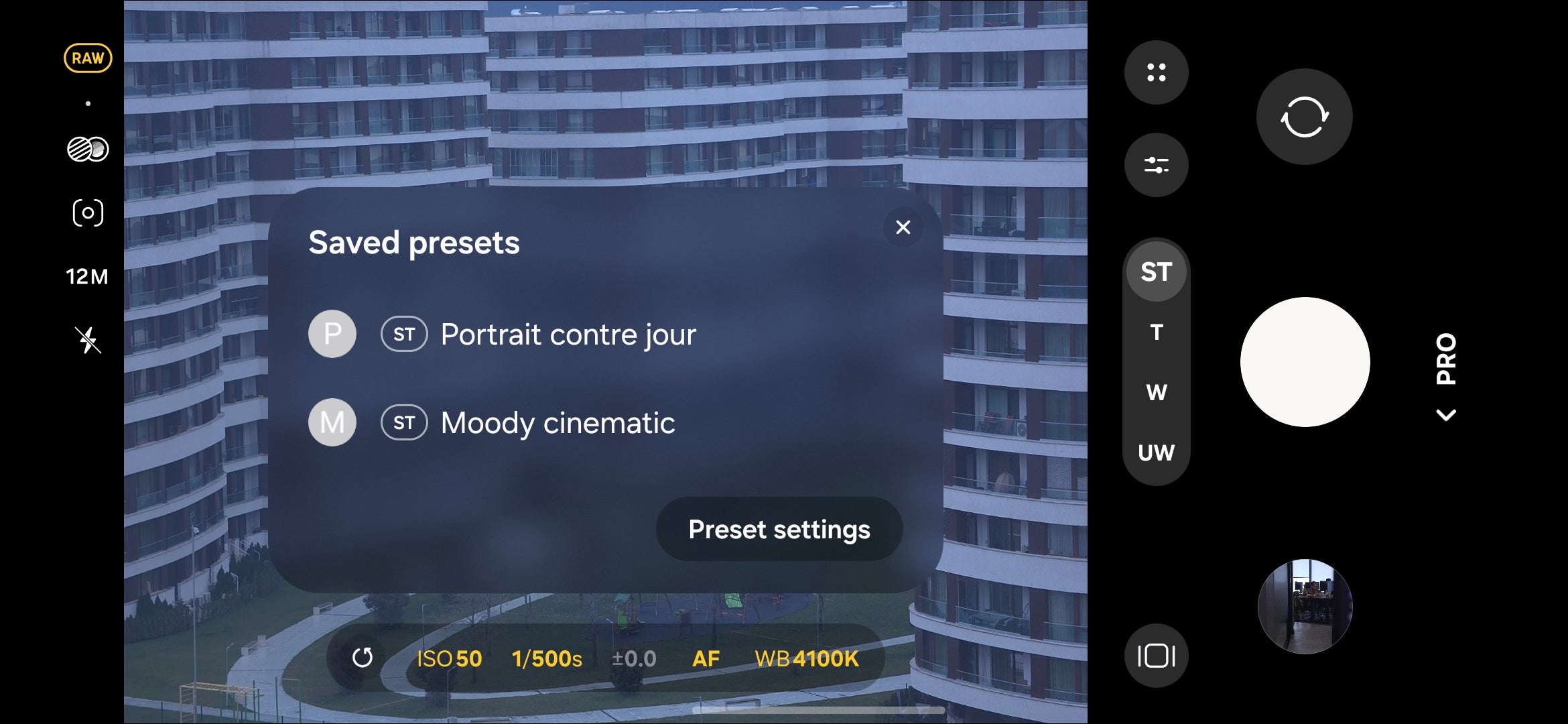
Camera presets are mighty useful if you love Pro camera mode. | Image by PhoneArena
Galaxy AI tips and tricks
Smart scam protection
Galaxy AI(1) is packed with options, but most need to be manually enabled. Also, remember that you’ll need a Samsung account to access many of them.
The standout feature worth turning on first is Call Assist. It automatically answers suspected spam and scam calls for you so you never have to.
At the moment, this is an opt-in feature that currently works for the most popular languages globally, but it's one of the best things Galaxy AI does.
The standout feature worth turning on first is Call Assist. It automatically answers suspected spam and scam calls for you so you never have to.
AI Eraser done right
Another favorite Galaxy AI feature of mine is Photo Assist. I'm not one for generative AI gimmicks, but Photo Assist’s AI Eraser’s rather smart generative fill is a god-send when it comes to removing unwanted subjects cleanly. On the Galaxy S26 Ultra, the S Pen makes it even better, letting you select exactly what you want erased with extra precision.
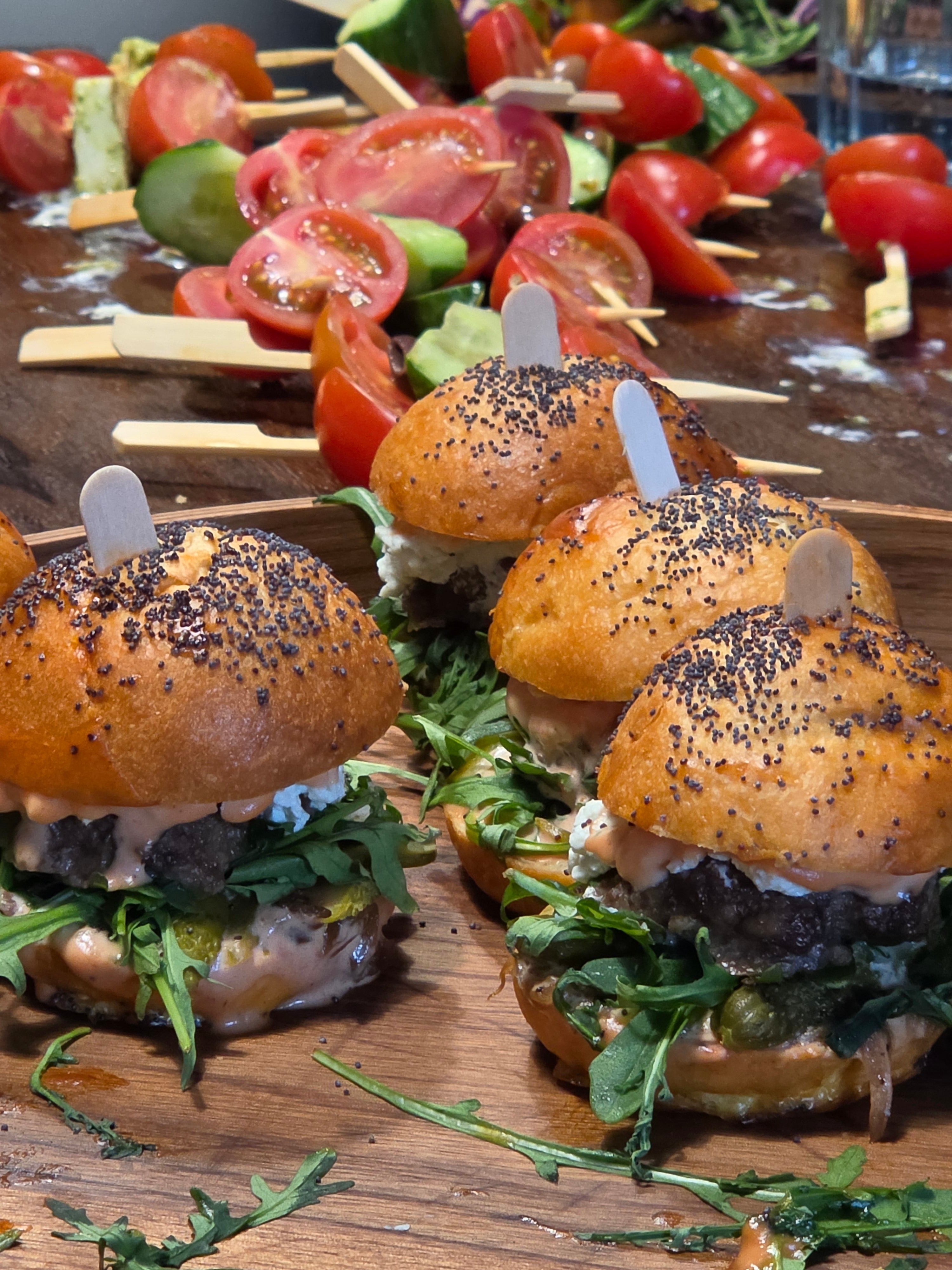
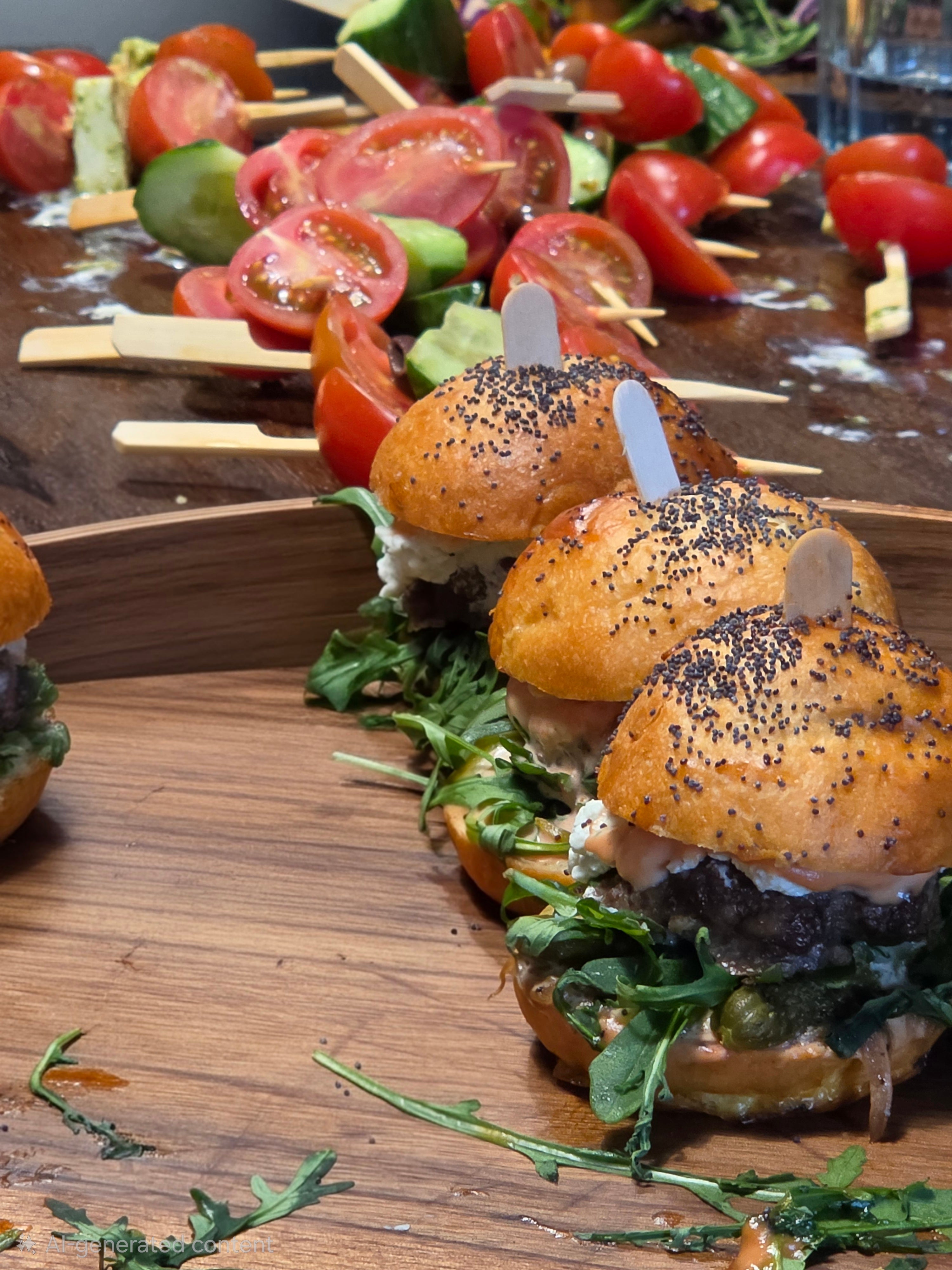
First, Galaxy AI erased the burger from the photo, and later, I “erased” it from the tray.
General tips and tricks
Window management made easy
One UI's window management is genuinely flexible, and a couple of hidden settings make it even better.
Like on most Android phones, you can open an app in pop-up view or split-screen mode straight from the Recents menu, but Samsung has a few hidden yet mighty useful tricks to improve that.
To start, head to Settings and search for “Multi-window”. Once inside, you will see toggles for “Swipe for split screen” and “Swipe for pop-up view”. The first lets you enter split-screen mode by simply swiping upwards from the bottom of the screen; your current app gets squeezed to the top, and you get to choose a second app for the bottom of the screen.
For extra real estate dedicated to your apps, make sure to also enable the “Full screen in split screen view” toggle, which automatically hides away the status bar in split screen mode.
The second toggle lets you open any app in pop-up view by simply swiping inwards from the top left or right corner of the screen. The resulting window can be resized and moved around, boosting your phone’s multi-tasking potential.
Like on most Android phones, you can open an app in pop-up view or split-screen mode straight from the Recents menu, but Samsung has a few hidden yet mighty useful tricks to improve that.
To start, head to Settings and search for “Multi-window”. Once inside, you will see toggles for “Swipe for split screen” and “Swipe for pop-up view”. The first lets you enter split-screen mode by simply swiping upwards from the bottom of the screen; your current app gets squeezed to the top, and you get to choose a second app for the bottom of the screen.
The second toggle lets you open any app in pop-up view by simply swiping inwards from the top left or right corner of the screen. The resulting window can be resized and moved around, boosting your phone’s multi-tasking potential.
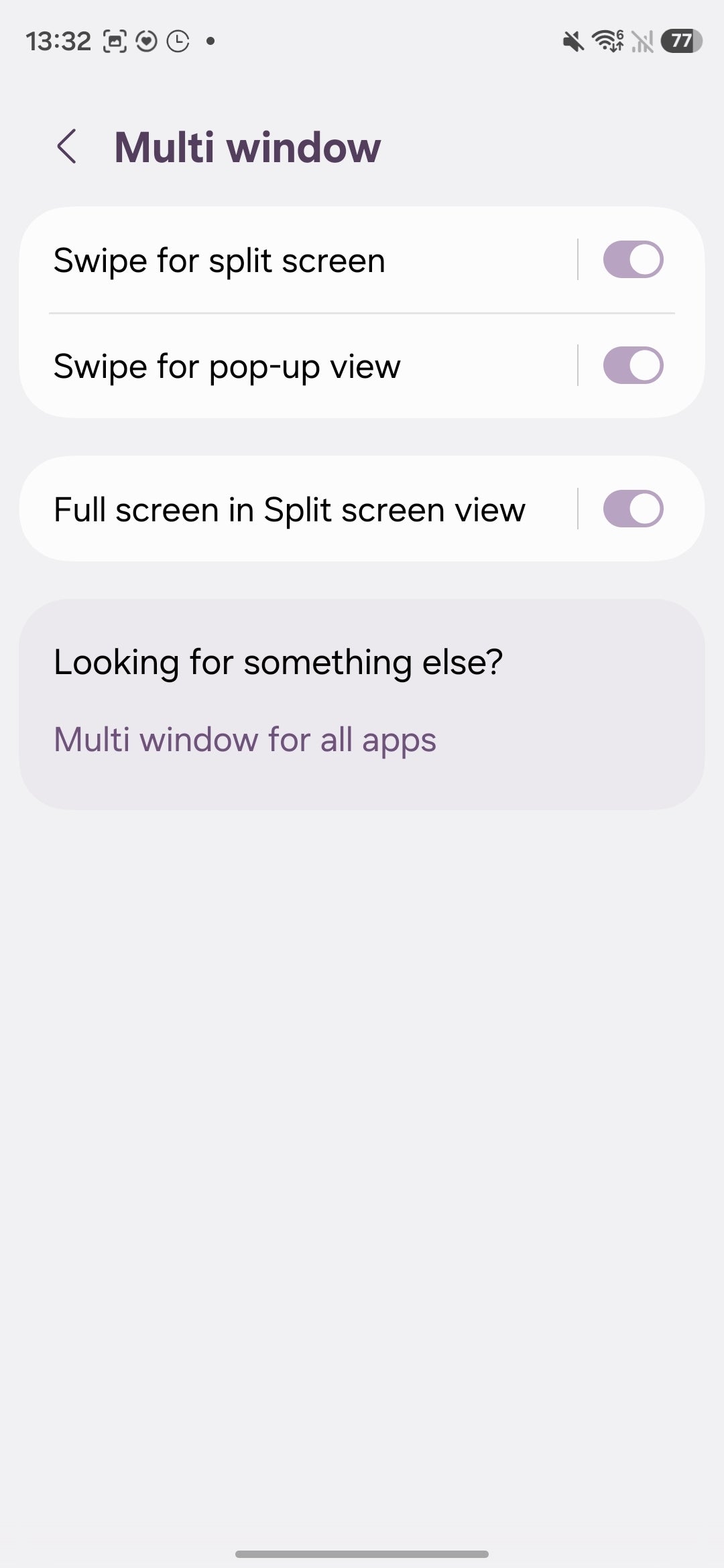
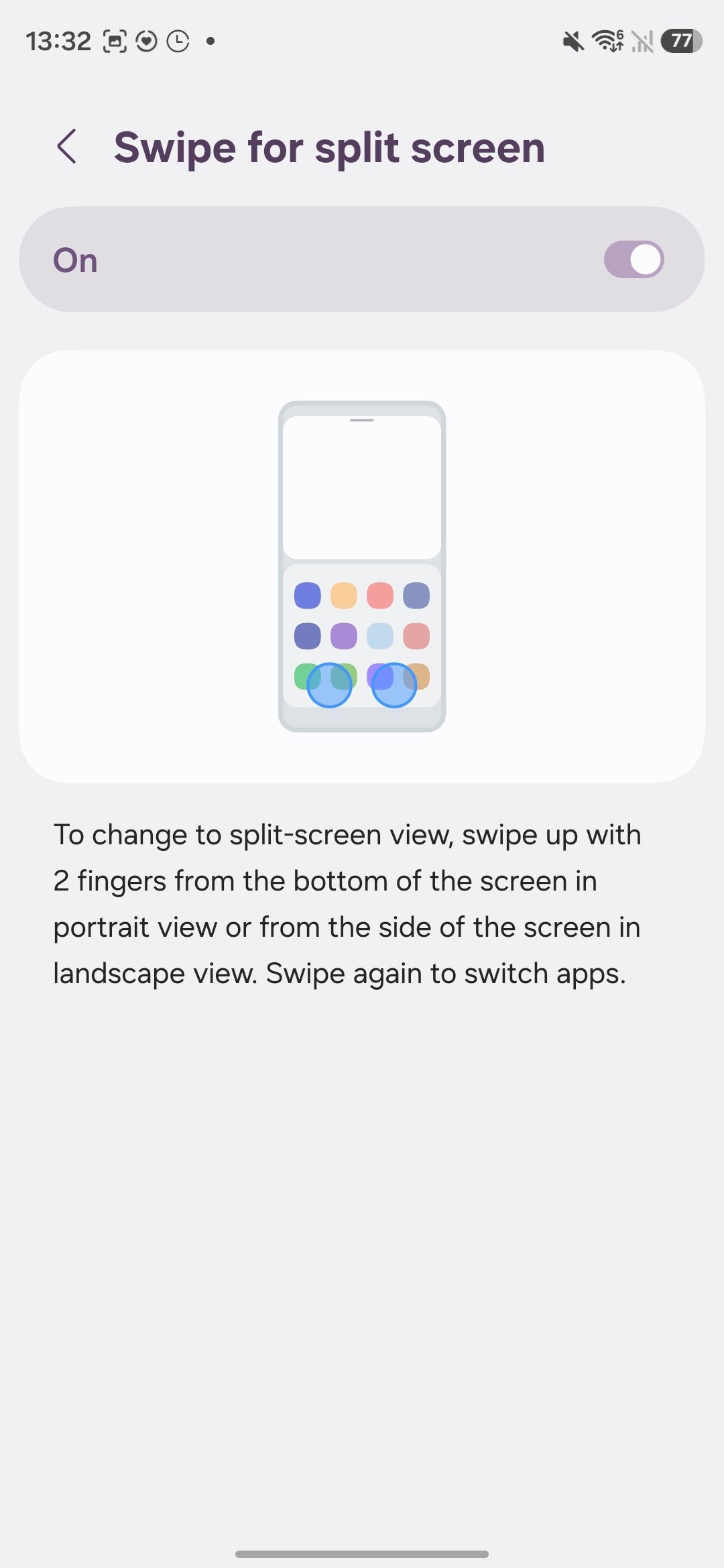
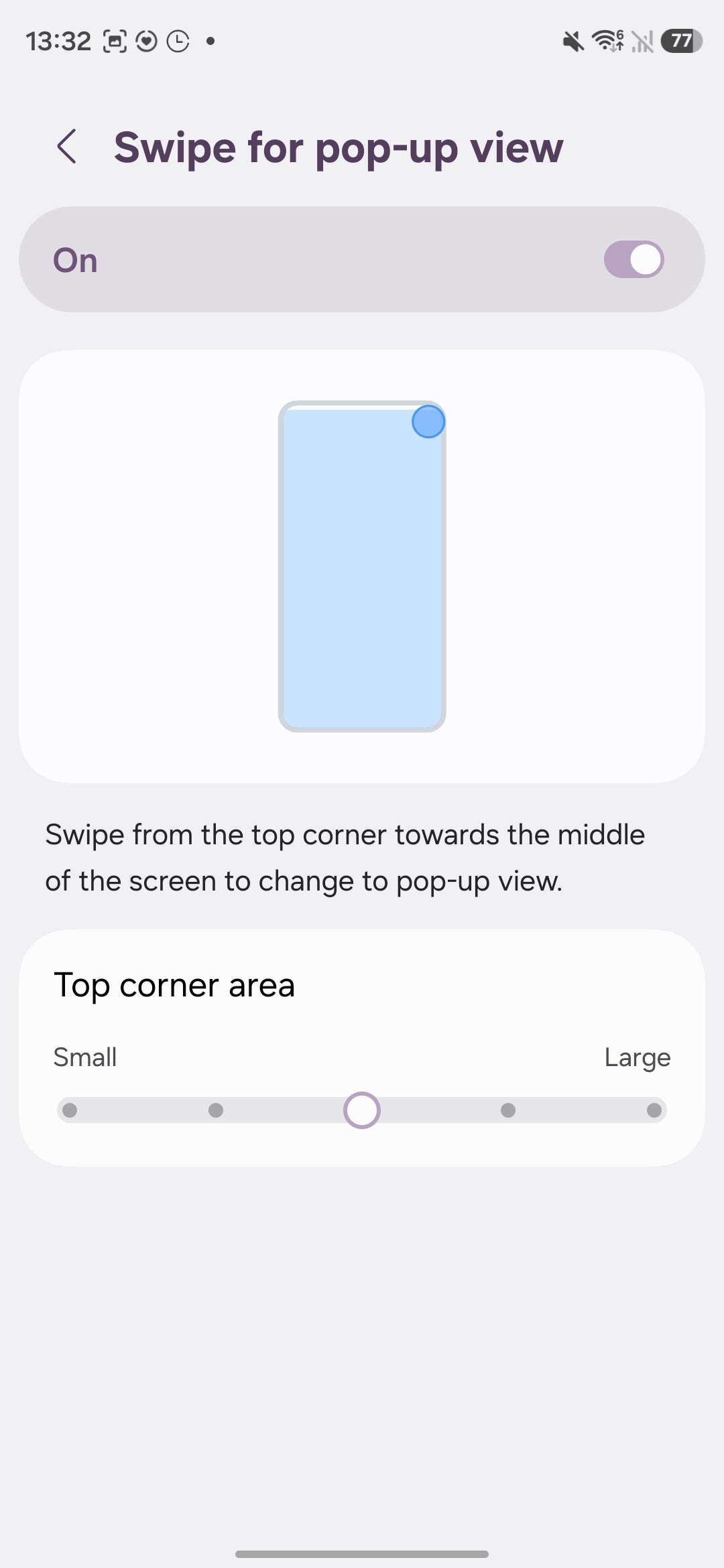
Multi-tasking is fairly easy on the Galaxy S26 Ultra.
Quick toggles customization
One of my favorite new features in One UI 8.5 is the enhanced personalization added to the Quick Toggles panel. You can now change the size and orientation of the brightness and volume sliders. Now, mixing and matching these with the rest of your toggles allows you to create a truly personal layout that makes sense uniquely to you.
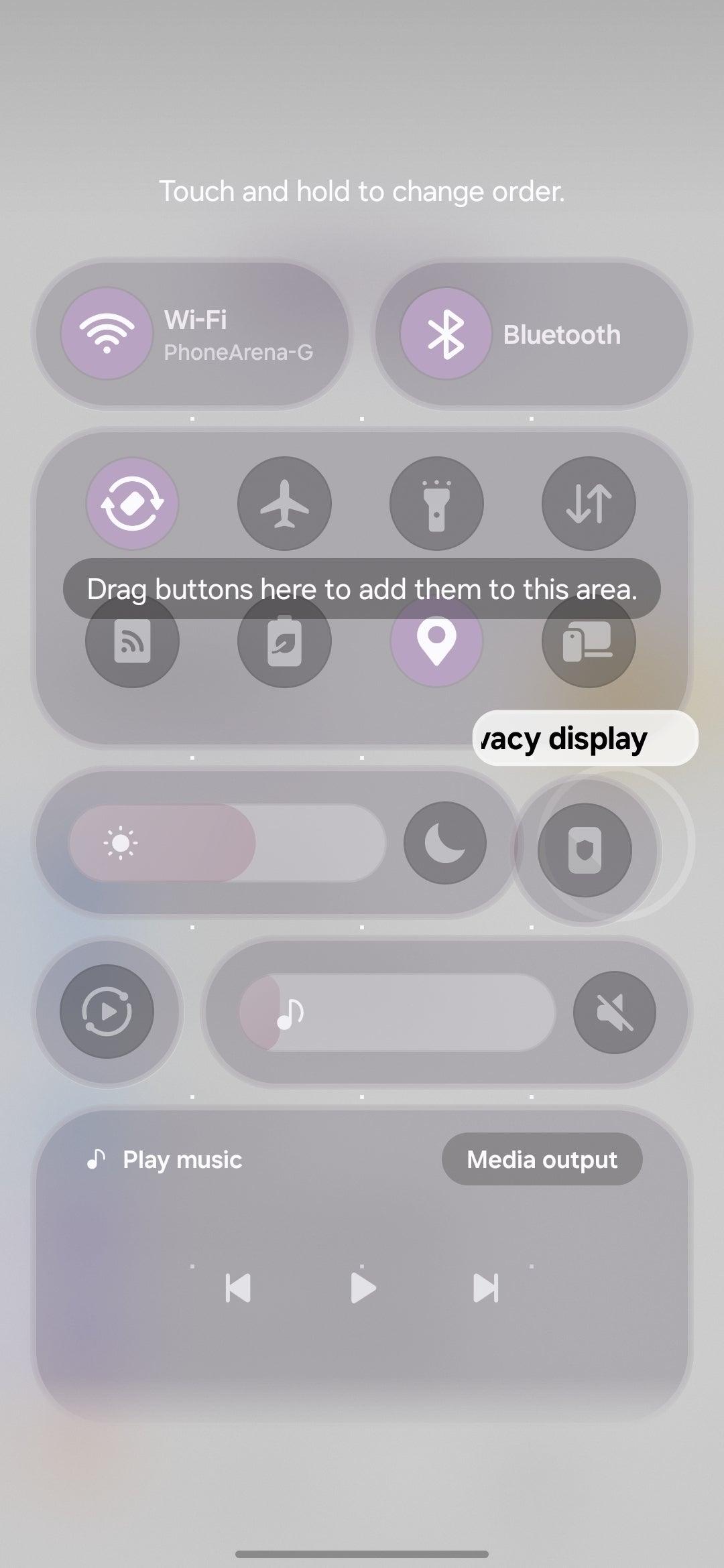
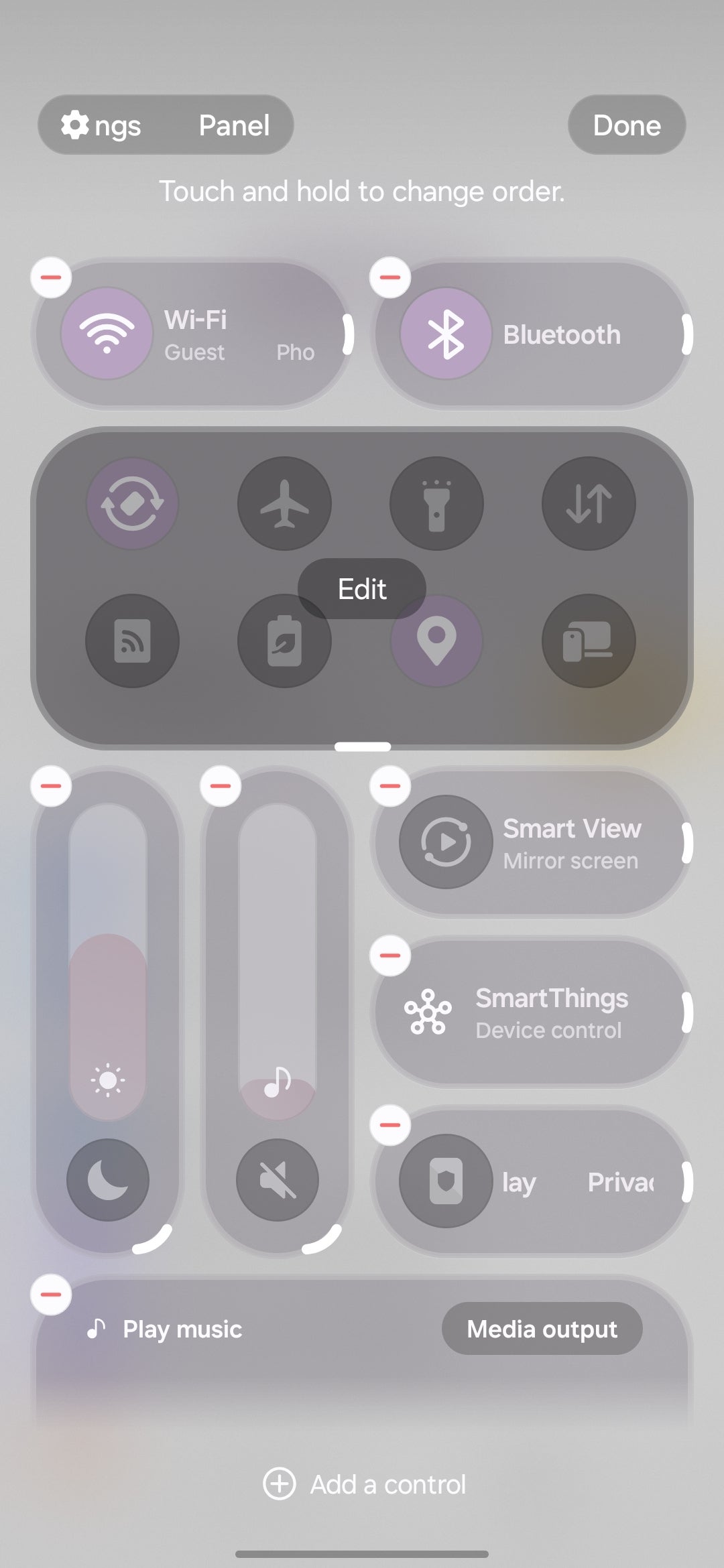
Creating a custom quick toggle layout is now possible.
But did you know that you can also swap the position of the quick toggles and notification panels? To do that, tap the “Edit” button at the top of your quick toggles panel, then tap “Panel settings” in the top left corner, and finally, enable “Quick panel on the left side”.
This way, swiping down from the top right of the screen will expand your notifications, while swiping down from the left side will open the quick settings toggle. That’s inverse to the default setting, but hey, more power to you!
Storage Share
With the Galaxy S26 range, you can access the storage of any other nearby Galaxy devices you’ve signed into with your Samsung account.
You can explore the file structure and interact with the files on the other phone as if they were on yours, so you can easily copy, move, compress, and delete files. This is precisely what an ecosystem should feel like, and makes file management a bit more intuitive if you’re juggling between a couple of Samsung devices.
You can explore the file structure and interact with the files on the other phone as if they were on yours, so you can easily copy, move, compress, and delete files. This is precisely what an ecosystem should feel like, and makes file management a bit more intuitive if you’re juggling between a couple of Samsung devices.
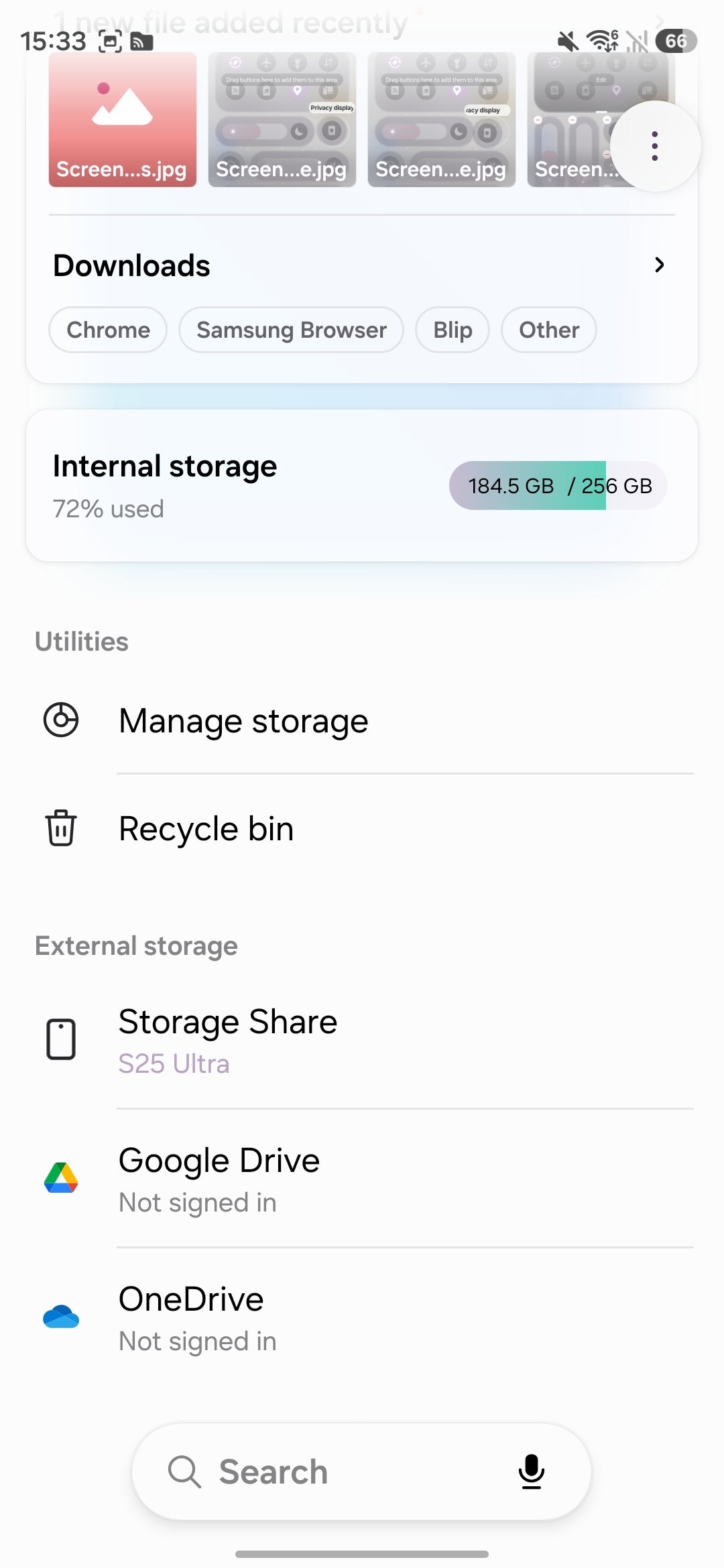
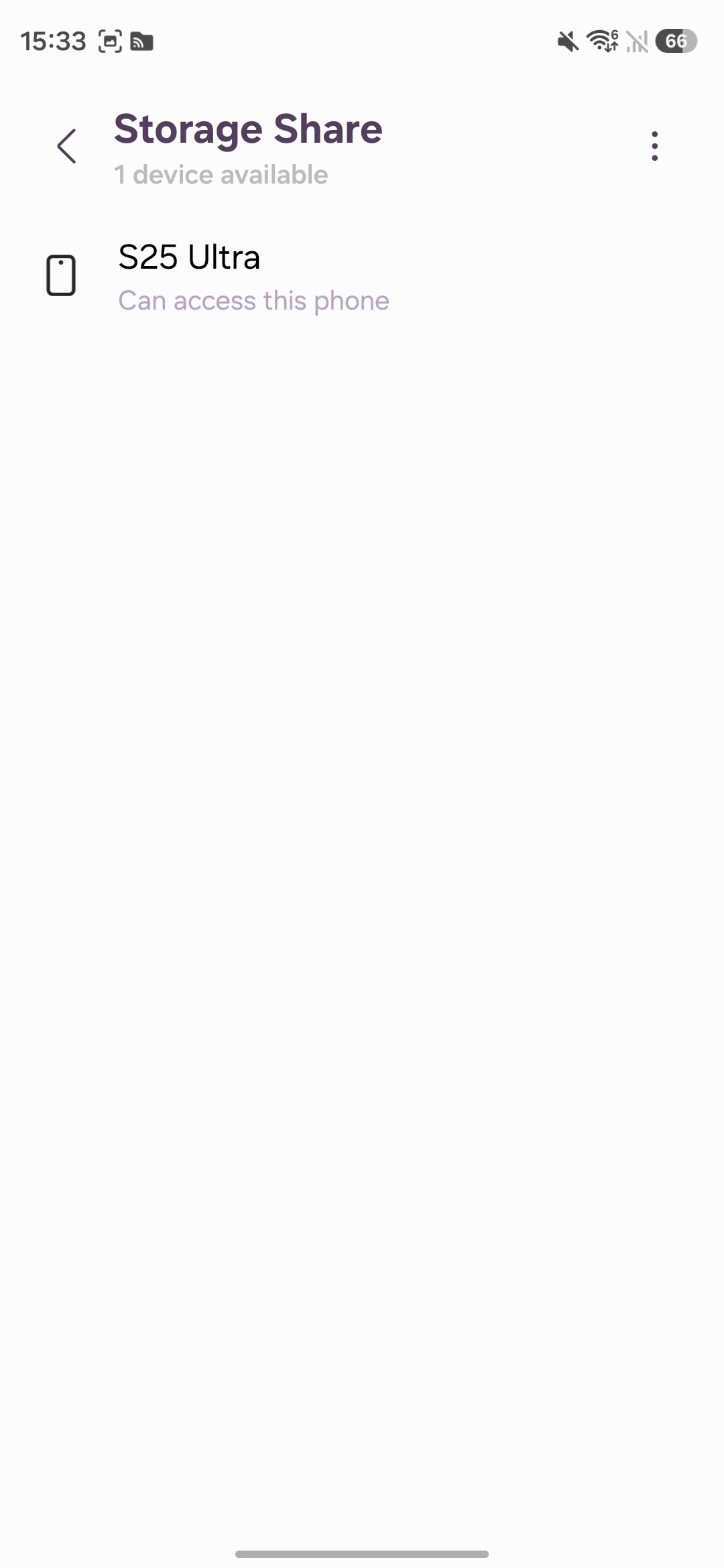
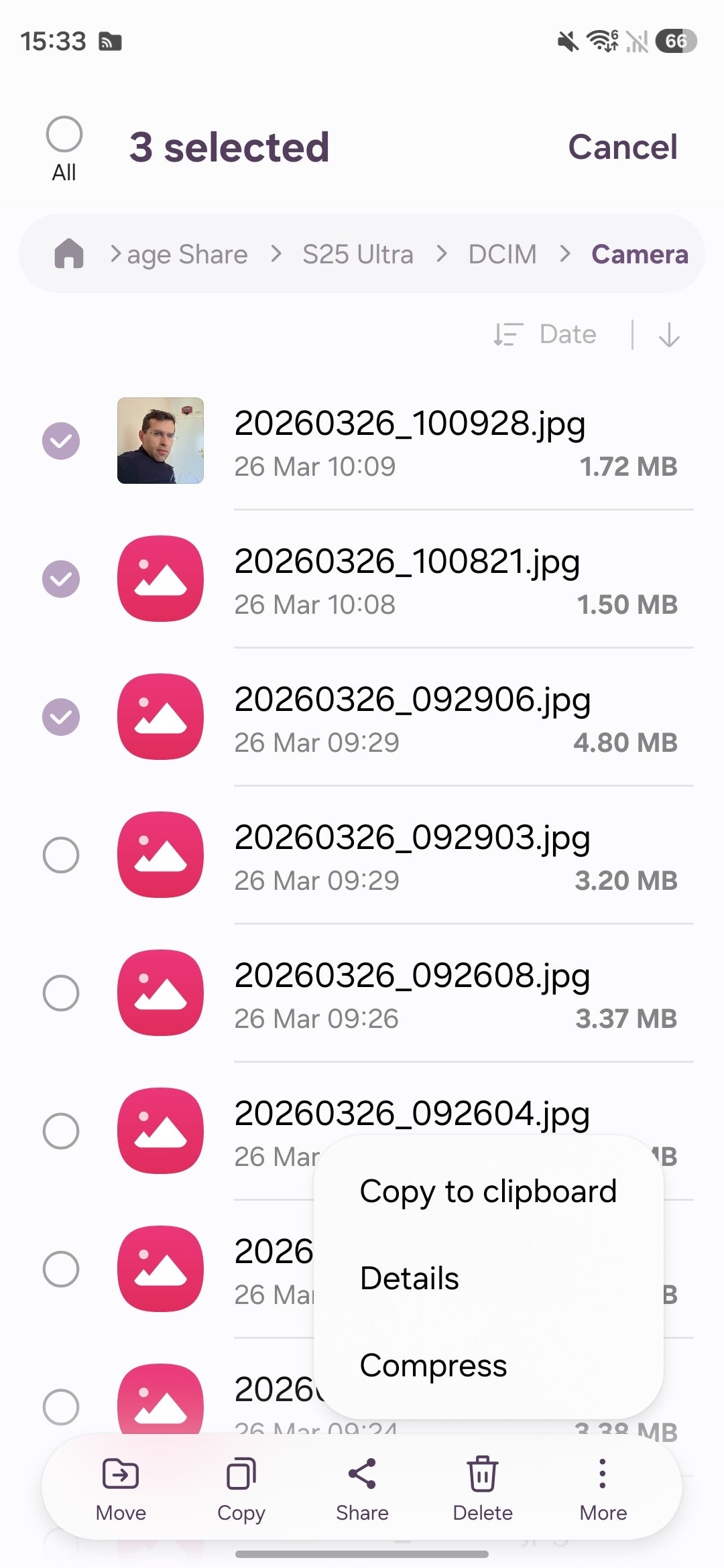
Accessing your files on other Galaxy devices has been improved.
Good Lock customization
Mentioning Good Lock in an article about Galaxy tips and tricks feels like a cheat code just because it’s such a deep rabbit hole of visual and functional customization.
Here are some of my favorite Good Lock features and what modules they can be found in:
Here are some of my favorite Good Lock features and what modules they can be found in:
- Camera Assistant — A must-have for any Galaxy phone that enables tons of different functions and options for the default camera app.
- Theme Park –– Great for creating custom themes for your keyboard, quick panel, volume panel, and even create custom icon appearances.
- Pentastic –– Useful for customizing the S Pen floating icon style and insert/remove sounds.
- Home Up –– This module is a must. Here, you can change the recents apps layout, create a custom homescreen grid, personalize folder appearance, and even add stickers to your home screen. You can also fine-tune animation speed and responsiveness.
- Brightness limit profile (Display Assistant) — By enabling this feature, the peak brightness of your Galaxy won’t be affected by high temperatures, but your phone will most certainly cool down slowly.
- Brightness change speed (Display Assistant) — You can double or quadruple the speed at which the display adjusts its brightness depending on the environmental conditions.
- Custom Quick Panel themes (QuickStar) —The entirety of this module is a must-have as it allows you to create truly custom and unique themes for your Quick Toggles/notifications panels. You can also choose what icons should appear on your status bar. Begone, NFC icon!
- Add Delete Button (Nice Shot) — Adds a delete button to the screenshot capture toolbar, allowing you to quickly delete unsuccessful screenshots.
- Routines+ — This whole module is a must-have as it adds a bunch of useful options to the Routines app, like location-based access to apps, touch macros, and more.
- MultiStar –– This whole module is another essential one for heavy multitaskers as it supercharges both the split-screen and pop-up view modes with useful extra features. It also enables you to use high-resolution windows with external displays in DeX.
- ClockFace –– Choose from a multitude of extra clock designs and apply them to your lock screen. You can even select a GIF on your lock screen for the ultimate customization.
[1] Galaxy AI - Samsung account login is required for certain AI features. Galaxy AI features are provided for free. Future releases may include additional advanced features that are offered as part of a paid subscription plan. Different terms may apply for AI features provided by third parties.


Popular stories


Latest News

Things that are NOT allowed:
To help keep our community safe and free from spam, we apply temporary limits to newly created accounts: