Google Messages has been offering some incredible features for a while now to improve your messaging experience. For instance, it allows you to pin chats, create a photomoji, send stickers, and more. The app is now reportedly getting some new upgrades that will probably end the debate about which is the most feature-rich messaging application out there.
Reintroduction of a really crucial feature
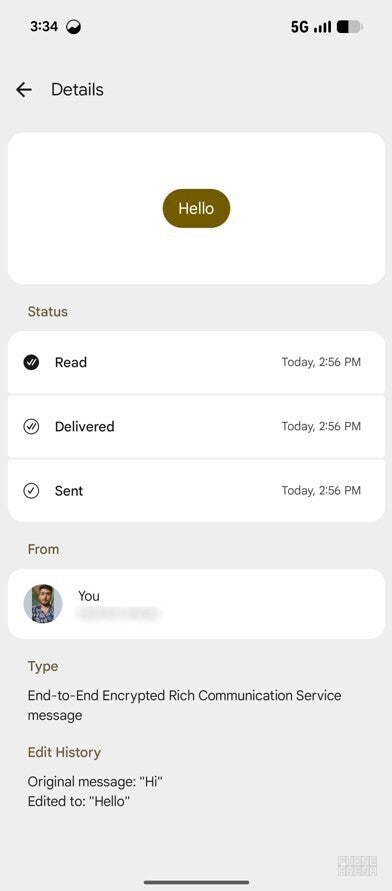
Edit History option in Google Messages. | Image by PhoneArena
In July 2025, Google rolled out the M3 expressive design to its messaging app. While it introduced many design changes, like an entirely new Details page, it also removed the ability to see the edit history. For those unaware, before this update, Google Messages allowed both senders and receivers to see the edit history of messages sent in RCS chats.
Now, the ability is being reintroduced in app version 20260206_00_RC00. To check the edit history of a message, all you have to do is tap and hold a message, tap the three-dot icon in the top-right corner, and choose "View details" from the context menu that appears. Under the "Edit History" section, you'll see the original message as well as what it has been edited to.
I believe this is a great feature that's being added again, as it will bring transparency and trust. Unlike platforms like WhatsApp, you will not only see that the message has been edited but also see exactly what changes were made.
If you're using the beta version of Google Messages, you will see an additional label on the Details page named "Type." As you can guess by its name, it will tell you the message type—whether it's an end-to-end encrypted RCS message or a normal SMS. The latter is denoted by "Priority: Normal."
Creating a group has never been easier
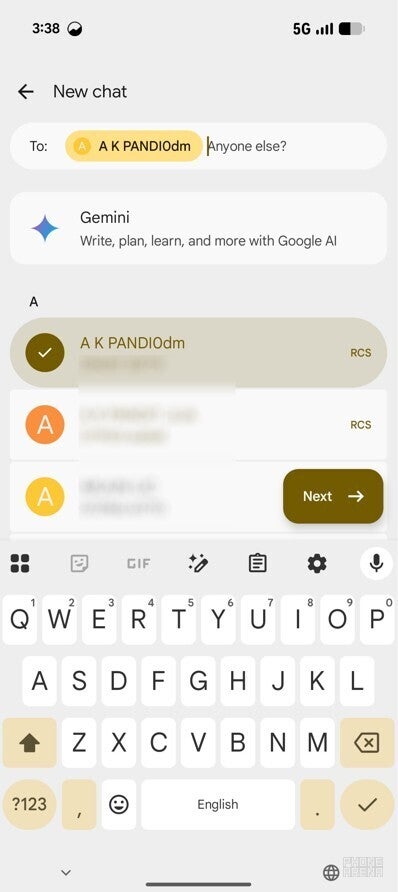
Anyone Else suggestion in Google Messages. | Image by PhoneArena
Google Messages allows you to create group chats, but the process hasn't been that smooth. The app required you to tap the "Create Group" button, select the members you want to add to the group, hit the Next button, and then follow the on-screen instructions to complete the group creation process.
Recommended For You
The tech giant has now finally made the whole process much easier. You simply hit the New Chat button on the homepage, select the first contact you want to add to the group, and you will be asked, "Anyone else?" Start selecting all the other members of the group, and then hit the Next button to form the group.
It's worth noting that I'm experiencing this change in the beta version of the app. Since it's an important change, I'm certain that it will roll out to the stable build as well.
Real-time location sharing
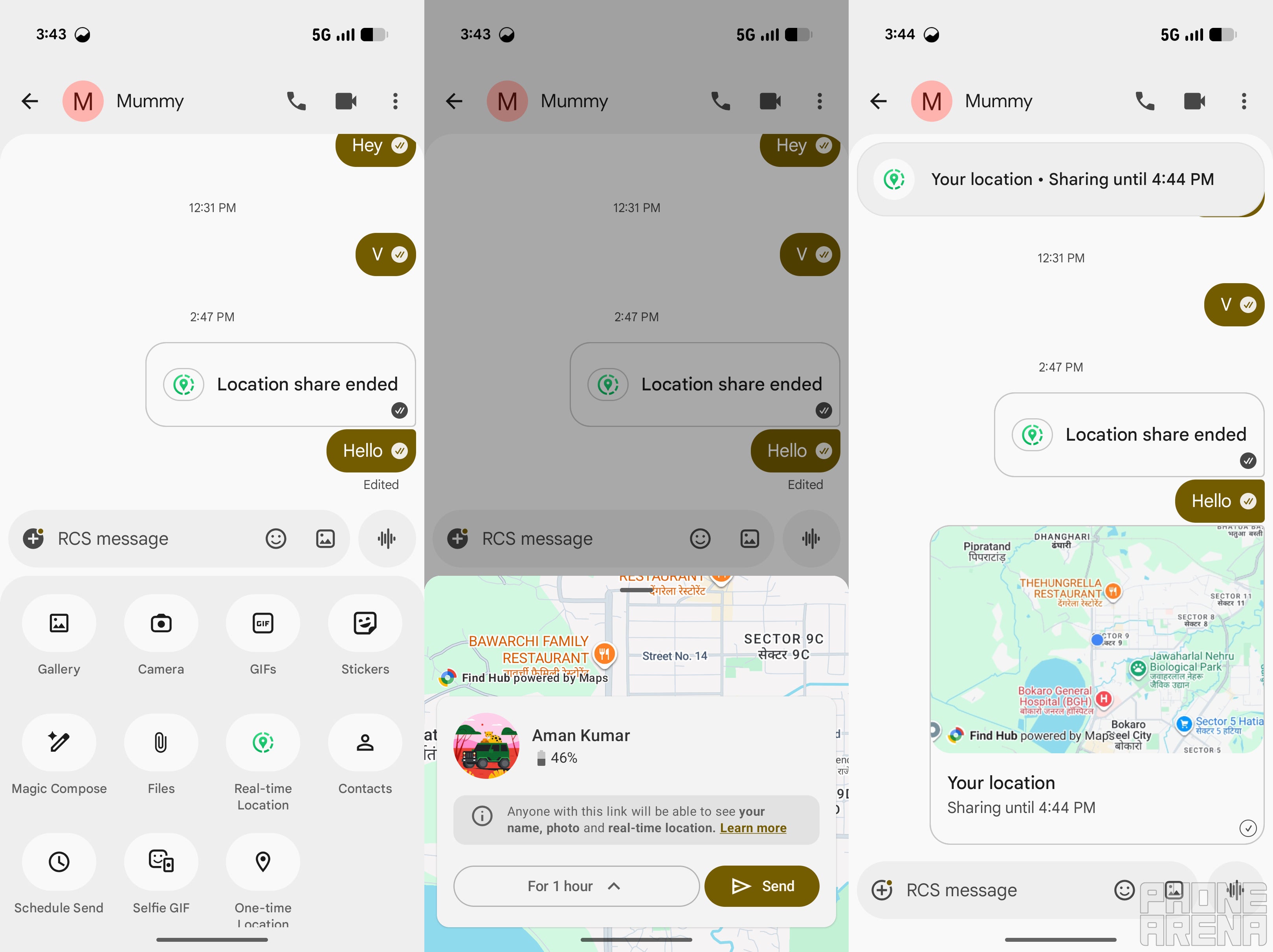
Real-time location sharing in Google Messages. | Image by PhoneArena
For some time, Google Messages has had the option to send a one-time location. The main drawback of this option is that it only sends a static address, meaning even if you have moved away from that location, the receiver will continue to see that you are still at that particular place. To address this, Google has introduced a new real-time location sharing option in the beta version of its messaging application.
To access it, you need to tap the plus icon in the text field and select Real-time Location. Then, select the time for which you want the receiver to be able to see your real-time location. Finally, hit the Send button.
You'll now see a banner appearing at the top of the window indicating that location sharing is active. When the receiver taps on the shared location, the Google Find Hub app will open on their device and show them your live location. If they don't have the app installed, your live location will be shown in a web browser.
The best part about this feature is that it doesn't require the receiver to have the same app version as you. I spotted this feature in the beta version. Hopefully, it will land in the stable build soon.
Copy only what you want
If you tap and hold a text message in Google Messages, you only get the Copy option, which copies the entire text. No doubt this approach could turn out to be helpful in various situations, but what if you want to copy only a particular part of the text, like the OTP or the phone number?
Apple Messages, for instance, shows a "Select" option when long-pressing a message that allows you to select only the part of the message you intend to copy. The Mountain View giant is finally going to come up with something similar, as it has been reported to be developing a text highlighting method. Following this change, once you long-press a text, you will be able to highlight and copy the part of the message that you wish to copy instead of the entire text.
Which of the following do you consider the best messaging app for Android?
897 Votes
Google Messages.
66.11%
WhatsApp.
19.29%
Chomp SMS.
0.56%
Messenger.
2.23%
Samsung Messages.
10.59%
Handcent Next SMS.
1.23%
Google Messages is getting better day by day
Last year I switched from an iPhone 14 to a Pixel 10, meaning I'm using Google Messages now instead of Apple iMessage. Honestly speaking, for the longest time I used to consider iMessage to be the best messaging app out there. It has features like built-in games, location sharing, music sharing, and more.
However, the moment I started using Google Messages, I discovered it has its own sort of unique features. And now that more upgrades are coming to it regularly, I can confidently say that it is probably one of the best messaging apps available for Android.
Tello Halloween Promo: $10GB for $10/mo
Don’t miss this scary-good deal: 10 GB for $10/mo. Save $5/mo for your first 3 months. Offer valid now through November 9, 2026.
Aman Kumar is a news writer at PhoneArena covering Google Pixel phones, Android features, AI-powered smartphone tools, and mobile tech news. Before joining PhoneArena, he spent over five years writing about consumer technology for publications like MakeUseOf, How-To Geek, and Guiding Tech. His current daily drivers are the Pixel 10 and Samsung Galaxy S26 Plus, while his red iPhone SE (2nd gen) remains a personal favorite. Aman also appreciates bold smartphone experiments and still considers the Nokia N-Gage one of the industry’s most iconic designs.
A discussion is a place, where people can voice their opinion, no matter if it
is positive, neutral or negative. However, when posting, one must stay true to the topic, and not just share some
random thoughts, which are not directly related to the matter.
Things that are NOT allowed:
Off-topic talk - you must stick to the subject of discussion
Offensive, hate speech - if you want to say something, say it politely
Spam/Advertisements - these posts are deleted
Multiple accounts - one person can have only one account
Impersonations and offensive nicknames - these accounts get banned
To help keep our community safe and free from spam, we apply temporary limits to newly created accounts:
New accounts created within the last 24 hours may experience restrictions on how frequently they can
post or comment.
These limits are in place as a precaution and will automatically lift.
Moderation is done by humans. We try to be as objective as possible and moderate with zero bias. If you think a
post should be moderated - please, report it.
Have a question about the rules or why you have been moderated/limited/banned? Please,
contact us.









Things that are NOT allowed:
To help keep our community safe and free from spam, we apply temporary limits to newly created accounts: