If you rely on the alarm clock on your iPhone to get you up in the morning so that you can get up, eat, shave, get dressed to make it into work on time every morning, you need to heed this warning. Some iPhone units have a bug that randomly changes the sound of the user's iPhone alarm from whichever one was selected to "None." As a result, these alarms are going off without making a sound leaving the iPhone user to remain in dreamland, oblivious to the fact that he or she is not going to make it in to work on time.
Bug keeps iPhone users from hearing the alarm they set
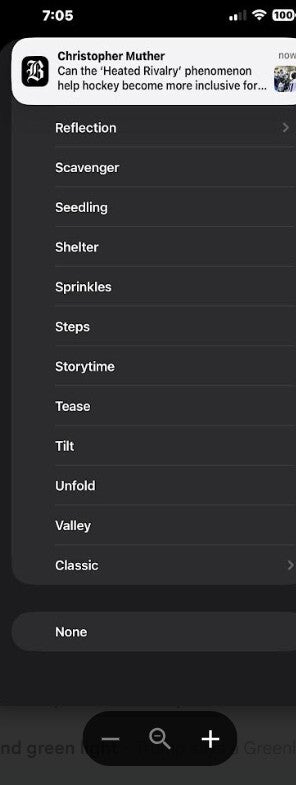
You can easily determine whether this alarm bug is affecting you by opening the Clock app on your iPhone and going through each alarm on the list. Make sure each one has a ringtone chosen as the sound to be played when the alarm goes off. Specifically, make sure that none of the alarms are set on "None" when it comes to Sound. The last thing you want to see is that the Sound setting on one or more of your alarms has been mysteriously turned on.
Are you having problems hearing the alarm on your iPhone?
26 Votes
Yes. I'm running late everywhere I go due to this bug.
38.46%
No. Luckily my alarm still sounds loud and clear.
34.62%
I don't own an iPhone.
26.92%
Set alarms are considered so vital for iPhone users that even if your handset is in silent mode, you should hear the alarm sound at the appropriate time. A simple way to test the alarm clock on your iPhone is to set an alarm to go off in a minute or two and listen to see whether the sound you selected goes off on time.
Make sure the sound isn't set to None or else you will not hear your alarm. | Image credit-PhoneArena
There are other settings that could cause an alarm to ring so quietly that you are not awoken when it goes off. If you go to Settings > Sounds & Haptics there is a volume slider under the Ringtone and Alerts heading. Make sure that you have it set at the loudest setting, which is all the way to the right. Keep in mind that if you have the toggle directly under the volume slider, "Change with Buttons" enabled, the slider will move when you touch the physical volume buttons on the iPhone. To prevent this unfortunate error from happening, make sure that the "Change with Buttons" setting is disabled.
If you are missing your alarms, make sure you have this Face ID feature set correctly
Also make sure that you don't have a Sleep alarm set up. This feature has a separate volume slider under the schedule wheel when the Alarm toggle is enabled. Above the slider is the Sounds & Haptics box allowing you to set the sound and volume for this feature.
Lastly, you could go to Settings > Face ID & Passcode > Attention and disable the toggle for Attention-Aware Features. With this setting enabled, if a face is looking at the display when an alarm goes off, the volume of the alarm is diminished. So, make sure you have this setting disabled as well.
Switch flash sale! Limited time offer!
Save $20 on Switch consoles from Back Market. Discount automatically applied at checkout. Offer ends 13 September 2026 at 23:59.
Alan, an ardent smartphone enthusiast and a veteran writer at PhoneArena since 2009, has witnessed and chronicled the transformative years of mobile technology. Owning iconic phones from the original iPhone to the iPhone 15 Pro Max, he has seen smartphones evolve into a global phenomenon. Beyond smartphones, Alan has covered the emergence of tablets, smartwatches, and smart speakers.
A discussion is a place, where people can voice their opinion, no matter if it
is positive, neutral or negative. However, when posting, one must stay true to the topic, and not just share some
random thoughts, which are not directly related to the matter.
Things that are NOT allowed:
Off-topic talk - you must stick to the subject of discussion
Offensive, hate speech - if you want to say something, say it politely
Spam/Advertisements - these posts are deleted
Multiple accounts - one person can have only one account
Impersonations and offensive nicknames - these accounts get banned
To help keep our community safe and free from spam, we apply temporary limits to newly created accounts:
New accounts created within the last 24 hours may experience restrictions on how frequently they can
post or comment.
These limits are in place as a precaution and will automatically lift.
Moderation is done by humans. We try to be as objective as possible and moderate with zero bias. If you think a
post should be moderated - please, report it.
Have a question about the rules or why you have been moderated/limited/banned? Please,
contact us.








Things that are NOT allowed:
To help keep our community safe and free from spam, we apply temporary limits to newly created accounts: