You're not having a stroke, Google simply changed the Chrome for Android Home icon
A small, seemingly nothingburger of an update, can improve your experience with the Chrome for Android browser.
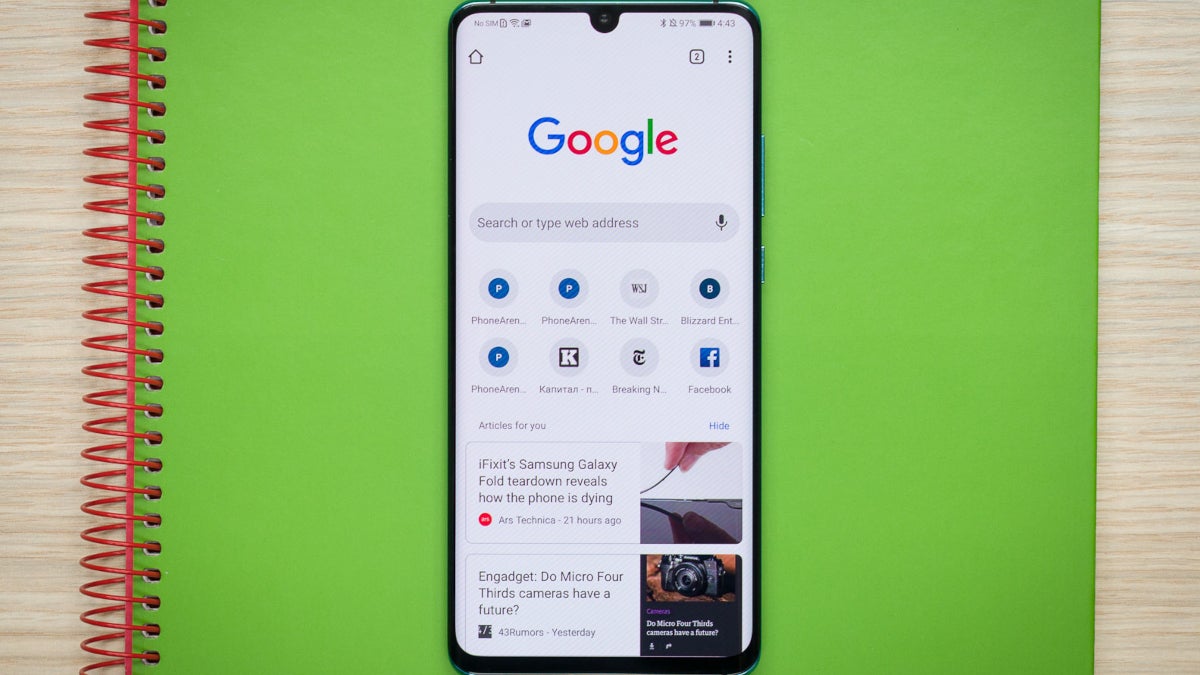
Home icon is revised on Android. | Image by PhoneArena
It's a small change, perhaps the smallest one that Google could think of. In Chrome 145, the Home icon in the browser's address bar gets a new look. The icon is found to the left of the address bar or, as Google calls it, the Omnibox. Google uses the latter name because you can type a web address in the bar and be directed to that website. You can also type a keyword into the bar and get search results based on the word you typed.
The side of the Home icon now is flush with the roof, as the overhang has disappeared. The new Home icon now includes a cutout door, which is a quick way to determine if your phone is running the latest version of Chrome (more on this later).
And that brings us to this question. Have you ever wondered what that small Home icon does? I'll tell you right now. Ready? Here goes. Go back to the Homepage screen by opening the Chrome for Android app and going to Settings > Homepage. Toggle on the Homepage setting at the top of the page. Doing that allows the Chrome Browser to immediately open the browser's default page whenever you tap the Home icon regardless of the website you are viewing on Chrome.
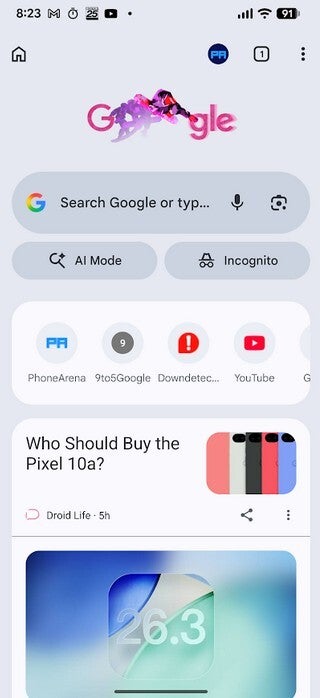
Google changes the Home icon seen in the top left corner of the Chrome for Android app. | Image by PhoneArena
You can customize a shortcut to a single website on Chrome for Android
Or you can set a website that you will be directed to every time you tap on the Home icon. On the Homepage screen, tap the second button that says "Enter custom web address" and type in the URL of the site you want to use. Now, whenever you tap the Home icon to the left of the Omnibox, you will be automatically sent to that website. It's one of those cool built-in features that Google sprinkles throughout Android to make navigating the platform more fun and a little easier to use.
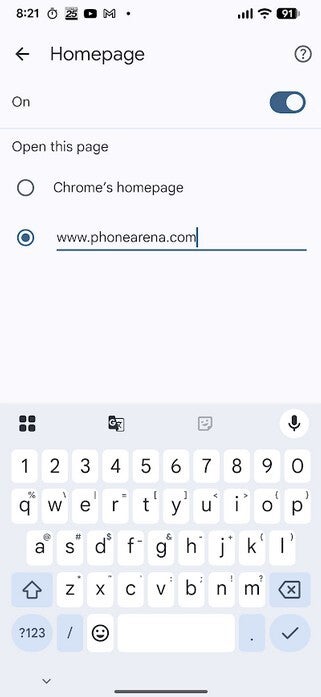
The Homepage screen where you can customize the website that Chrome will go to when you tap the Home icon. | Image by PhoneArena
The new Home icon was not on my Pixel 6 Pro running Android 17 Beta 1 this morning. However, there was an update for my Chrome app that did include it. If the image of the Home next to the Omnibox on the Chrome Browser for Android doesn't have a cutout door, you have not received the new version. To see if you have a Google Chrome update on your Android phone, open the Play Store app and tap the icon with your initials in the right corner. From there, go to Manage apps & devices > Update all. Once the update ends, open the Chrome app to see if you have the updated Home icon.
How to see which version of Chrome is on your Android phone
You can check to see which version of Chrome you do have on your Android phone. As I said, Chrome 145 has the new icon. To see the version number of the Chrome app on your Android handset, go to Settings > Apps > See all xxx apps. Scroll down to Chrome and tap on it. That is the App info page for Chrome. Scroll down all the way to the bottom to see the current version number. After the aforementioned update, the page showed that I am running version 145.0.7632.75, which is the same as version 145
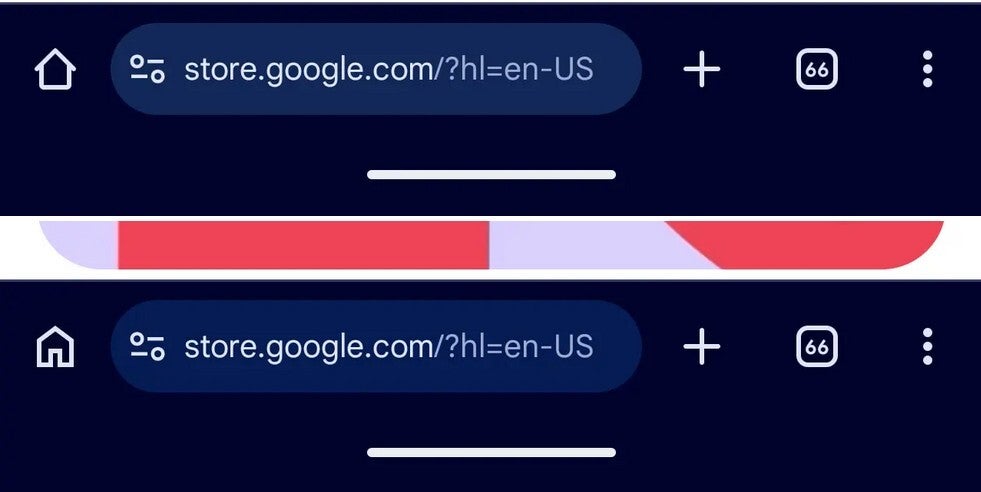
The old Home icon for Chrome on top, and the new icon on the bottom. | Image by 9to5Google
As I said, this might feel like a small, insignificant nothingburger of an update. But it just shows you how Google is constantly working on Android, trying to improve the user experience of the Operating System.
Have you ever used this shortcut on Chrome?
69 Votes
Yes and it is a timesaver.
31.88%
Yes, and it doesn't do anything I want it to.
20.29%
No. I didn't even know it was there.
47.83%
Lastly, if for some reason you don't have Chrome installed on your Android phone, you can install it by tapping on this link, which will take you to the Google Play Store from where you can download the app.


Popular stories



Latest News



Things that are NOT allowed:
To help keep our community safe and free from spam, we apply temporary limits to newly created accounts: