Latest version of Google Messages comes with useful feature we've seen tested before
Back in January and in March, we saw Google testing this new feature that is finally here.
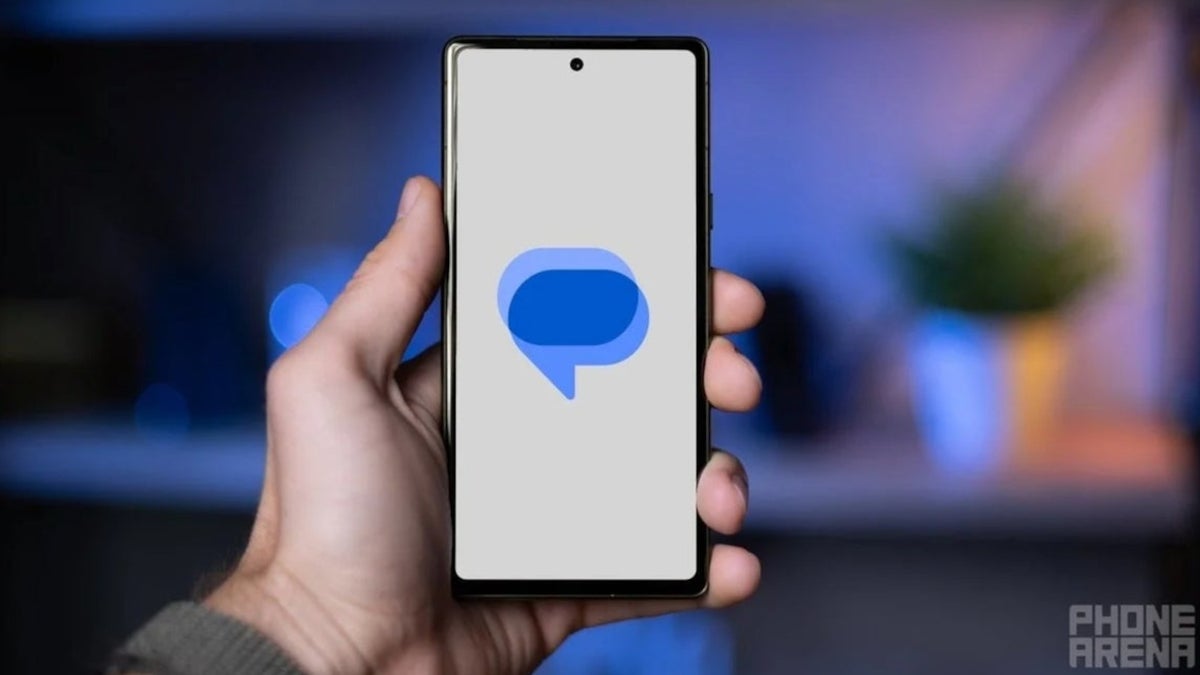
New feature for Google Messages' Smart Replies rolls out | Image by PhoneArena
Back in March, we told you about a new feature for Google Messages called "Tap to draft." It all revolves around the Smart Reply capability that gives you three contextually accurate responses to send to someone you are chatting with at the tap of a button. For example, let's say you receive a text from your pal Barney asking if you want to meet him for dinner at Denny's at 5 pm. You will see three answers that make sense, and you can save yourself time and effort by pressing on one. The options could be:
- Sounds good, see you at 5.
- I can't make 5, can we do 6?
- Sure, which Denny's?
What choosing between "Tap to send" and "Tap to draft" means for you
By selecting one of the responses, you would engage with "Tap to send," automatically pushing out the response you chose. But suppose one of the three responses is one you would like to edit before sending it.
Android users, what type of messaging app do you use?
2100 Votes
Google Messages
87.29%
Third-party messaging app
7.62%
Messaging app developed by your carrier
5.1%
Previously, this was impossible. But with the new "Tap to draft" option, the Smart Reply you select, instead of getting automatically sent to the person you are chatting with, can go to the text input bar, where you can edit it before you send it.
We've seen this new feature a couple of times before it finally rolled out
Since we first spotted the feature in January, when it was called "Tap to edit," Google has made some changes. Three months ago, Google changed the name of the feature to "Tap to draft." Now, "Tap to draft" is rolling out with the latest stable version (20260522_00_RC00) of Google Messages for Android.
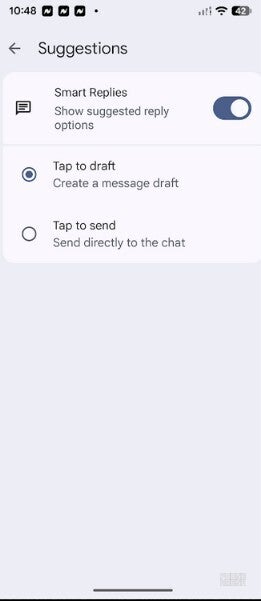
Settings page giving you the option to choose Tap to send or Tap to draft. | Image by PhoneArena
How to enable the new feature on your Android phone
To enable this feature on your Android phone, open the Google Messages app and tap the profile icon in the top right corner. When the menu appears, scroll to Messages settings > Suggestions & Actions > Suggestions. The next menu has Smart Replies on top. Make sure that the toggle for Smart Replies is on.
Choosing between "Tap to send," and "Tap to draft"
The next option is up to you. If you want to keep the status quo, press the button next to "Tap to send." With this option enabled, the Smart Reply response you choose will be instantly sent to the person you are chatting with. Or, you can press the button next to "Tap to draft." If you select that option, the Smart Reply response you choose will go to the text input bar giving you the chance to edit the message before you send it.
If you don't have Google Messages on your Android phone, you can install it from the Google Play Store by tapping on this link.


Popular stories




Latest News



Things that are NOT allowed:
To help keep our community safe and free from spam, we apply temporary limits to newly created accounts: