This is how to setup the new categories added to the Pixel's At a Glance widget
Google has added two new categories to At a Glance and you can easily set both up with customized information.
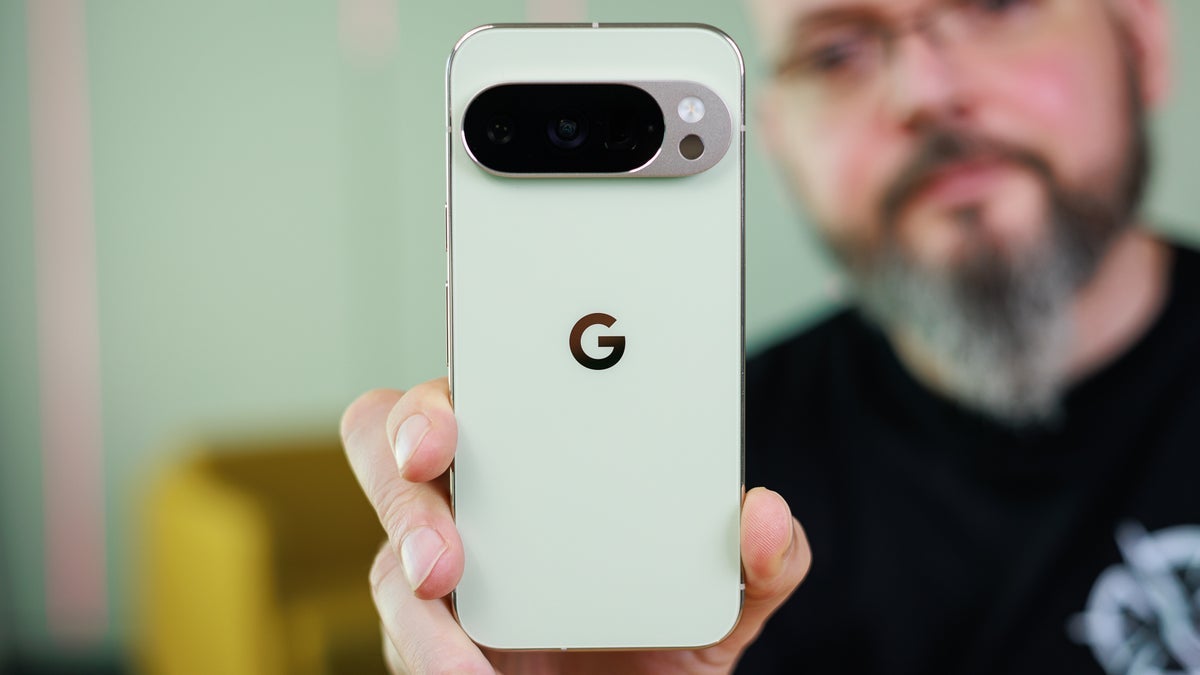
At a Glance widget gets two new categories to track. | Image by PhoneArena
In late February we told you that Pixel's "At a Glance" widget was adding two more categories to the large number it already tracks and presents to Pixel users. Those two features are Sports and Finance. Long press on some empty space on the top of the home screen where At a Glance usually sends you information like the current weather or earthquake alerts. You'll see a pop-up screen with three options. Tap on Settings, and you'll see toggle switches where you can enable the settings for all the data you want to see from At a Glance.
How to add sports teams, stocks, and indices for the At a Glance widget to foll
As we said they would, Google has added Finance and Sports to the menu of categories. Under the "Customize" heading, one option says "Sports" and if toggled on, it will show sports updates from Google. There is a warning that these updates can negatively impact your battery life. There is a link allowing you to choose the teams you want to track. It's the same screen you might have used to pick the teams you want Google and the Discover feed to follow.
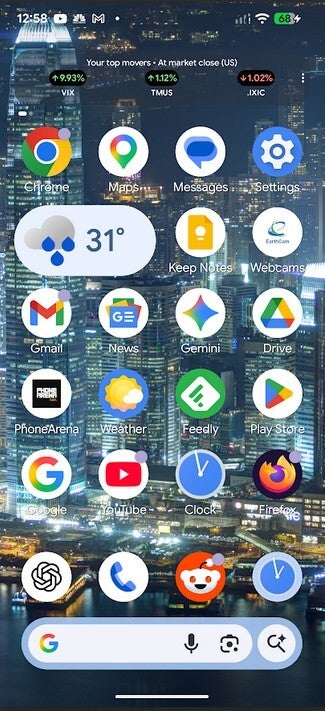
Check out the market information from the At a Glance widget at the top of the screen. | Image by PhoneArena
Let's say you want to add the two-time defending Stanley Cup champion Florida Panthers to your list. Follow the directions from the first paragraph to get to the At Glance settings. Tap on Sports (make sure you have it toggled on). You can use the top search bar to type in Florida Panthers, or you can swipe the carousel under the search bar until you come to Hockey. Tap on it, tap on NHL, and next to Panthers press on "Follow." You'll press on "Unfollow" when you want to remove a team from your list.
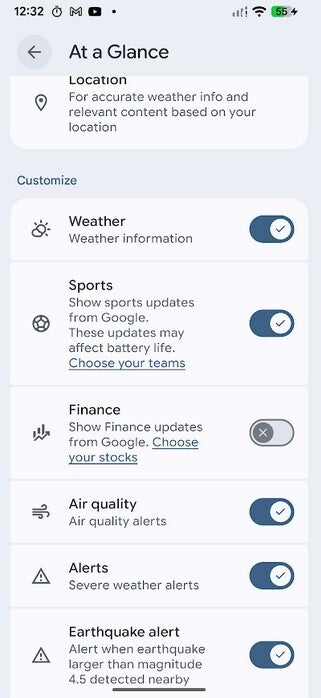
Sports and Finance are added to the At a Glance settings menu. | Image by PhoneArena
Under Financial in the At a Glance settings it says, "Show Finance Updates from Google." There is a link you can press that allows you to decide which stocks or indices to pick from. To add a stock or index to the list, when you press the link under Financials, there is a lozenge-shaped button that says Watchlist. You might need to scroll down to see it. Tap on the lozenge, and you'll see a toolbar next to the word Watchlist. Tap on the plus icon (+) and next to the magnifying glass "search" icon will be a bar that says add symbols. Use the keyboard to type in the symbol for the stock or index you want to follow.
Google should have offered these categories years ago
To remove a stock or index, press the pencil icon in the toolbar. A tab labeled "Edit" will appear. When you press on it, your current Watchlist will appear with a trash can icon next to all the stocks and indices you are following. Tap the trash can icon to remove the stocks you want off of your Watchlist. After the market closed Tuesday at 4 pm ET (1 pm PT), the At a Glance widget showed me a list of top percentage movers for the day among the stocks and indices on my list.
Adding this information to the widget is something Google should have done years ago. Without having to open another app, you can take advantage of that space near the top of your Pixel's screen to track a big game. Or, you can monitor how the market is doing without having to watch tick-by-tick data of your portfolio.
At a Glance remains one of those features that you really, really love or really, really hate. As for me, I love it and always have since it debuted on my Pixel 2 XL in 2017. I can't wait to see what new categories Google will come up with for the widget.


Popular stories




Latest News




Things that are NOT allowed:
To help keep our community safe and free from spam, we apply temporary limits to newly created accounts: