Here's how to manage the quick toggles on your Samsung Galaxy S6 or S6 edge
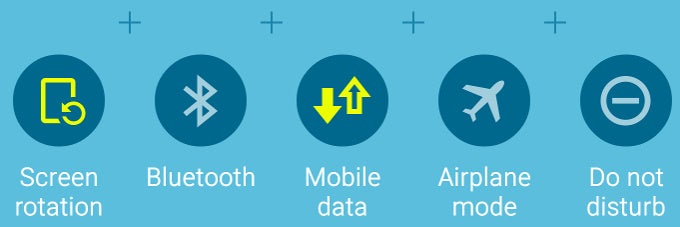
By now, probably most of you are aware that the Samsung Galaxy S6 and S6 edge come with a renovated and toned-down iteration of TouchWiz UI. Indeed, numerous features that have been integral part of Samsung's UI for a long time went down the drain along with the new firmware that graces the flagships. In the meantime, TouchWiz UI became way more intuitive and user-friendly, which stands pretty high in our book.
Among those little improvements that make the user experience better and more user-friendly is the simplification of the quick settings panel. We can't say that we are fans of the expanded quick settings panel's unfortunate demise (see slide 7 of our recent rant about the Galaxy S6/S6 edge), yet we have to give it to Samsung - the new philosophy behind the customizability of the refreshed quick settings panel is a step in the right direction.
In previous iterations of TouchWiz UI, re-arranging the quick settings tiles was a feature that many users were clearly not aware of, as it was hidden behind a handful of menus. Samsung was clearly aware of this minor nuisance as the newest version of TouchWiz makes it way easier to re-arrange and fiddle with your settings shortcuts.
Here's how to do it.
Here's how to do it.
How to change the quick settings of your Samsung Galaxy S6, S6 edge


Popular stories



Latest News

Things that are NOT allowed:
To help keep our community safe and free from spam, we apply temporary limits to newly created accounts: