How to manage the default apps on Android devices the easy way

Today we're going to show you how to easily manage the default apps on Android devices using a dedicated app that's intuitively called 'Default App Manager Lite'.
Although Android allows the manual management of default apps, using the free 'Default App Manager Lite' app is both faster and more intuitive. As such, we're not going to be manually poking inside the Android OS. Instead, we're going to let this free app do the work for us.
Step 2. Once the 'Default App Manager Lite' is downloaded and installed, open it.
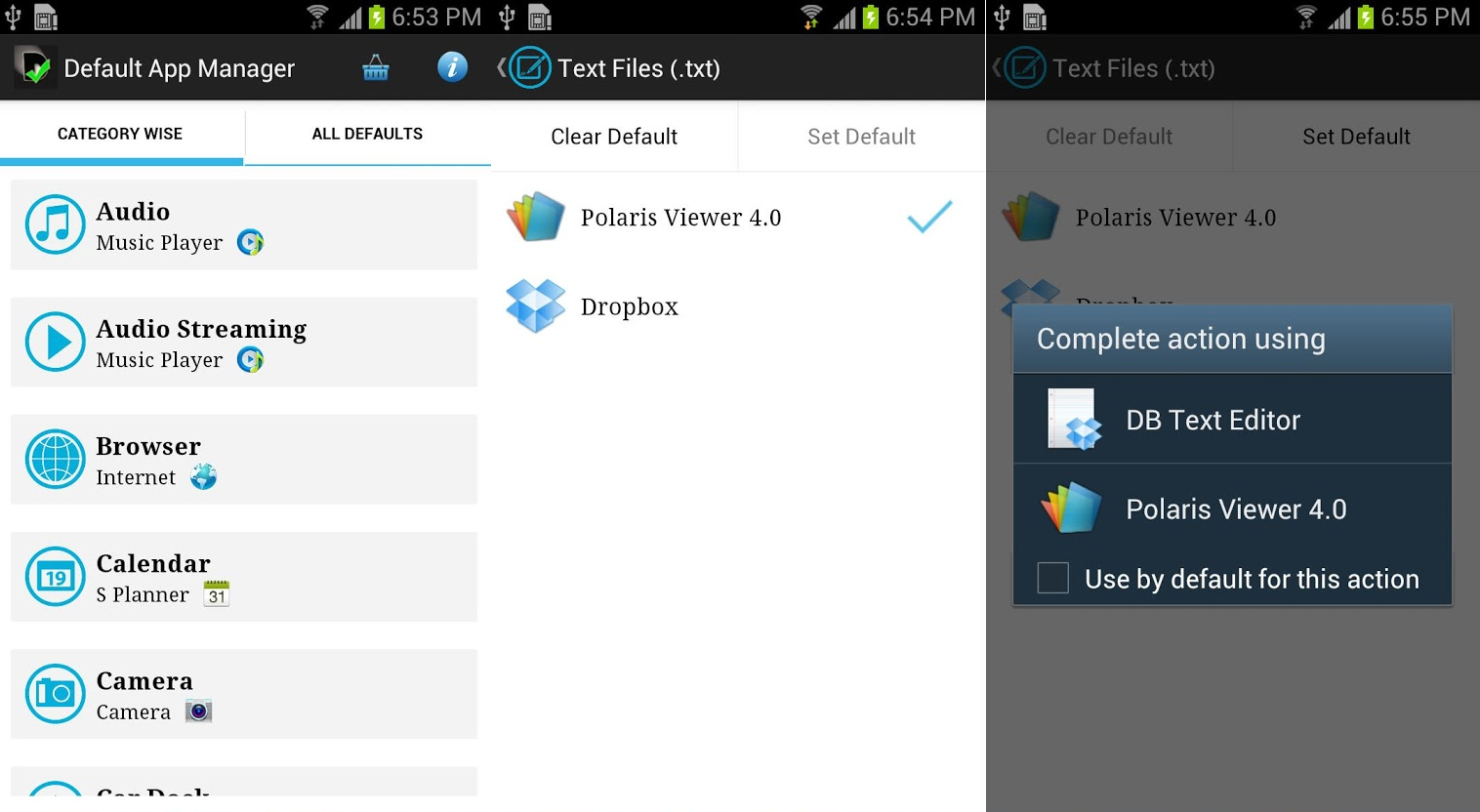
Default App Manager Lite provides an easy way of managing default apps on Android devices
Step 4 (Optional). To view all of the default app associations, tap the 'All Defaults' tab in the upper portion of the screen. To remove an association, tap the associated 'Clear' button.
That's all there is to it! Now you can easily view, edit, and clear the default apps on your Android smartphone or tablet.

Follow us on Google News


Things that are NOT allowed:
To help keep our community safe and free from spam, we apply temporary limits to newly created accounts: