Apple reveals Siri AI known issues and workarounds after releasing iOS 27 Beta 8
Is today’s release the last before stable iOS 27 is released?
Apple releases iOS 27 Beta 8 | Image by PhoneArena
Apple released iOS 27 Developer Beta 8 today and the release notes include a long list of known issues that are occurring with Siri AI. Apple also includes workarounds that you can use to bypass these issues. Considering that the iOS 27 Beta includes the eagerly awaited Siri AI, you can be sure that Apple is seeing a larger percentage of Beta adoption than seen in the past.
Siri AI improves with every iOS 27 beta release
Having tested Siri AI since June 8 when Apple released the first iOS 27 Beta, I can tell you that it has improved with every Beta release. With perhaps one more Beta release before the stable iOS 27 release is disseminated to eligible iPhone models later this month, I can think of a few issues with Siri AI that are still annoying.
How to get Siri AI to listen to your complete vocal prompt
One of the most documented issues with Siri AI is a situation where Siri stops listening before you finish your voice prompt. This occurs when the AI assistant misinterprets a pause in your speech as the end of your input.
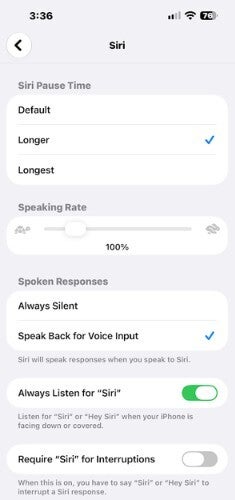
You can adjust Siri's settings allowing the AI assistant to listen to your complete voice prompt. | Image by PhoneArena
You can fix this yourself by going to Settings > Accessibility > Siri. Look for Siri Pause Time and select Long or Longest. This means that Siri will wait longer before assuming that you have completed your oral prompt.
Another option you can consider when you activate Siri AI manually is to press and hold the side button when you are speaking your voice prompt and letting go of the button only after you finish your sentence. Lastly, you can reset the voice detection engine by going to Settings > Siri & Search and toggle Siri off and on.
Here are some similar articles you can read:
Other Known Issues for Siri and Apple's suggested workarounds
From the release notes for this morning's iOS 27 Beta 8, here are other Known Issues for Siri and workarounds you can try:
- After Siri returns photo search results and you select photos, Siri might not detect which photos are selected on screen. When you ask Siri to "Send these," all of the photos from the search result might be sent rather than only the selected ones. As a workaround: Open Photos, select the photos you want to act on, then perform the action using Siri — for example, "Send these photos to Bob."
- Siri won't allow you to refer to photos by number, such as "photo one" or "photo four." To get around this, use the photo picker to select the photo you want, or tap to select photos directly.
- When you ask Siri for Maps information, the response "snippets" are incomplete or have formatting problems. The workaround is to have Siri repeat the information, or open the Apple Maps app to get the info directly without using Siri.
- When you ask Siri to add photos to an album, the confirmation prompt and the spoken response from Siri might indicate more photos than will actually be added. To get around this, Apple suggests that you add photos to the album manually in the Apple Photos app. Tap Select, tap the photos you want to add, tap the Share button, tap Add to Album, then tap the album.
- If you ask Siri to read your last message, and Siri reads an unread message from an unknown sender, such as spam, you should include the name of the sender in your prompt. For example, you should ask Siri to "Read my last message from [name of sender]."
- In CarPlay, Siri might respond more slowly than expected, especially if the device is running hot, or there is a poor network connection. Apple says to try the request again after the device has cooled off, or you are in an area with a better network connection.
- While audibly repeating Apple Maps' turn-by-turn directions, Siri might cut off the end of words during navigation. Apple's recommendation: Reduce voice expressivity from the fastest pace, or turn off expressive voices.
How to install the update on your eligible iPhone model
If you have been frustrated with Siri over the years, believe me, you will be thrilled with Siri AI. If you are a member of the Apple Beta Software Program, go to Settings > General > Software Update and follow the directions on the iOS update card.


Popular stories





Latest News



Things that are NOT allowed:
To help keep our community safe and free from spam, we apply temporary limits to newly created accounts: