
New Gboard feature allows you to make your emojis the size you want
Google adds a slider to Gboard helping you grow your emojis.
Gboard adds a new emoji-based feature | Image by PhoneArena
Did you ever send an emoji to someone in a text message and wish that you could make it larger? Google has been rolling out a slider that will allow you to change the size of an emoji. I found the slider in Gboard version 18.93.954559732 beta. This is a great example why Android users should be signing up for the beta version of every core Google app when given the opportunity.
All you need to do is open the Google Play Store and check out the listings for Google's core Android apps such as:
- Google Messages
- Google app (Search)
- Google Chrome
- Gboard
- Phone by Google
- Google Play Services
- Google Clock
- Digital Wellbeing
- Google Health Connect
- Carrier Services
How to join a beta for a core Google app
Joining the beta is a snap. Open the Play Store, and search for the specific app page. When the listing for that page appears, scroll down until you see the section that says, "Join the Beta." Tap on Join and confirm. If a program has no openings at the time, you will have to check back later. You can also install a third-party app from the Play Store called Beta Maniac that will alert you when a beta slot has opened up for an app whose beta program you'd like to join.
You really can get the first shot at using a new feature for a Google core app by joining its beta program if there is room. I can't tell you how many times it helped me obtain a screenshot of a new feature I was writing about. Even if you're not a tech news writer, it still is handy to have a beta membership for these apps.
Use this slider to adjust the size of an emoji. | Image by PhoneArena
Accessing the slider to make your emojis bigger
I'm never bored reading about Gboard. If you're like that too, check out these articles:
- Gboard is the perfect Android keyboard following this change
- Two new features are coming to Gboard
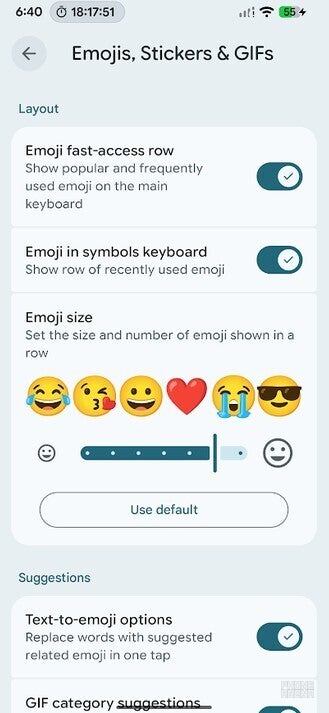
Now to get back on track, you can access the emoji size slider by opening Gboard. You can do this by opening Google Messages and starting a chat with someone even if you don't want to chat. Once the Gboard QWERTY surfaces, tap on the gear icon above the top row of keys. That will take you to the settings for Gboard. From there, tap on "Emojis, stickers and GIFs," and under Emoji Size, you'll see the slider.
This slider keeps content on the clipboard for up to 24 hours. | Image by Android Authority
You can set the size based on the number of emoji you can fit in a row. At the smallest size, you can fit 9 in a row, while at the largest, you can fit only 5. As you use the slider, this number will appear to help you decide the emoji size you want to use.
Google adds a dismissal button for clipboard suggestions. | Image by Android Authority
Google is testing a couple of other new features for the Gboard app
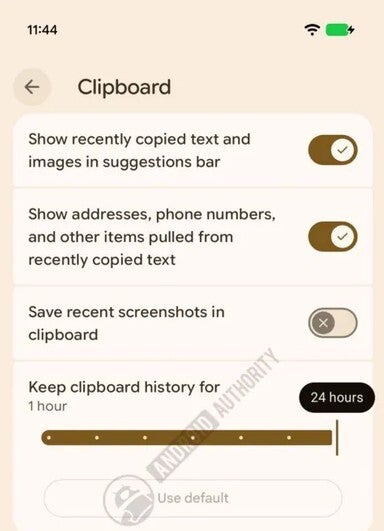
Google is also looking to add a slider that would allow Gboard users to keep content on their clipboard for more than one hour, which is the current maximum. The slider, which has yet to appear on my Pixel 6 Pro, would allow the content on the clipboard to stay on the clipboard for as long as 24 hours. From one hour, the options expand to two hours, three hours, six hours, 12 hours, 18 hours, and the aforementioned 24 hours.
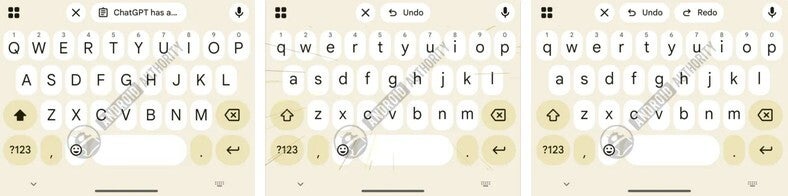
Another feature that could end up soon on Gboard is one that will allow users to dismiss a clipboard suggestion. Instead of typing anything to remove the suggestion, Gboard will show an "X" button next to the suggestion that will remove the suggestion from the QWERTY keyboard.
How Google might allow you to dismiss a clipboard suggestion on Gboard
Dismissing the clipboard suggestion with a single press of the "X" button would seem the easiest way to remove the suggestion. An undo button briefly appears on the opposite side of the "X" in case you realize that you made a mistake and want the suggestion returned.
While the emoji size slider is out now for Gboard beta subscribers on Android, the slider to control the time that content stays on the QWERTY and the dismissal button for clipboard suggestions are still being tested by Google.


Popular stories




Latest News


Things that are NOT allowed:
To help keep our community safe and free from spam, we apply temporary limits to newly created accounts: