The Apple Weather app gets useful new features in iOS 27
Apple's weather app seeks to improve the user experience with new features added in iOS 27.
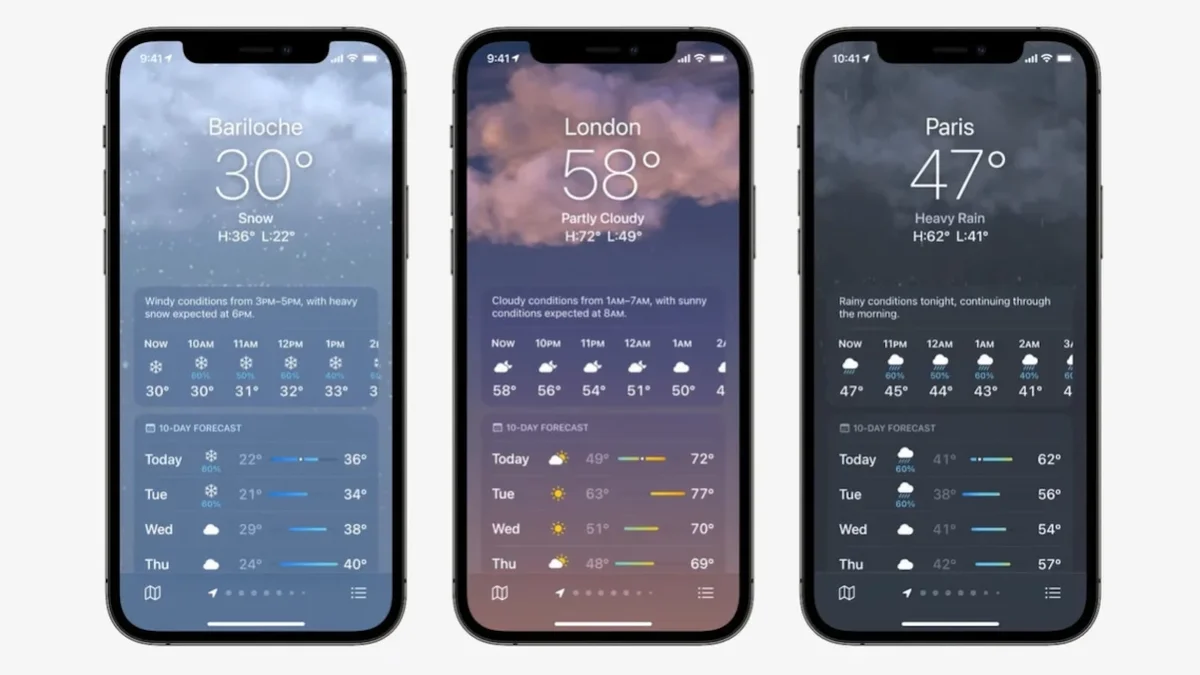
New useful features added to the Apple Weather app in iOS 27 | Image by PhoneArena
Wow, what Apple did to the Weather app in iOS 27 sounds like something that Google would do. The latter is known for constantly updating the UI of its apps in order to improve the user experience. What Apple did was add a new and easier way for Weather app users to find certain information.
The Apple Weather app gets two new icons added
In iOS 27, the Apple Weather app now has three icons that appear on the right side of the Conditions card that covers two-thirds of the display when you open the app. The first icon shows a cloud covering the sun. When you tap on this icon, the app will show Conditions for the current day and the nine subsequent days. This includes the forecast high and low temperature for each day and the expected weather conditions (windy, cloudy, rainy, sunny) for each day.
One icon is shaped like a raindrop, the other looks like wind
The second icon is shaped like a raindrop, and when pressed, it will show you the Precipitation card that includes the amount of precipitation forecast, the intensity of the precipitation and the probability of precipitation for each day listed. Above the Precipitation card is a horizontal graph that shows the hourly precipitation forecast giving you an idea when to expect the rain, hail, or snow to come down.
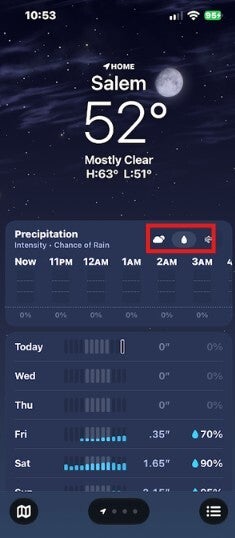
Red box shows the new icons added to the Apple Weather app in iOS 27. | Image by PhoneArena
The third and last icon added in iOS 27 shows a wind icon that displays forecasted wind speed over the next few hours. There is also an animated Wind Map that shows you the direction and speed of the wind.
Why you should add the weather widget to your iPhone home screen
It's just my opinion, but if you're opening the Apple Weather app on your iPhone often, the best thing you can do is set up the Weather widget on your iPhone's home screen. The widget will show you some weather data, depending on the widget size you choose. Tap on the widget and the full Apple Weather app will open.
How to add the weather widget to your iPhone
To put the weather widget on your iPhone, touch and hold an empty spot on your home screen until the app icons start to "jiggle." In the upper left corner, tap the icon that looks like a paint brush. From the menu that will appear, tap on Add Widget and look for Forecast. Choose one of the four sizes and tap on the Add Widget button.
Here are some articles for you to read:


Popular stories






Latest News




Things that are NOT allowed:
To help keep our community safe and free from spam, we apply temporary limits to newly created accounts: