In 2026, we feel like we’ve seen it all in phones, right? Powerful processors, unreasonable amounts of RAM, incredible displays, wild designs, and even foldable phones.
Granted, there’s still room to grow in that foldable / rollable / who-knows-what-follows segment. But the ordinary “chocobar” phone hasn’t surprised us recently.
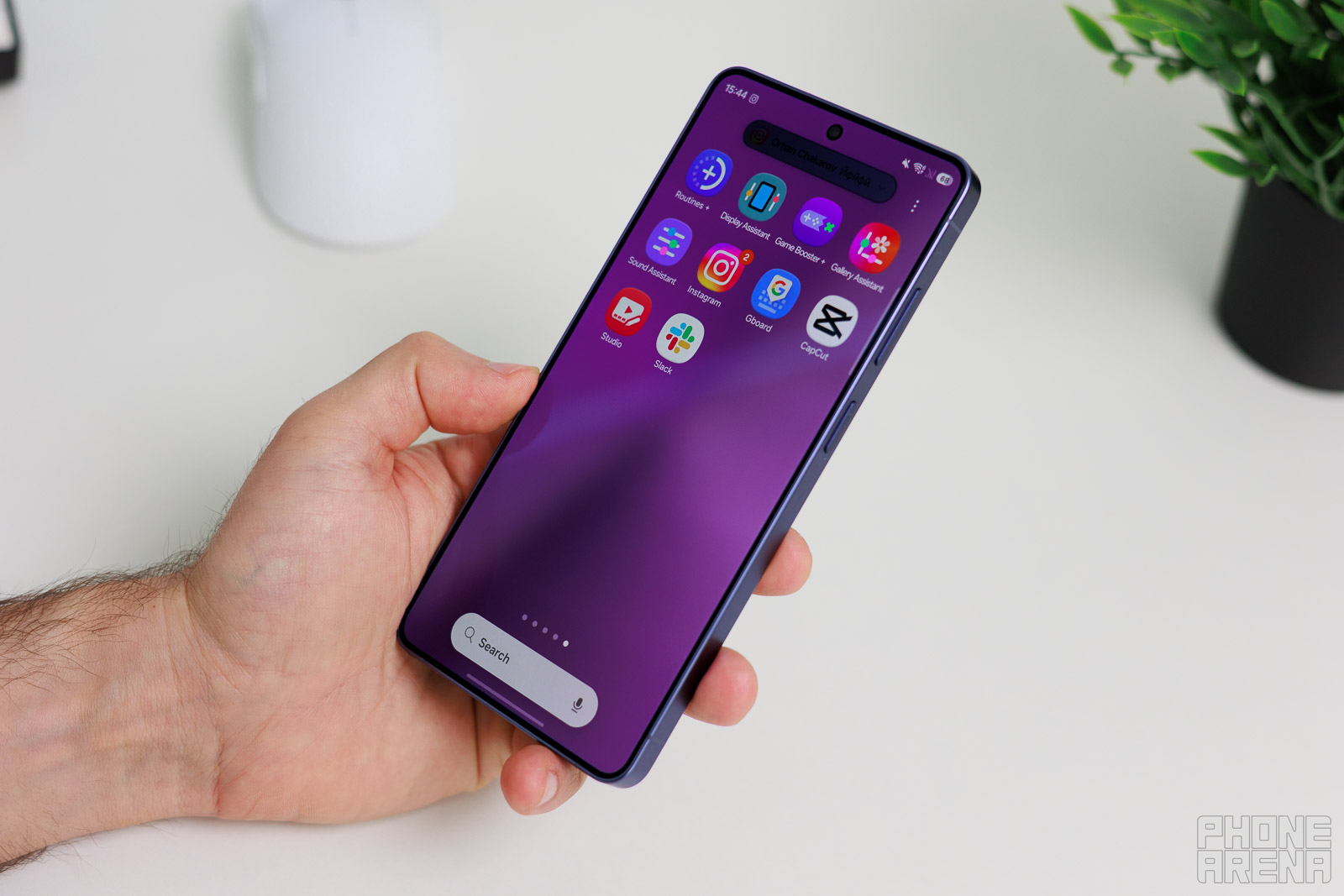
Until the Galaxy S26 Ultra launched with a peculiar new feature. The Privacy Display[1]!
What is the Galaxy S26 Ultra Privacy Display?
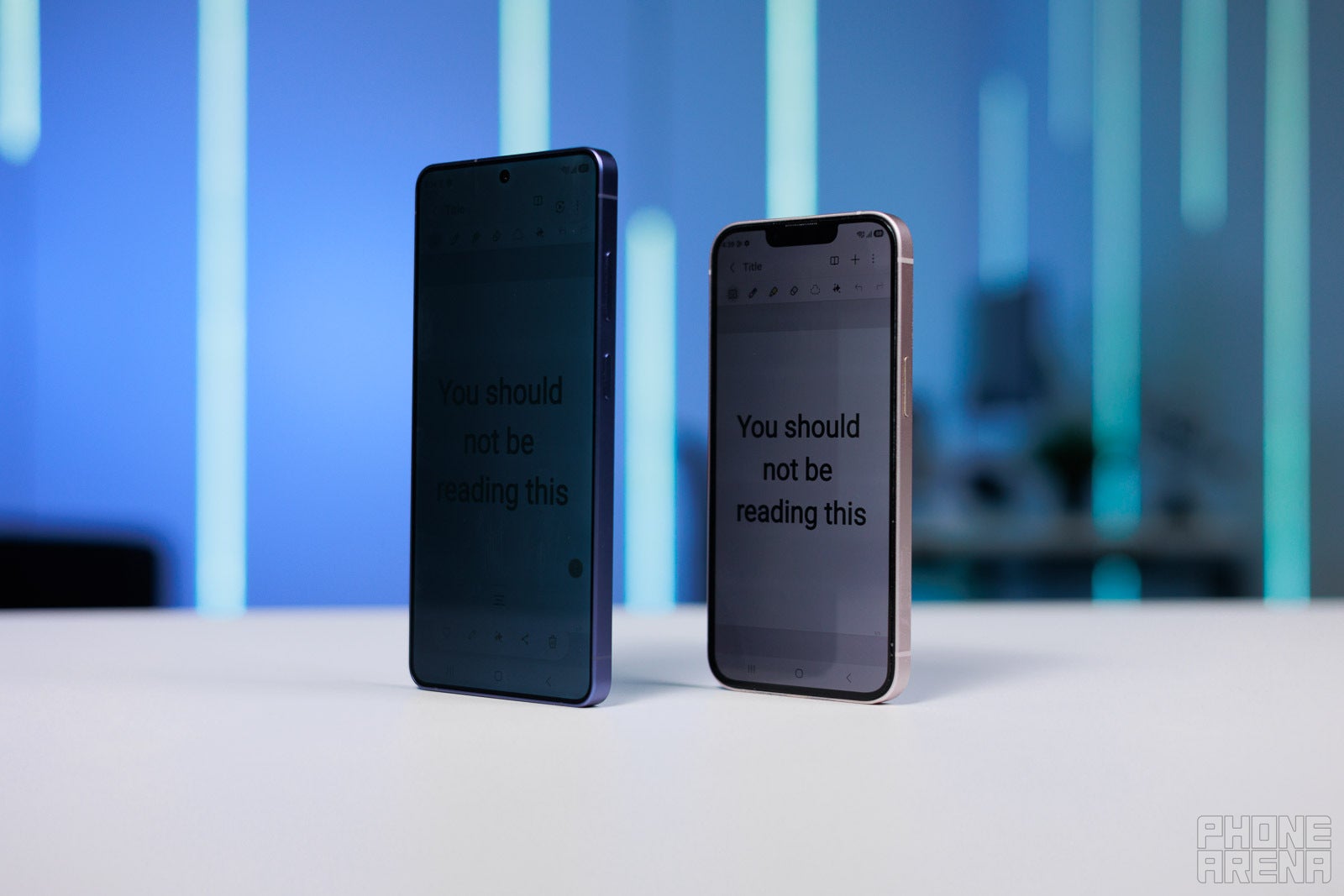
At its core, it’s inspired by privacy screen protectors — glass panels with limited viewing angles, so whenever you have one on your phone, anyone looking at your screen from the side will see nothing but black.
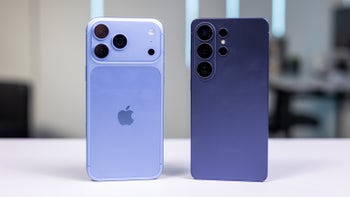
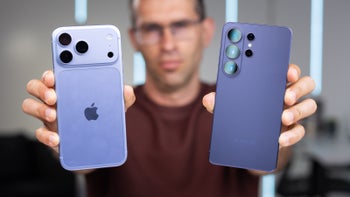
Galaxy S26 Ultra Privacy Display vs an actual privacy screen protector on iPhone | Image by PhoneArena
The issue with traditional privacy screen protectors is that they offer privacy all the time. That has obvious benefits, but it’s also their biggest flaw. A physical privacy screen inevitably degrades image quality — it can make your screen appear dimmer, alter colors and viewing angles. And since they are permanent, you cannot just peel them off to show show some photos to your friends, or even when you just enjoy your content on your own.
Well, Samsung had a thought — what if we integrate the privacy aspect within the screen panel and make it possible to toggle it on and off at will. You can easily switch it on while reading your texts on the subway and then turn it off when showing photos to your friends or watching video on your own.
Recommended For You
Toggle it on only when you need it | Image by PhoneArena
How does it work?
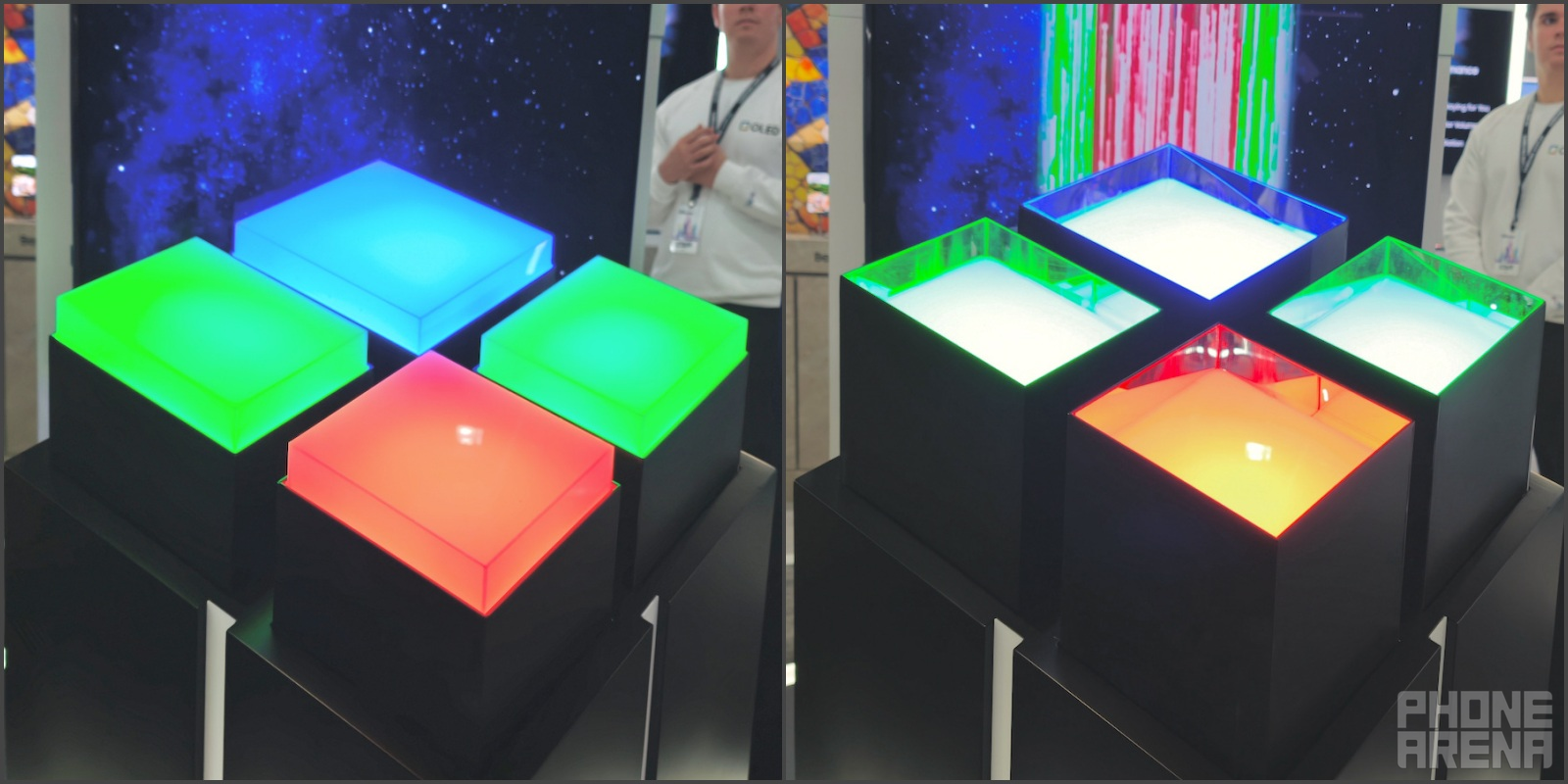
The Galaxy S26 Ultra’s Privacy Display is built directly into the screen panel. Within the panel, there are two layers of pixels. One layer has the “regular” build with pixels meant for wide-angle viewing. The second layer has a black grid woven in between its individual pixels.
When not in use, that grid is lowered and does not change the way the screen looks or operates. But when you activate Privacy Display, the grid’s walls are raised, blocking the light of its pixels from leaking off to the side, essentially focusing them forward.
Samsung Display demonstration of how the black grid works at MWC | Image by PhoneArena
While this is happening, the main wide-angle layer’s brightness is dropped drastically, but it remains on to keep things vibrant and looking somewhat “normal”.
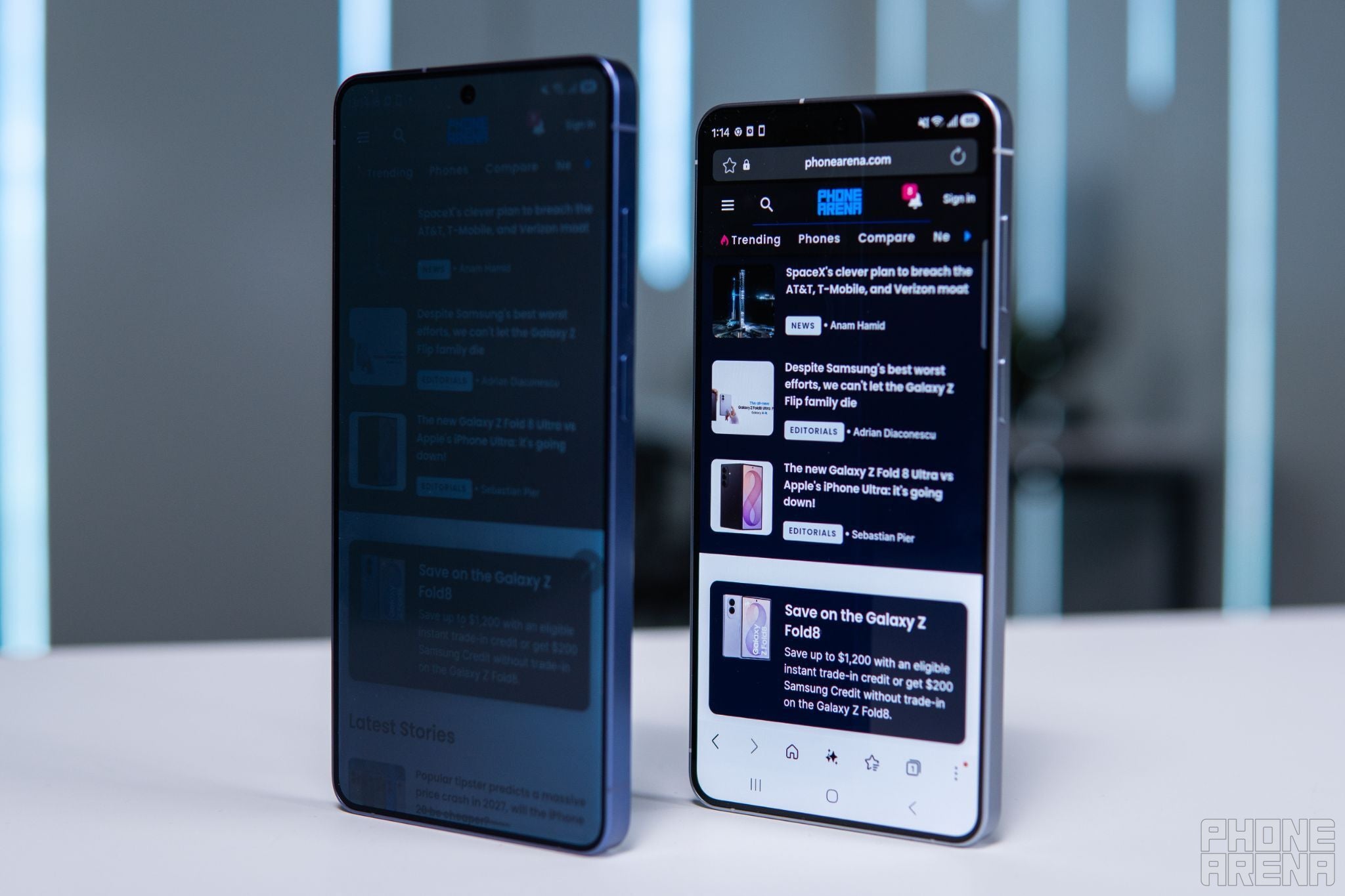
This blocks out a lot of the screen content when it’s viewed off from the side. Prying eyes will mostly be seeing the black walls of the grid, instead of the light coming from the isolated pixels.
This is particularly useful when you are reading your personal messages on the subway, checking your bank account at a cafe, or opening your travel details at a busy airport. Instead of a display that’s easy to see from all sides, Privacy Display narrows the viewing angles.
Galaxy S26 Ultra with Privacy Display vs Galaxy S26 Plus | Image by PhoneArena
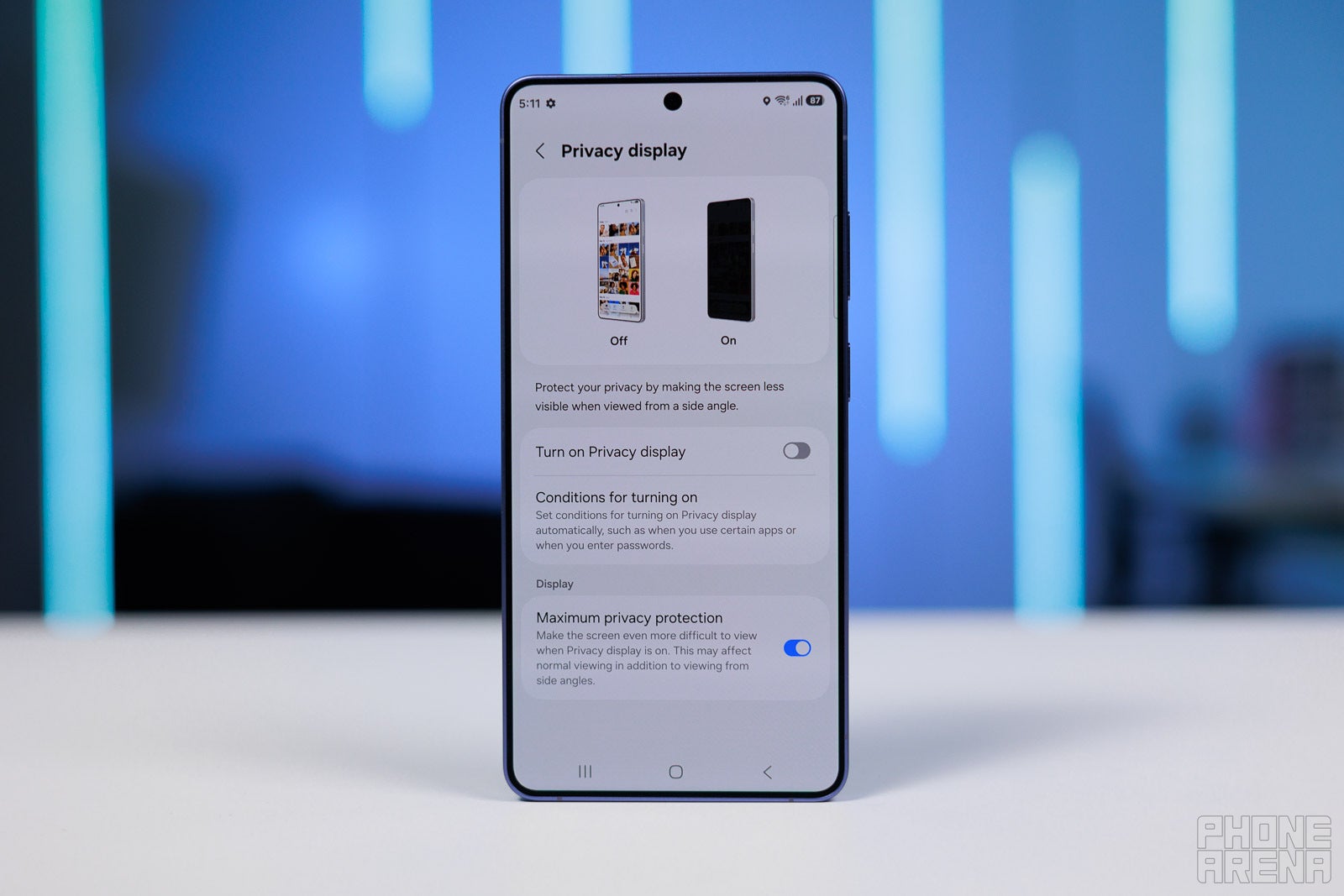
Samsung also gives users a Maximum Privacy Protection setting. This will narrow the viewing angle even further and lowers the brightness, making content even harder to see from the side.
The trade-off is that when you do this, color liveliness and contrast drop. It’s assumed that if you are looking at something sensitive, like your banking app, PIN number, or private chat, you don’t care about contrast at the moment. Privacy is king here.
It’s also worth remembering that Samsung has a broader approach to privacy not limited to just the display. The Galaxy S26 Ultra also uses Samsung Knox, a platform that protects sensitive data on both hardware and software levels.
Knox helps secure your passwords, biometric data and files, plus features like Secure Folder let you keep private apps behind an extra authentication layer. This way, Knox works in the background to protect your privacy, and the Privacy Display handles the problem of someone looking over your shoulder.
The best part - it can be automated
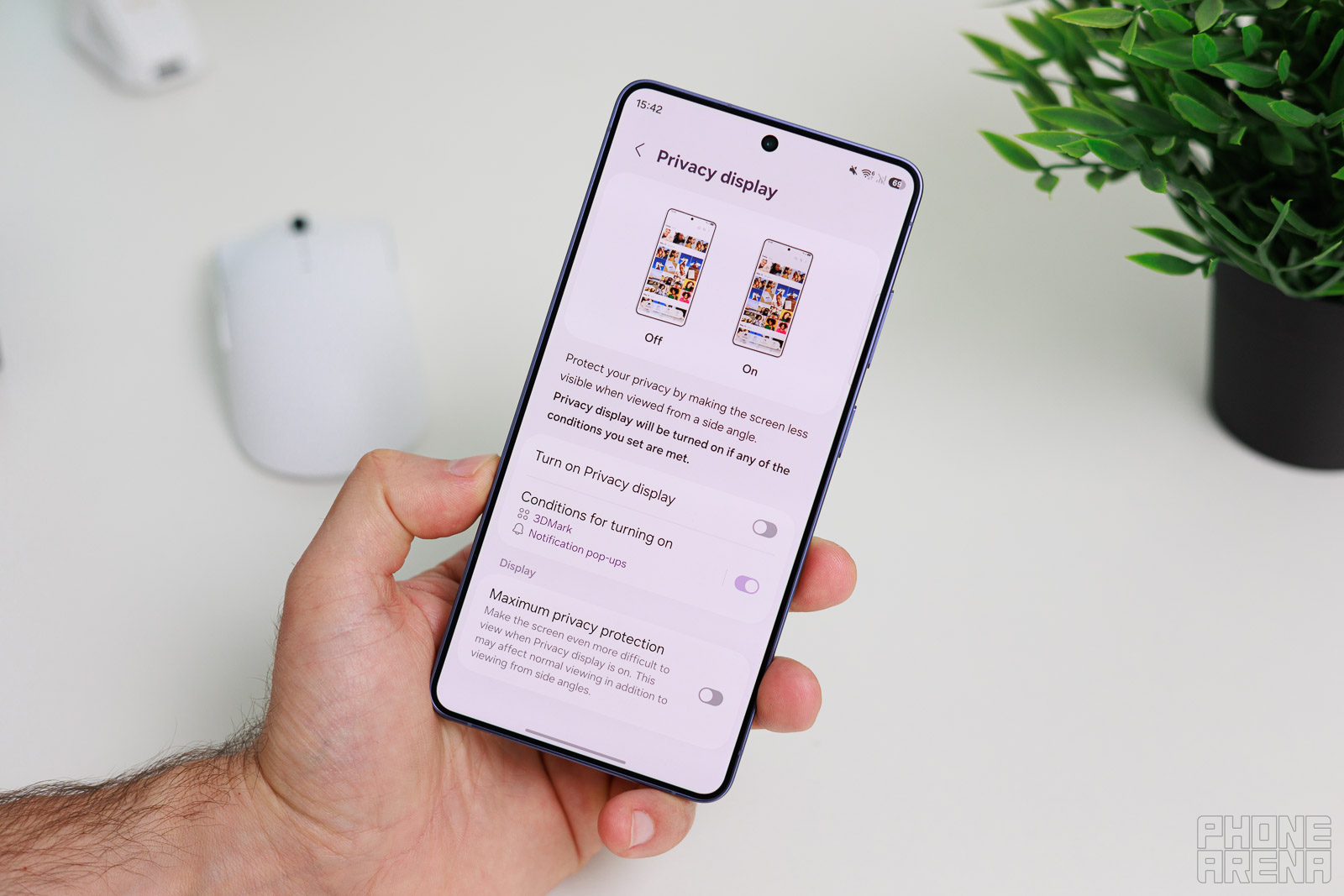
Since Privacy Display is baked into the Samsung panel and controlled by the Samsung software, you can fine-tune One UI to automate it. Within the Privacy Display settings screen, you can tell the phone to toggle it on whenever you open a specific app.
The settings screen teaches you how it all works | Image by PhoneArena
So, as mentioned above, you can have it auto-engage every time you open your e-banking, which makes perfect sense for a feature like this.
Additionally, the black grid can only be engaged in a certain area of a display. I have it turned on for notifications — the screen literally reduces the viewing angles around notification bubbles every time they come in.
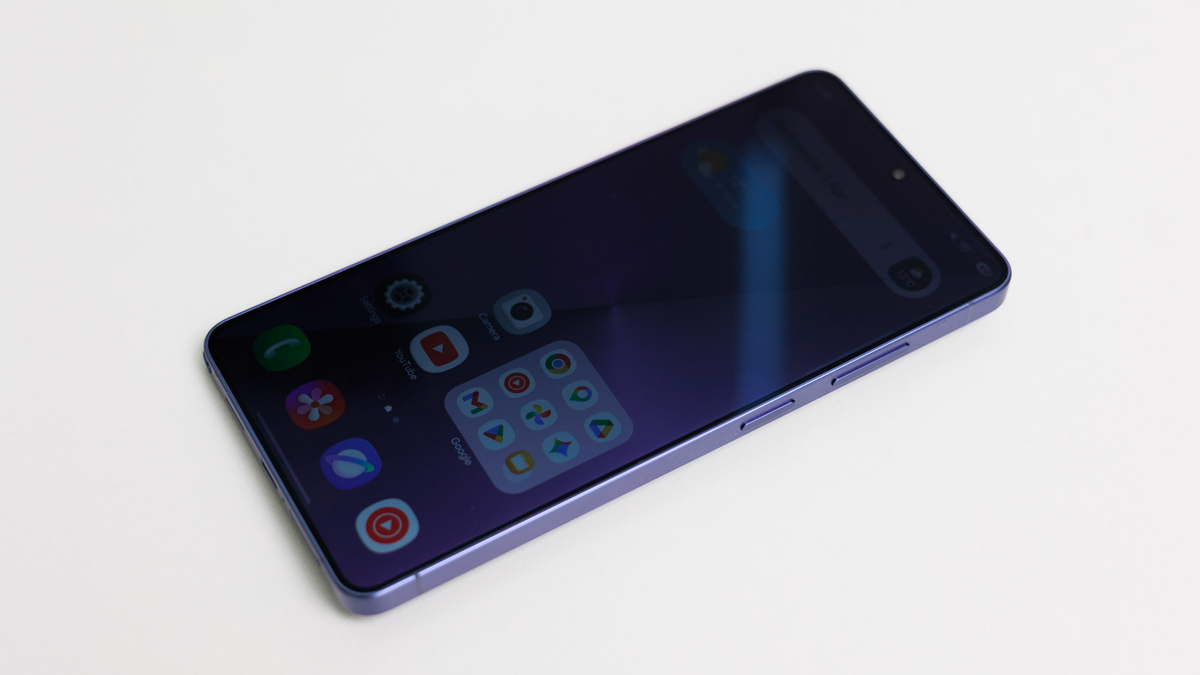
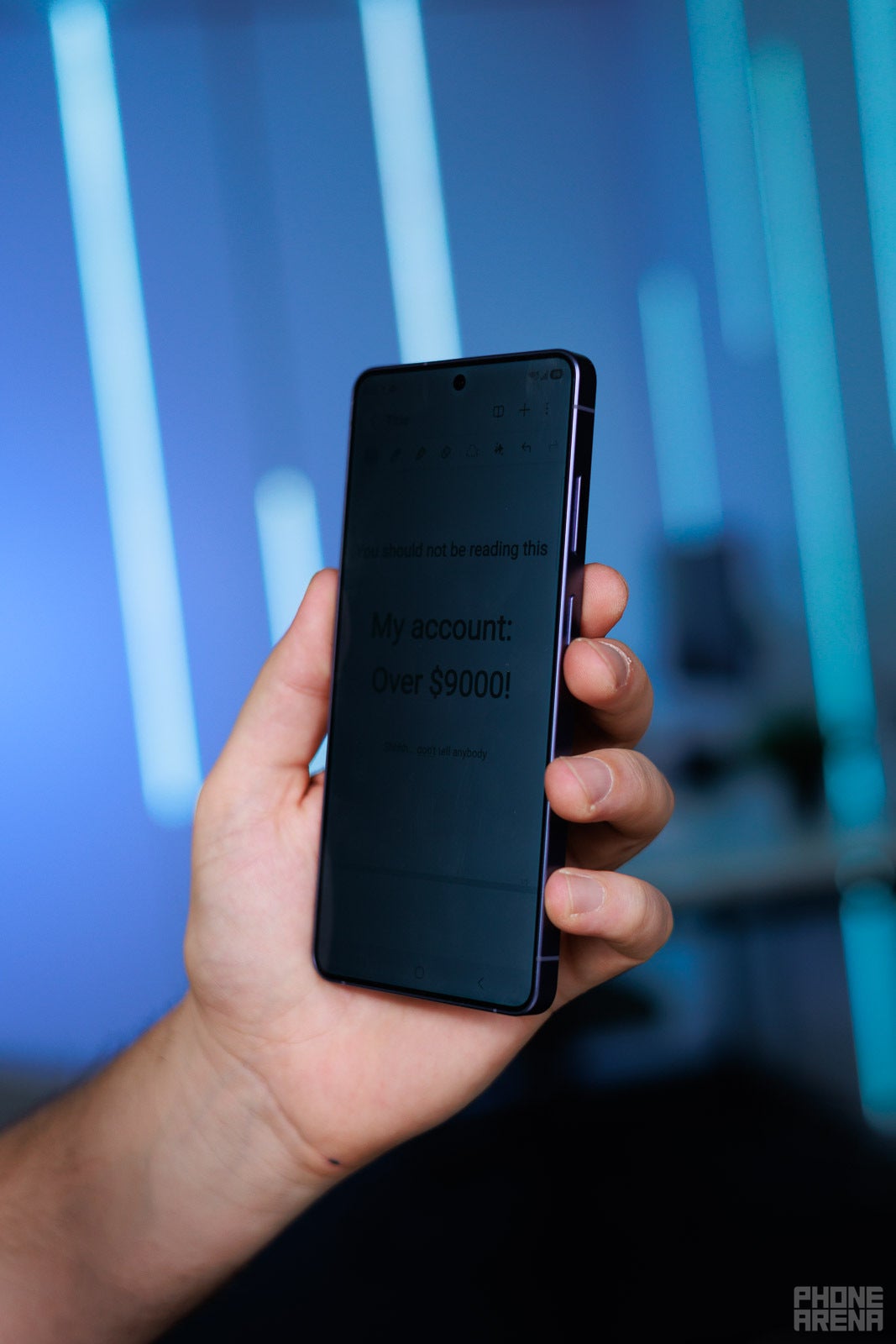
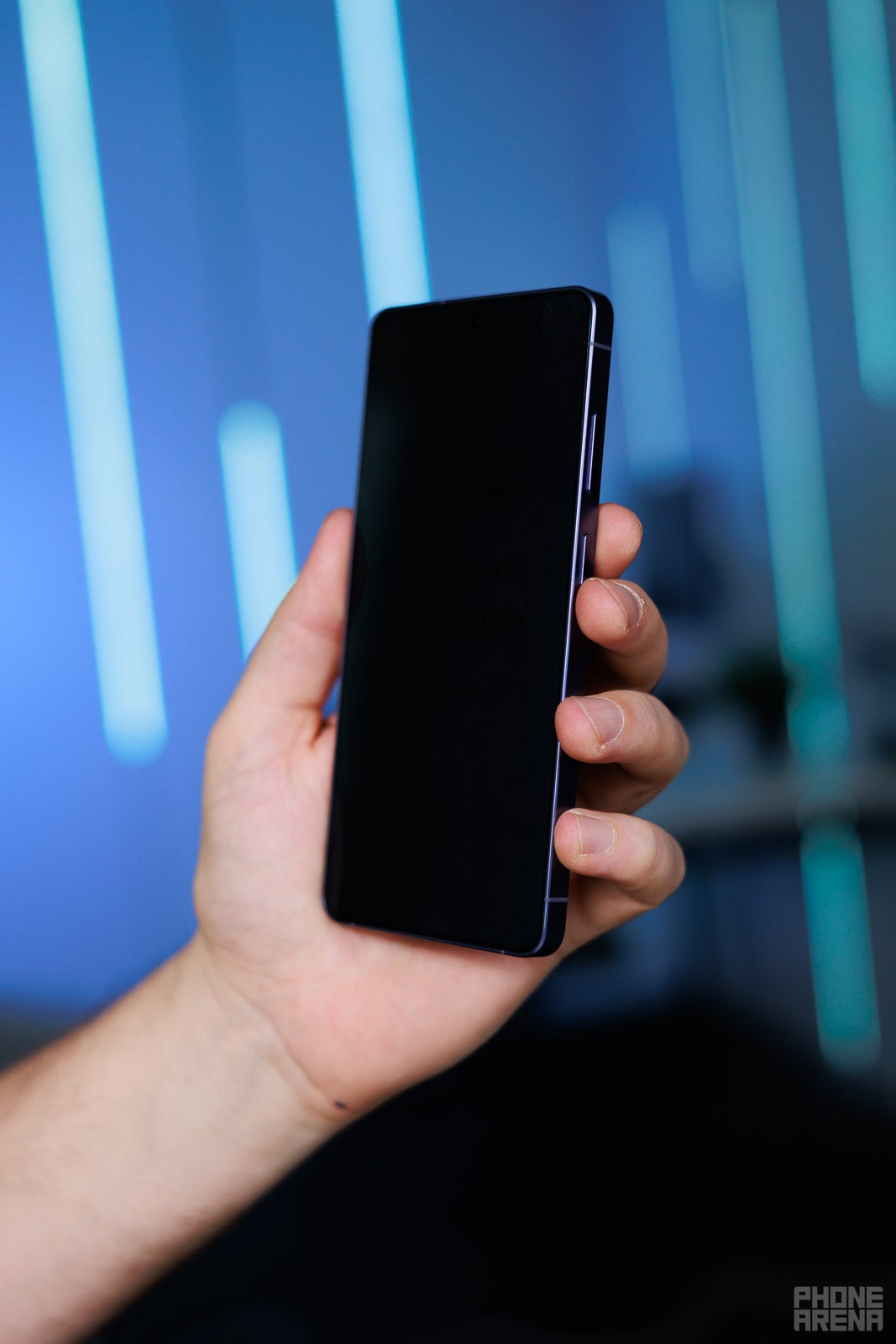
The notification bubble is completely invisible to the prying eyes | Image by PhoneArena
No matter whether I am on a train or in the store, nobody can see my chat messages with an accidental glimpse off from the side.
I also have Privacy Display set to always engage when I open my digital wallet for mobile payments. I just don’t want to accidentally flash my account balance to anyone in the store, and that feature gives me some extra peace of mind.
Of course, use common sense. But also, use my special privacy booster hack, outlined below.
Extra tip: use Samsung Routines
As I mentioned above, you can definitely set up Privacy Display to turn on automatically for specific apps — it’s an easy toggle within the Privacy Display section of Settings.
However, I found that the blackening effect is further improved if you lower your screen’s brightness. So, I cooked up a specific routine for my banking app.
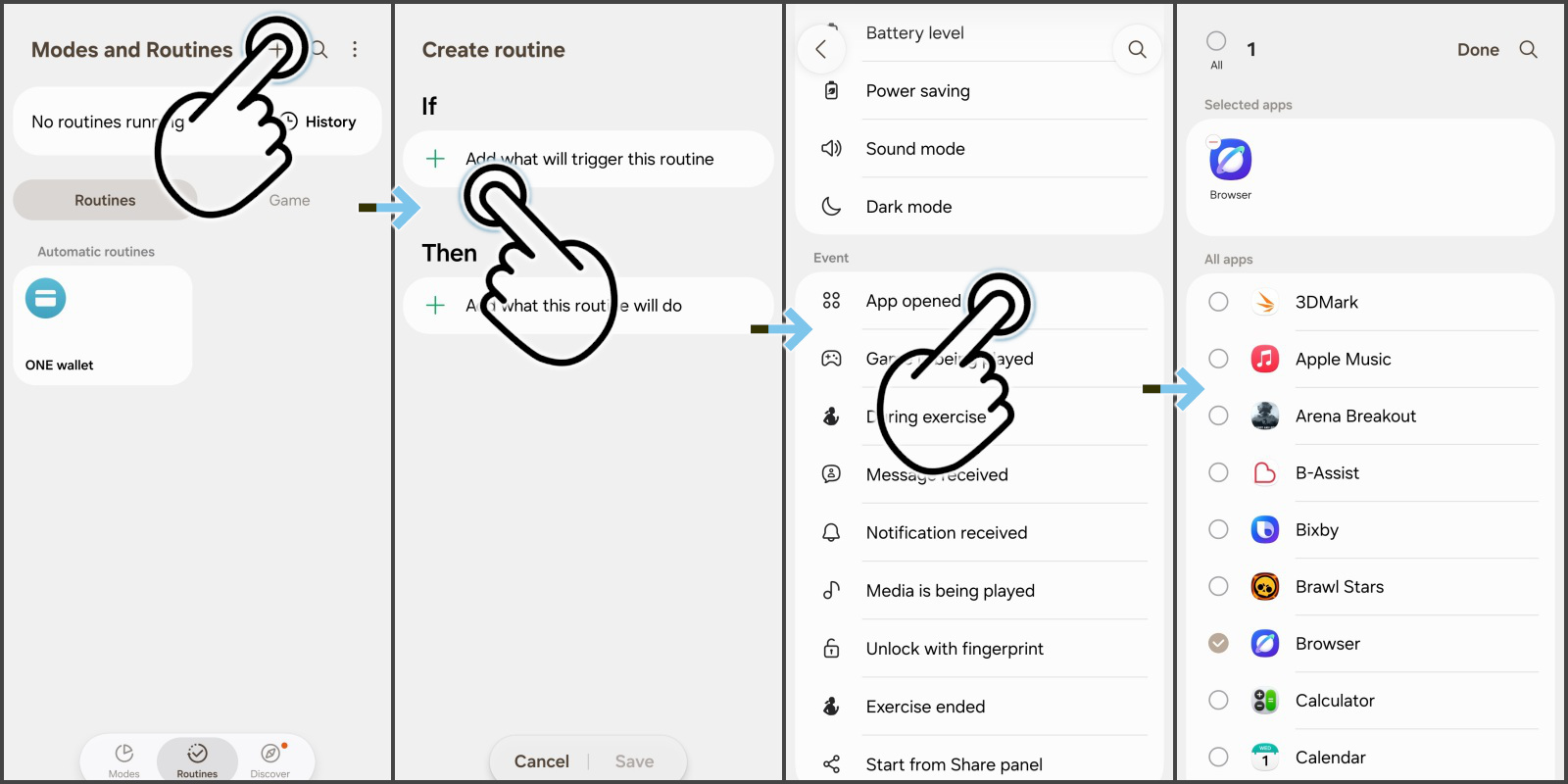
Go into Settings -> Modes & Routines -> Routines. Create a new routine.
In the “If” section, select event “App opened” and mark your banking app. Press done.
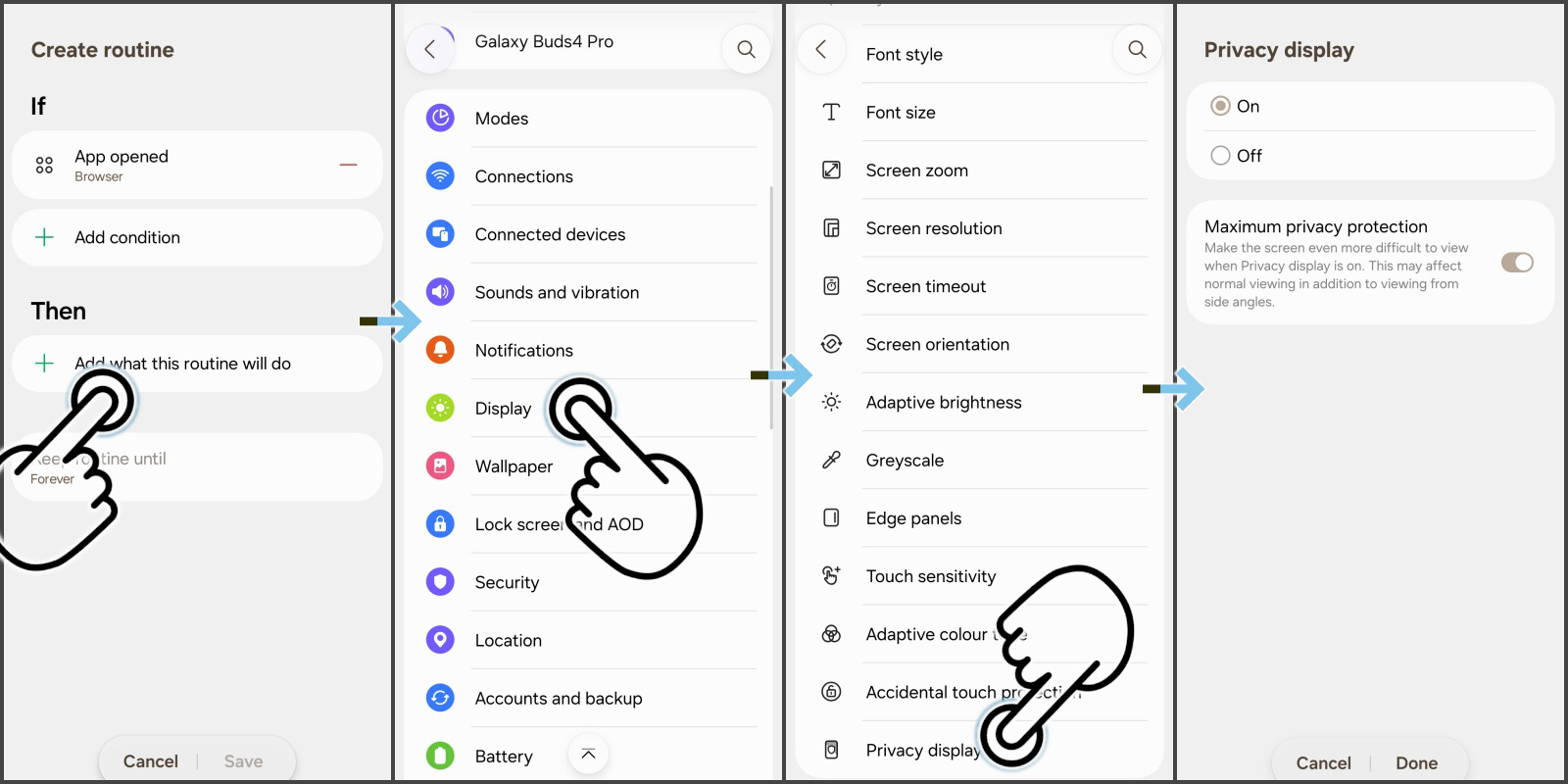
In the “Then” section, choose “Add”, look up Display -> Privacy Display and choose to have it “On”, “Maximum Privacy Protection”.
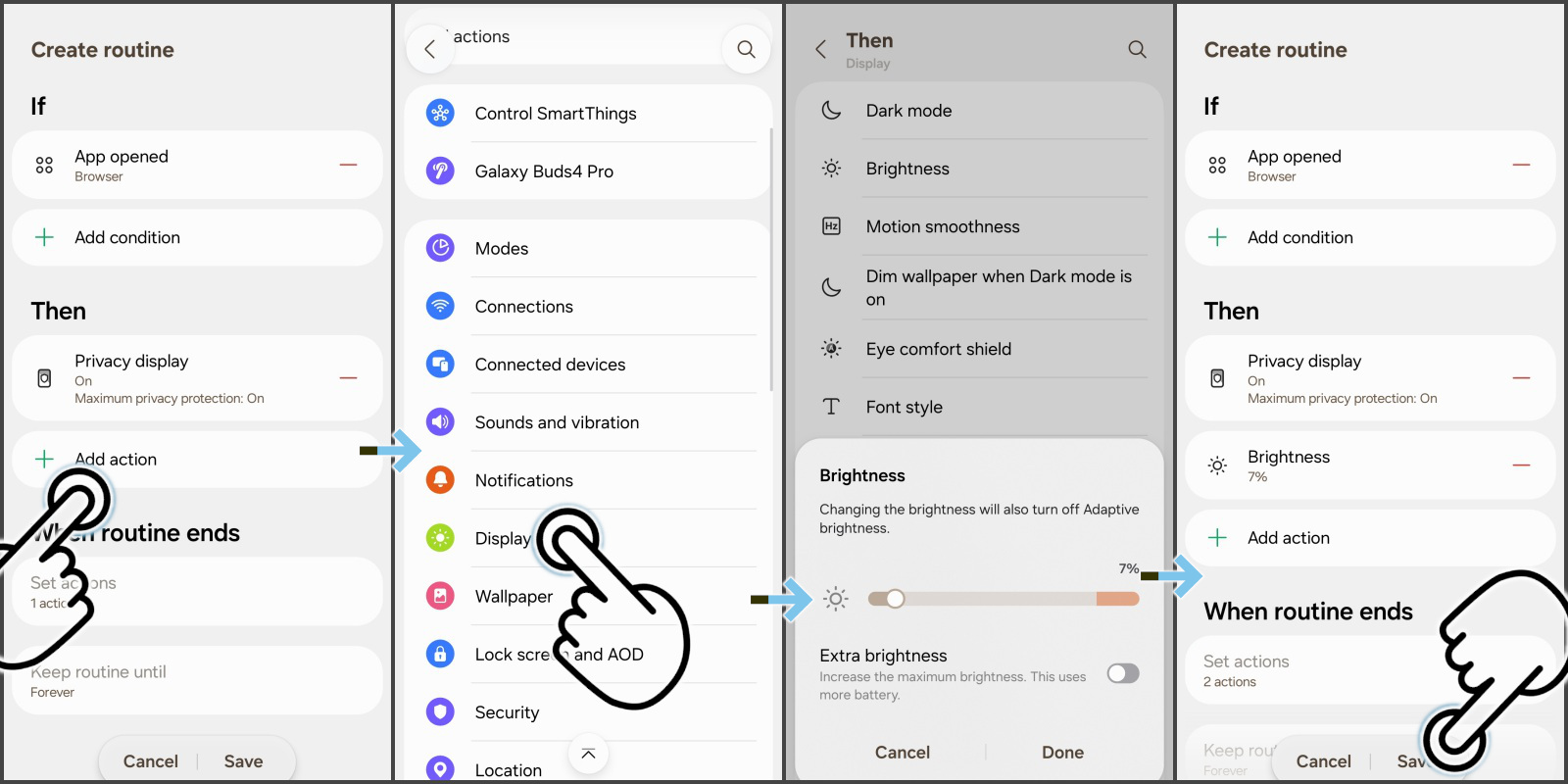
One more time, in the “Then” section, press “Add action” and go to Display -> Brightness. Choose the target brightness by using the slider.
I set it down to 7% — I find this brightness level is still plenty visible to me thanks to the anti-reflective properties of the Gorilla Armor 2 screen. Yet, it enhances the effectiveness of Privacy Display quite noticeably.
By default, everything should be back to normal when you leave the app. If it’s not, check your “When routine ends” conditions.
What’s next?
By all accounts, it seems like the Privacy Display is a complex and expensive feature to build into the phone. Which is why it will probably be an exclusive to the Ultra line for a good while.
Will someone else try to do it as well? But it’s a huge undertaking, and we do know that Samsung has the vertical integration (Samsung Electronics, Samsung Display) to make it possible. Others? Not so much. But time will tell.
(1)Privacy Display - Requires manual activation in settings to function. Privacy Display feature is not AI-powered.
Preslav, a member of the PhoneArena team since 2014, is a mobile technology enthusiast with a penchant for integrating tech into his hobbies and work. Whether it's writing articles on an iPad Pro, recording band rehearsals with multiple phones, or exploring the potential of mobile gaming through services like GeForce Now and Steam Link, Preslav's approach is hands-on and innovative. His balanced perspective allows him to appreciate both Android and iOS ecosystems, focusing on performance, camera quality, and user experience over brand loyalty.
A discussion is a place, where people can voice their opinion, no matter if it
is positive, neutral or negative. However, when posting, one must stay true to the topic, and not just share some
random thoughts, which are not directly related to the matter.
Things that are NOT allowed:
Off-topic talk - you must stick to the subject of discussion
Offensive, hate speech - if you want to say something, say it politely
Spam/Advertisements - these posts are deleted
Multiple accounts - one person can have only one account
Impersonations and offensive nicknames - these accounts get banned
To help keep our community safe and free from spam, we apply temporary limits to newly created accounts:
New accounts created within the last 24 hours may experience restrictions on how frequently they can
post or comment.
These limits are in place as a precaution and will automatically lift.
Moderation is done by humans. We try to be as objective as possible and moderate with zero bias. If you think a
post should be moderated - please, report it.
Have a question about the rules or why you have been moderated/limited/banned? Please,
contact us.





Things that are NOT allowed:
To help keep our community safe and free from spam, we apply temporary limits to newly created accounts: