It happens even to the best of us. You’re happily using your slick Galaxy S26 Ultra, Pixel 10 Pro, or any other Android smartphone until you suddenly hit its storage cap. Then you find out that something has eaten up your very precious storage, and your phone now feels sluggish.
Often, you don’t even know what hit you, like the person who started a Reddit thread after seeing their 40 GB storage suddenly drop to 7 GB. This thread made me realize that probably not everyone knows what the typical storage clogs are, nor how to manage their Android storage better.
Fret not, as usually the reasons for such issues are simple. But even if the culprit is not that obvious, there are several simple solutions that could help you free up your precious storage.
Where do Android storage problems typically stem from?
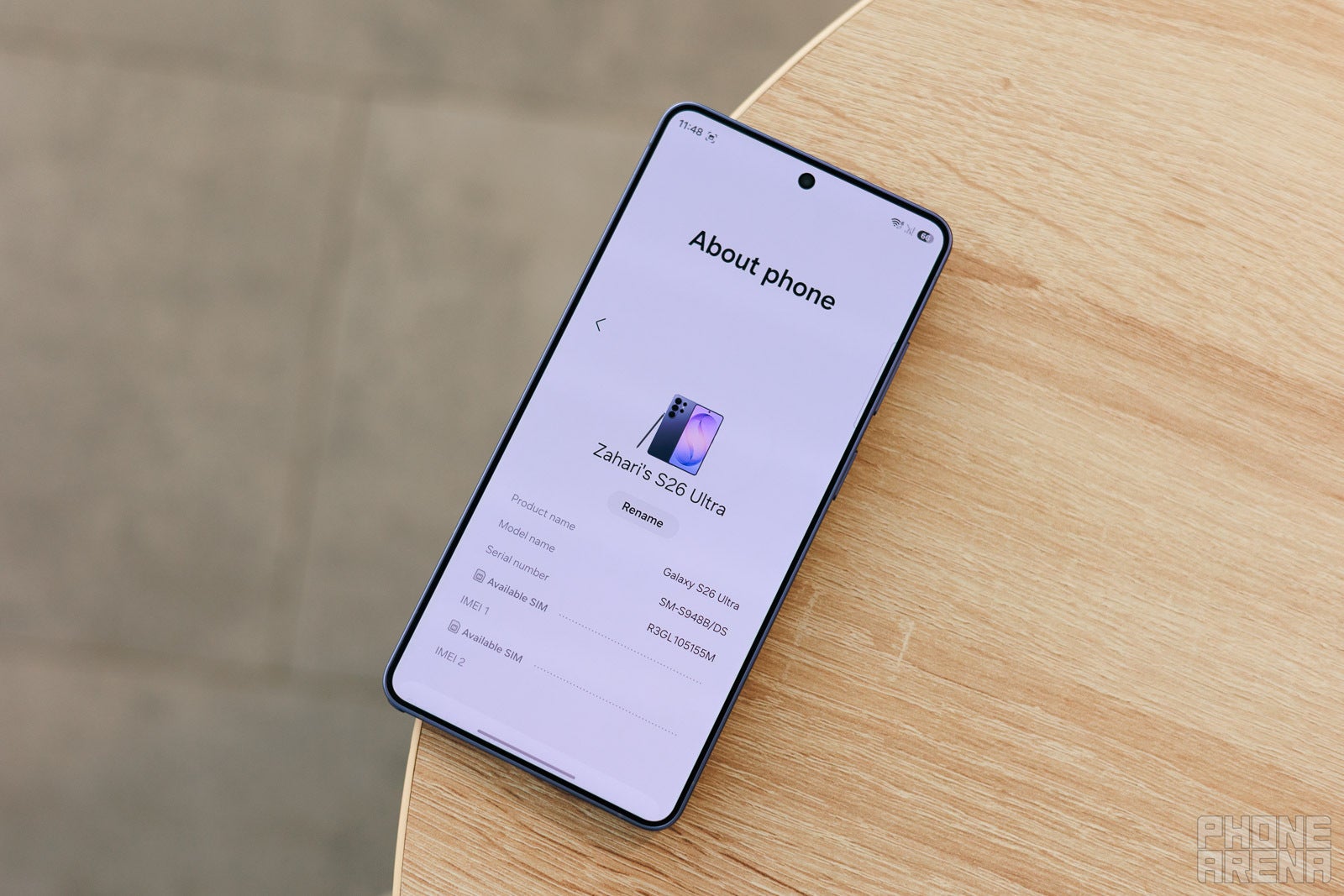
Samsung Galaxy S26 Ultra | Image by PhoneArena
Before diving into the fixes for your storage woes, I’d like us to revisit the most common causes of such problems. I’d assume that you haven’t installed one too many massive games and then suddenly forgotten about it. If that’s the case, you just need to say goodbye to one of those.
Aside from that, there are many other things that could fill up your phone, but few of them could catch you by surprise. In fact, the most likely reasons are usually one of the following:
Too much app data
Excessive app cache
Forgotten files
I can’t imagine that you’d need much of an explanation about forgotten files, so I’ll focus on app data and app cache. Those are different from the apps themselves, and note the two types of data that every app stores on your phone.
Recommended For You
App data is usually what an app may need in the long run, such as login information, saved settings, and game saves. For apps such as Spotify, this is where the albums and playlists you download inside the app go.
Meanwhile, app cache is the temporary data that helps an app to run faster and more reliably. In the case of Spotify, things like album art and playlist covers are cached so the app doesn’t have to download them every time it needs them. That’s also where the app downloads the following few songs from a playlist when you’re streaming music, so it continues to play even if you lose connection for a short time.
While intended to make things snappier, both app data and app cache can build up and start causing issues. There are various reasons for that to happen, which I’m not going to explain here, but sometimes it all boils down to bugs and poor data management.
How to clean unnecessary files from your Android smartphone?
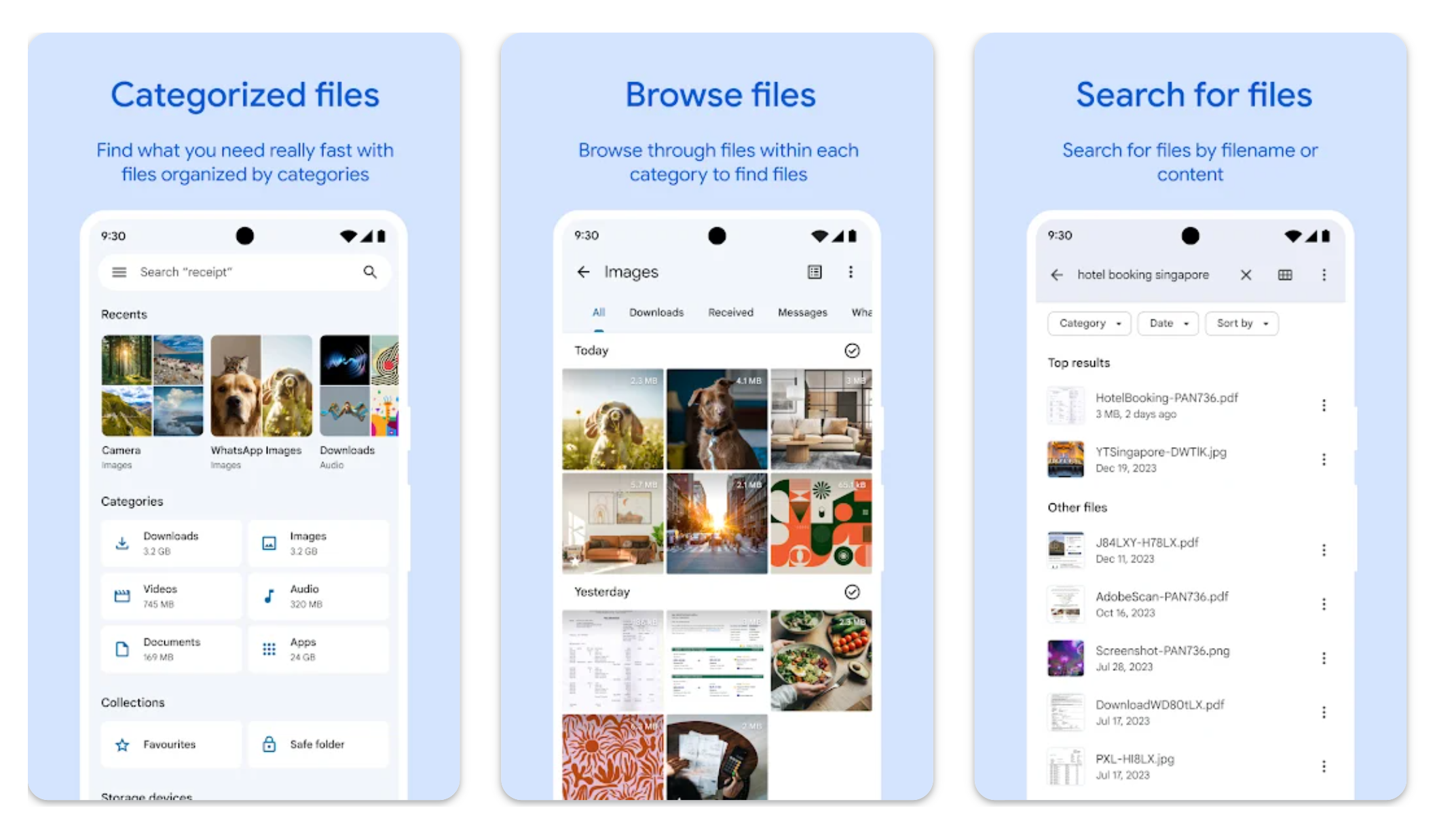
You can use Files by Google or another file management app. | Image by Google
The best first step to clear some space on your phone is to go check the recent downloads and personal folders and delete any unwanted files. Most modern phones have a native Files app, but even if yours doesn’t, you can use Files by Google, which is free to download from the Play Store.
Once you have it, you should start by checking your Downloads folder and deleting the files you don’t need anymore. Then you can check out whether you have files in the Trash folder and delete those as well. Here are all the steps you need to follow in the Files by Google app:
Open the app and tap on the three-line button on the top left
Tap on the Trash button
Select the items you want to delete or tap on All Items to select all files
Tap delete and confirm
Depending on what phone brand you use, you might have a built-in clean-up tool, like Samsung’s Device Care or OnePlus’ PhoneManager. These types of apps are optimized for your specific model and could help you not only delete old files, but also clean your cache and storage.
If you don’t have such an app on your device, you can still use the Clean feature in Files by Google. With it, you’ll be able to quickly get rid of things such as junk files, duplicates, large files, and old screenshots. The feature is available as a tab on the app’s home screen.
How to clean the app data and app cache on your Android apps?
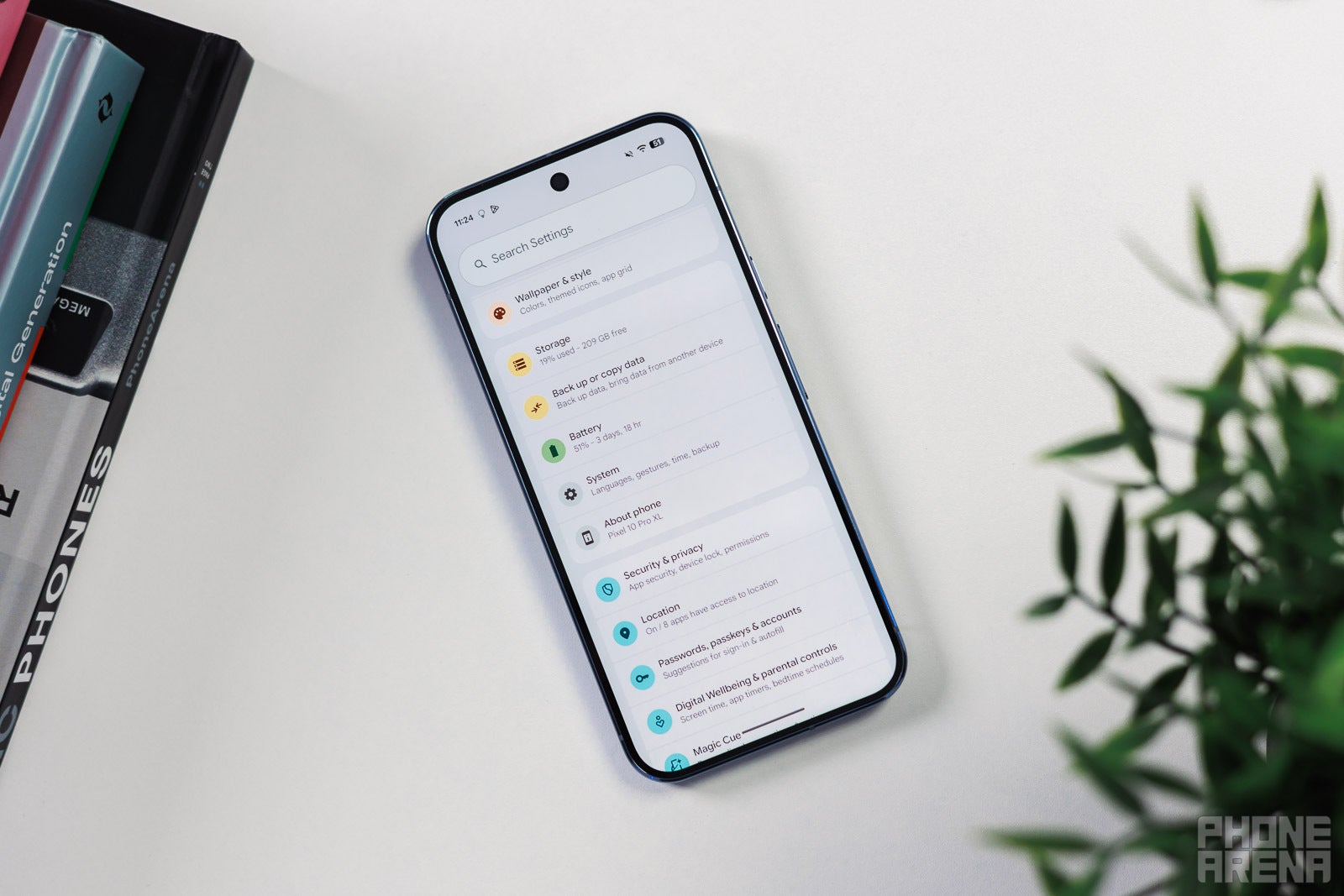
Check if you have large games you don’t play installed. | Image by PhoneArena
If deleting unnecessary files doesn’t solve your problem, you can still go through your apps and win back some storage by clearing their app data and cache. You can do that manually or with the help of a more advanced third-party app, but either way, a fair warning: don’t touch stuff you don’t understand.
Deleting the cache could make some apps work more slowly, as those are the files that help them run more efficiently. Then, deleting the app data is very likely to reset the app, log you off it, and delete your coveted save in a favorite game.
Here are the steps to manually clean app data and app cache on Android:
Open the Settings
Tap on Apps and then See all apps
Select the one you want to clear the cache or data for
Tap on Storage & cache
Tap on Clear storage and/or Clear cache
How to delete leftover downloads from your favorite streaming apps?
Checking inside your favorite streaming apps could be helpful. | Image by PhoneArena
One thing that could be eating a lot of space is the content you’ve saved for offline consumption in your favorite streaming apps, like Spotify, YouTube, and Netflix. The worst thing about them is that they never signal you when you’re done with a download so you could delete it, nor clean their downloads automatically.
On the main screen of the Netflix app, you can tap the Downloads icon in the upper right corner and select every show or movie you want to delete. YouTube has the same menu hidden in the You tab, which is on the lower right corner of the app.
To see your downloaded albums and playlists on Spotify, you need to go to Your Library and tap the Downloaded tag on the top of the screen. Then you need to open the album or playlist you want to delete, tap on the download icon, and confirm the removal. There is a way to delete all your Spotify downloads, too.
Tap your profile photo on the upper left side of the Spotify home screen
Go to Settings and privacy -> Data-saving and offline
Scroll down to Remove all downloads and tap on the Remove button
How to clean your Android phone’s storage with a third-party app?
SD Maid 2/SE is among the safest cleaner apps you can use. | Image by d4rken on GitHub
An overarching solution for such problems is apps like SD Maid 2/SE, which help you get rid of unwanted file remnants and stabilize your app cache. Before downloading such an app, be sure to double-check it, as the cleaner apps space is full of sketchy offers.
From my research, SD Maid 2/SE is by far the best and safest cleaner app you can get, as it’s an open-source project that’s in active development. One of its best features is called CorpseFinder, and it scans and deletes leftovers from apps you’ve already uninstalled.
The app also has a rather affordable advanced version, which is available through a one-time purchase or a subscription. With it, you get the options to delete duplicate files, clean app caches and expendable files, and delete files from the free storage analysis tool.
One more thing to check
You might’ve found yourself a tinkerer and decided to download an .apk file for an app or a game that’s not on the Play Store. If you’re new to the platform, I want to give you a warning and a tip. The warning is that such moves could be dangerous and get you hacked, unless you trust the source of the app and know what you’re doing.
As for the tip, you can delete the .apk file once the app is installed on your phone. This is just an installer package, which is not necessary for your new app to function. If you don’t plan to reinstall the app, make sure to delete its .apk file, as some of these can get much larger than a gigabyte.
Ilia, a tech journalist at PhoneArena, has been covering the mobile industry since 2011, with experience at outlets like Forbes Bulgaria. Passionate about smartphones, tablets, and consumer tech, he blends deep industry knowledge with a personal fascination that began with his first Nokia and Sony Ericsson devices. Originally from Bulgaria and now based in Lima, Peru, Ilia balances his tech obsessions with walking his dog, training at the gym, and slowly mastering Spanish.
A discussion is a place, where people can voice their opinion, no matter if it
is positive, neutral or negative. However, when posting, one must stay true to the topic, and not just share some
random thoughts, which are not directly related to the matter.
Things that are NOT allowed:
Off-topic talk - you must stick to the subject of discussion
Offensive, hate speech - if you want to say something, say it politely
Spam/Advertisements - these posts are deleted
Multiple accounts - one person can have only one account
Impersonations and offensive nicknames - these accounts get banned
To help keep our community safe and free from spam, we apply temporary limits to newly created accounts:
New accounts created within the last 24 hours may experience restrictions on how frequently they can
post or comment.
These limits are in place as a precaution and will automatically lift.
Moderation is done by humans. We try to be as objective as possible and moderate with zero bias. If you think a
post should be moderated - please, report it.
Have a question about the rules or why you have been moderated/limited/banned? Please,
contact us.










![Another batch of Galaxy S26 series users in the US are getting a nice surprise today [UPDATED]](https://m-cdn.phonearena.com/images/article/183643-wide-two_350/Another-batch-of-Galaxy-S26-series-users-in-the-US-are-getting-a-nice-surprise-today-UPDATED.webp)
Things that are NOT allowed:
To help keep our community safe and free from spam, we apply temporary limits to newly created accounts: