Galaxy S26 Ultra: All Galaxy AI features explained
The Galaxy S26 Ultra is packing some real AI smarts, but it’s up to you to get the most out of the package!
We may earn a commission if you make a purchase from the links on this page.
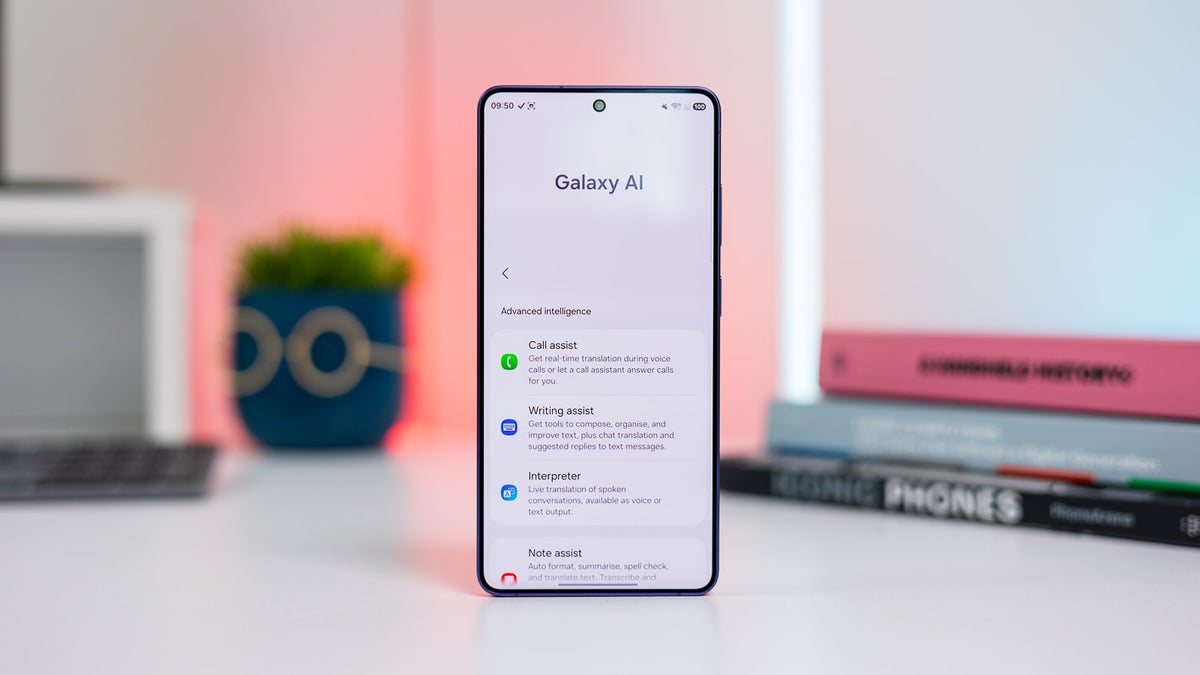
It all starts here with Galaxy AI! | Image by PhoneArena
Sponsored content created with Samsung.
In case you’re worried that you may be missing out on the full Galaxy S26 Ultra experience, I’m here to help. I’ll guide you through each Galaxy AI[1] feature and give you tips on how to set them up on your own Galaxy S26 Ultra.
Productivity-focused AI features on the Galaxy S26 Ultra
Samsung has successfully integrated Galaxy AI[1] on a system level with the Galaxy S26 Ultra, offering improvements to familiar features and also brand-new ones for a streamlined productivity experience.
Live Translate
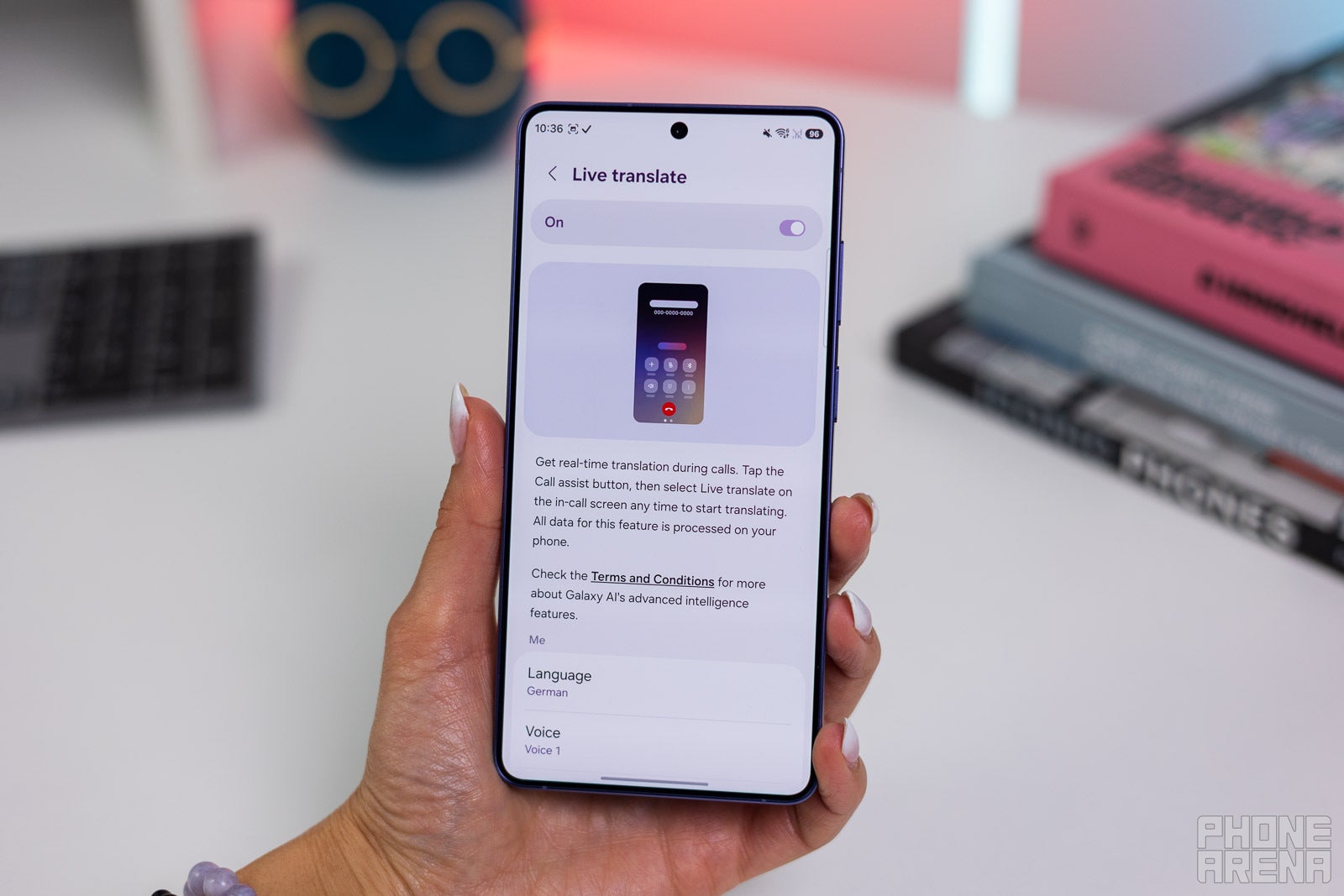
If you’d like to use Live Translate, this is where you’ll need to go. | Image by PhoneArena
Live Translate[2] is a an on-device feature that translates an ongoing call in real time — to either party or everyone involved.
You can also get real-time transcripts of what the other person is saying directly on the screen as the conversation is going on and even choose to have Galaxy AI[1] read those aloud for you.
A quick guide to setting up Live Translate:
- Open the phone app
- Tap the three-dot menu at the upper-right corner and select Settings
- Switch Live Translate on or off, depending on your needs
- If necessary, download additional language packs
- When making or taking a call, tap the Call Assist button
- Select Live Translate
- Transcripts appear right on the screen as the other person talks
Real-time Camera Translation
Real-time Camera Translation translates everything that the Galaxy S26 Ultra’s camera sees into a language you know.
The Galaxy S26 Ultra relies on the Snapdragon 8 Elite Gen 5 for Galaxy to overlay translations directly in the camera viewfinder. The overlay even tries to show the result in the same font and style as the translated text.
How to use Real-time Translation:
- Open the Camera app
- Tap on the yellow T button in the lower-right corner
- Point your camera at what you’d like to translate
- You should see the magic happen in front of your eyes
Make sure you’ve downloaded the relevant language pack from the Galaxy AI[1] section within Settings to get the most out of this feature.
Universal Screen Translation
Universal Screen Translation allows you to translate anything on your screen on the spot, without needing to open another app or menu.
This is practically the new version of “Tap to Translate”. Thanks to an amped-up version of AI Select on the Galaxy S26 Ultra, you can circle any part of your screen with the S Pen — even while using third-party apps like Instagram — to get an instant translation.
In order to set-up Universal Screen Translation:
- Pull out the S Pen, open the flyout S Pen menu and tap on AI Select (or choose AI select from the edge panel)
- Select the portion of the screen you want translated and tap on the “Translate” button
- Go to the Advanced features in Settings, and select Side Button
- Set the Double Press or Press and hold shortcut to “Live Translate”
- Voilà! Now you’ll be able to use this feature without the S Pen
Interpreter
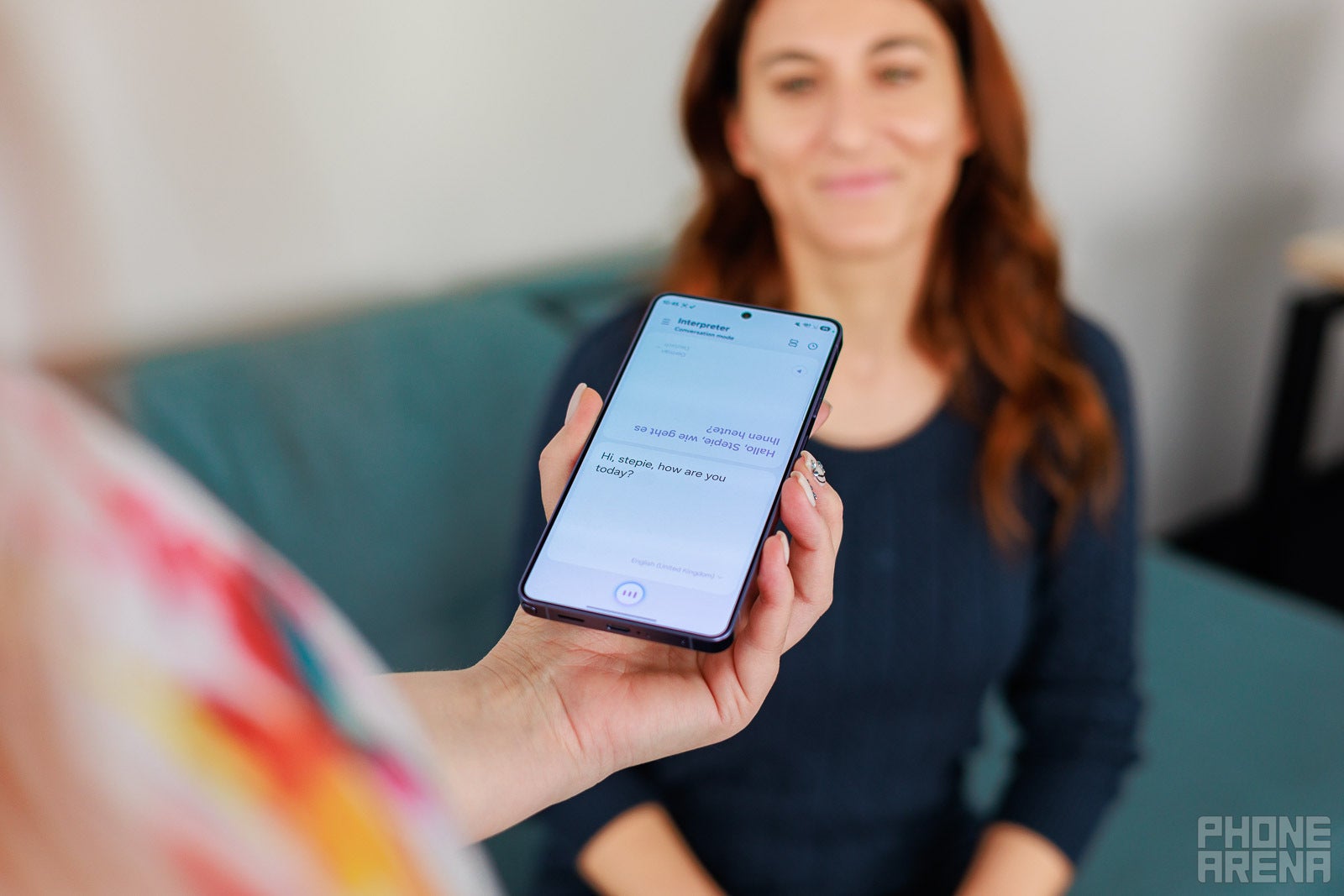
Now considerate of you and the party you are speaking with. | Image by PhoneArena
Interpreter has gotten a few very considerate tweaks, which make it more intuitive to use, especially when speaking to someone else in person. For example, if you use split screen mode on the Galaxy S26 Ultra, the upper half of the screen will rotate 180 degrees, so that whoever you’re speaking to can see it clearly.
The Galaxy S26 Ultra also features a Listening Mode, which is designed for continuous listening. It seems designed for situations like lectures or tours, as it provides a continuous flow of translated text, powered by Galaxy AI[1].
What’s new in the Interpreter feature on the Galaxy S26 Ultra:
- Expansion to 22 languages
- Much faster processing
- Deep integration with the Galaxy Buds4
It is features like this that remove the “lost in translation” anxiety for good.
How to use Interpreter on the Galaxy S26 Ultra:
- Open the Quick Settings menu
- Tap the Interpreter icon
- Adjust languages
- Choose mode (Conversation mode or Listening mode)
- Tap the microphone icon and speak in your language
- An AI-powered translation pops up immediately for the other person
Now Brief
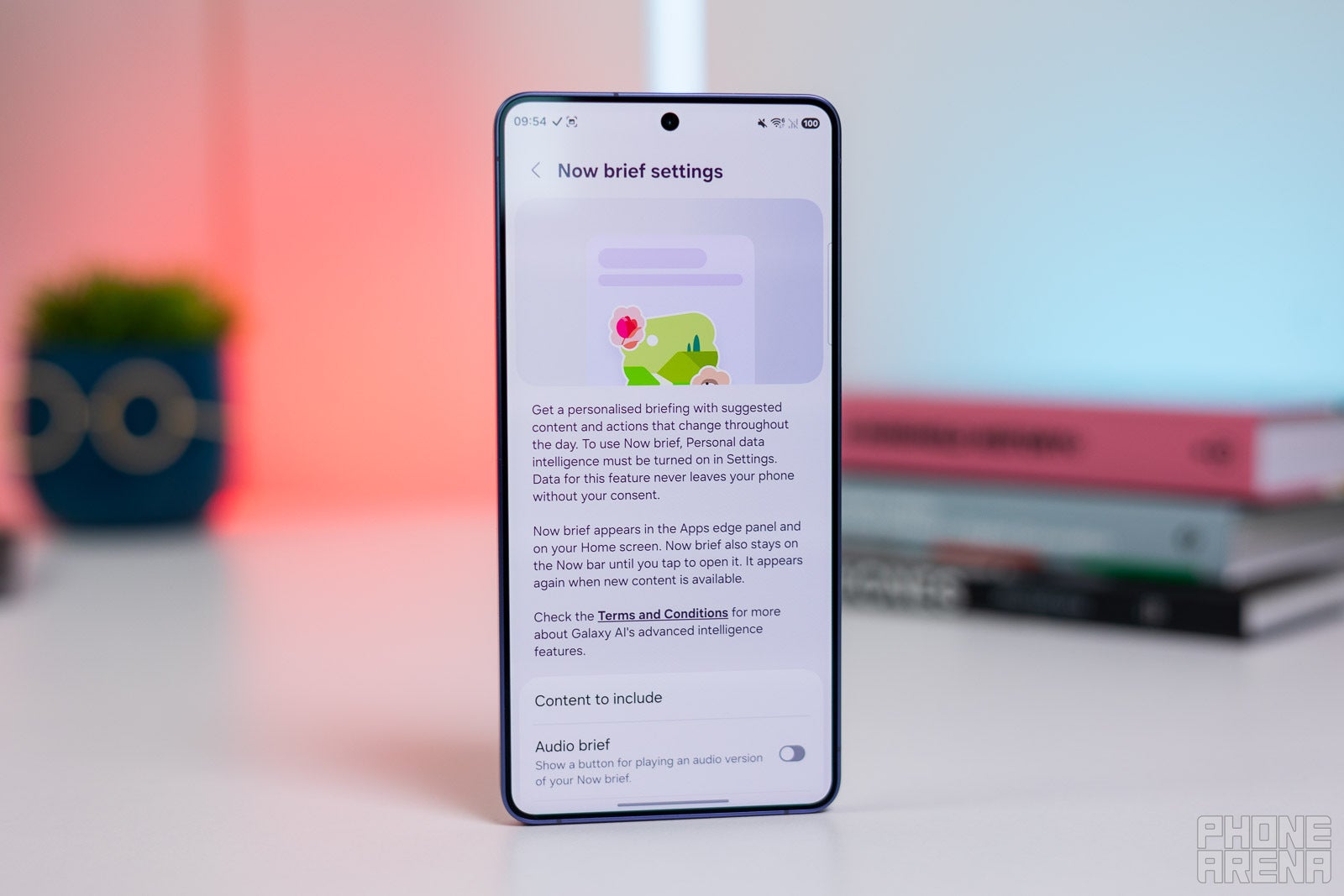
Don’t forget to tweak your Now Brief for the best results! | Image by PhoneArena
Now Brief[7] is a feature that curates and suggests content or actions based on your schedule, and behaviors.
Each morning, you will have a Morning Brief to view, which will give you things like the daily forecast or your Energy score, if you are using a Galaxy Watch for health monitoring.
Throughout the day from there on out you can add actions to your Calendar, Reminders or Map routes. At the end of each day, you’ll get an Evening Brief as a daily recap.
Now Brief debuted on the Galaxy S25 lineup. On the Galaxy S26 Ultra, the Galaxy AI[1]-powered feature becomes more proactive and personalized. It intelligently suggests reminders for important events, such as hotel reservations and airport travel updates.
It might also take some time for Now Brief to adjust to your schedule, so don’t be too quick to judge it isn’t meeting your expectations on the very next day.
What’s new in Now Brief on the Galaxy S26 Ultra:
- Now Brief uses data from Personal Data Engine (PDE) to analyze data and user habits on-device
- Spotify suggestions are enhanced with personal use data
How to enable and personalize Now Brief on the Galaxy S26 Ultra:
- Open Settings
- Select Galaxy AI[1]
- Tap Now Brief and toggle it on.
- In the Now Brief menu, locate the Content to Include button
- Select relevant content you want to appear in Now Brief, such as events and tasks, travel, and finance
Screenshot Analyser
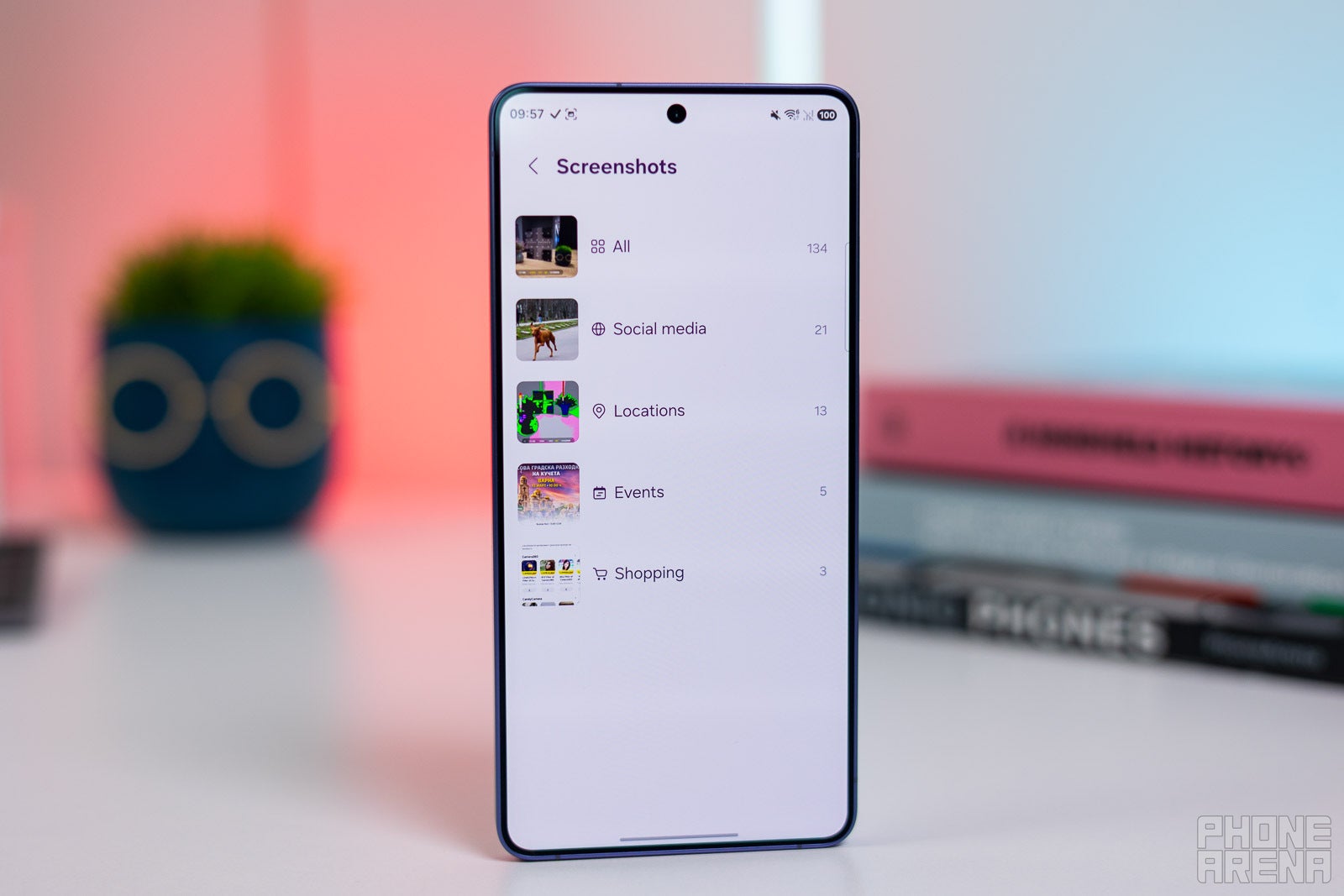
Some categories generated by the Analyser feature. | Image by PhoneArena
Screenshot Analyser is a feature that automatically sorts your screenshots in categories, so that you can find them more easily later on.
A must-know feature of Screenshot Analyser for first-time users:
- “Go to source” feature — Screenshot Analyser guides users to the exact source of the screenshot they're viewing. It doesn't just work with webpages but also with messaging apps and even emails.
How to access your categorized screen captures:
- Go to Gallery
- Tap Collections
- Find the category you need (coupons, social media, etc.)
- Open the screen capture you need
- To reach the source, tap “Go to source” found at the bottom of the screen
- Galaxy AI[1] refers you to the specific webpage or app
Using Galaxy AI to edit photos on the Galaxy S26 Ultra
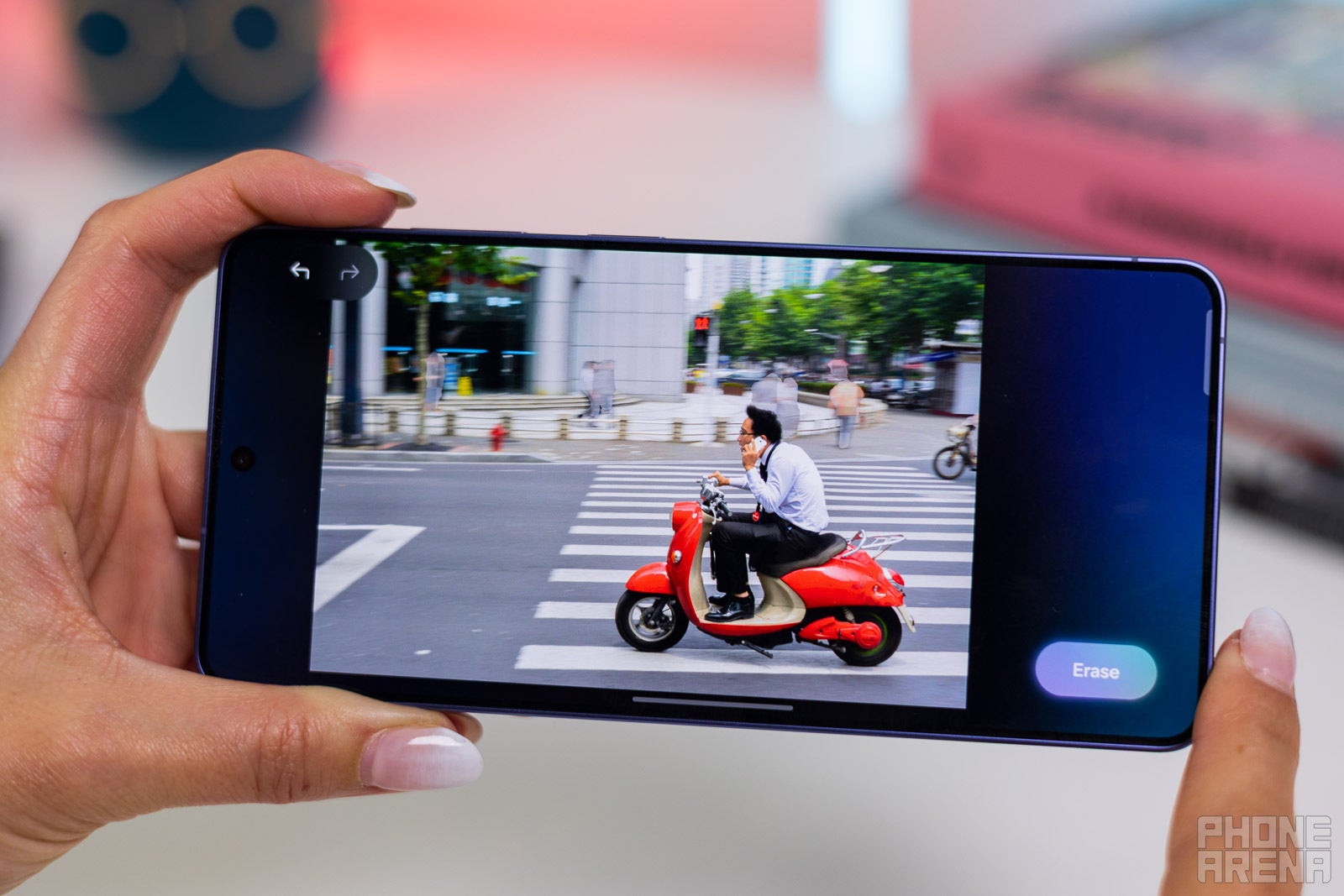
This image would be better without the figures in the background, right? We can take care of that! | Image by PhoneArena
Photo editing has always been important in the digital era. Sometimes it feels like only creative individuals know how to get the best results, but with the Galaxy S26 Ultra and Galaxy AI, you can easily achieve pro-grade results.
Generative Wallpapers
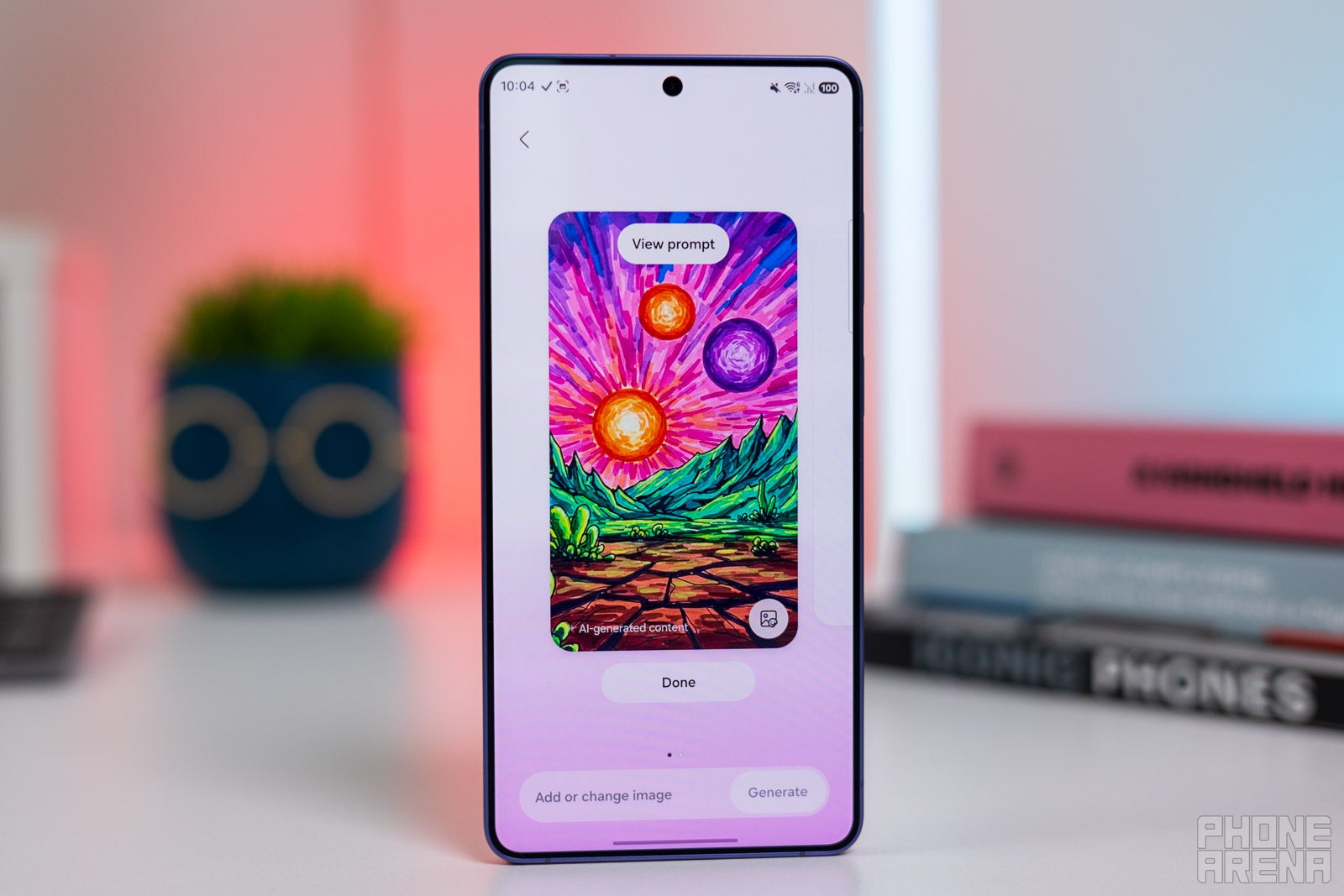
One of the wallpapers we generated on the Galaxy S26 Ultra’s Creative Studio. | Image by PhoneArena
Generative Wallpapers is an on device-feature that helps create high-res backgrounds from scratch via Creative Studio[5] by using text prompts.
There are some reasonable limitations at play — you won’t get any unexpectedly spicy results, for example — but you are allowed to use an impressive array of styles.
What’s new in Generative Wallpapers on the Galaxy S26 Ultra:
- Aspect ratio now lets users choose different aspect ratios for their generated wallpapers
- Natural language text prompts (up to 100 words) are now supported for background image generation
- Sketch to Wallpaper functionality
For those who love to customize everything on their phone, this is a very fun option. If you’re struggling to find the right words to express what you want, you can even use the S Pen to draw a sketch, which can then be turned into a refined image.
How to set up a background with Generative Wallpapers:
- Tap and hold a blank space on your home screen
- Tap Wallpapers and style
- Tap Change wallpapers
- Either choose the Generative option within Create with AI, then pick a theme, add keywords, then tap Generate
- Or go to Creative studio, tap Create wallpaper, and then use natural language or scribble on the screen to generate a new wallpaper
And by the way, you can use the same set of steps to create Stickers that you can use in your messages for extra style points.
Photo Assist
Without the figures in the background, the photo is much more focused and clean. | Images by Images by PhoneArena
Photo Assist[4] allows you to touch up your images with generative AI using text prompts.
Once you have a solid base to work with, you can keep adding more features or change the entire style of the result with a single tap.
For a practical test, look at the example below. It was effortless to check out how a dress would look in a different color.
This is how easy it is to change your clothing to plan outfits ahead of time. | Images by Image by PhoneArena
What’s new in Generative Photo Edit and Remove on the Galaxy S26 Ultra:
- Natural language text prompts — This allows users to type edits using natural language. AI understands the request and analyzes pixels, making the edited photo look more natural.
- Artistic Overlays — Galaxy S26 Ultra users can add AI “Styles” to specific parts of an image, leaving the rest as is.
- Advanced Generative Removal — Objects don’t just get “erased” from the photo. Galaxy AI[1] intelligently restores the pixels and shadows, creating a lifelike result.
Have we seen photo editing like this before? Yes. Is it notable on the Galaxy S26 Ultra still? Yes!
A quick-step guide to using Generative Photo Edit and Remove:
- Take a photo
- Click on the icon with the stars
- To erase an object from your photo, tap on Erase and circle the object
- To edit a photo, tap on 'Create'
- Use a voice command or a text prompt to tell Galaxy AI[1] what you need to be changed
- You can save the edited image, keep editing, or discard changes
Security at the forefront of the Galaxy S26 Ultra experience
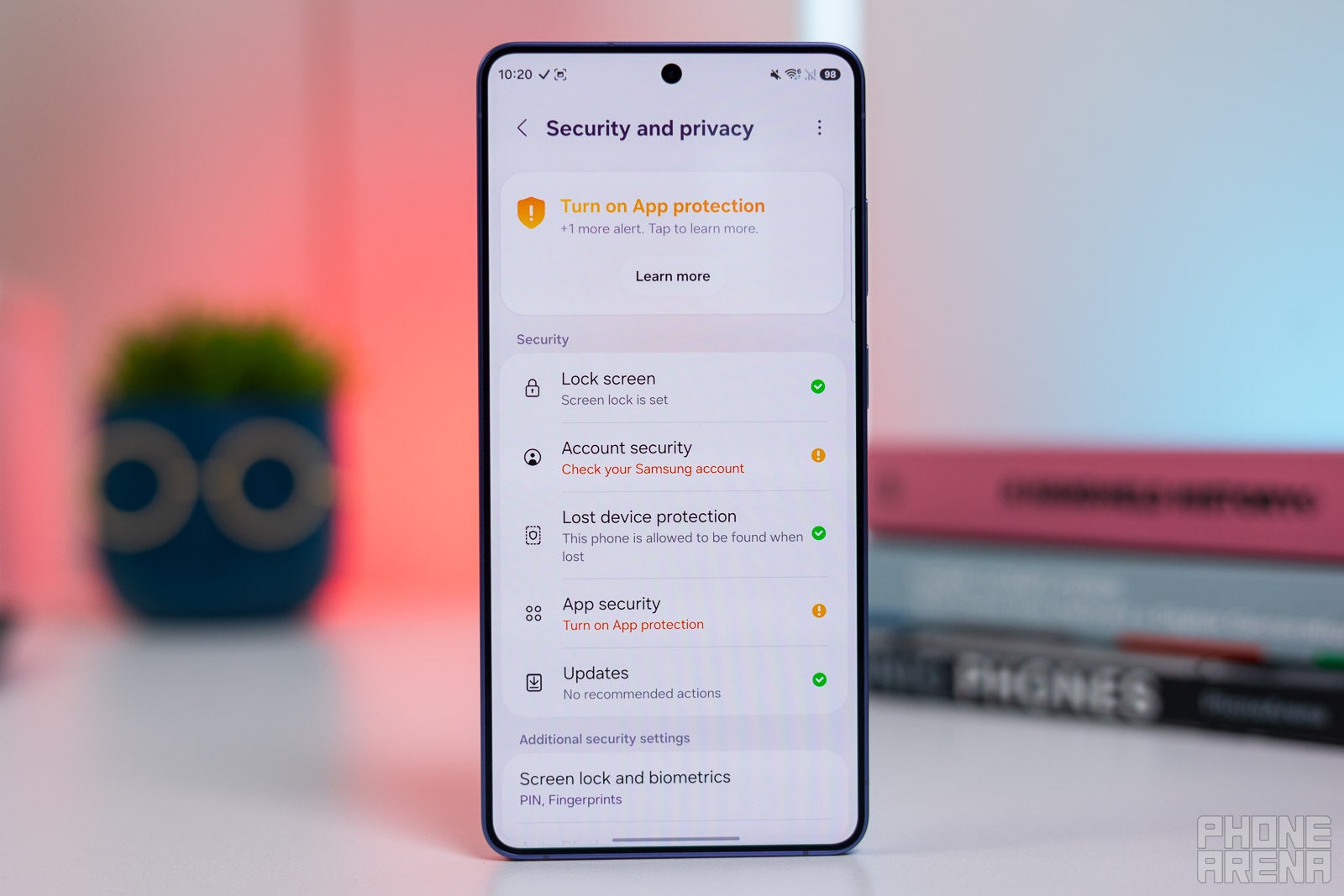
The Security and privacy menu on the Galaxy S26 Ultra. | Image by PhoneArena
Security on smartphones needs to do two things: be hassle-free and reliable. The Galaxy S26 Ultra manages to deliver on both fronts. Some features require a bit of setup or the press of a button here and there, but overall the Galaxy S26 Ultra’s security suite works hard to create a sophisticated shield for its users.
Call Screening
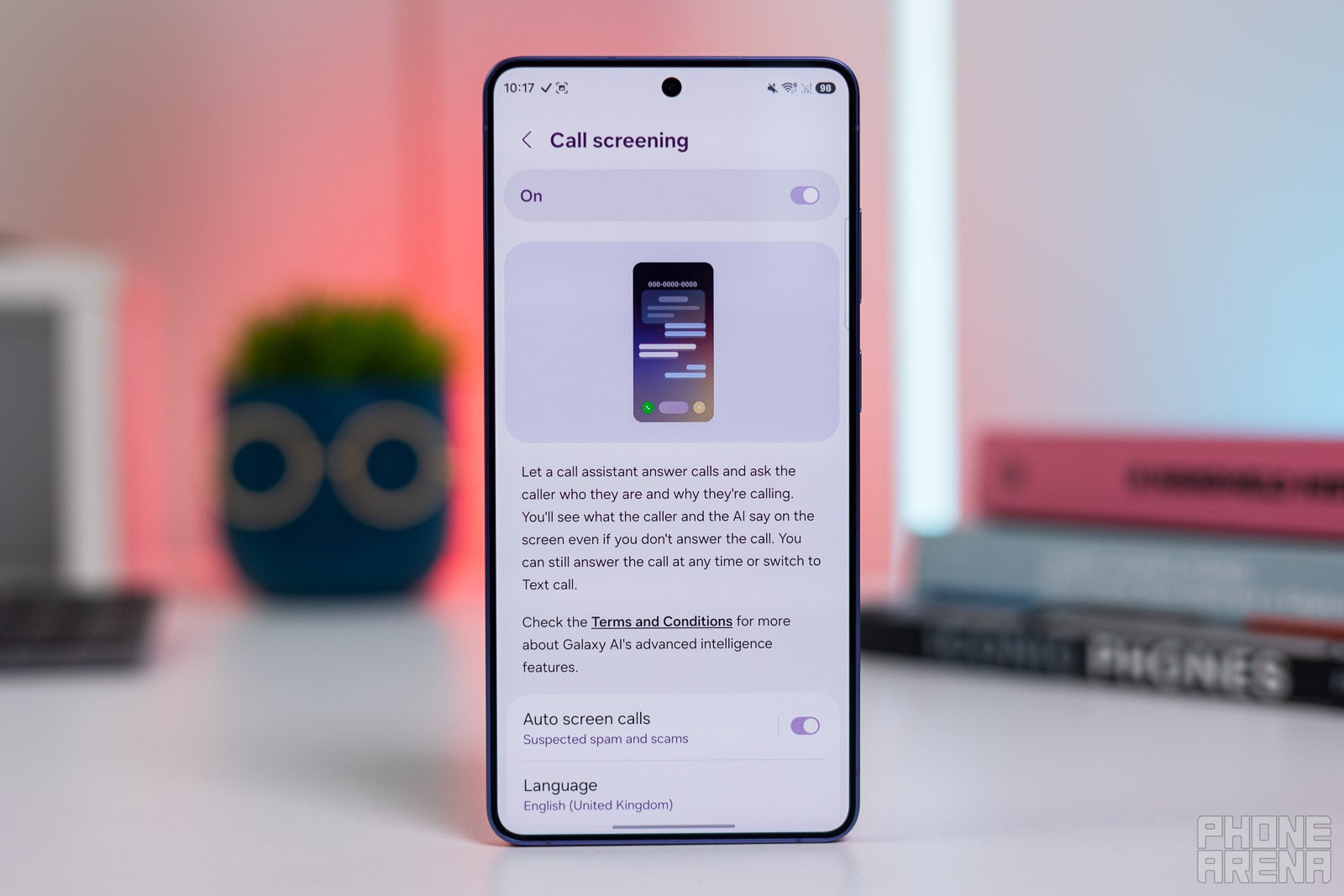
Make sure to enable Call screening if you’d like to use it. | Image by PhoneArena
Call Screening allows the Galaxy S26 Ultra’s AI assistant to pick up instead of you so that you can decide if you’d actually want to join the conversation or not.
The assistant provides real-time transcripts of the conversation so you don’t miss out on any crucial context. While the call is ongoing, you can use Text call to direct the conversation with your own prompt or preset phrases. And, of course, you can join the call at any time.
What’s new in Call Screening on the Galaxy S26 Ultra:
- Contextual Quick Replies — Galaxy AI[1] suggests contextual quick replies based on the conversation.
- Auto Screen — Galaxy S26 Ultra users can enable an Auto Screen feature, which automatically screens unknown callers and suspected spam.
How to adjust Call Screening on the Galaxy S26 Ultra:
- Open the phone app
- Select the keypad and tap on the three dots in the upper-right corner, and tap Settings
- Locate Call Screening under Call Assist
- Toggle on/off, depending on your needs
Privacy Alerts
Privacy Alerts monitors your activity in the background and alerts you to suspicious activity as soon as possible.
Privacy Alerts act as the Galaxy S26 Ultra's active "watchdog," which protects users from digital threats. The feature relies on complex machine learning to monitor apps with admin privileges that try to collect sensitive data, such as call logs or live location data, without permission from the user.
If Privacy Alerts detects something fishy, you’ll get a notification in real time, which enables you to act and get rid of the threat. This is very promising, considering that we’ve all heard stories about seemingly safe, but actually malicious third-party apps.
How to control Privacy Alerts on the Galaxy S26 Ultra:
- Open Settings
- Tap Security and Privacy
- Scroll down to the Privacy section and tap on Controls and alerts
- Toggle the Camera Access, Microphone Access and Alert when clipboard accessed on/off
Knox Matrix
The Knox Matrix is Samsung’s patented on-device security platform, which helps you and your data stay protected at all times.
Knox might sound familiar to you, as it has been available on Galaxy devices for a while. The Galaxy S26 Ultra, however, debuts with an improved Knox Matrix[6]. It now uses post-quantum cryptography (PQC) on a hardware level to keep eSim transfers, firmware verifications and more, secure and isolated.
What’s new about Knox Matrix on the Galaxy S26 Ultra:
- Knox Matrix is upgraded, delivering improved cross-device security
- Post-quantum cryptography (PQC) is baked into the Galaxy S26 Ultra at the chip level
- Post-quantum cryptography (PQC) is extended to more services on the Galaxy S26 Ultra
This matters because now you have a stronger security system built directly into the Galaxy S26 Ultra, regardless of whether you are connected to the internet or not.
Frequently asked questions
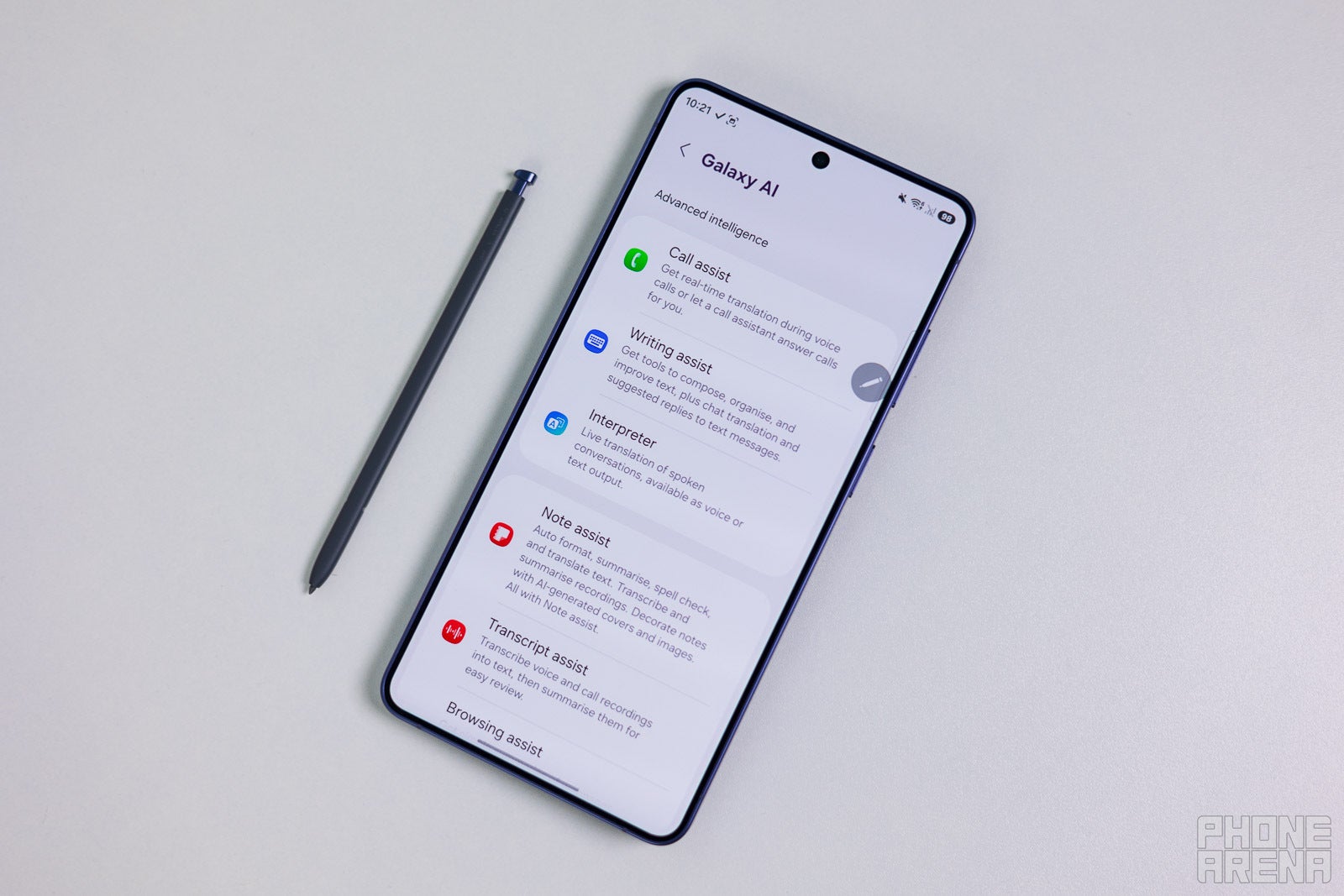
The Galaxy S26 Ultra is an absolute powerhouse if you use it right. | Image by PhoneArena
1. Are Galaxy AI[1] features free?
Following recent adjustments to Samsung Services Terms and Conditions, Samsung specifies that built-in Galaxy AI[1] features will remain free. Third-party AI features like those from Gemini or Perplexity are free to use too. There are Pro versions, of course, and those do require an active subscription, but the features themselves are available without having one.
2. Which AI features are built-in?
Below is a full list of all built-in Galaxy AI[1] features listed as “Basic” in the company’s current T&C:
- Call Assist
- Browsing Assist
- Photo Assist
- Creative Studio
- Audio Eraser
- Interpreter
- Detailed screen and image descriptions (Samsung TalkBack)
- Weather Wallpaper
- Writing Assist
- Note Assist
- Transcript Assist
- Bixby
- Now Nudge
- Now Briefco
- Notification Highlights
- Health Assist (Samsung Health)
3. How long will the Galaxy AI[1] features remain free?
4. Does the Galaxy S26 Ultra require an internet connection for these features?
The Galaxy S26 Ultra can be defined as an “on-device first” AI smartphone. Thanks to the Snapdragon 8 Elite Gen 5 for Galaxy chip, many of the features listed above work just fine without an internet connection. You could need one, for example, to download extra language packs for the Live Translate feature. But there are a few features that are cloud-based, and as such: online only.
5. Which AI features on the Galaxy S26 Ultra are online only?
- Photo Assist[4] — The Galaxy S26 Ultra needs the help of the cloud to render the new image based on your prompt.
- Generative Wallpaper — Since a brand-new image is being generated, your phone needs the extra processing power of the Cloud for this one.
- Now Brief — Data analysis and tracking is done on-device, but some of the details require an internet connection, like fetching weather updates, tracking your flight status or getting suggestions for new content to check out online.
6. Are Galaxy AI features exclusive to the Galaxy S26 Ultra?
No. Galaxy AI features are available across the Galaxy S26 lineup, as well as previous-generation flagship models. Some AI features are available on select A-Series devices. However, some Galaxy AI features that are specific to the S Pen are locked to Galaxy S Ultra models.
[2],[3] Live Translate and Interpreter - SEUK Live Translate and Interpreter disclaimer: Samsung account login is required. Certain languages may require language pack download. Service availability may vary by language. Accuracy of results is not guaranteed. Available in 20 languages from launch.
[4] Galaxy AI's Photo Assist - Requires network connection and Samsung account login. A visible watermark is overlaid on the saved image to indicate it was generated by Galaxy AI. Accuracy of output not guaranteed.
[5] Creative Studio - Requires network connection and Samsung account login. Accuracy of output not guaranteed.
[6] Knox Service Plugin - Valid Samsung Knox Account required.
[7]Now Brief - Samsung account login and network connection required.


Popular stories


Latest News


Things that are NOT allowed:
To help keep our community safe and free from spam, we apply temporary limits to newly created accounts: