Pixel user navigating with Google Maps hears mysterious and scary voice
Two people in a car are having a chat when a strange voice joins the conversation.
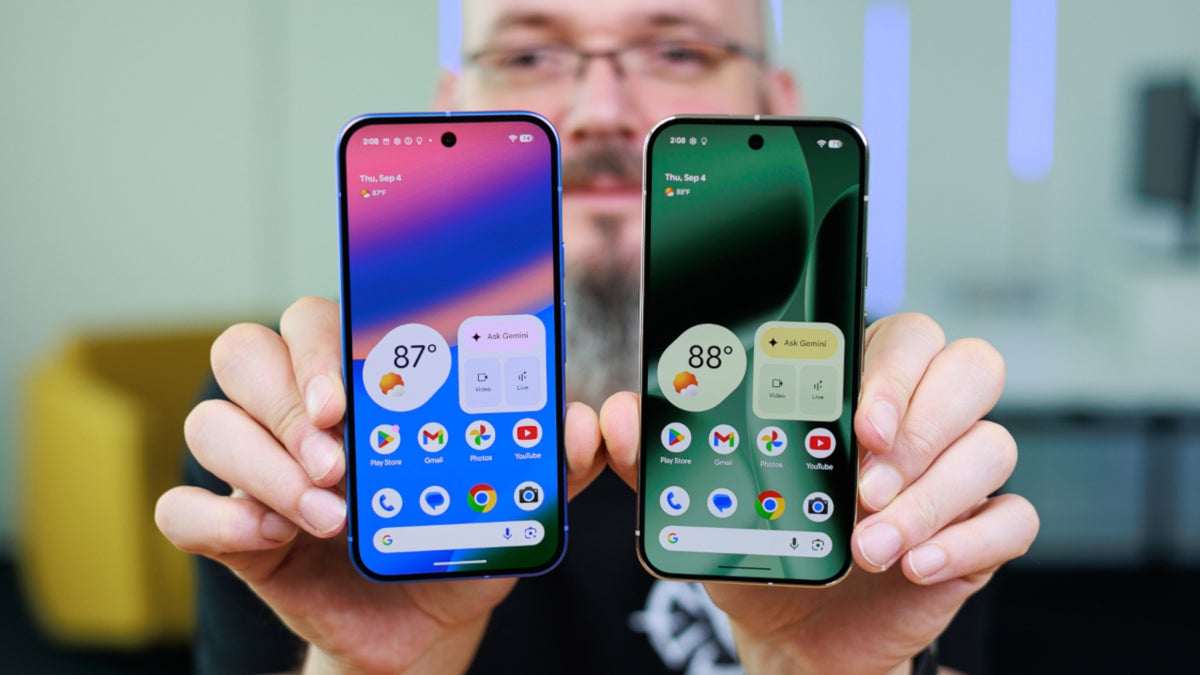
Pixel user drivng a car hears a ghostly voice | Image by PhoneArena
So there you are, driving on the highway with a friend, and you're using Google Maps on your Pixel 9a running Android 17 to get turn-by-turn directions to your destination. The driver turned to the other person in the car and pointed out that a particular local event drew a crowd of about 1,000 people. The friend replied, "Wow, incredible."
A creepy voice from out of nowhere scared a driver using Google Maps for navigation on his Pixel 9a
All of a sudden, a third voice could be heard out of nowhere saying, "It’s true that it’s a lot for an event." Where did that third voice come from? It was Google's Gemini AI who startled the driver who wrote on Reddit that she was super creeped out, wondering if the AI Bot had been listening to the entire conversation.
What would you do if you heard a creepy unknown voice while driving?
78 Votes
Jump out of the car while it is moving
15.38%
Toggle off the Gemini hands-free "surveillance mode" feature
32.05%
Pull over and look for the source of the voice
19.23%
Call Ghostbusters
33.33%
What made this whole affair even stranger, the driver had never used the voice assistant and had never activated Gemini to awake upon hearing the wake words of "Google," and "Hello Google." He tried to get Gemini to repeat the act of making an unsolicited comment, but it didn't happen again. "No idea what went on," he wrote.
Check to see whether Google toggled on this setting by default on your Android phone
But one Redditor did figure out what had occured. Apparently, Google had recently released Google Maps/Waze updates that enabled hands-free surveillance/voice assistant features in Google Maps/Waze driving modes. The features were enabled by default, even for users who had previously disabled voice activation and background listening.

This is the feature that caused a Pixel 9a user to hear a mysterious voice whie driving. | Image by PhoneArena
You can see if this setting has been toggled on by default on your Android phone by going to Settings > Navigation > Gemini > Talk to Gemini hands-free. When you get to the toggle, you might want to turn it off if you don't want Gemini to scare you by getting involved in your conversations.
What the Talk to Gemini hands-free feature does for you
When you have the Talk to Gemini hands-free setting toggled on, the AI assistant is listening for you to say "Google" or "Hey Google," which are the hot words that activate Gemini and allow you to send a verbal or typed prompt. In other words, if you want to have Gemini answer your queries hands-free, you would have this setting toggled on. If you don't want Gemini to listen to what you are saying, waiting to hear you say the activation words, toggle the setting off.
Just keep in mind that if this setting is disabled, you won't be able to speak to Gemini hands-free, which might be an issue if you like to interact wth the AI assstant while drving.
There are times when a system or server-side update can re-enable background listening features
Those who had disabled voice activation and background listening (aka Surveillance mode) might be curious how their settings were toggled on after Google released an update. When navigation apps like Google Maps or Waze are active and are disseminating turn-by-turn directions, system or server-side updates can secretly re-enable background listening features, which can lead Gemini to hear ambiient noise as the trigger phrase and respond unexpectedly.
The next time you're using Google Maps or Waze and a mysterious voice enters your conversation, don't be scared; it's only the Gemini AI assistant waiting for you to say the activation words. Now, you know exactly how to prevent it from happenng to you.
Enjoy reading about Google Maps? Check out these articles:
- Google Maps update fixes a bug, makes it trustworthy again
- It's the biggest Google Maps navigation update in a decade
- New look for Google Maps on iOS and Android


Popular stories




Latest News






Things that are NOT allowed:
To help keep our community safe and free from spam, we apply temporary limits to newly created accounts: