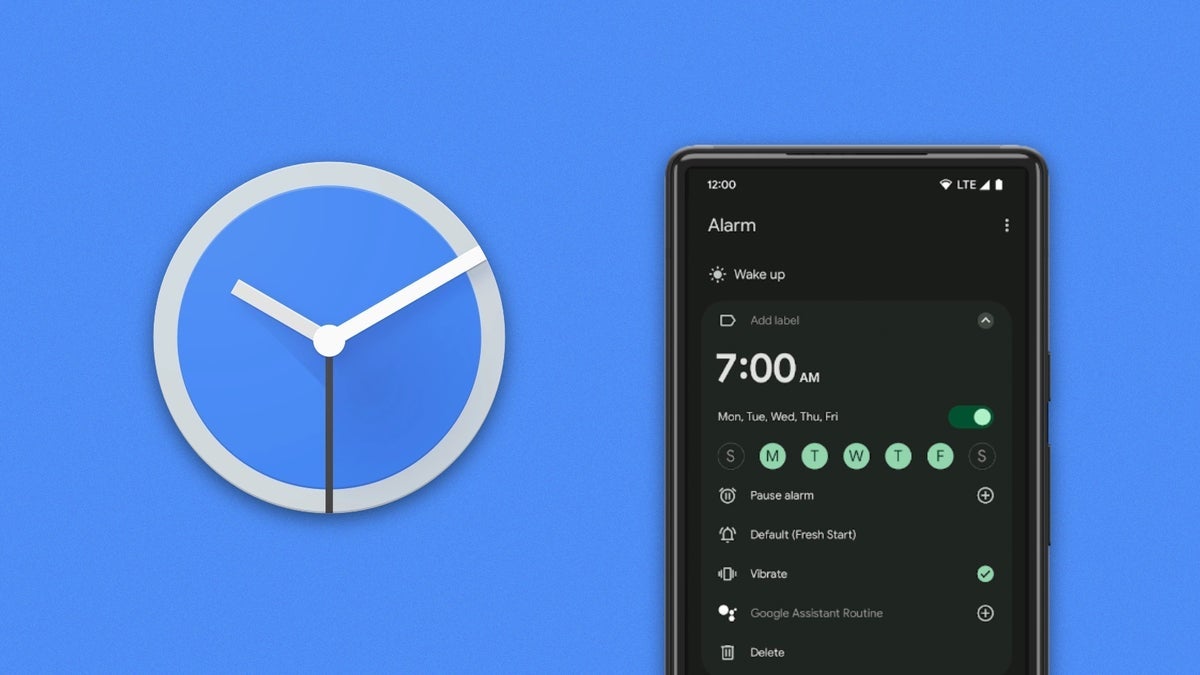
It might not be the most advanced app in the Google Play Store, and its capabilities will not blow you away. Yet, it is one of the most widely used apps in the Android ecosystem. I am talking about the Google Clock app, which, by one estimate, has been downloaded 2.8 billion times. It is the default or "stock" clock app on Pixel handsets and can be installed from the Google Play Store.
The Google Clock app comes in handy
The Google Clock app is equipped with a World Clock that has a great feature that the iPhone doesn't. The cities that you select to keep on your World Clock will not only show the time for that city, it will also show an icon representing the current weather conditions in that city along with the current temperature. This is the sort of thing that Google does that keeps me using my aged Pixel 6 Pro instead of my still spry iPhone 15 Pro Max. The app also includes the alarm clock, the timer, a stopwatch, and a tab called Bedtime that does several things.
In the Bedtime tab you can set a bedtime schedule at the top of the page that tells your phone when it should start winding down until your wakeup time in the morning. You can also track your screen time and see estimates of how much time you spent in bed. This figure is computed by tracking how long your phone remained motionless in a darkened room. This mode also allows you to play soothing music to help you fall asleep such as waves, deep space, and contemplation. It will also access your calendar so you can make sure that your alarm is set and that you won't oversleep and miss an appointment the next day.
New version of the Google Clock app allows you to choose between Tap to Dismiss or Swipe to Dismiss
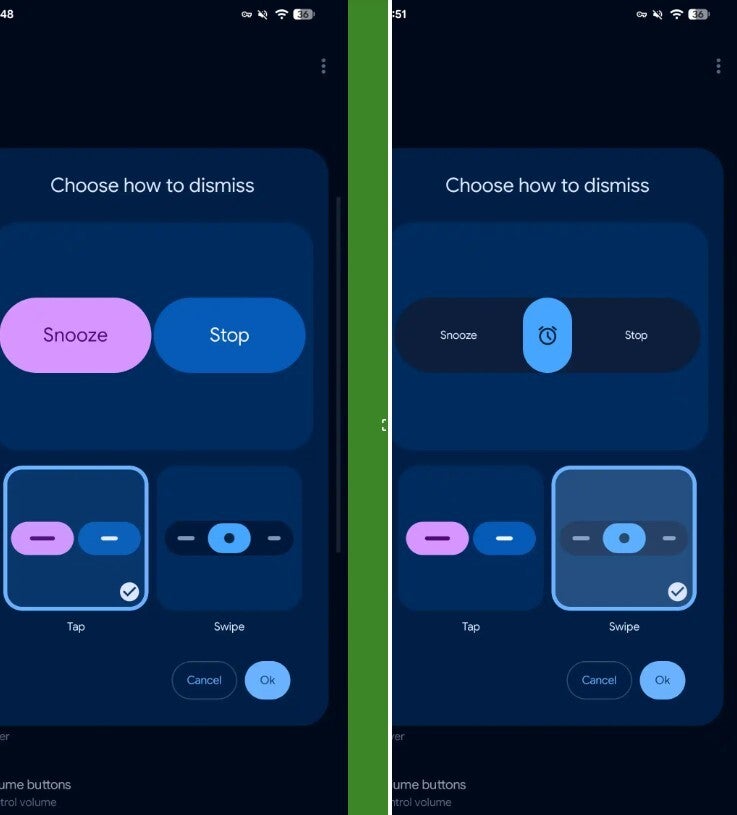
Now you probably haven't been waiting with bated breath for Google Clock 8.5, but the latest version of the app was released last week. Once the new version of the app is available for your phone, you'll see a prompt telling you that "you can swipe or tap to dismiss your alarm." In Settings, there is a new "Dismiss alarm with a" preference option that allows you to choose the method you want to use to dismiss an alarm or timer.
The new Google Clock 8.5 feature allows you to add a Swipe to dismiss option for the app. | Image credit-9to5Google
Choose Tap and you can have two lozenge shaped buttons with Dynamic Color theming. Snooze is on the left and Stop is on the right. If you choose Swipe to dismiss, you'll be swiping to the left to Snooze and swiping to the right to Stop an alarm or timer. The new dismiss by swiping feature will be available with version 8.5 of the Google Clock app. Ironically, I received that update while working on this article. And while my Google Clock app did update to version 8.5, the new Swipe to dismiss feature did not arrive on my Pixel 6 Pro.
You'll have to wait for Google to pull the trigger on a server-side update
So now I must wait for Google to press the button on a server-side update to the Google Camera app that will add the new feature to the app. You should update the app to version 8.5. First, to see which version is on your phone, go to Settings > Apps > See all xxx apps. Scroll to Clock and tap on it. You are now on the Google Clock App Info page. Scroll to the very bottom and you'll see the version number in small print. If it reads version 8.5 or later, open the Clock app and tap the three-dot overflow icon on the right and tap on settings.
Recommended For You
Do you prefer to Tap or Swipe to Dismiss an app?
24 Votes
Tapping is the best.
25%
Swiping is the best alarm dismissal method.
25%
They both have good and bad points.
50%
If you see a listing for "Dismiss alarm with a" preference, it means that you have the new feature. Press on that listing to set up your dismissal preference between Tap and Swipe.
If your version of the Google Clock app is less than 8.5, open the Google Play Store and tap your profile icon with your initials in the upper right corner. Go to Manage apps & device > Update apps and tap the Update all button. After the update is done, check to see whether you have version 8.5 of the Google Clock app and look in the settings for the listing we previously told you would indicate that the update has arrived on your phone.
I like that Google is giving us the opportunity to decide whether or not to Tap to dismiss or Swipe to Dismiss. Follow the directions in this article to see if you now have this feature on your Android phone.
Mint Mobile's 6-month plans now cost $10/mo
$10
/mo
$35
$25 off (71%)
Mint Mobile is celebrating its 10-year anniversary with a special offer on its six-month subscription plans. For a limited time, you can get your preferred tier (6GB, 17GB, 23GB or unlimited) for just $10/mo. That saves you between 50% and 71% on the carrier's mobile plans, making it way easier to recommend.
Alan, an ardent smartphone enthusiast and a veteran writer at PhoneArena since 2009, has witnessed and chronicled the transformative years of mobile technology. Owning iconic phones from the original iPhone to the iPhone 15 Pro Max, he has seen smartphones evolve into a global phenomenon. Beyond smartphones, Alan has covered the emergence of tablets, smartwatches, and smart speakers.
A discussion is a place, where people can voice their opinion, no matter if it
is positive, neutral or negative. However, when posting, one must stay true to the topic, and not just share some
random thoughts, which are not directly related to the matter.
Things that are NOT allowed:
Off-topic talk - you must stick to the subject of discussion
Offensive, hate speech - if you want to say something, say it politely
Spam/Advertisements - these posts are deleted
Multiple accounts - one person can have only one account
Impersonations and offensive nicknames - these accounts get banned
To help keep our community safe and free from spam, we apply temporary limits to newly created accounts:
New accounts created within the last 24 hours may experience restrictions on how frequently they can
post or comment.
These limits are in place as a precaution and will automatically lift.
Moderation is done by humans. We try to be as objective as possible and moderate with zero bias. If you think a
post should be moderated - please, report it.
Have a question about the rules or why you have been moderated/limited/banned? Please,
contact us.





Things that are NOT allowed:
To help keep our community safe and free from spam, we apply temporary limits to newly created accounts: