Ever since Google changed the Phone by Google app in July 2025, some Pixel users have been upset. The Contacts icon was removed from the bottom navigation bar where it could be easily accessed. Instead, your Contacts list is now available via a sidebar menu.
The Phones by Google app returns to the previous UI to make it easier to access your contacts
I can see where that could be a pain, although truthfully, I don’t use the Contacts app that often. To access the Contacts list after that update, a user opens the Phone app by tapping the icon with the image of a phone receiver, as though you were going to make a call.
Which of these Google apps would you most like to beta test on Android?
0 Votes
Once the Phone app opens, you tap the three-line hamburger icon to open a menu. From that menu, tap on Contacts to see your list. Sure, there are other ways to access your contacts, but this might be the most widely known method, as long and annoying as it is.
Google is bringing "Contacts" back to the Phone by Google app's navigation bar
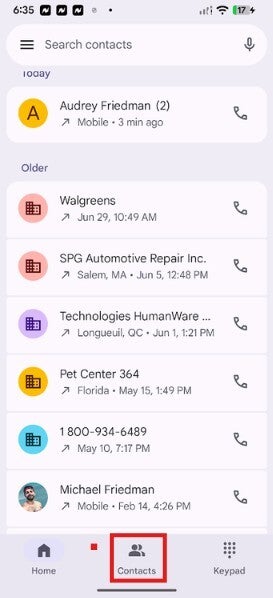
Now, it appears that Google has changed things once again by returning to the previous UI. If you're running the beta version of the Phone by Google app on your Pixel, you can access your Contacts by opening the Phone app and tapping the Contacts icon at the bottom of the screen. That's all there is to it.
You need to be running the v40.0.986973448 beta version of the Phone by Google app in order to get the new UI, which, as we pointed out, is actually the old UI back for an encore.
Checking my Pixel 6 Pro, which is running the correct Phone by Google beta, the Contacts icon has been returned to the navigation bar at the bottom of the Phone app, which many of you might find easier to use.
I've always made a point of subscribing to the beta version of each Google app I've installed on an Android phone. I recommend that you do, too, if you want early access to new features on an app.
How to sign up to be a beta tester for Google apps on Android
To sign up to be a beta tester for your favorite Google apps on Android, go to the Google Play Store and open the listing for each Google app whose beta you want to join. Scroll down until you see the section that reads, "Join the beta" and tap on it. To make it clear, you'll have to do this for each app whose beta you want to join.
Recommended For You
If you don’t see an option to join the beta on a particular app listing, it could mean that the beta is full, closed, or is not available. In addition, leaving a beta is just as easy. Go back to an app's Play Store listing, scroll down and tap on "Leave."
Google returns Contacts access from the Phone by Google app to the way it used to be. | Image by PhoneArena
If you decide to leave a beta you'll have to uninstall the app and then reinstall it. Unlike the typical operating system beta, there is no punishment for leaving the beta program since you aren’t locked into this kind of beta.
Changing the UI is simply a typical Google move
It shouldn’t be too surprising to see Google respond to upset Pixel users by making this adjustment as the Alphabet subsidiary is always working to update the UI of its apps to make them easier for users to navigate.
For some strange reason, if your Android phone does not have the Phone by Google app installed, you can download it on your Android device by tapping on this link.
On the Visible+ Pro plan, you get access to 5G Ultra Wideband data on Verizon's fastest network. Along with unlimited roaming across Mexico and Canada, 2 days of Global Pass per month, 3x hotspot speeds, 4K streaming, and Smartwatch service.
Alan, an ardent smartphone enthusiast and a veteran writer at PhoneArena since 2009, has witnessed and chronicled the transformative years of mobile technology. Owning iconic phones from the original iPhone to the iPhone 15 Pro Max, he has seen smartphones evolve into a global phenomenon. Beyond smartphones, Alan has covered the emergence of tablets, smartwatches, and smart speakers.
A discussion is a place, where people can voice their opinion, no matter if it
is positive, neutral or negative. However, when posting, one must stay true to the topic, and not just share some
random thoughts, which are not directly related to the matter.
Things that are NOT allowed:
Off-topic talk - you must stick to the subject of discussion
Offensive, hate speech - if you want to say something, say it politely
Spam/Advertisements - these posts are deleted
Multiple accounts - one person can have only one account
Impersonations and offensive nicknames - these accounts get banned
To help keep our community safe and free from spam, we apply temporary limits to newly created accounts:
New accounts created within the last 24 hours may experience restrictions on how frequently they can
post or comment.
These limits are in place as a precaution and will automatically lift.
Moderation is done by humans. We try to be as objective as possible and moderate with zero bias. If you think a
post should be moderated - please, report it.
Have a question about the rules or why you have been moderated/limited/banned? Please,
contact us.





![Another batch of Galaxy S26 series users in the US are getting a nice surprise today [UPDATED]](https://m-cdn.phonearena.com/images/article/183643-wide-two_350/Another-batch-of-Galaxy-S26-series-users-in-the-US-are-getting-a-nice-surprise-today-UPDATED.webp)
Things that are NOT allowed:
To help keep our community safe and free from spam, we apply temporary limits to newly created accounts: