Wi-Fi bug affecting your HTC One X or HTC One S? Here's a solution


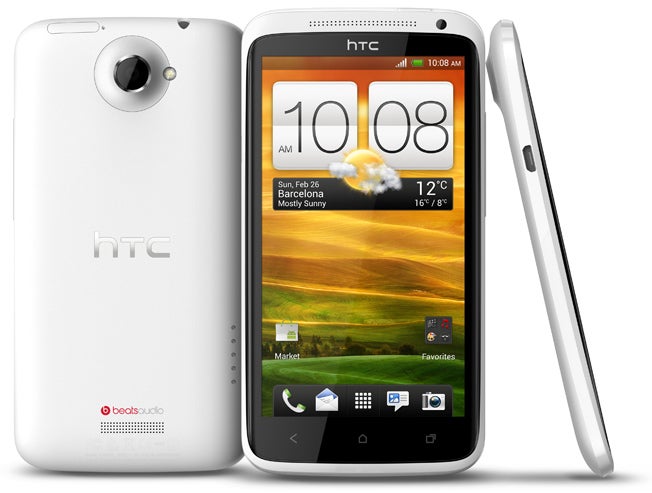
The HTC One X
- First, go to Settings > Wifi and tell your phone to disconnect from your network if you're already connected to it.
- Select your network once again from the list, and enter your password as usual.
- Tick "Show advanced options" and some extra options will appear. Select "IP settings" and choose "Static" instead of "DHCP."
- IP Address: The IP address you want to assign to your phone. This should normally be taken from the pool of IPs available for devices to claim via DHCP (check your router's admin page if in doubt). Usually something on the same subnet as your router will do. For example, if your router is 192.168.0.1, then 192.168.0.2 to 192.168.0.254 should be good.
- Gateway: The IP address of your router, usually 192.168.0.1, 192.168.1.1 or 192.168.1.254.
- Network prefix length: This is a different way of specifying your network's subnet mask (check a conversion table here). For most, the default "24" will work just fine.
- DNS1/DNS2: Your ISP's primary and secondary DNS servers. If you're not sure, you can always use Google's public DNS service by entering 8.8.8.8 and 8.8.4.4, as we've done in our screenshots above.
- Click "Connect" and you should be good to go!
The site suggests that if you are still experiencing problems with your Wi-Fi connection after this workaround, go to advanced Wi-Fi setting and enable "Best Wi-Fi performance". If all of this doesn't work, check your settings and if everything checks out right, you just might have to wait for HTC to send out its firmware update. Or, you can just connect using your carrier's pipeline.
source: AndroidCentral





![T-Mobile representative paints a super grim future for customers, reveals how you’re being lied to in stores [UPDATED]](https://m-cdn.phonearena.com/images/article/173253-wide-two_350/T-Mobile-representative-paints-a-super-grim-future-for-customers-reveals-how-youre-being-lied-to-in-stores-UPDATED.webp)




 FCC OKs Cingular\'s purchase of AT&T Wireless
Things that are NOT allowed:
To help keep our community safe and free from spam, we apply temporary limits to newly created accounts: